Edit Documents in ChatGPT
Last updated
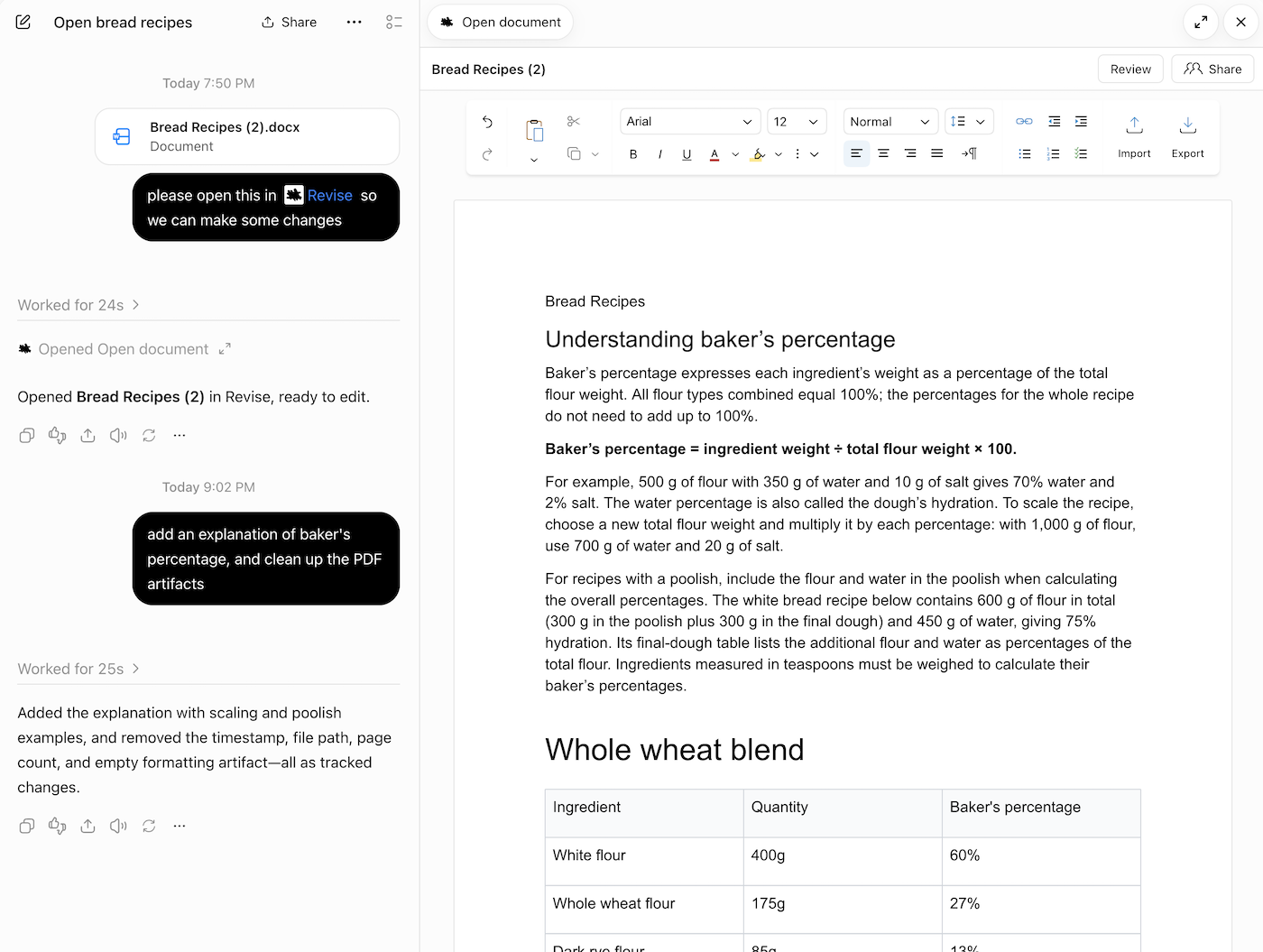
The free Revise plugin lets you edit documents directly in ChatGPT. Install the plugin, and you can open a full word processor side by side with your chat, where you and ChatGPT create and edit documents together.
You can import Word, Markdown, plain text, and other documents, work on them in the editor, and export the result as Word, PDF, HTML, Markdown, or plain text. You can also create a blank document and paste in content from a Google Doc or any other source.
Add Revise to ChatGPT
- Install the Revise plugin in ChatGPT.
- In ChatGPT, select the Revise plugin by typing "@Revise" or choosing it from your plugins list.
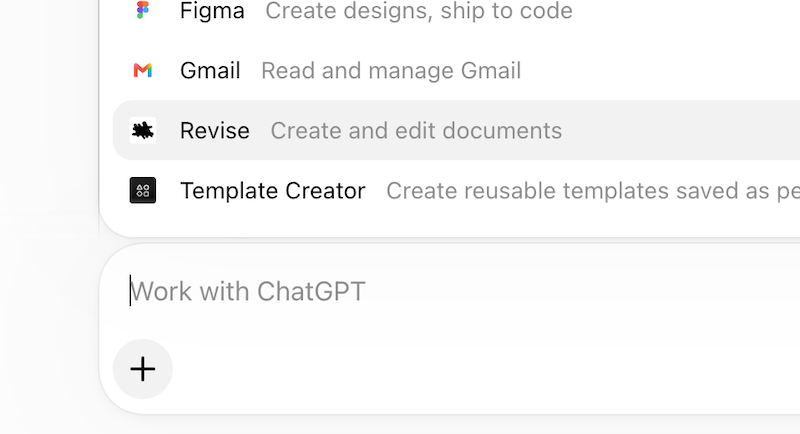
Choosing Revise in the ChatGPT message box - Tell ChatGPT what you want to do: create a new document, open an existing one, or research a topic and write a report. ChatGPT can handle any word-processing task with the Revise editor.
Create a document
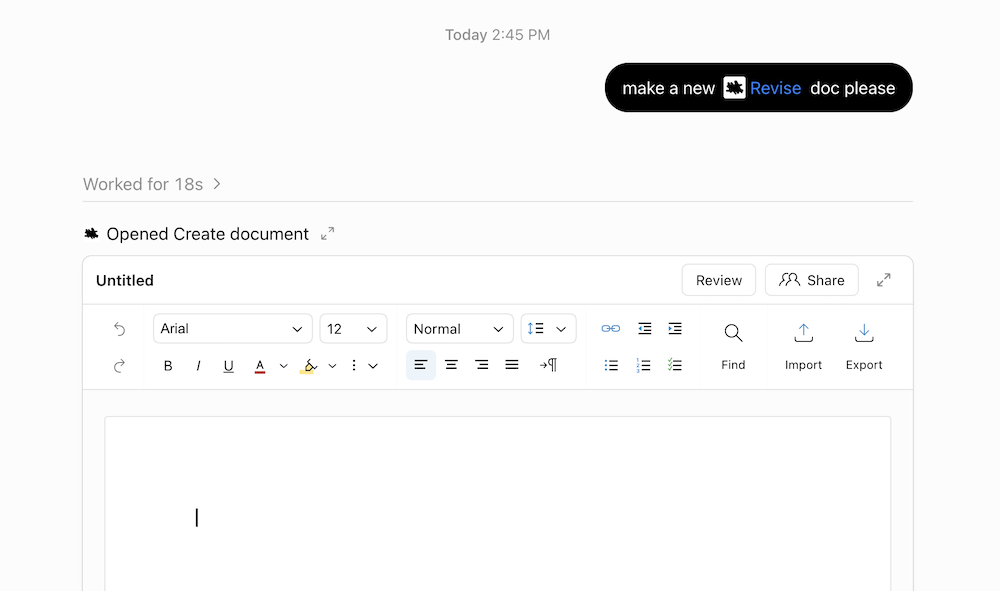
The fastest way to start is to ask ChatGPT to create a new document. This opens an interactive editor where you can start typing, have ChatGPT write something, or paste or import an existing document.
Expand the editor
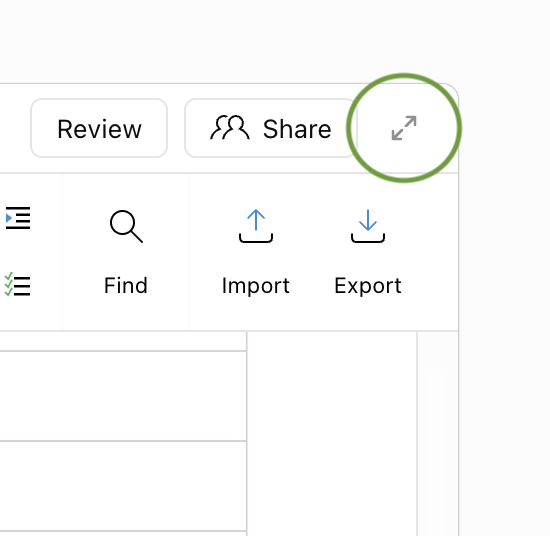
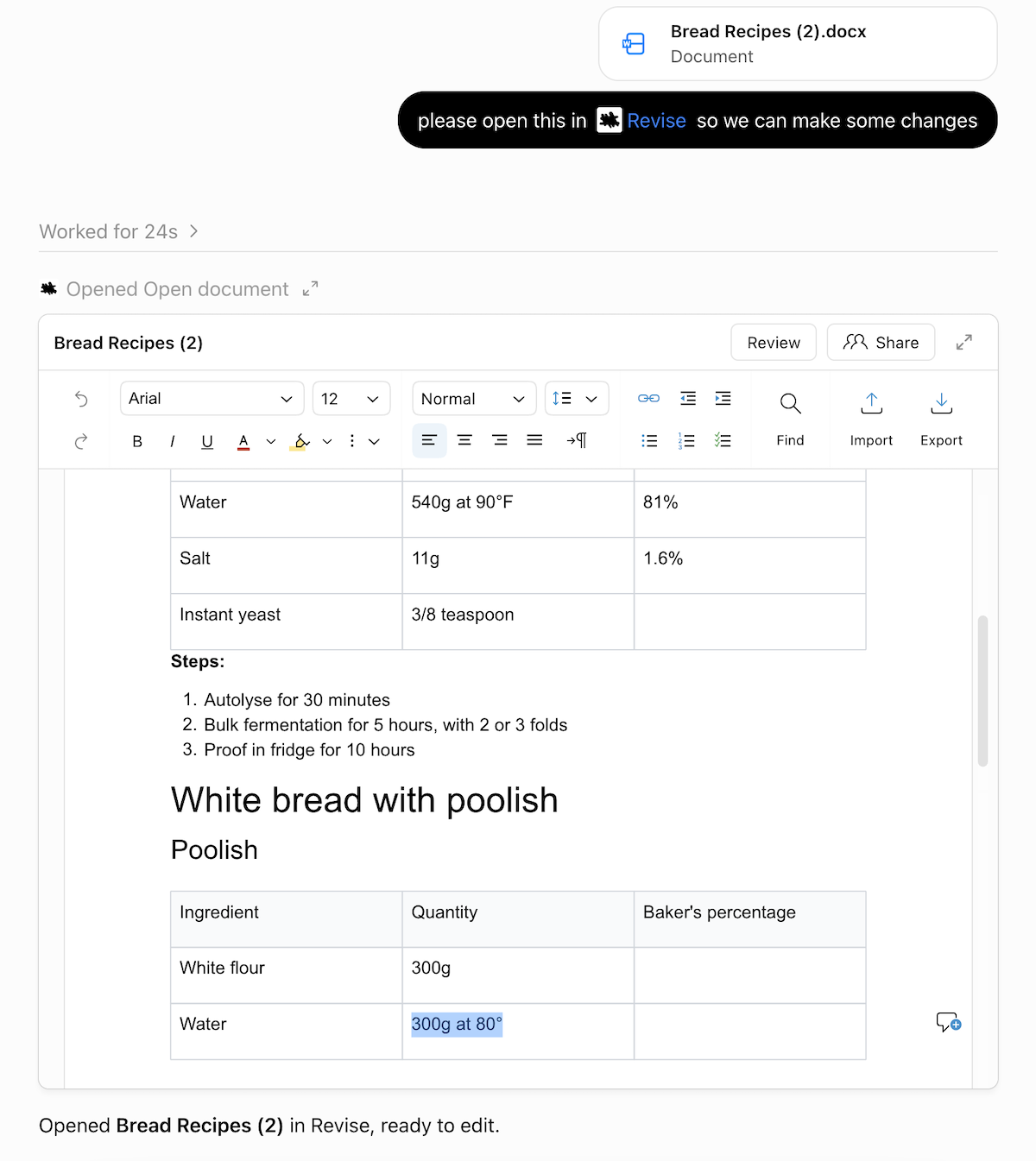
Click the expand button (two arrows) to open the document in a larger panel beside your chat. This keeps your document in view throughout a long conversation.
Open an existing document
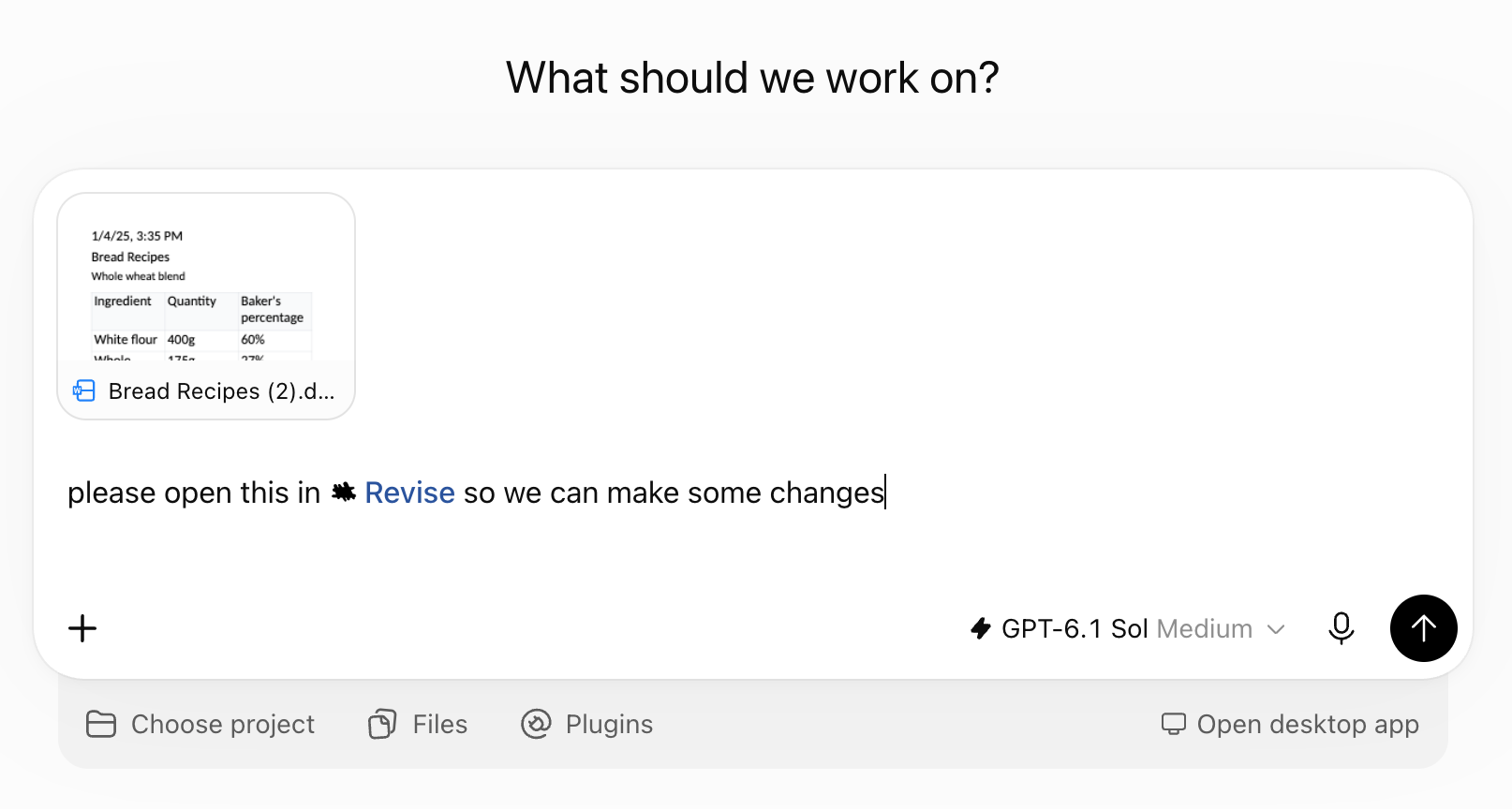
Attach a file to your message and ask ChatGPT to open it in Revise. From there, you can ask for revisions, proofreading, critique, or anything else. Every change appears in the editor as ChatGPT makes it.
Ask ChatGPT to edit
Ask for changes in the chat. ChatGPT edits the document, and the changes appear in the editor as it makes them. ChatGPT's cursor marks where it last edited.
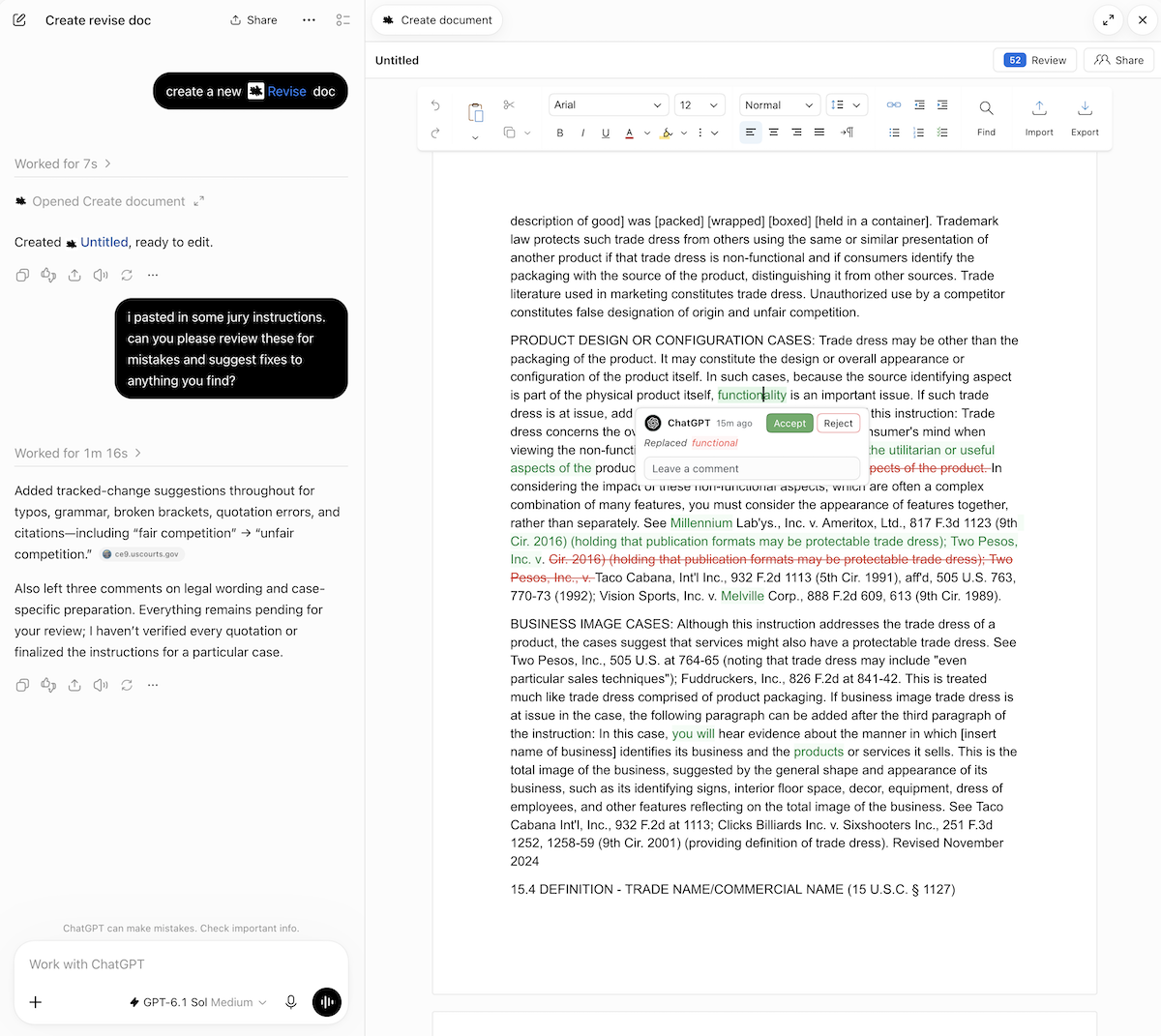
To review changes before they take effect, ask ChatGPT to suggest them. Suggested changes appear as tracked changes: added text in green, removed text in red.
Click a change to see who made it and when. Click Accept to keep it or Reject to undo it. You can also reply to the change, or ask ChatGPT to accept or reject its changes. See Suggesting mode.
Point ChatGPT at a passage
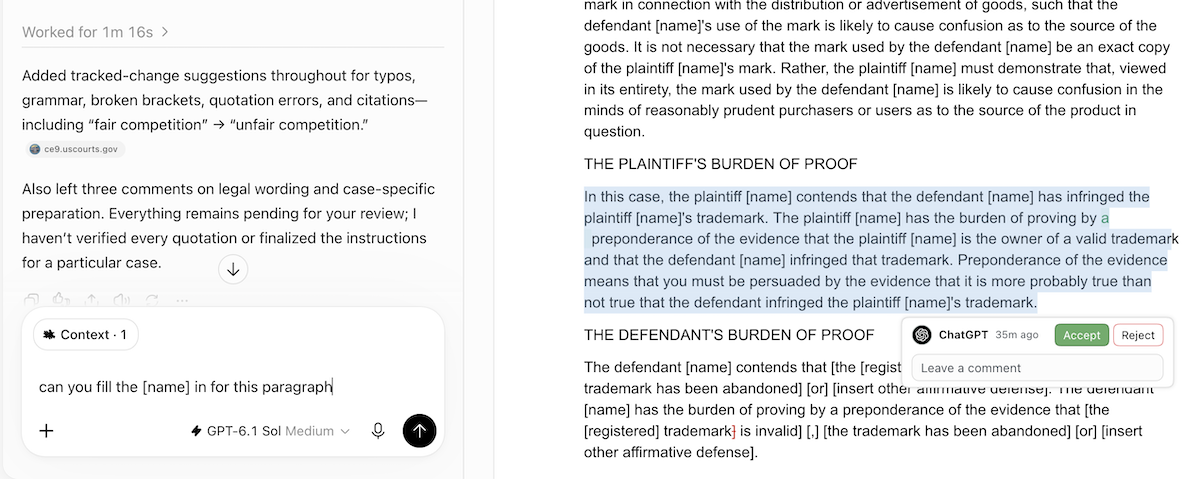
Select text in the editor, then send your request. ChatGPT sees what you selected, so "make this shorter" applies to the selection.
Edit the document yourself
Click in the document and type. Changes save as you type, and ChatGPT sees them the next time it reads the document. Copy and paste work as in any editor.
The toolbar above the page has these controls.
| Control | What it does |
|---|---|
| Undo, Redo | Undo or redo your last edit. |
| Font, size, text styles | Font, size, bold, italic, underline, text color, highlight, and more text styles. |
| Paragraph | Paragraph style, line spacing, alignment, and text direction. |
| Links and lists | Add a link, change indentation, and make lists. |
| Find | Find text in the document. |
| Import | Import a file as a new document. See Import a file. |
| Export | Download the document. See Export to Word or PDF. |
In a narrow window, the toolbar drops Find first, then Import and Export, then the link and list controls.
Import a file
Besides attaching a file in the chat, you can import one straight into the editor.
- Click Import in the toolbar and choose the file. You can also drag the file onto the page. While you drag, the editor shows Drop to import.
- Revise creates a new document from the file and opens it in place of the current one.
- Ask ChatGPT to work on it. ChatGPT knows which document you opened.
| Formats | Limit |
|---|---|
| Word (.docx), OpenDocument (.odt), Rich Text (.rtf), Markdown (.md), HTML, plain text (.txt), XML | 25 MB per file |
PDFs and images can't be imported this way. Import them in the Revise editor instead. If an import fails, the reason appears under the document title.
Export to Word or PDF
- Click Export in the toolbar.
- Choose PDF Document, Word Document, HTML File, Markdown, or Plain Text.
A Word document keeps suggested changes as tracked changes. The other formats leave them out. See Import and export.