Revise Blog - Building a post-AI word processor
How to edit Microsoft Word files with ChatGPT
Learn how to edit, proofread, summarize, and translate your Word documents with GPT-5
 Artur Sapek, Founder of Revise13 min read
ChatGPT is great at proofreading and editing Word documents - but copying-and-pasting between the two is slow and error-prone. This guide covers the better ways.
To try one now, paste or upload your .docx below and edit it with GPT-5 right in your browser - nothing to install.
There are four ways to skip the copy-paste loop:
- A ChatGPT add-in for Word. Bolts a ChatGPT sidebar onto desktop Word - covered later in this guide.
- Ask ChatGPT for a redlined file. ChatGPT can generate downloadable files, including a fresh
.docxmarked up with Word’s tracked changes - though every pass means downloading a new copy. - The Revise plugin for ChatGPT. Add it on chatgpt.com and ChatGPT edits real documents from your conversation - open, review, and export to
.docxat any time. - The Revise editor. Open your
.docxin Revise, a browser-based word processor with GPT-5 built in, and watch its edits appear inline as you work.
The last two share the same documents underneath, so you can draft in ChatGPT and polish in the editor - or the other way around.
Can ChatGPT edit Word documents?
Yes - ChatGPT can edit Word documents, but only by uploading and downloading copies of .docx files. Or, you can take the copy-and-paste approach: copy a paragraph, paste it into the chat, have ChatGPT rewrite it, copy the output, paste it back into Word.
The problem is ChatGPT can't edit documents collaboratively with you, in the same interface. That's where Revise comes in - either as a plugin inside ChatGPT or as a full browser-based editor with GPT-5 built in.
To be clear, ChatGPT reads uploaded Word files well - better than PDFs, which tend to lose structure and reading order - but it only sees the extracted body text, and either way you're shuttling copies back and forth and re-applying formatting by hand. For anything longer than a few paragraphs that loop becomes the bottleneck. Bringing the model to the document instead of the document to the model unlocks a few things:
- Whole-document context. The AI can see your entire draft - headings, structure, terminology - so its edits stay consistent instead of treating each paragraph in isolation.
- Edits land in place. Rewrites, fixes, and new sections are applied directly in the document with formatting intact, not pasted back as raw text.
- You stay in control. The best setups show every change as a tracked suggestion you can accept or reject, so the AI never silently overwrites your work.
- One surface for writing and editing. No alt-tabbing between Word and a chatbot - you brainstorm, draft, and revise in the same place.
Edit Word documents inside ChatGPT with the Revise plugin
The Revise plugin for ChatGPT turns your conversation into a live editing session on a real document. You and ChatGPT work on the same document at the same time: keep the document open while you chat and you can watch its edits appear the moment it makes them, as inline suggestions you accept or reject - while you keep typing, in a full word processor. No more pasting text back and forth or downloading a fresh copy after every change. And because the AI runs on your existing ChatGPT subscription rather than ours, it’s free and unlimited on any Revise plan.
Step 1 - Install the plugin
Open the Revise plugin page on chatgpt.com and add it to your account. That’s the whole install - it works in the ChatGPT you already use, on the web or in the apps.
Step 2 - Hand ChatGPT your document
Attach your Word file to the conversation, or just describe what you want written. ChatGPT turns it into a real Revise document it can keep working on across the whole conversation - no re-uploading a fresh copy every time you want another pass.
Step 3 - Edit by chatting, like you already do
“Proofread this,” “make the tone more formal,” “rewrite the intro” - the same prompts you’d use today, except the edits land in the document itself instead of coming back as a wall of chat text you have to merge by hand.
Step 4 - Open, review, and export
Every document the plugin touches has a link you can open in Revise, where the AI’s edits appear as tracked changes you can accept or reject - and from there it’s one click to export a properly formatted .docx, PDF, or shareable link.
When should you use the plugin versus the Revise editor? Use the plugin when ChatGPT is already where you do your writing and editing work. Use the editor (below) when you want to see the document while you work - reviewing a diff inline, restyling, and paginating like a word processor. They’re the same documents either way, so it’s never an either/or decision.
Edit Word documents with GPT-5 in Revise
Revise is a word processor with GPT-5 built into the editor itself. There’s nothing to install - you open your Word file in the browser and an AI agent that can see and edit the whole document is right there. Here’s the full workflow:
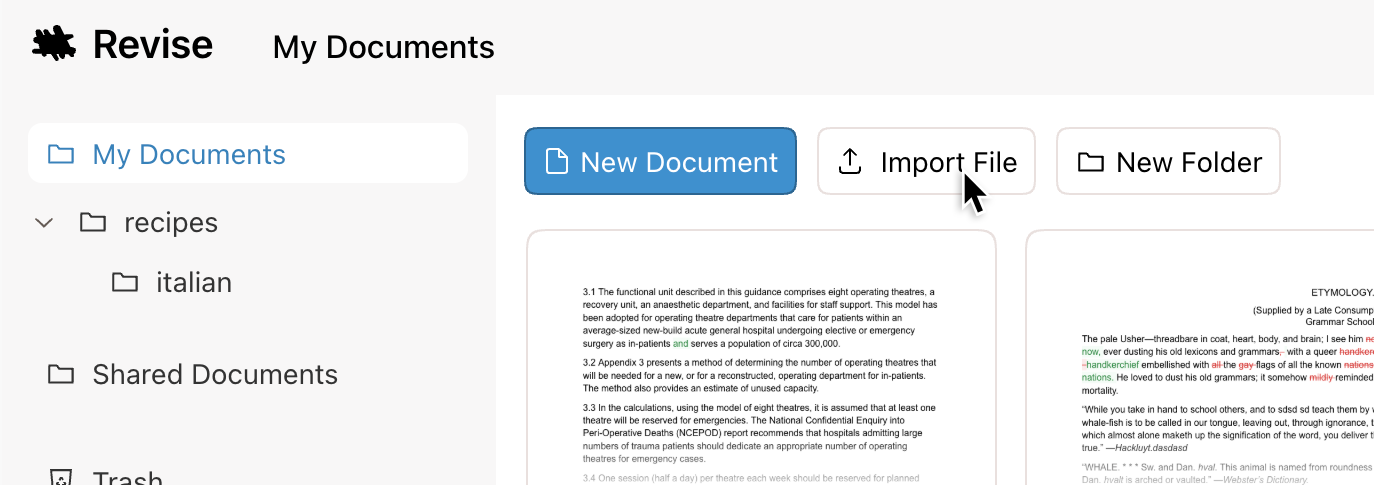
Step 1 - Import your .docx file
Drag your Word document onto the editor box at the top of this page (or click Import .docx). Revise preserves your formatting on import - headings, lists, tables, bold and italic, fonts, and images all come across intact. You can also start from a blank document and paste text in.
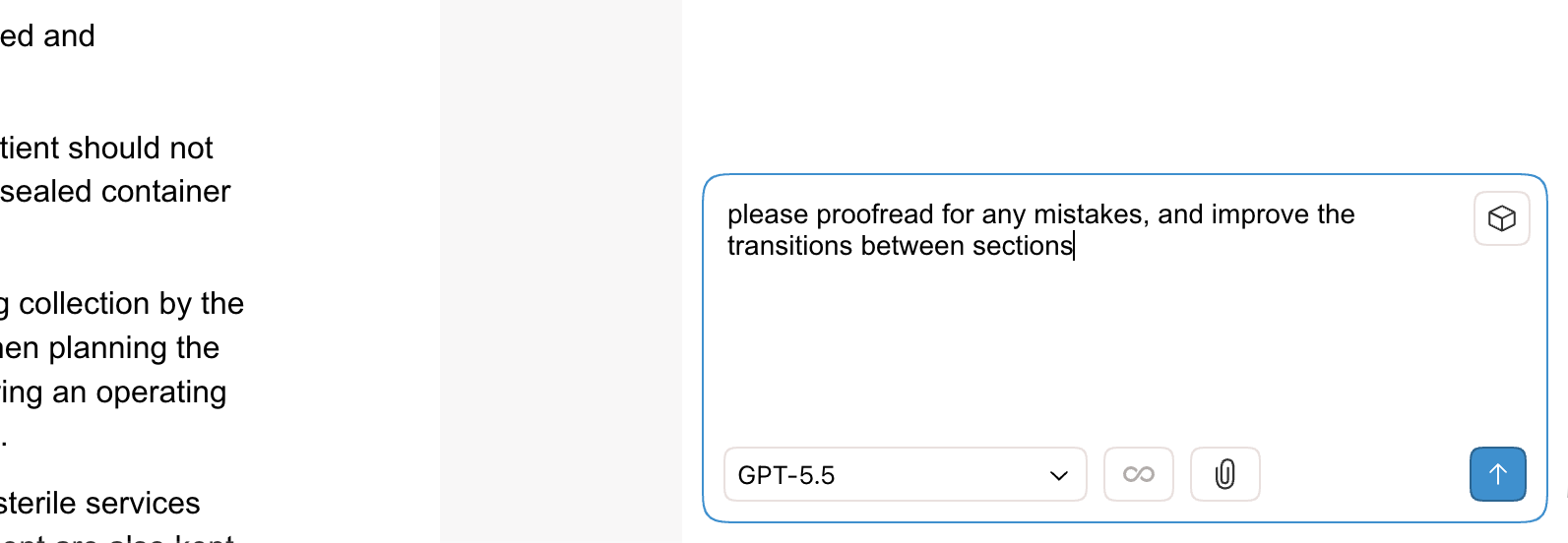
Step 2 - Ask GPT-5 what you want
Open the AI chat panel and tell it what you need in plain English: “Proofread this and fix any grammar mistakes,” “Tighten the introduction,” “Make the tone more formal,” or “Summarize section 2 in three bullet points.” Because the model can read the entire document, you can also reference it as a whole: “Make the terminology consistent throughout.”
Step 3 - Review the suggested changes
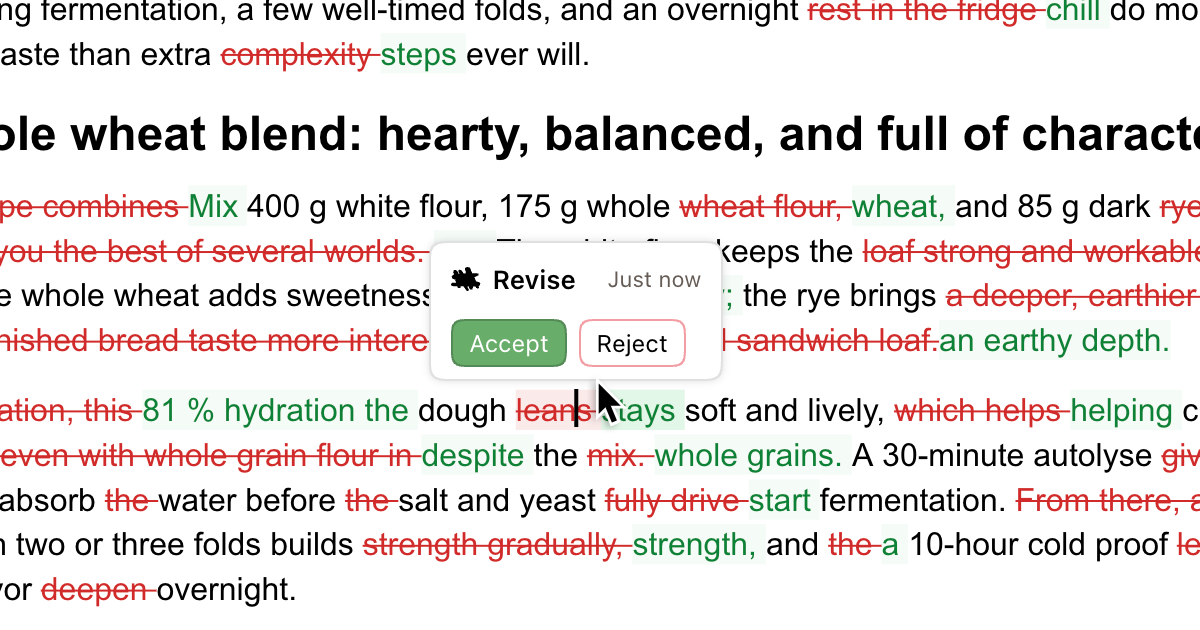
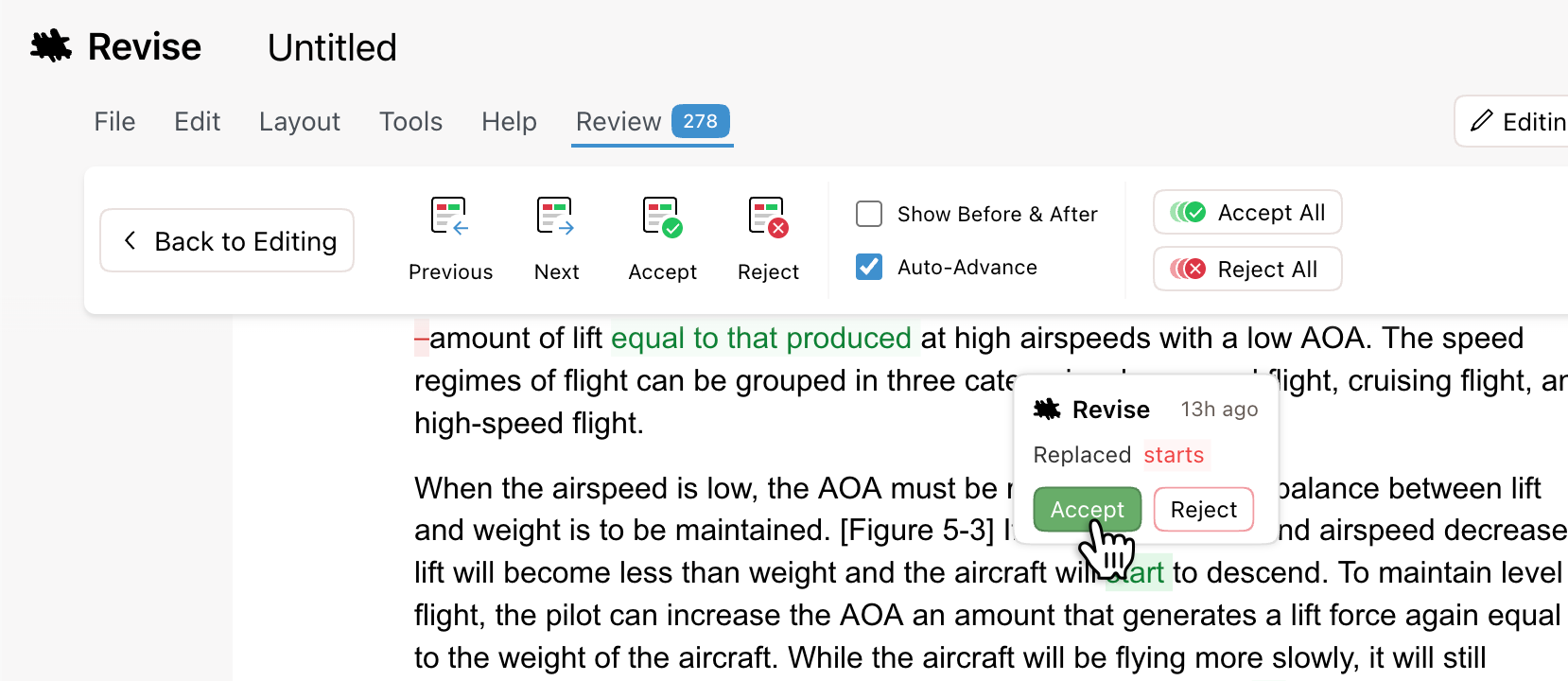
GPT-5 proposes its edits inline as tracked changes - additions in green, deletions in red - exactly like reviewing a colleague’s markup. Nothing is final until you say so.
Step 4 - Accept, reject, or refine
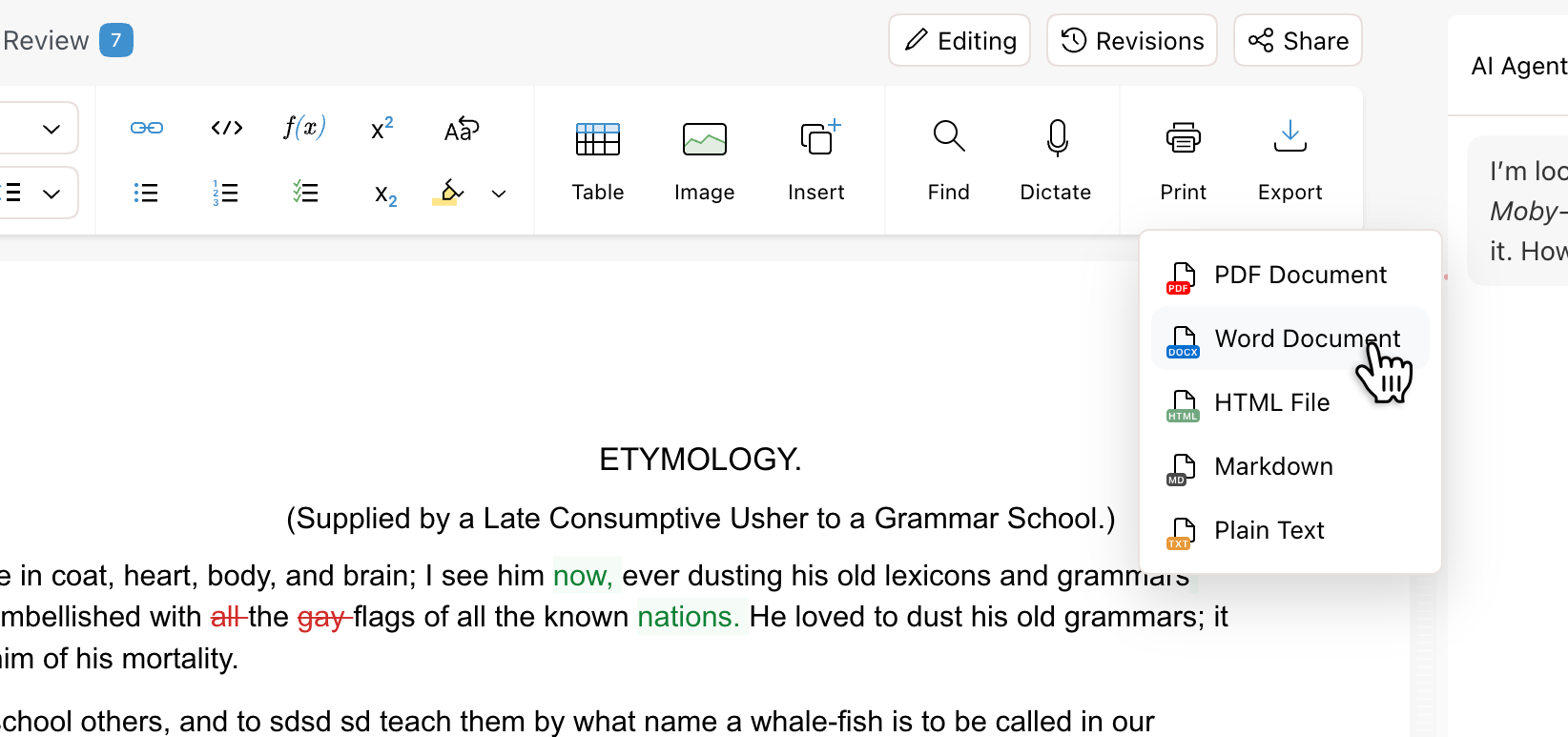
Accept the changes you like, reject the ones you don’t, or ask for another pass (“a bit shorter,” “keep the second paragraph”). When the document is ready, export it back to .docx and your formatting comes with it.
That’s the whole loop - no API key, no admin approval, no desktop install. It runs in any browser, on any operating system.
What you can do with GPT-5 in your documents
Once GPT-5 can see your whole document, the common Word writing tasks get a lot faster:
- Proofread and fix grammar - catch typos, awkward phrasing, and inconsistent punctuation in one pass.
- Rewrite for tone - make a draft more formal, friendlier, more concise, or fit a specific audience.
- Summarize long documents - turn a 20-page report into an executive summary or a few bullet points.
- Translate - convert a document into another language while keeping structure and formatting.
- Expand and draft - flesh out an outline, write a missing section, or generate a first draft from notes.
- Extract information - pull out key dates, names, action items, or figures into a clean list.
Edit with tracked changes you can accept or reject
The feature people miss most from a sidebar plugin is real review control. In Revise, every edit GPT-5 makes shows up as a visual revision - a git-style red/green diff layered over your document. You can see precisely what changed, accept improvements line by line, and reject anything that drifts from your intent. The AI proposes; you decide. That makes it safe to let the model touch a real, important document instead of a throwaway copy.
Revise also keeps a full revision history, so you can scrub back through every version of the document and see exactly how it evolved - including which edits came from you and which came from GPT.
Can ChatGPT see the comments in a Word document?
Not on chatgpt.com - when you upload a .docx there, margin comments and tracked changes are stripped out with the rest of the markup, so the model never sees the review conversation happening in your document. If you’re working through a draft your colleagues have marked up, that’s exactly the context you want the AI to have.
In Revise, comments and existing tracked changes survive the .docx import, and the AI reads every comment thread alongside the text. Ask it to “address all of the reviewer feedback” and it works through the comments one by one - it can even reply inside a thread to explain what it changed.
Choosing a model: GPT-5, GPT-5 Mini, or Claude
Different jobs call for different models. Revise lets you switch between OpenAI’s GPT-5, GPT-5 Mini, and GPT-5 Pro depending on whether you want maximum quality, speed, or lower cost - pick the fast model for quick proofreading and the most capable one for heavy rewriting or long documents.
Prefer Anthropic’s models? The same editor works with Claude too - Revise also supports Claude. And if your files live in Google Docs rather than Word, the workflow is identical with Google Docs.
Can ChatGPT format a Word document?
In chat, not really: it can describe the styles you should use, or regenerate your file with rudimentary formatting, but it can’t apply styling to the document you have. An editor with the model inside it can - provided the editor itself is up to the job.
Where AI document editors differ most is in how much of Word’s feature set they actually model. Many browser editors handle rich text but not pagination, section breaks, or native tracked changes - so those parts of a .docx are dropped on import and can’t survive the round trip back to Word.
Revise is a full word processor, with support for all the features that Word has. Tracked changes and comment threads, footnotes and endnotes, section breaks with per-section headers and footers, multilevel legal numbering that renumbers live as you edit, a live table of contents, tab stops, watermarks, line numbering, widow and orphan control - with real pagination, so page 47 in Revise is page 47 in Word.
Export back to .docx and any suggestions you haven’t resolved become native Word tracked changes, with comments and footnotes intact - the docx compatibility matrix documents exactly what round-trips and what doesn’t.
Can ChatGPT create Word documents? Export back to .docx
ChatGPT can technically create Word documents - ask on chatgpt.com and its code tools will generate a downloadable .docx - but again, this just dumps out a new .docx copy and you can't make iterative changes with ChatGPT helping. Drafting with GPT-5 inside a word processor like Revise is a much more efficient workflow.
When you’re done editing, export the document straight back to .docx and open it in Microsoft Word - your headings, styles, tables, and images are preserved. You can also export to PDF, Markdown, or HTML, or share a live link so collaborators (or another AI agent) can keep working in the same document. Your Word file stays the source of truth; Revise is just the fastest place to edit it with GPT-5.
Is it free? Pricing, and the free ChatGPT plugin
Revise’s free tier covers the whole workflow in this guide: import your .docx, edit it, export it back to Word, and use the built-in AI with a limited number of requests - enough to use GPT-5 for small-medium tasks. Upgrading to Pro unlocks much more AI usage and the most capable models; for heavy daily use there’s a Max tier above it. For most people, Pro is the right fit.
And if you already pay for ChatGPT, there’s a third option: the Revise plugin for ChatGPT covered earlier in this guide. Because the AI runs on your ChatGPT subscription rather than Revise’s, there are no request limits to think about at all - it’s free and unlimited on any Revise plan, including the free one. Edit documents in ChatGPT all day, then open them in Revise whenever you want to review changes or export to .docx.
The alternative: a ChatGPT Word add-in
The other way to get ChatGPT in Microsoft Word is the traditional Word add-in from the Microsoft 365 store. If you specifically need to stay inside the Word desktop app, the flow looks like this:
- In Word, open Insert → Get Add-ins (or Add-ins → More Add-ins).
- Search the Office Store for a ChatGPT or “GPT for Word” add-in and choose Add.
- Open the add-in from the ribbon; it appears as a sidebar panel.
- Paste or select text, type a prompt, and insert the result back into your document.
This route makes sense when company policy requires desktop Word. The practical limitations to know about: most add-ins only see the text you select, not the whole document, so edits lose surrounding context; results come back as plain text in the sidebar for you to paste in, which can drop character formatting; and they can’t propose edits as tracked changes, so there’s no diff to review - you apply each suggestion by hand.
The bottom line
You can use a ChatGPT add-in with Word, but the smoother way to edit with GPT-5 is to bring real documents to the model. You get whole-document context, edits applied in place, tracked changes you control, and a one-click export back to Word - with no install and nothing to configure.
If you already use ChatGPT, the free plugin covered above lets your next conversation produce a real, exportable Word document at no extra cost on your ChatGPT subscription.
Or try it on a real document right here: import a Word file and start editing with GPT-5. It’s free to use with basic AI, and a paid upgrade adds more usage and the most capable models.