Revise Blog - Building a post-AI word processor
How to use Claude in Google Docs
Use Claude to proofread, rewrite, summarize, and translate your Google Docs - with whole-document context and changes you can accept or reject.
 Artur Sapek, Founder of Revise11 min read
Claude is one of the best models in the world at reading and editing long-form writing, and Google Docs is where a lot of that writing lives. The usual way to put them together is a third-party add-on plus your own Anthropic API key - workable, but clunky, and the AI only ever sees the slice of text in the sidebar.
There’s a cleaner way. Paste your Google Doc below (or drop in a .docx you exported from it) and Claude opens right beside your document in Revise - reading the whole thing, editing in place, no add-on and no API key.
Google Docs has some built-in AI, but it doesn’t let you choose Claude - and if you specifically want Anthropic’s models for their careful, natural editing, you’re stuck reaching for a marketplace add-on. This guide covers both routes: the add-on approach, and a faster one that brings your document into an editor with Claude already built in. We spend most of our time on the second, and you can try it on a real document at the top of this page.
Why use Claude with Google Docs?
Claude has a reputation for handling long documents and prose editing especially well - it keeps tone consistent, follows instructions precisely, and is comfortable working across a whole draft rather than one paragraph at a time. That matters most exactly where Google Docs is weakest for AI work:
- Long documents. Claude’s large context window lets it take in an entire report, chapter, or thesis at once - so its edits stay coherent from the first page to the last.
- Careful, reviewable edits. Instead of overwriting your text, the best setups surface every change as a suggestion you accept or reject - so you can trust Claude on a document that matters.
- Writing quality. For rewriting, tightening, and tone work, Claude’s output tends to need less cleanup than a generic sidebar autocomplete.
Method 1: Edit your Google Doc with Claude in Revise
Revise is a browser-based word processor with Claude built directly into the editor. There’s nothing to install and no API key to paste - you bring your Google Doc in and an AI agent that can see the whole document is right there. The whole loop:
Step 1 - Bring your Google Doc in
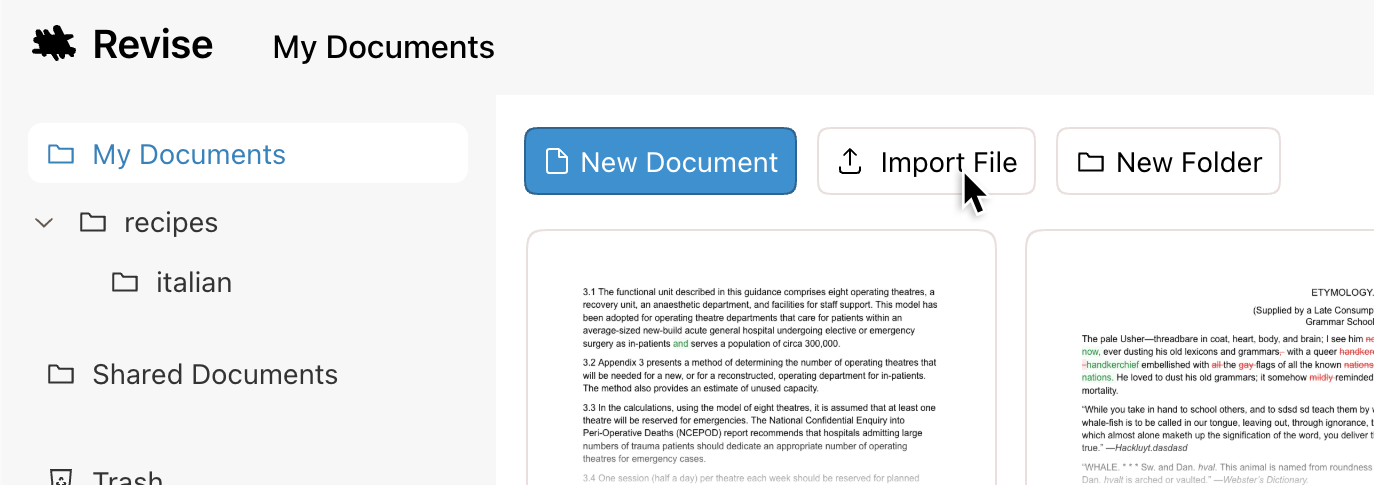
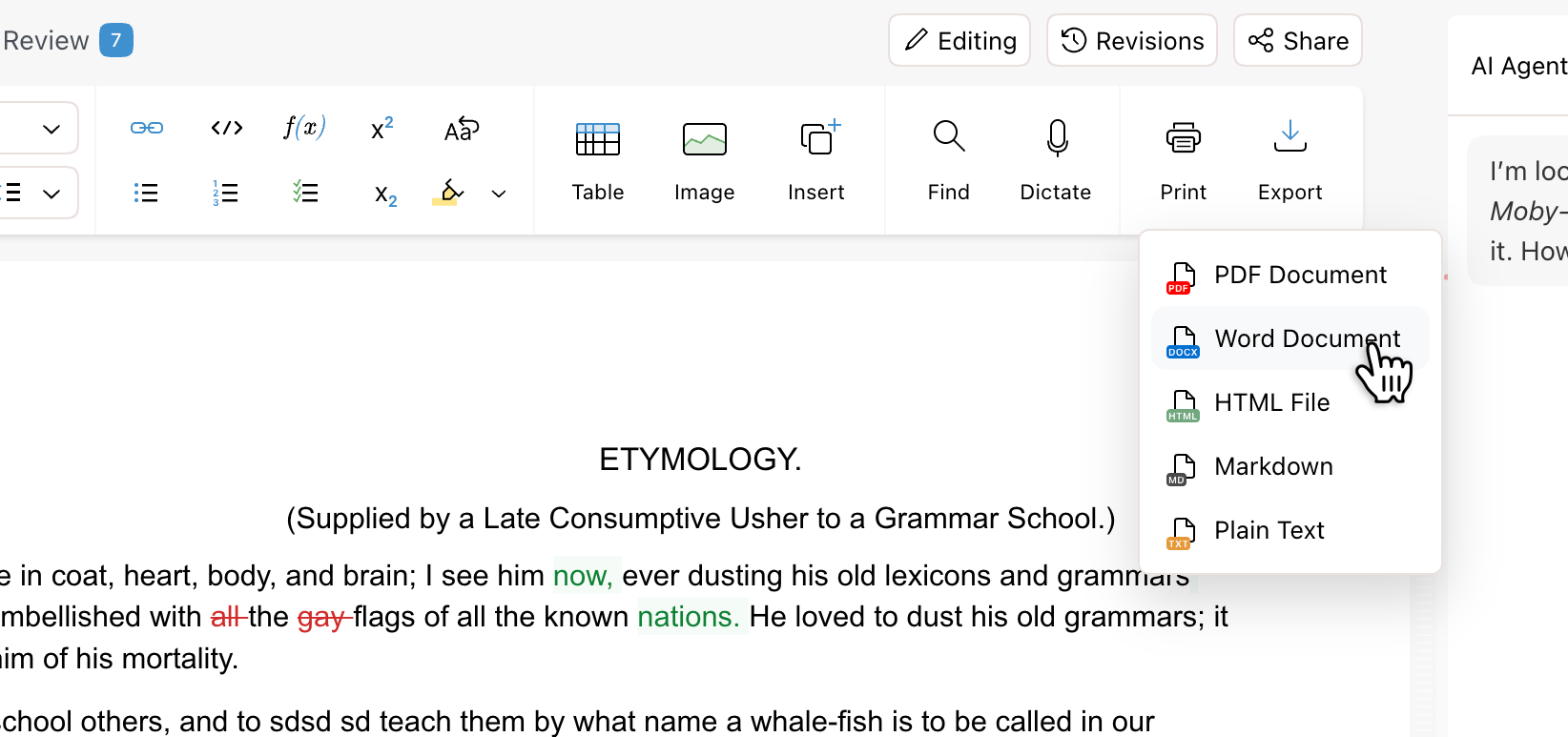
Two easy ways. For a quick draft, select all in Google Docs (Ctrl/Cmd+A), copy, and paste it into the editor at the top of this page. To preserve layout on a formatted document, in Google Docs go to File → Download → Microsoft Word (.docx), then import that file - Revise keeps your headings, lists, tables, and styles intact.
Step 2 - Tell Claude what you need
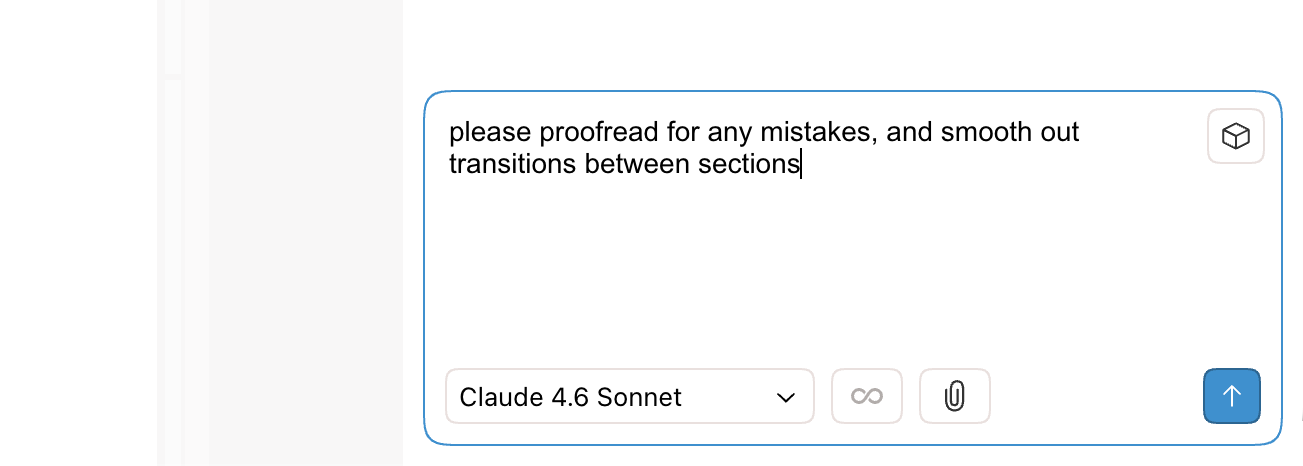
Open the chat panel and ask in plain English: “Proofread this and fix grammar,” “Tighten the introduction,” “Make the tone more formal,” or “Summarize the methodology section.” Because Claude can read the whole document, you can give it whole-draft instructions like “make the terminology consistent throughout.”
Step 3 - Review the suggestions
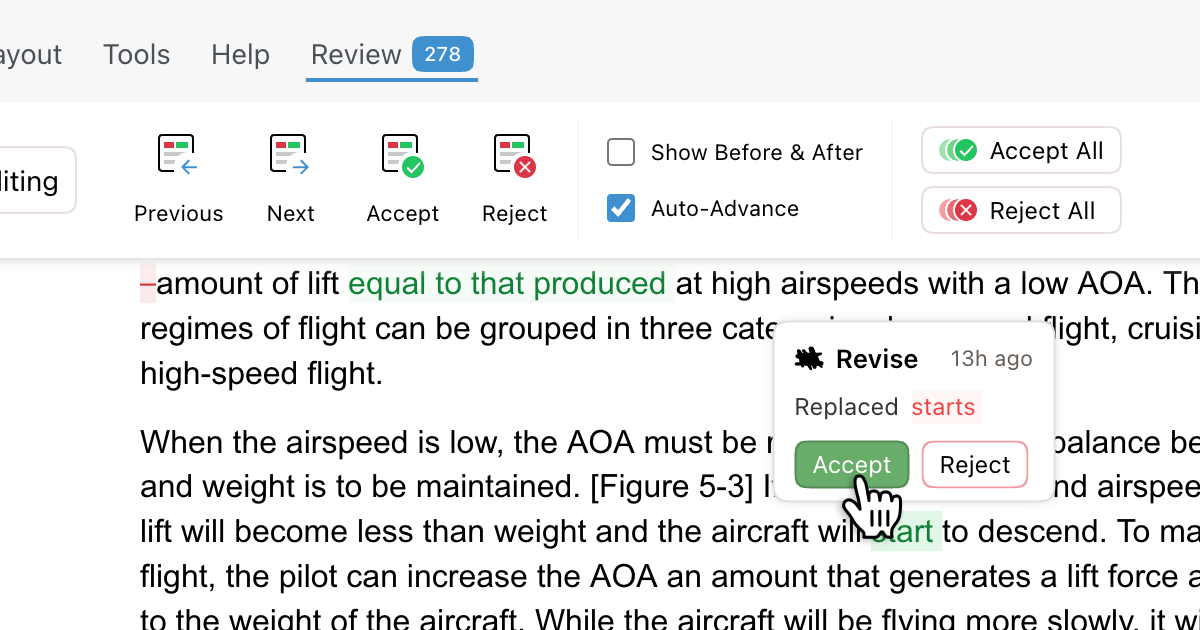
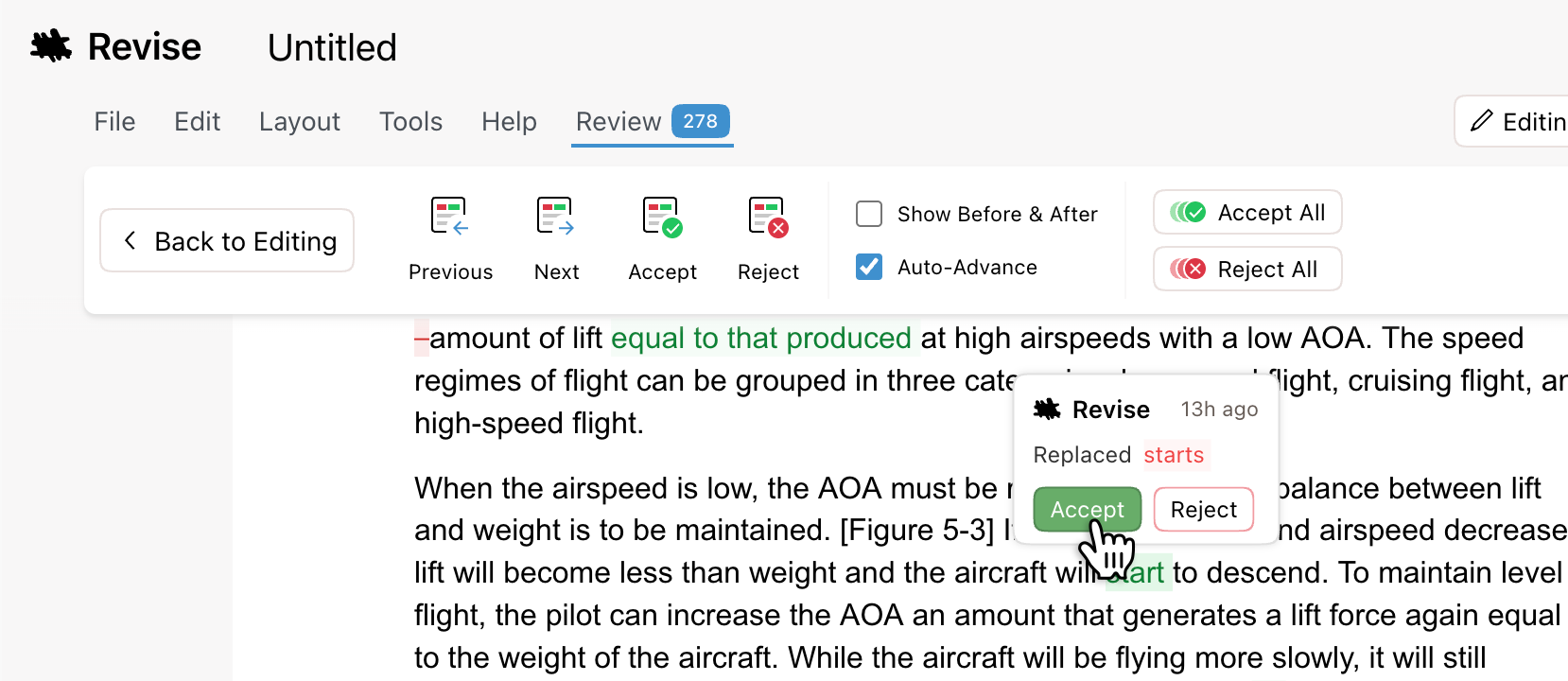
Claude proposes its edits inline as tracked changes - additions in green, deletions in red - so you see exactly what it wants to change before anything is final.
Step 4 - Accept, reject, then send it back
Keep the changes you like, reject the rest, or ask for another pass. When you’re done, copy the polished text back into Google Docs, or export to .docx and re-upload it. Your Google Doc stays the home base; Revise is just the fastest place to edit it with Claude.
Method 2: The Claude add-on for Google Docs
If you need to stay strictly inside Google Docs, you can reach Claude through a third-party Workspace add-on that exposes Anthropic’s models in a sidebar. The flow is roughly:
- Install an add-on that supports Anthropic models from the Google Workspace Marketplace.
- Open it from Extensions in your Google Doc; it appears as a sidebar.
- Select a Claude model (e.g. Sonnet or Opus) and, in most add-ons, paste your own Anthropic API key.
- Select text, prompt the sidebar, and insert the result.
It works, but the trade-offs are real: you’re trusting a third-party add-on with document access, managing (and paying for) an API key yourself, and the model only ever sees the snippet you hand it - not the whole document. For one-off tweaks that’s fine; for serious editing it’s a lot of friction.
Choosing a Claude model: Haiku, Sonnet, or Opus
Match the model to the job. Haiku is fast and cheap - great for quick proofreading passes. Sonnet is the balanced default for most rewriting and editing. Opus is the most capable, worth it for heavy restructuring or a long, important document where quality matters most. In Revise you switch between them with a click, so you can proofread on Haiku and then run a deep rewrite on Opus without leaving the document.
Prefer OpenAI’s models, or working in Word instead of Google Docs? The same editor handles both - see our guide on using ChatGPT to edit Microsoft Word files.
Moving between Google Docs and Revise without losing formatting
The one thing to know about round-tripping is when to paste and when to export. Pasting is fastest and keeps basic structure - perfect for drafts and text-heavy docs. Exporting as .docx (File → Download → Microsoft Word) is the move when you care about precise layout: tables, nested lists, headings, and images all survive the trip into Revise and back out again. Either way, Claude works on the document the same - the choice only affects how much formatting comes along.
Is your document data safe?
A fair question, especially compared to handing a third-party add-on access to your entire Google Drive. When you use Claude in Revise, the relevant document content is sent to Anthropic’s API to generate responses. Anthropic does not use this data to train its models, and does not retain your documents. You’re working in a dedicated editor rather than granting a marketplace extension standing permission to your files - a meaningfully smaller surface area than the add-on route.
The bottom line
You can bolt a Claude add-on onto Google Docs, but the smoother way to actually edit a Google Doc with Claude is to bring it into an editor built around the model: whole-document context, tracked changes you control, your choice of Haiku, Sonnet, or Opus, and no install or API key. Paste your doc in, let Claude do a pass, and send it back.
Try it now - paste a Google Doc and start editing with Claude. It’s free to start.