Revision History
Understanding Revision History
Revise automatically tracks every version of your document. This means you can always go back to see what you wrote before, compare different versions, and restore previous content if needed.
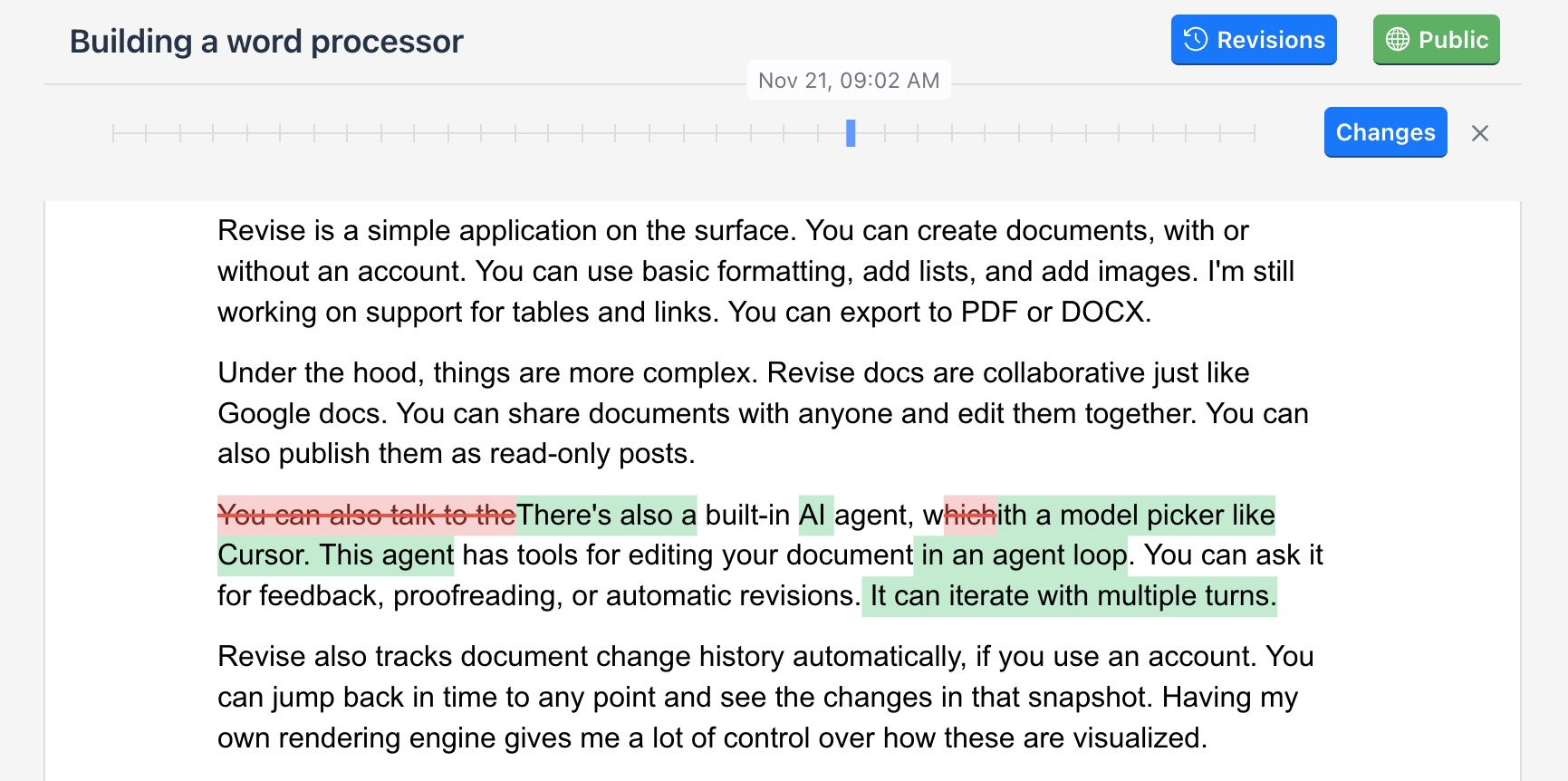
The History Scrubber
The history scrubber is located at the top of the editor. Click to open the scrubber, and drag the slider to travel through time and see your document at any point in its history.
Comparing Versions
By default, Revise will visualize the changes made in just the version you have selected, comparing it to the previous version. However, you can also compare any two points in time by holding down Shift and clicking one more time. This will visualize a range of versions, showing all of the changes in between:
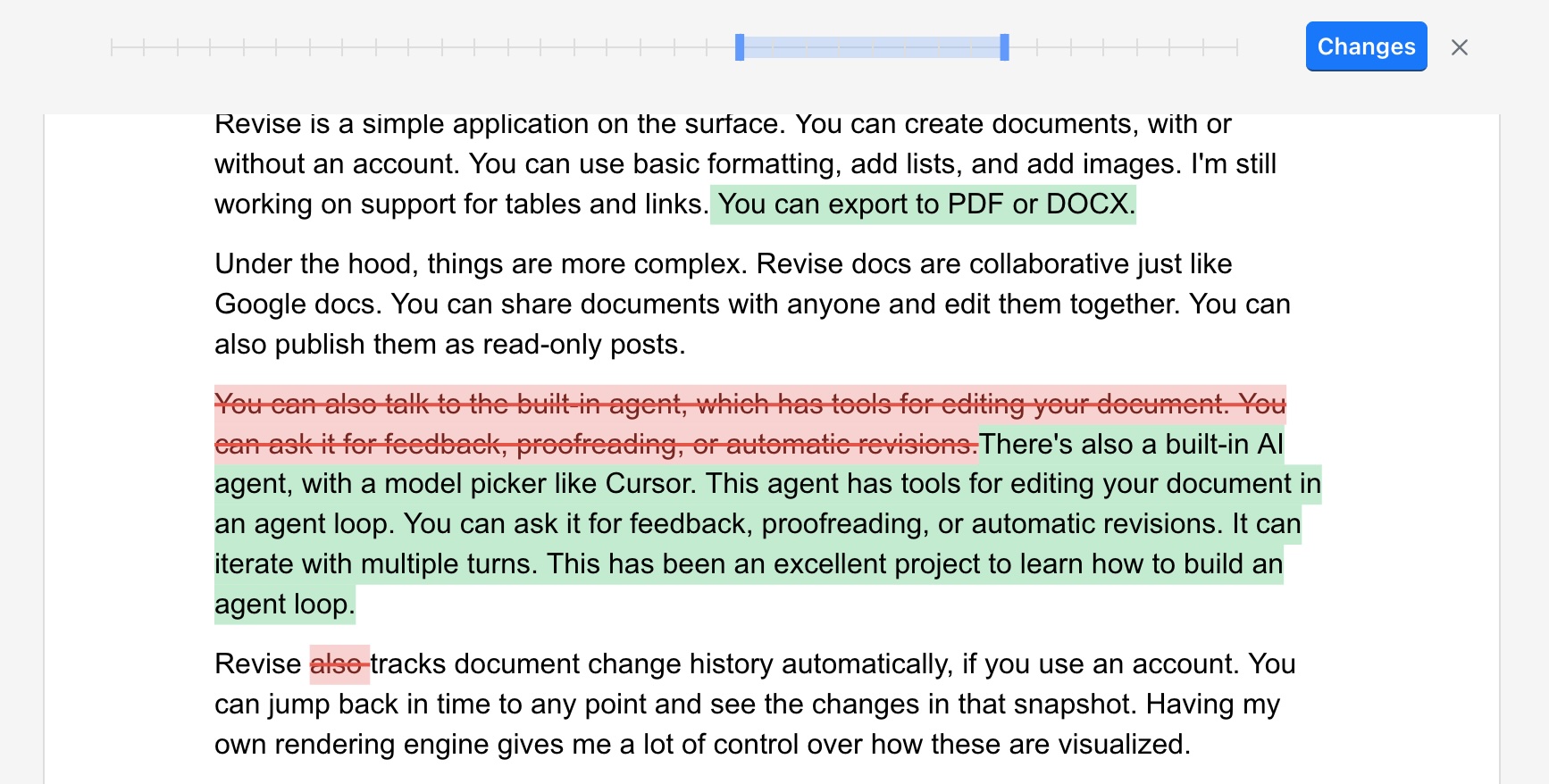
Click the button to toggle between visualizing changes, and simply seeing the document at that point in time.