Editing & Formatting
Last updated
Formatting Your Document
Revise supports rich text formatting with the same options you'll find in other word processors. Formatting controls live in the toolbar above your document, and the common actions also have keyboard shortcuts.
 The formatting toolbar
Text Styles
Apply character styles from the toolbar or with shortcuts:
- ⌘ B - Bold
- ⌘ I - Italic
- ⌘ U - Underline
- ⌘ K - Create a link
The toolbar also has strikethrough, inline code, superscript, subscript, text highlighting in a range of colors, and font family and size pickers. To remove every style from a selection at once, use the Clear formatting button.
Fonts
The font menu is searchable: click it and start typing to filter the list. Fonts already used in your document appear at the top, and any fonts carried in from an imported file (like a Word document) are preserved — if a font isn't installed on your machine, Revise renders a similar substitute so the document still reads as designed.
In Chrome and Edge, click Load all system fonts at the top of the font menu to use every font installed on your computer. Your browser will ask for permission once. System fonts are embedded into PDF exports, so your PDFs keep their exact typefaces.
Text Colors
Text colors from imported documents and pasted content are preserved, and survive AI edits and export to Word, HTML, or PDF. In dark mode, Revise automatically adapts colors so they stay readable against the dark page — a muted color stays muted, a bold color stays bold.
Headings
Use the style dropdown in the toolbar to turn a line into a heading. Revise supports Heading levels 1-6.
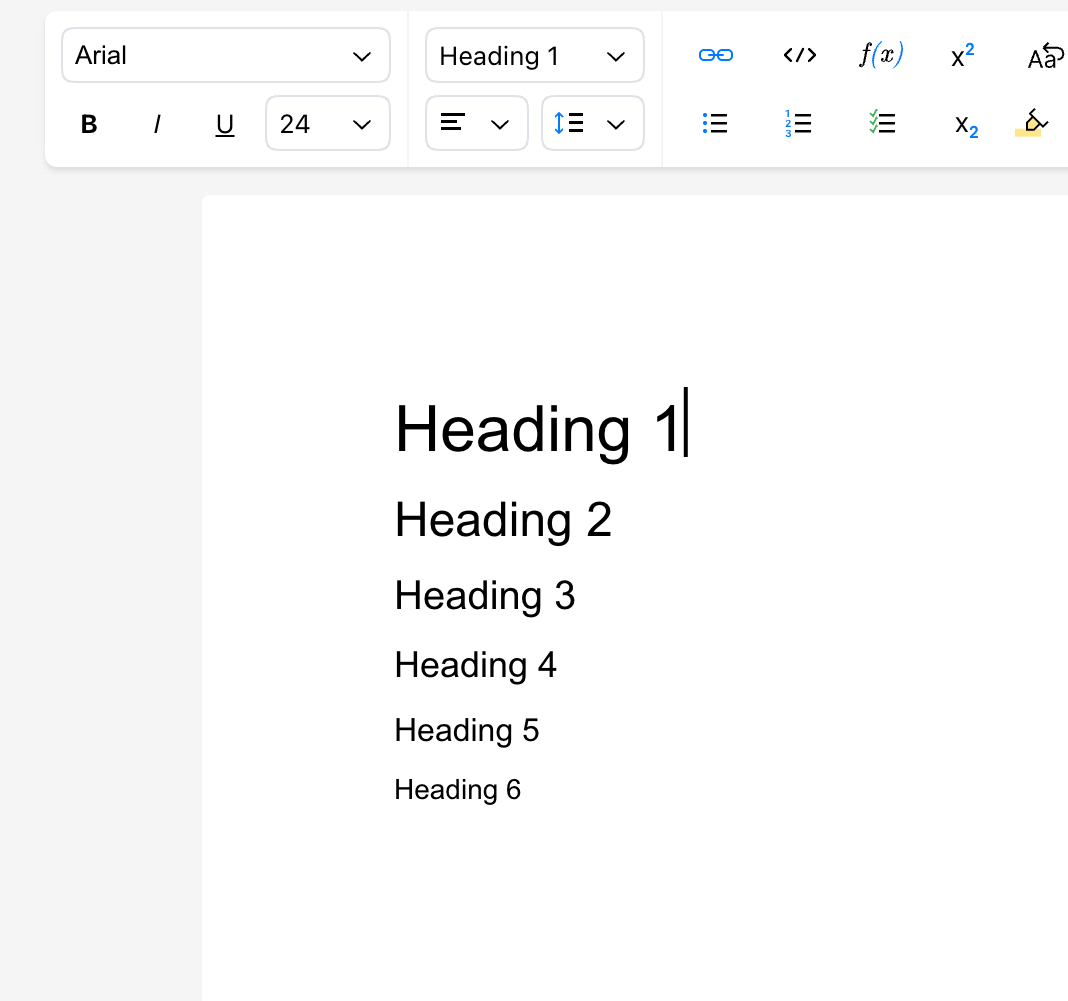 Heading levels supported by Revise
Lists
Create bulleted lists, numbered lists, and checklists from the toolbar. You can also start a line with - for a bullet or 1. for a numbered list and Revise will convert it automatically. Press Tab and ⇧Tab to nest and un-nest list items.
Alignment & Spacing
Align paragraphs left, center, right, or justified, and adjust line spacing from the toolbar. These apply to whichever paragraphs your cursor or selection touches.