Revise MCP Server
Last updated
The Revise MCP server connects external AI apps to your Revise account. Claude, ChatGPT, and other MCP clients can create, read, edit, comment on, export, and share your documents. Agent edits arrive as suggestions under the agent's name, and you accept or reject them in the Revise editor.
The MCP server is free on every plan. It has no plan-based caps, only hourly rate limits. You need a Revise account, and the AI app uses its own model and subscription.
Server URL
https://mcp.revise.io/mcpThe server uses the streamable HTTP transport. Add this URL to any MCP client that supports remote servers. Settings shows the same URL under External Agents until you connect an app.
Connect Claude
Revise is listed in the Claude connector directory.
- Open the Revise listing in Claude and connect it.
- Sign in to Revise and click Allow. See Sign in and allow access.
- Ask Claude to work on a Revise document.
You can also add the server URL as a custom connector in Claude's connector settings. Connectors added on claude.ai are also available in the Claude desktop app.
In Claude Code, add the server from a terminal:
claude mcp add --transport http revise https://mcp.revise.io/mcpThen run /mcp in Claude Code, select revise, and authenticate. Claude Code opens the Revise sign-in page in your browser.
Connect ChatGPT
Revise is available as an app in ChatGPT.
- Open the Revise app in ChatGPT and connect it.
- Sign in to Revise and click Allow.
- Ask ChatGPT to work on a Revise document.
Documents open right in your conversation window. See Edit documents in ChatGPT to learn how to use the Revise plugin.
Connect other MCP clients
Codex, Hermes, OpenClaw, and other MCP clients connect with the server URL. The client must support OAuth sign-in. Revise supports dynamic client registration and PKCE, so the client needs no preconfigured client ID.
The name the client registers becomes the agent's name in Revise. It appears on the agent's suggestions, comments, and cursor. A client with no usable name appears as AI agent. The name Revise is reserved for the built-in agent, so an external client with that name appears as Revise (external).
Sign in and allow access
Every request to the server needs a credential. When a client connects without one, the server answers with HTTP 401 and points it to Revise sign-in. The client then opens the Revise consent page in your browser.
- Sign in, or create an account. The page opens the sign-up form if you are signed out.
- Review what the app will be able to do, then click Allow. Deny cancels the connection.
- Revise opens a welcome document in a new tab, and the original tab returns to the app. If your browser blocks pop-ups, allow them for revise.io and click Allow again.
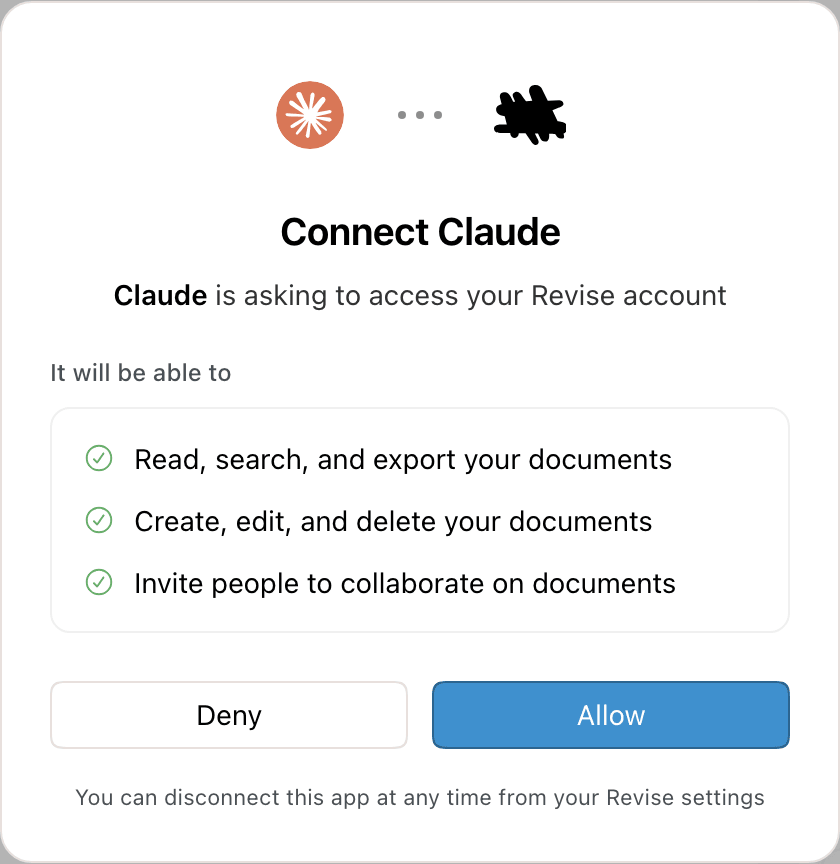
A connection gets all three permissions. The agent acts only on the account that approved it.
| Permission | Scope | Allows |
|---|---|---|
| Read, search, and export your documents | docs:read | Listing, searching, reading, and exporting documents |
| Create, edit, and delete your documents | docs:write | Creating, importing, editing, commenting, and moving documents to the trash |
| Invite people to collaborate on documents | docs:share | Inviting specific people by email |
The client receives an access token valid for 24 hours and a refresh token valid for 30 days. It renews them without asking you again, until you disconnect it.
Document edit tokens
The server also accepts document edit tokens (rvse_doc_…). Each one works for a single document, with the read and edit tools only. An agent holding one can call request_account_access to get an approval link for you. If you approve it within 15 minutes, the same token gets account-wide access.
MCP tools
A connected agent sees 24 tools. The agent picks them from your request; you do not call them yourself. Each tool needs one permission.
Find and read documents
| Tool | What it does | Permission |
|---|---|---|
list_documents | Lists your documents, most recently edited first, with sharing state and dates. | Read |
search_documents | Searches the text of all your documents. New or renamed documents can take a few seconds to appear. | Read |
read_document | Reads a document as Markdown, HTML, or plain text. HTML includes rich formatting, block IDs, and comment threads. Pending suggestions read as accepted by default, or as rejected on request. Long documents come back in pages. | Read |
search_within_document | Finds matches inside one document, with surrounding blocks. Case does not matter. | Read |
get_document_outline | Returns the heading outline with word counts per section. | Read |
get_document_info | Returns title, sharing state, URLs, dates, and word count. | Read |
get_recent_changes | Returns blocks added, removed, or changed since the agent last checked, including your edits. The first call sets a baseline. | Read |
Work with what you have open
| Tool | What it does | Permission |
|---|---|---|
list_open_documents | Lists the documents you have open in a browser tab right now. | Read |
get_selection | Reads your caret or selected text in an open document, with its formatting, comments, and suggestions. The document must be open in your browser. | Read |
With these, you can ask for a change to “the paragraph I selected” without naming the document.
Edit and format
| Tool | What it does | Permission |
|---|---|---|
edit_document | Replaces, inserts, or deletes text and blocks, as suggestions or applied directly. See How agent edits appear. | Write |
style_blocks | Changes formatting, such as font or weight, on matching blocks or text without rewriting it. | Write |
insert_footnote | Adds a footnote after a passage. Pageless documents show it as an endnote. | Write |
set_page_layout | Sets page size, orientation, margins, columns (one to three), page numbers, spacing, pageless mode, or the APA 7 preset. Applies to the whole document or one section. | Write |
replace_document_content | Replaces the whole document with new Markdown. The old content stays in revision history. | Write |
rename_document | Changes the title. | Write |
Comments and suggestions
| Tool | What it does | Permission |
|---|---|---|
leave_comment | Starts a comment thread on a passage, or replies to an existing thread. Does not change the text. | Write |
resolve_suggestions | Accepts or rejects the agent's own pending suggestions, in the whole document or in specific blocks. | Write |
clean_document | Prepares a document for sending. It can remove comments or hidden text, accept or reject every pending suggestion (anyone's), rename authors to “Author”, and clear file properties. It cannot be undone, so the agent asks you first. | Write |
Create, import, and export
| Tool | What it does | Permission |
|---|---|---|
create_document | Creates a document, optionally from Markdown. | Write |
open_document | Shows a document in the conversation as an editable view, in apps that support it (ChatGPT, claude.ai). | Read |
import_document | Creates a document from a file at a public URL. | Write |
upload_document | Creates a document from a file on the agent's computer. The agent runs a curl command, so it needs shell and network access. | Write |
export_document | Exports to Markdown, plain text, HTML, Word (.docx), or PDF. | Read |
See Import and export for formats and limits.
Share and delete
| Tool | What it does | Permission |
|---|---|---|
invite_collaborator | Invites a person by email as a viewer, suggester, or editor. See Sharing from an agent. | Share |
delete_document | Moves a document to the trash. You can restore it. | Write |
How agent edits appear
By default, edit_document, style_blocks, and insert_footnote propose each change as a suggestion: added text in green, removed text in red. The suggestion card names the agent. Nothing changes until someone accepts it.
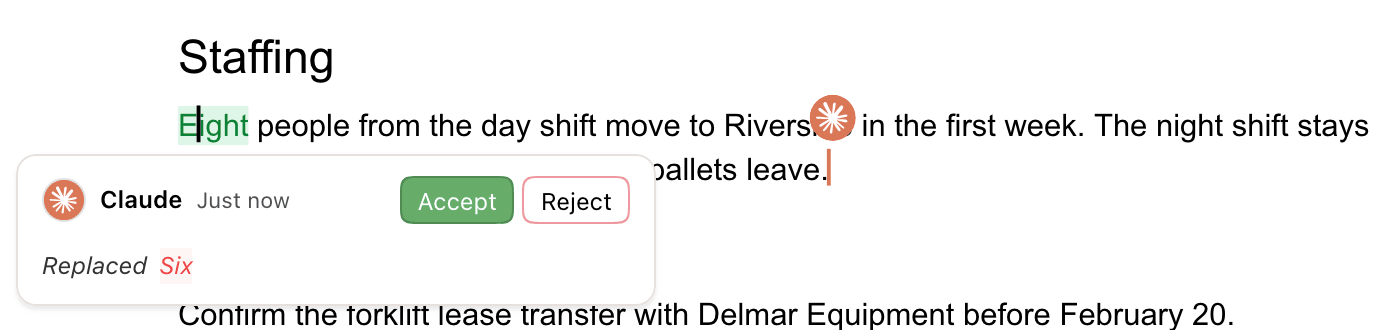
- On documents under 20 words, edits apply directly, since there is nothing to review.
- On longer documents, ask the agent to “apply the edits directly” to skip suggestions. Applied edits still appear in revision history under the agent's name.
- The agent's cursor sits at the end of the block it last edited. Hover it to see the agent's logo. It disappears 5 minutes after the agent's last action.
- While the agent is active, its logo appears in the header next to the document title.
- After 5 minutes without activity, the header shows the agent's name and when it last edited, such as Claude active 5h ago.
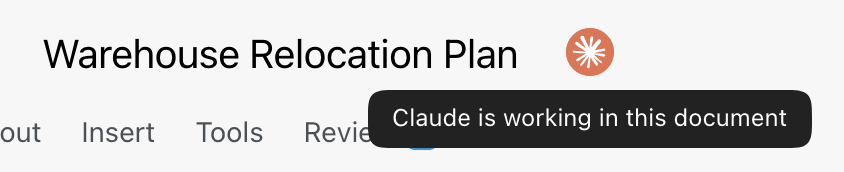
Everyone with the document open sees the same suggestions, cursor, and header indicator. The agent's writes sync in real time, so you can keep typing while it works.
Review an agent's suggestions
- Click Accept or Reject on the suggestion card, or step through them in the Review tab. See Reviewing AI Changes.
- Tell the agent “looks good” or “withdraw those”. It accepts or rejects its own suggestions with
resolve_suggestions. It cannot resolve your suggestions, a collaborator's, or another agent's.
Accept All and Reject All in the built-in agent's chat skip external agents' suggestions.
Import and export
Agents import and export with tools. For how this compares with importing in the editor, see Import and export with external agents.
| Action | Formats | Limits |
|---|---|---|
| Import from a URL | .docx, .md, .markdown, .txt, .html, .htm, .rtf, .odt | 25 MB. The URL must be a public direct download. Share pages (such as Google Drive previews) and files stored inside the AI app do not work. |
| Upload a local file | Same as import | 25 MB. The upload link expires after 10 minutes. |
| Export | Markdown, plain text, HTML, Word, PDF | Markdown comes back in the conversation. Other formats return a download link that expires after about 24 hours. |
PDFs and images cannot be imported through MCP. If the agent cannot reach your file, it sends you to revise.io/docs/upload to upload it yourself and paste the document link back. Large exports can return a Revise link instead; opening it downloads the file in your browser.
Sharing from an agent
An agent can invite a specific person with invite_collaborator. The roles match the share dialog (see roles):
| Agent asks for | Role |
|---|---|
read | Viewer |
suggest | Suggester |
write | Editor |
People with a Revise account get access right away. Others get an email invite. Agents cannot turn on public access or make a document public. Only you can, from the share dialog.
Manage and disconnect connected apps
Open Settings and go to External Agents. Each connected app shows when it was connected and when it was last active.
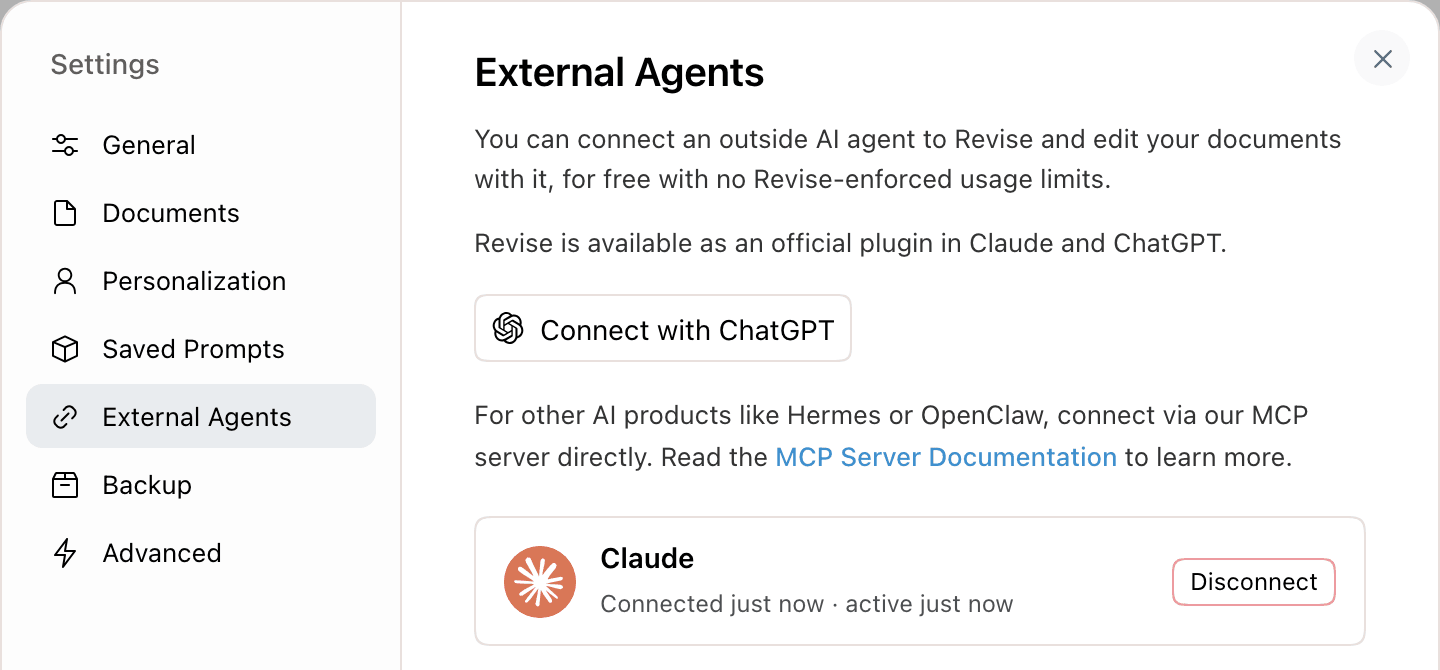
- Click Disconnect next to the app.
- In Disconnect app?, click Delete.
The app can no longer renew its access. A token it already holds keeps working until it expires, up to 24 hours. To reconnect, connect the app again and sign in.
Rate limits and requirements
| Item | Limit or requirement |
|---|---|
| Account | Required. Any plan, including free. |
| Tool calls | 1,500 per hour |
| Calls that change documents or share | 600 per hour, counted within the 1,500 |
| Document size | 5 MiB of stored document data. Larger documents open in the editor but not through MCP. |
| Import and upload size | 25 MB per file |
| AI usage | Not counted against your Revise usage limits. The AI app's own limits apply. |
Rate limits use a rolling one-hour window. All OAuth apps on one account share the same limits. For a higher limit, email support@revise.io.
Troubleshooting
| Problem | Fix |
|---|---|
| The app keeps asking you to sign in | Remove the connection in the app, add it again, and click Allow. |
| Nothing happens after you click Allow | Allow pop-ups for revise.io, then click Allow again. |
| “Rate limit exceeded” | Wait for the hourly window to pass, or email support@revise.io. |
| “Document exceeds the MCP size limit of 5 MiB” | Open the document in the Revise web editor and use its built-in AI agent, which works on long documents. Retrying does not help. |
| The agent cannot import a file you attached | Upload it at revise.io/docs/upload and give the agent the document link. |
| The agent's edits are not in the document text | They are pending suggestions. Accept them, or ask the agent to. |
| The agent cannot find a document you just created | Search indexing takes a few seconds. Ask it to list your documents instead. |
| An app you disconnected still works | Its current token expires within 24 hours. |