Sections, Word-grade formatting, and a new ribbon
Sections
Documents can now be split into sections, each with its own page layout. Insert a section break from the Layout tab (or the right-click menu) and each section gets its own page setup — paper size, orientation, margins, and headers & footers. Mix a landscape table spread into a portrait report, or give an appendix its own numbering. Multi-section documents import from and export to .docx faithfully.
New formatting options
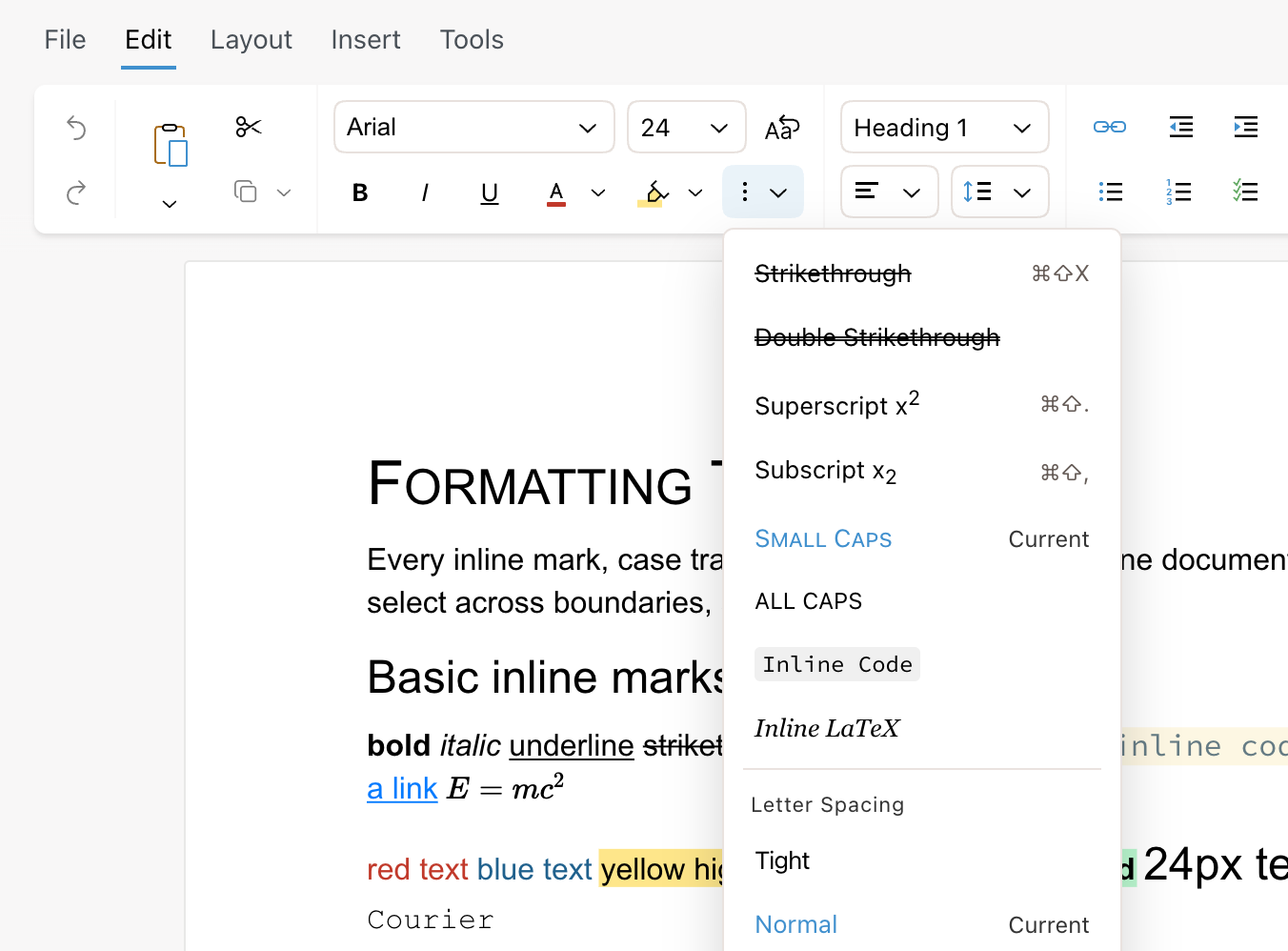
The formatting gap with Word is closed: strikethrough is joined by double strikethrough, small caps, ALL CAPS, and adjustable letter spacing — all in the new "three dots" menu in the toolbar. Every one of these renders identically on screen, in PDF exports, and in .docx round trips. Documents that use Word's content controls (form fields and structured blocks) now survive the trip through Revise untouched, too.
Picking colors got better as well: the text color menu is now a full hue grid with light-to-dark shades plus a custom hex input, and text colors still adapt automatically to dark mode.
A redesigned toolbar
The editor toolbar is now organized into tabs — Edit, Layout, Insert, and Tools, with a Review tab appearing whenever there are suggestions to go through. Everyday formatting stays one click away on the Edit tab, which also picked up some overdue conveniences: Cut and split-button Copy/Paste (copy as Markdown or HTML, paste text only, or paste formatting only — like Word's format painter), paragraph indent controls, and a Clear Formatting button right next to the font controls.
The whole ribbon now adapts sensibly to narrow windows and small screens, and the Tools tab shows a live word count — click it for the full breakdown, including counts for just your selection.