Revise Blog - Building a post-AI word processor
How to edit Microsoft Word files with ChatGPT
Learn how to edit, proofread, summarize, and translate your Word documents with ChatGPT, in Word or in a document editor right inside ChatGPT
 Artur Sapek, Founder of Revise7 min read
ChatGPT is great at proofreading and improving writing - but copying-and-pasting back and forth is slow and error-prone. This guide covers 3 better ways to work on Word docs with ChatGPT.
- The free Revise plugin for ChatGPT. Add it on chatgpt.com and you can edit documents side-by-side with ChatGPT in real-time, using an embedded word processor.
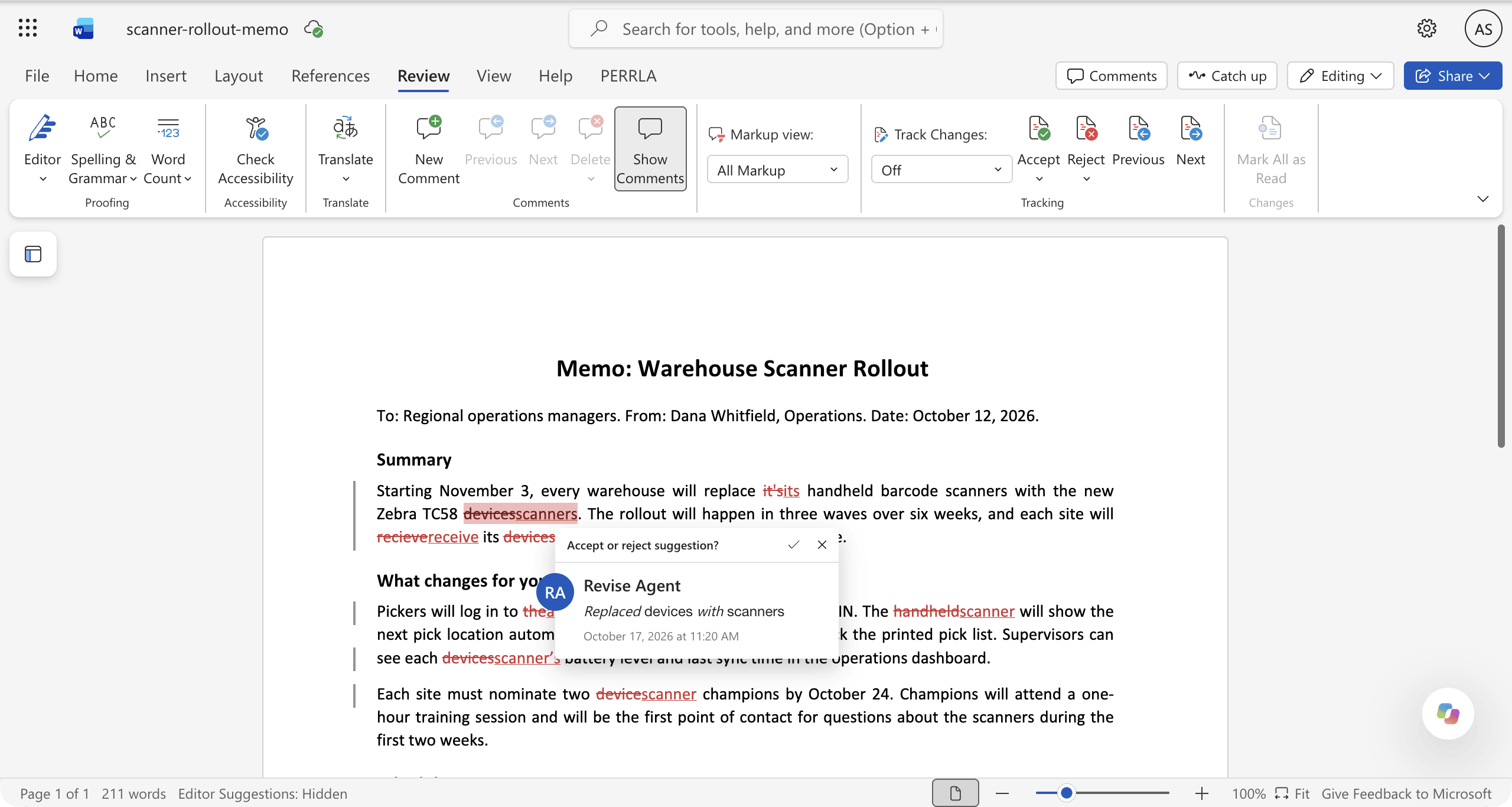
- The free ChatGPT add-in for Word. OpenAI’s official add-in can edit your document via a conversation panel inside Word.
- Ask ChatGPT for a revised file. ChatGPT can create and revise downloadable documents. Ask for the changes you need in a later message, then inspect the downloaded file in Word.
Can ChatGPT edit Word documents?
Yes. You can upload a Word file to ChatGPT and ask it to make edits, and download the new version. The problem is this can be kind of slow, and you end up with a lot of copies of the same document. There are two ways, however, to edit collaboratively in the same document editor with ChatGPT.
The first is to use OpenAI’s official ChatGPT for Word add-in, or connect ChatGPT to Revise. The add-in edits the document open in Word.
There is also the Revise plugin for ChatGPT, which puts a real word processor into your ChatGPT window where you and ChatGPT can edit together. This is free and doesn't require a license for Microsoft Word.
Below you will find more details on both.
Edit inside Word with OpenAI’s ChatGPT for Word add-in
OpenAI now offers ChatGPT for Word through the Microsoft Marketplace. Install the official add-in, open it from Word’s ribbon, and sign in to ChatGPT. It can draft, revise, summarize, and adjust headings or formatting in the open document. OpenAI lists availability across ChatGPT plans, including Free, with plan-specific token limits. Organizational use also depends on ChatGPT and Microsoft 365 administrator settings. Complex formatting, tables, and charts may still need manual adjustment. Check the official setup and usage guidance before installing.
Edit Word documents inside ChatGPT with the Revise plugin
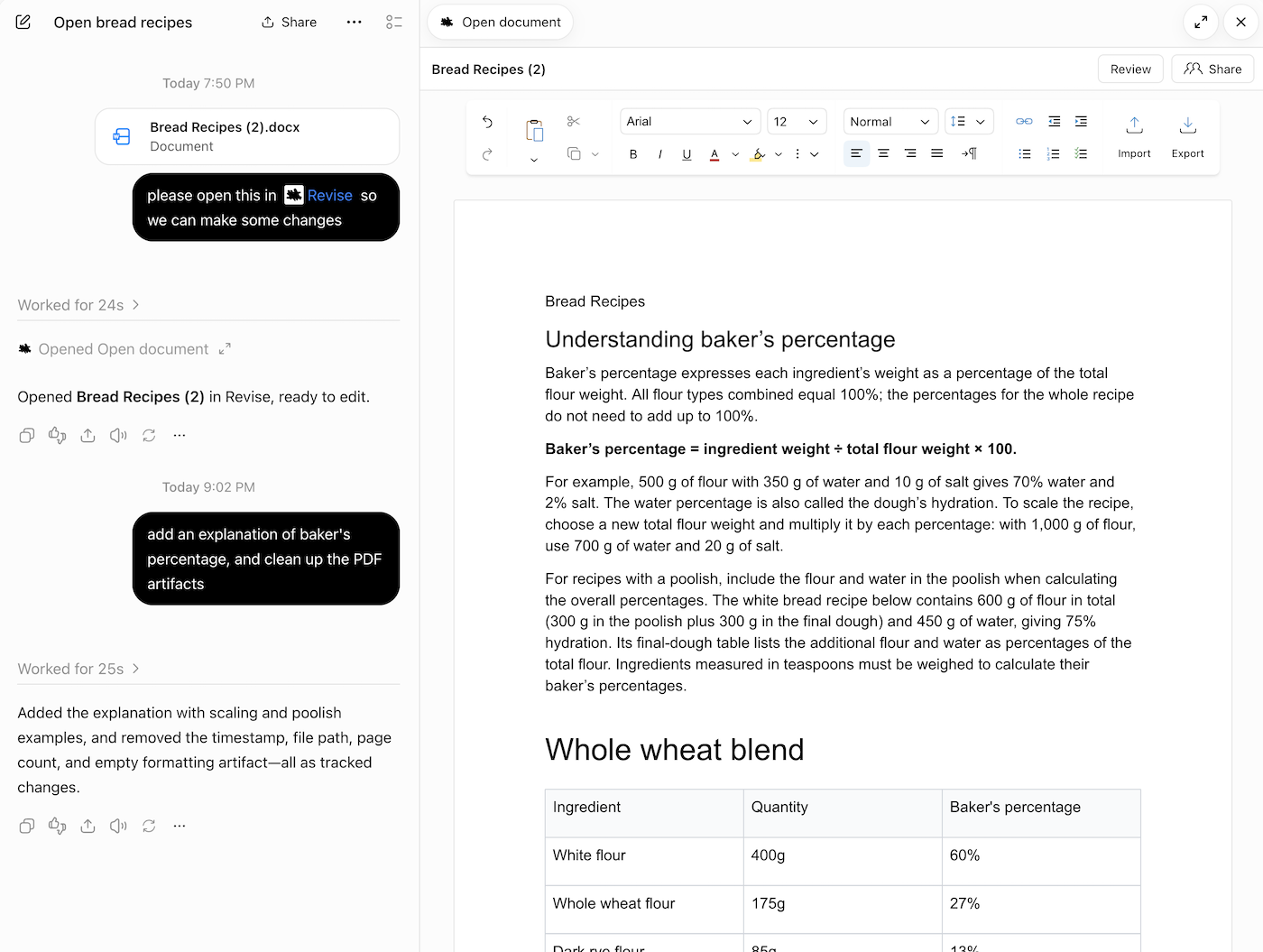
The Revise plugin puts a word processor inside ChatGPT. When ChatGPT creates or opens a document, the editor appears in the conversation: you can type in it, format it, and watch ChatGPT’s edits arrive as it makes them. The expand button opens it in a larger panel beside the chat.
Step 1 - Install the plugin
Open the Revise plugin page on chatgpt.com and add it to ChatGPT, then approve the connection. In a chat, type “@Revise” or pick it from your plugins list.
Step 2 - Open your Word document
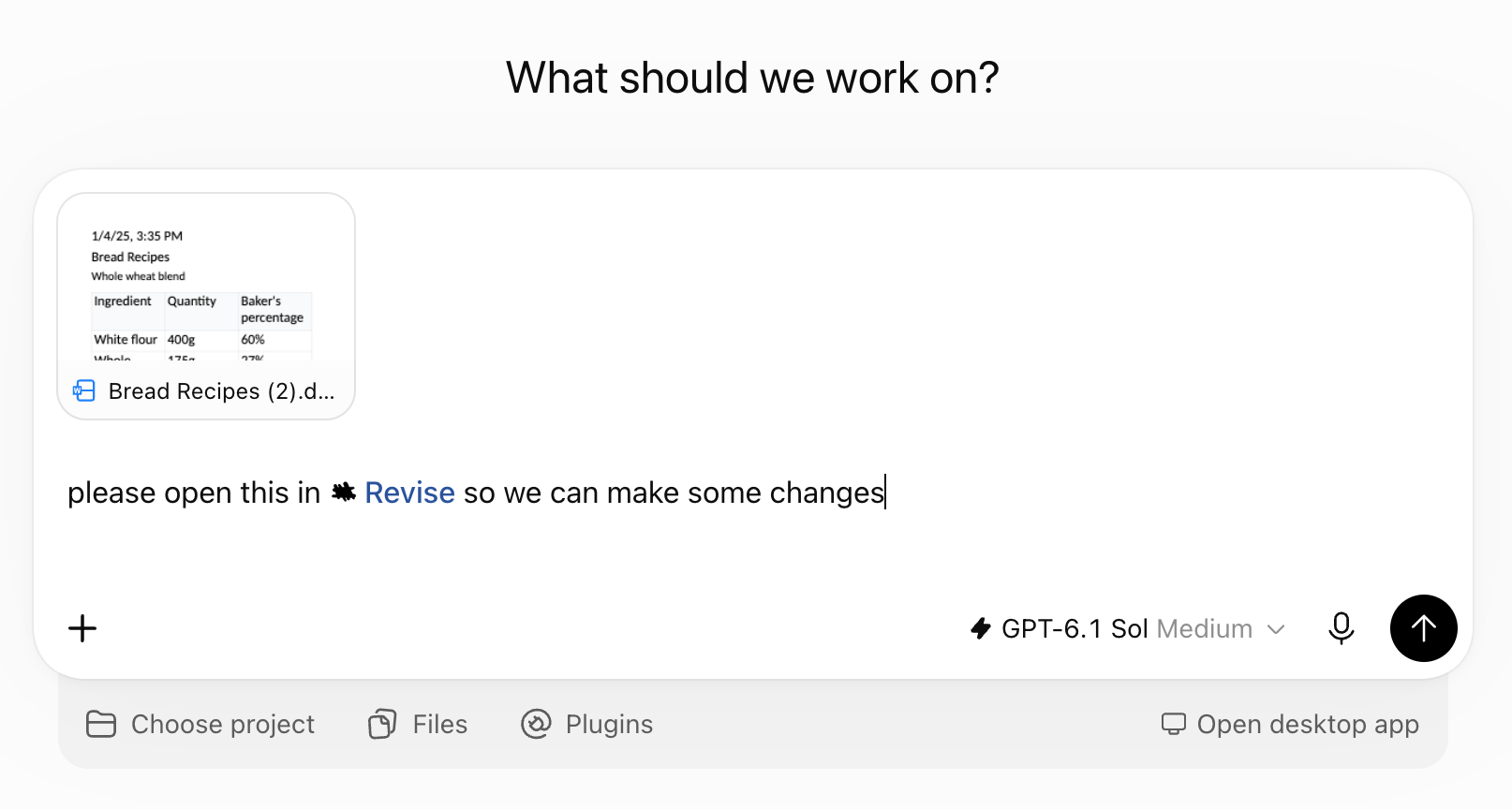
Attach your .docx to a message and ask ChatGPT to open it in Revise. You can also ask for a new document and click Import in its toolbar, or drag the file onto the page. Import takes Word, OpenDocument, RTF, Markdown, HTML, plain text, and XML files up to 25 MB. PDFs and images are not supported in ChatGPT.
Step 3 - Ask for changes
Use the prompts you already use: “proofread this,” “make the tone more formal,” “rewrite the intro.” ChatGPT edits the document instead of replying with text to paste back. To scope a request, select a passage in the editor first; ChatGPT sees the selection, so “make this shorter” applies to it.
Step 4 - Review the suggestions
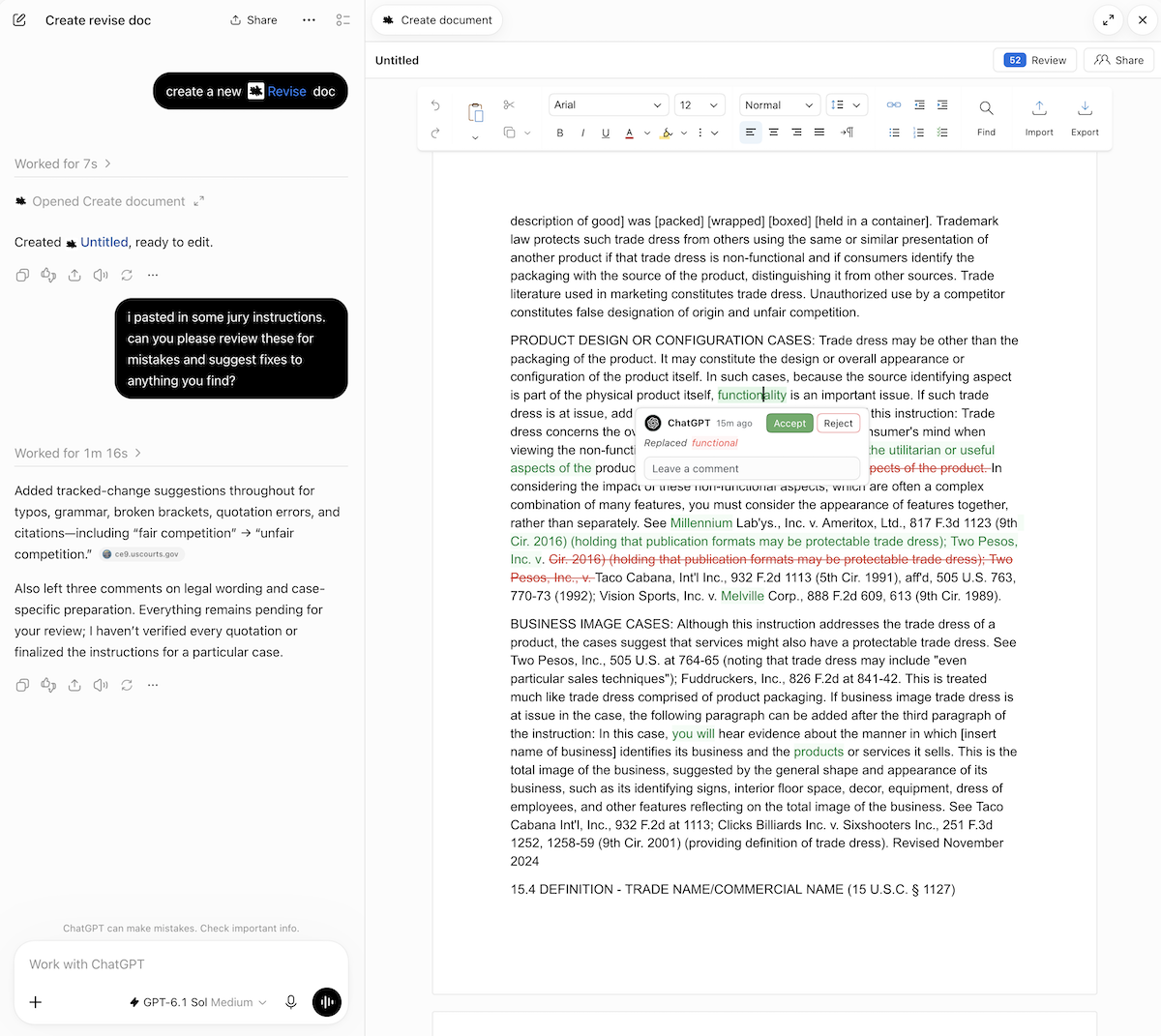
Ask ChatGPT to suggest its changes, and they appear as tracked changes: added text in green, removed text in red. Click a change to accept or reject it, or ask ChatGPT to resolve its own suggestions. Suggesting mode explains the controls.
Step 5 - Export back to Word
Click Export in the editor’s toolbar and choose Word Document. Suggestions you haven’t resolved export as native Word tracked changes. PDF, HTML, Markdown, and plain text are also available.
Your documents also open at revise.io, in the full editor with its own built-in AI agent.
Comparing the options
The add-in, an uploaded file, and the Revise plugin differ most in how they handle review markup, formatting, and cost.
Can ChatGPT see the comments in a Word document?
With an upload, it depends on the workflow and tools available. Ask ChatGPT to list the existing comments and revisions and check its answer against Word. OpenAI’s file-upload documentation describes text retrieval, not review markup.
With the Revise plugin, comments and existing tracked changes survive the .docx import. ChatGPT can read comment threads, work through reviewer feedback, and reply in a thread to explain what it changed.
Can ChatGPT format a Word document?
Yes. ChatGPT for Word can adjust formatting in the open document, and file-generation workflows can produce formatted Word files. In Revise, ChatGPT can restyle headings, lists, and text, and you can use the toolbar yourself.
Revise handles comments, suggestions, footnotes, section layouts, and legal numbering, but not every Word feature. Text boxes may become ordinary paragraphs when edited, and some objects are kept for export without being displayed. The compatibility guide lists what round-trips; check the exported file in Word before sharing it.
Is it free?
OpenAI lists ChatGPT for Word across ChatGPT plans, including Free, with plan-specific token limits.
The Revise plugin is free.
The bottom line
Use ChatGPT for Word when you want to stay inside Word. Use the Revise plugin when you already work in ChatGPT and want the document in the conversation, with tracked suggestions and a Word export. Either way, check the exported file before you share it.