Word (.docx) Compatibility
Last updated
Revise opens Word documents (.docx) and exports them back to Word. This page lists what happens to each Word feature on the round trip. Some features are shown and editable, some are kept without being shown, and a few are lost.
Import a Word document
Import a .docx file from the documents list or with File > Import. To send it back to Word, choose Word Document when you export.
- Only .docx files are accepted. Save .doc, .docm, and .dotx files as .docx first. See Supported formats.
- Password-protected .docx files cannot be imported. Remove the password in Word first.
How the round trip works
Revise stores a copy of the original .docx with the document. On export, everything you did not change is written back from that copy, byte for byte. Only the parts you edited are written again. A document exported without edits is identical to the file you imported.
Word settings that Revise cannot display are carried along. Revise writes them back on export, including in paragraphs you edited. Each table below says which of these results applies to a feature:
| Result | Meaning |
|---|---|
| Shown and editable | You see it in Revise, can change it, and it exports to Word. |
| Kept, not shown | Revise does not display it, but the exported file still has it. |
| Lost if edited | It exports unchanged if you leave that paragraph or table alone. If you edit it, the setting is dropped or simplified. |
Revise checks every exported file before the download starts. If it cannot verify the combined file, it builds the whole .docx from the Revise document instead. That file opens in Word, but features marked "Kept, not shown" may be missing from it. Files larger than 25 MB are always exported this way, because the original is not stored.
Text and styles
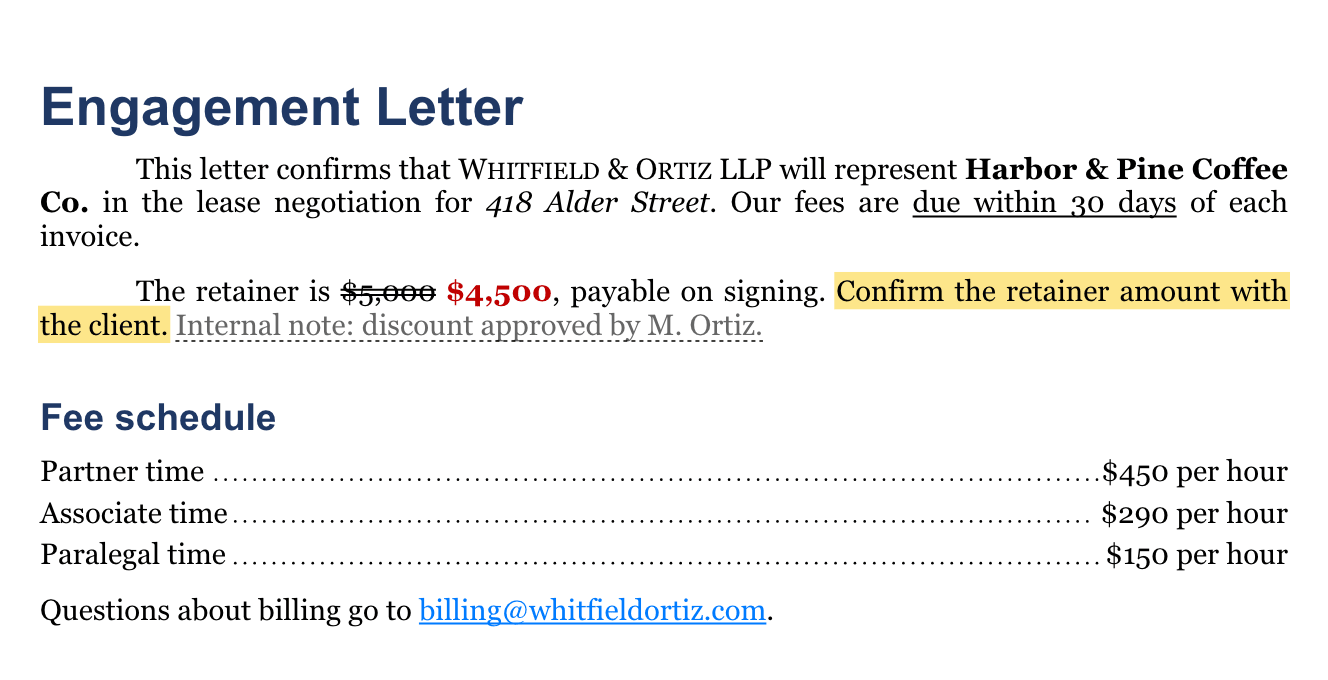
| Word feature | Result |
|---|---|
| Bold, italic, underline, strikethrough, double strikethrough, superscript, subscript | Shown and editable |
| Small caps, all caps, character spacing, font, size, text color, highlight | Shown and editable |
| Alignment, indents, line and paragraph spacing, page breaks | Shown and editable |
| Paragraph borders and shading, horizontal lines | Shown and editable |
| Tab stops and leaders (dots, hyphens, underscores) | Shown. Revise has no ruler. Ask the agent to add or move a tab stop. |
| Keep with next, keep lines together, widow and orphan control | Shown. Pages break the way Word breaks them. |
| Hidden text | Shown dimmed with a dotted underline, so you can see it. Left out of PDF exports, as in Word. Exports to Word as hidden text. |
| Paragraph styles (Heading 1, Title, custom styles) | Each paragraph looks the way its style defines it and keeps the style name for export. The style menu shows only Revise's own styles. Style definitions cannot be edited in Revise; the original ones are written back on export. |
| Character styles | The formatting is shown. The style name is lost if edited. The formatting stays. |
| Underline styles (double, dotted, wavy) | Shown as a single underline. Lost if edited. |
| Text effects (glow, shadow, outline), character borders | Kept, not shown |
| Theme colors | Shown in their current color. Lost if edited: the text keeps the color but no longer follows the Word theme. |
| White or near-white text | Shown in the default text color. The color is kept on export. |
| Right-to-left text (Arabic, Hebrew) | Shown and editable |
| Proofing language | Kept, not shown |
Lists and numbering
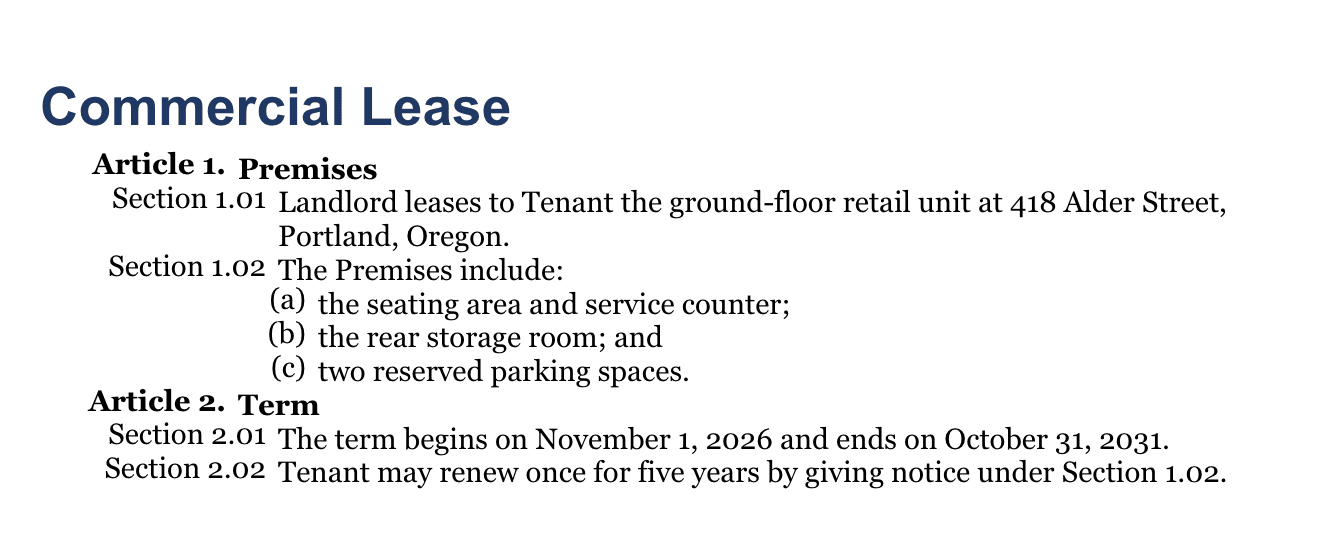
Word's numbering definitions stay live. Insert or delete a clause and the numbers after it update, as in Word.
| Word feature | Result |
|---|---|
| Bulleted and numbered lists | Shown and editable. See Lists and checklists. |
| Multilevel number formats ("Section 1.01", "(a)", "(iv)") | Shown. Numbers update as you edit. |
| Numbering that continues across ordinary paragraphs | Shown. The sequence continues, as in Word. |
| Restart numbering, start at a number | Shown and editable |
| List levels 4 to 9 | Shown at the third level. An edited list exports them at the third level. |
Tables
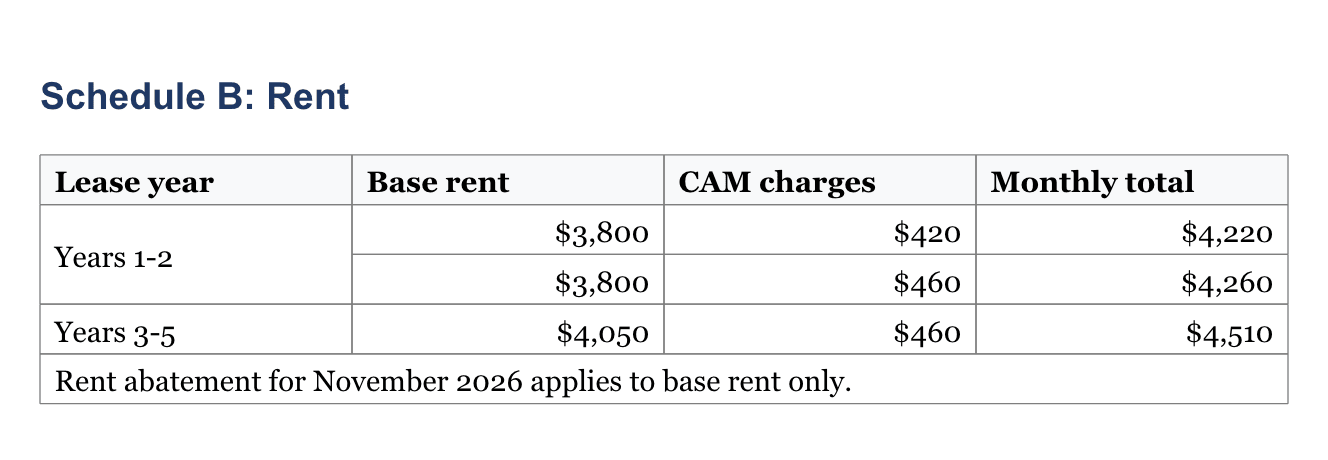
| Word feature | Result |
|---|---|
| Merged cells (across and down) | Shown and editable. See tables. |
| Column widths, table alignment, cell padding | Shown |
| Borders, including borders from a table style | Shown |
| Cell shading and vertical alignment | Shown. In dark mode, shading keeps its original color while text turns light, so pale shading can be hard to read. |
| Header rows | Shown with a light tint |
| Tables inside table cells | Shown and editable |
| Banded rows and other table style formatting | Not shown |
| Row height, vertical text direction in cells | Kept, not shown |
Comments and tracked changes
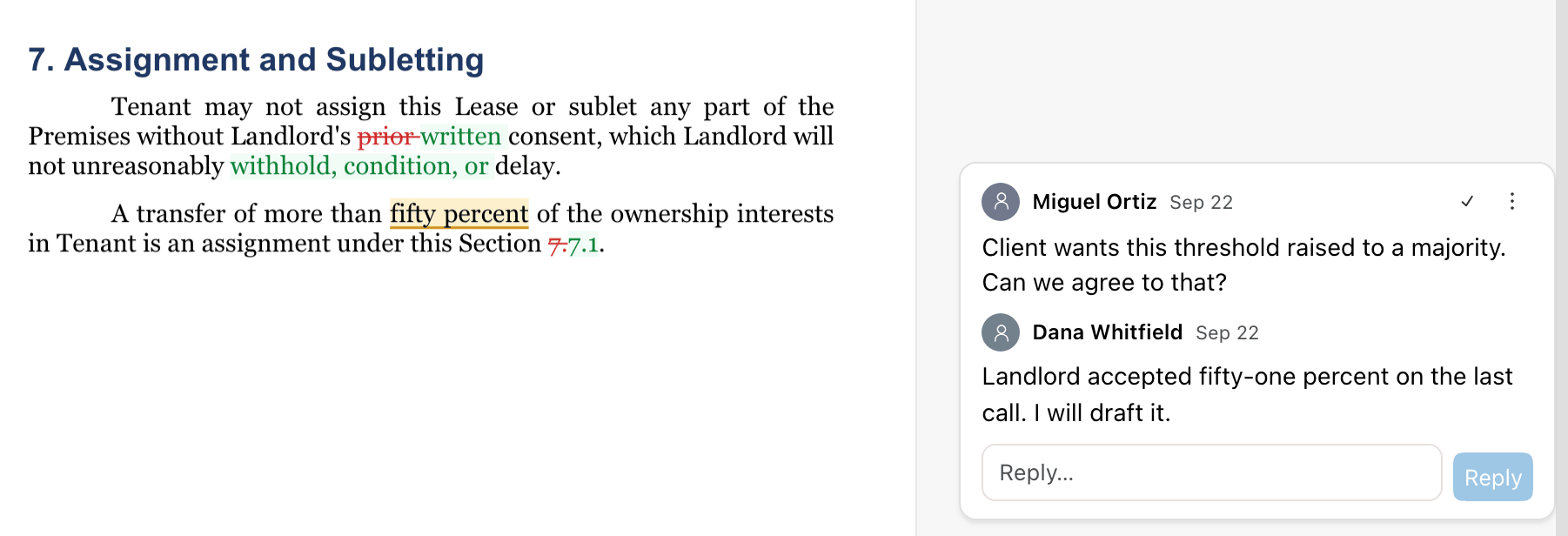
Word tracked changes become suggestions you can accept or reject in Revise. Word comments become comment threads in the margin. Both keep their authors and dates, and both export back to Word.
| Word feature | Result |
|---|---|
| Insertions, deletions, moves, formatting changes | Shown as suggestions. See Word tracked changes for each revision type. |
| Paragraph, table, row, and cell revisions | Shown as suggestions |
| Author, date, and revision ID | Kept and exported |
| Comments, replies, resolved state | Shown and editable |
| Comments on tracked changes, comments that span paragraphs | Shown and editable |
When a deletion is replaced by an insertion, Revise shows only the new text by default. Turn on Show Before & After to see both, as in the screenshot. PDF and the other formats leave suggestions and comments out. See Suggestions and comments in exports.
Headers, footers, page numbers, and footnotes
| Word feature | Result |
|---|---|
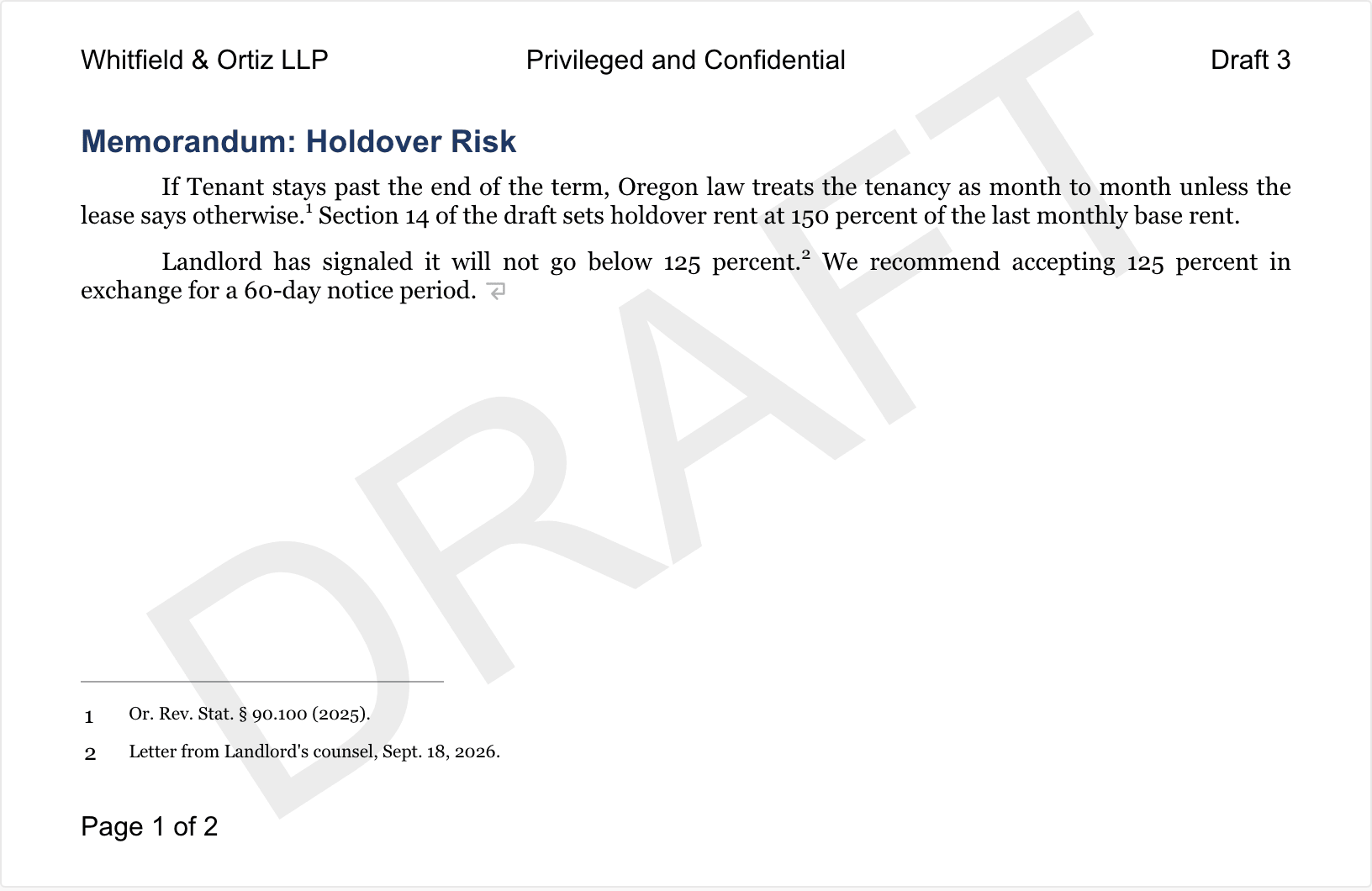
| Header and footer text, left, center, and right | Shown and editable with Layout > Headers & Footers, or through the agent. |
| Different first page, different odd and even pages | Shown and editable |
| Different headers per section | Shown and editable. "Link to Previous" is resolved on import. After the round trip, Word shows each section's own copy instead of a link. |
| Page numbers and page counts (PAGE, NUMPAGES) | Shown and kept up to date |
| Page number formats 1, 2, 3 and i, ii, iii and I, II, III | Shown. Letter formats (a, b, c) show as numbers. |
| Images in headers and footers (logos, letterhead) | Kept, not shown |
| Text watermarks (DRAFT, CONFIDENTIAL) | Shown on every page. Change it with Layout > Watermark. |
| Footnotes and endnotes | Shown and editable. Footnotes appear at the bottom of the page, endnotes at the end of the document. Revise numbers footnotes 1, 2, 3 and endnotes i, ii, iii. |
Sections and page layout
| Word feature | Result |
|---|---|
| Page size, orientation, margins | Shown and editable per section. A landscape section stays landscape. See Page Layout. |
| Next page and continuous section breaks | Shown and editable |
| Even page and odd page section breaks | Shown as a new page. Revise does not add a blank page to reach an even or odd page. |
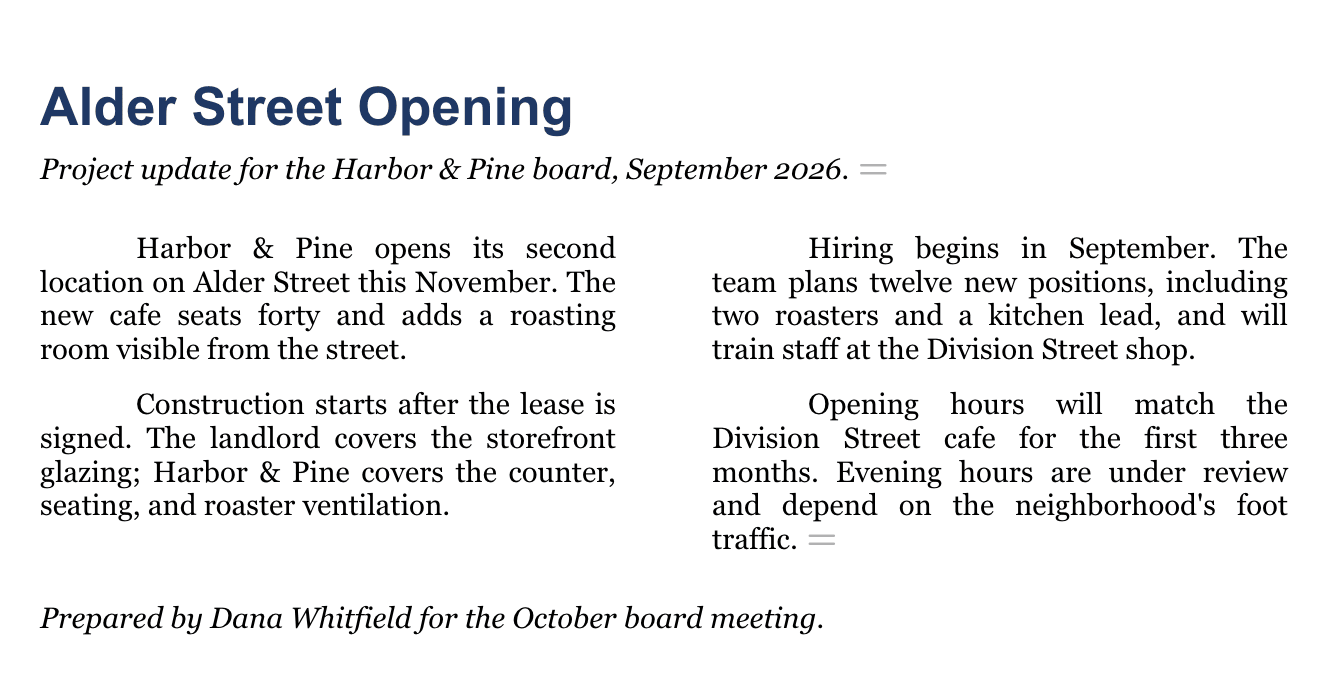
| Columns | Shown, with equal column widths. Revise's own column controls offer one to three columns. |
| Page borders (single, double, dotted, dashed) | Shown. Art borders and other styles are kept, not shown. |
| Line numbers | Shown in the margin. "Restart each section" is shown as restart each page. |
| Automatic hyphenation | Shown, using English hyphenation rules |
| Vertical page alignment | Kept, not shown |
Images, shapes, and embedded objects
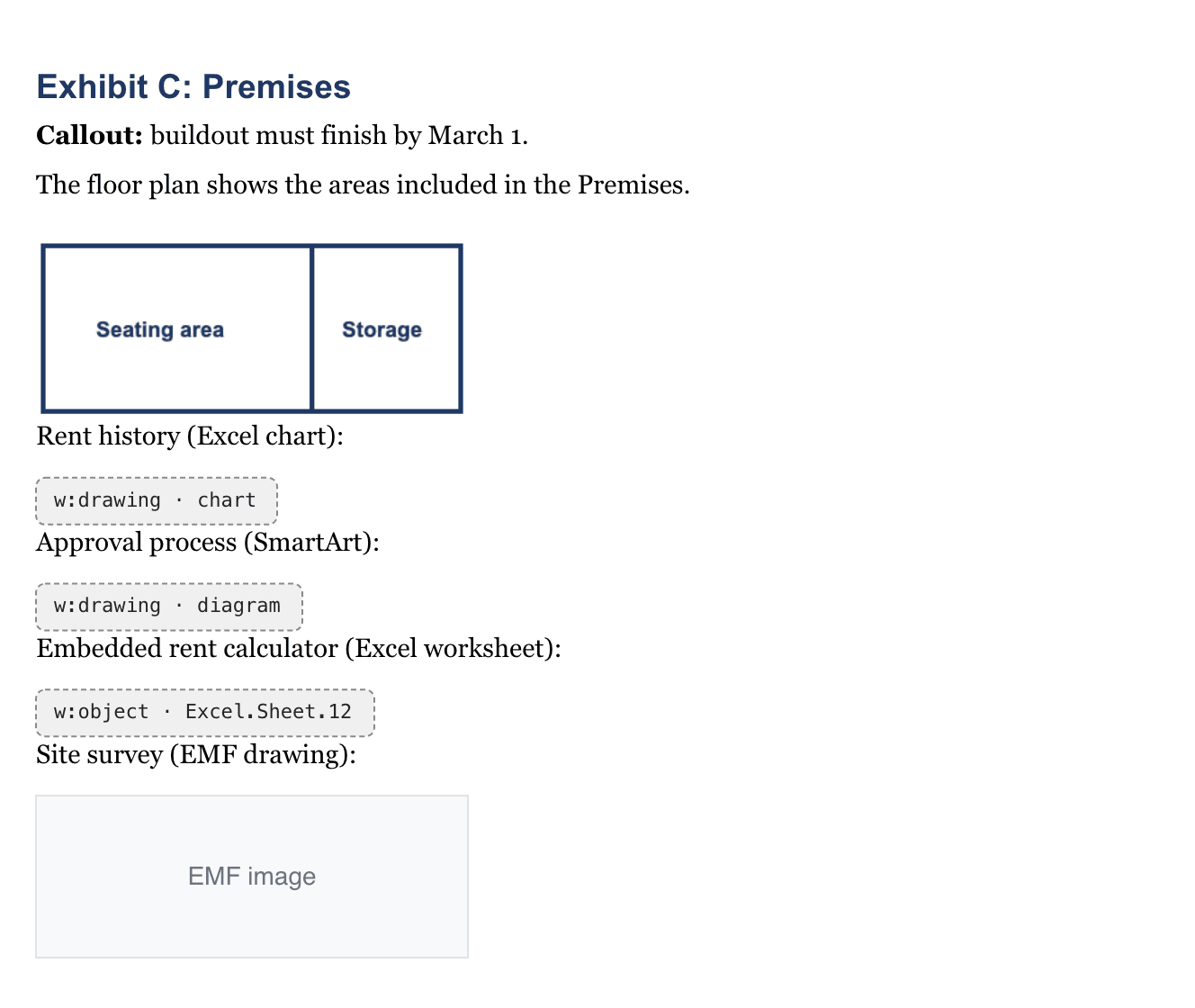
Revise keeps objects it cannot draw. Each one appears as a placeholder labeled with its Word element name, such as w:drawing · chart. You can select and delete a placeholder, but not edit what is inside it.
| Word feature | Result |
|---|---|
| Pictures (PNG, JPEG, GIF, BMP, SVG) | Shown and editable |
| Floating pictures with text wrapping | Shown in line with the text. The original position and wrapping are kept for export. |
| EMF and WMF pictures | A gray box labeled with the format is shown in the editor and in PDF exports. The original picture is kept for export. |
| Text boxes and shapes with text | The text is shown as ordinary paragraphs, in reading order. The box itself is not shown. Lost if edited: the text exports as ordinary paragraphs. |
| Charts, SmartArt, embedded Excel and other OLE objects | Shown as a labeled placeholder. Kept for export. |
| Shapes without text, other unknown Word content | Shown as a labeled placeholder. Kept for export. |
To add pictures and other content in Revise, see Tables, Images & More.
Equations
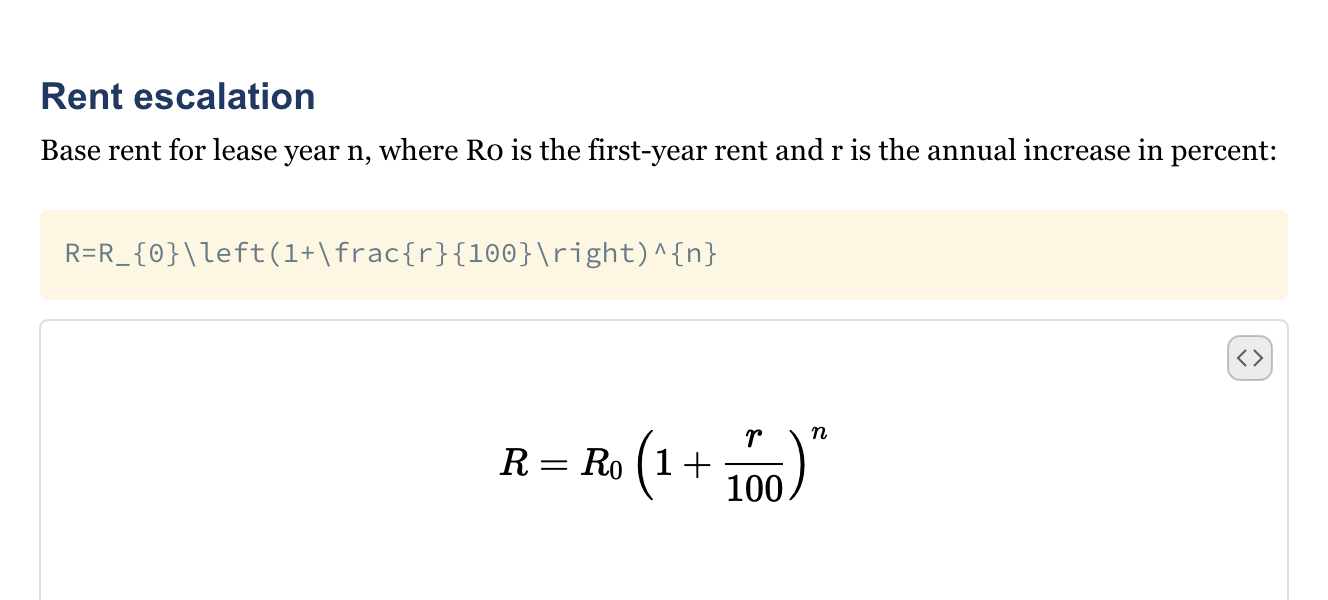
Word equations convert to LaTeX. An equation on its own line appears as a LaTeX block: the source on top, the rendered equation below. An equation inside a sentence stays in the sentence. Unedited equations export as the original Word equation. Edited ones convert from LaTeX back to a Word equation.
Fields, links, and content controls
| Word feature | Result |
|---|---|
| Table of contents | Becomes a live table of contents that follows your headings. On export, its entries are rebuilt from the current headings, with page numbers. |
| Hyperlinks, bookmarks, links to bookmarks | Shown and editable |
| Cross-references (REF, PAGEREF) and other fields | Shown as the last text Word calculated. They do not update in Revise. They export as fields, and the file tells Word to update fields when it opens, so Word may ask to update them. |
| Content controls (block, inline, row, cell, nested) | The content is shown and editable. The control itself (tag, title, data binding) is kept, not shown. Checkboxes, drop-downs, and date pickers show as their current text. |
| Restricted editing regions | Kept, not shown. Revise does not enforce them. |
Fonts
| Word feature | Result |
|---|---|
| Fonts installed on your computer | Shown |
| Fonts you do not have | Shown in a similar font. Revise picks it from the substitute named in the file, or from the font's style (serif, sans serif, monospace). The original font name is kept. See Fonts and font sizes. |
| Theme fonts (Body, Headings) | Shown in the theme's font |
| Fonts embedded in the file | Not used for display. Kept for export. |
Document properties
Title, author, subject, keywords, and the created and modified dates are kept. Editing the document does not change its author or created date. File > Clean Document... accepts all suggestions and removes all comments before you share a file.
Limits
| Limit | Detail |
|---|---|
| File types | .docx only. No .doc, .docm (macros), or .dotx. |
| Password protection | Not supported. Remove the password in Word before importing. |
| Original file stored | Up to 25 MB. Larger files import, but export rebuilds the whole .docx. |
| Editing Word styles | Not supported. Style definitions pass through unchanged. |