Agent Capabilities
Last updated
The AI agent works in the chat panel beside the document. It reads and edits the document with the same operations the editor uses. This page lists what it can do, how it works through a request, and what it can't do.
Write and rewrite text
The agent writes into the document, not into the chat. Text edits arrive as suggestions: added text in green, removed text in red. Nothing changes until you accept them. See Reviewing AI Changes.
| Request | What the agent does |
|---|---|
| Draft | Writes new sections or a full document, including into a blank document. |
| Rewrite | Changes only the words that need to change in a sentence, paragraph, or list. |
| Restructure | Splits and joins paragraphs, reorders or removes blocks, and turns prose into lists or lists into prose. |
| Whole-document pass | Works through a long document in batches: reads a section, edits it, checks it, then moves on. |
| Edit a selection | Changes only the selected text unless you ask for more. See Giving the Agent Context. |
To rewrite pasted text outside a document, use the AI Rewriter.
Format text and blocks
The agent formats any range or set of blocks in one step, such as "make every table header bold". Formatting changes are also suggestions.
| Target | Options |
|---|---|
| Text | Bold, italic, underline, strikethrough, font, size, text color, and highlight (yellow, orange, green, blue, purple, pink, gray). |
| Paragraphs | Headings, alignment, spacing, indents (including hanging indents), text direction, and paragraph styles from imported Word files. |
| Lists | Bulleted, numbered, and checklist styles. |
| Images and tables | Image size, table and cell widths, borders, spacing, and fills. |
| Clear formatting | Removes formatting from a range or from whole blocks. |
Insert tables, images, and other content
The agent inserts the same block types described in Tables, Images & More.
| Content | Details |
|---|---|
| Tables | Creates tables, including merged cells. Adds and removes rows and columns and edits cell contents. |
| Images | Copies or moves images already in the document. Inserts images found by web search, using only image URLs the search returned. Revise copies web images to its own storage. |
| Code blocks | Code with syntax highlighting. A code block in the Mermaid language renders as a diagram. |
| Equations | LaTeX equation blocks. |
| Table of contents | A live table of contents that updates with the headings. It lists heading levels 1 to 3 unless you ask for other levels. |
| Breaks and lines | Page breaks and horizontal lines. |
Headers, footers, and page layout
Ask for header or footer text and page numbers in plain language, such as "Page X of Y at the bottom right". Each header and footer has left, center, and right zones. The agent can set different content for the first page or for even pages, or remove a header or footer.

The agent can also change any setting from Page Layout, for the whole document or one section:
| Setting | Options |
|---|---|
| Page size | Letter, Tabloid, Legal, Statement, Executive, Folio, A3, A4, A5, B4, B5, or a custom width and height. |
| Orientation and margins | Portrait or landscape. Margins per side or all at once. |
| Columns | One to three columns per section, with the gap between them. |
| Page numbers | Position (any corner) and starting number. Style 1, 2, 3 or i, ii, iii or I, II, III. Numbering can restart at a section. |
| Page borders | Single, double, dotted, or dashed borders on any side, with color, width, and distance from the page edge or text. |
| Spacing and view | Space between paragraphs, indent size, and paged or pageless mode. |
| Presets | APA 7th edition layout. |
Footnotes and endnotes
The agent inserts a footnote or endnote at a specific spot in the text and deletes notes along with their references. It can convert every note to footnotes or to endnotes. It can also turn manually typed note numbers and note paragraphs into real notes.
Review with comments
Ask for a review or feedback, and the agent leaves comments on the passages they are about. It doesn't write a long reply in the chat. When it suggests an edit, it can attach a comment that explains the edit.
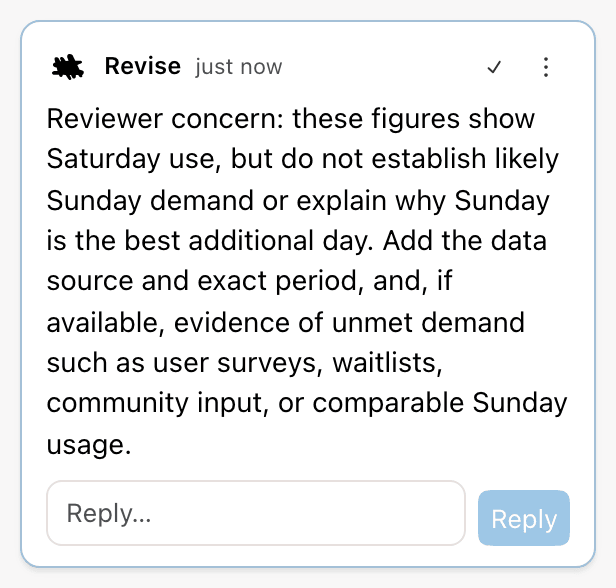
You can also ask the agent for changes from a comment thread. See Ask for changes in a comment.
Read and check the document
The agent reads long documents in sections and reads only what a request needs.
| Action | Use |
|---|---|
| Search the document | Finds every passage that matches a word or phrase. |
| Find highlights | Finds text by highlight color, for requests like "fix the yellow ones". |
| Measure | Counts words and estimates pages for the document or a section, for requests like "cut this to 500 words". |
| View pages | Renders pages as images to check layout, page breaks, and how the document looks. |
| View images | Looks at images in the document. |
Use your other documents
The agent can list, search, and read the other documents in your account, such as "use the figures from my Q3 report". Other documents are read-only to it. To edit another document, open it and ask there. See Giving the Agent Context.
Search the web
With an account on any plan, the agent can search the web for current facts and sources. When a reply uses web results, numbered markers link each claim to its source, and a Sources row lists the sites. Grok models also search 𝕏 (see features by model).
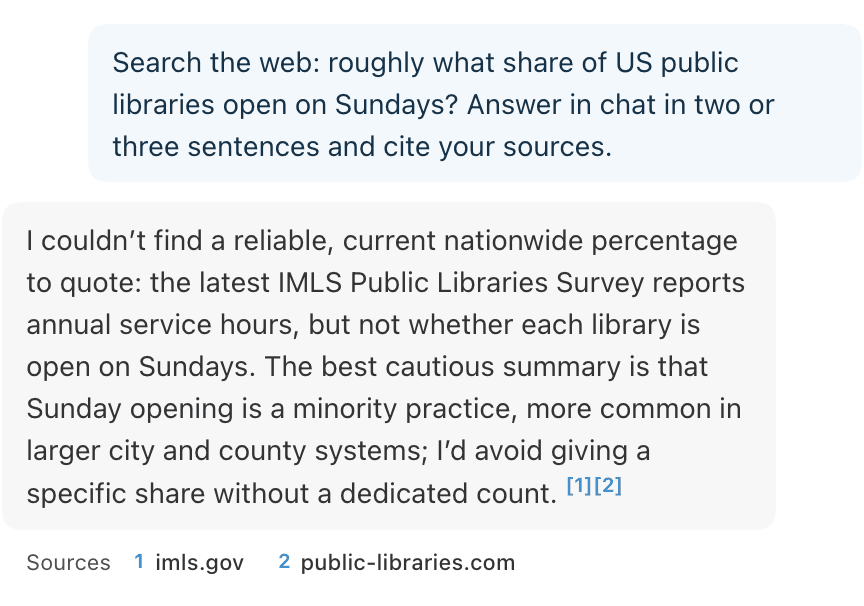
Web searches count toward your AI usage.
Read attached files
Click Attach File in the chat input to give the agent a file to work from.
| File type | What the agent can do |
|---|---|
| Text, Markdown, HTML, and code files | Read them as context. |
| DOCX and PDF | Read them as context, or import one into the current document. |
| Images (PNG, JPEG, GIF, WebP) | Look at them as context. |
Answer the agent's questions
For precise requests, such as fixing typos or changing a heading, the agent starts work right away. When a choice would change the result a lot and you haven't settled it, the agent asks before it edits. Examples are the audience, the voice, or how much to cut.
A question can come with two to four answers. Choose one and click Send answer, or choose Other and write your own. You can also type a reply in the chat input.
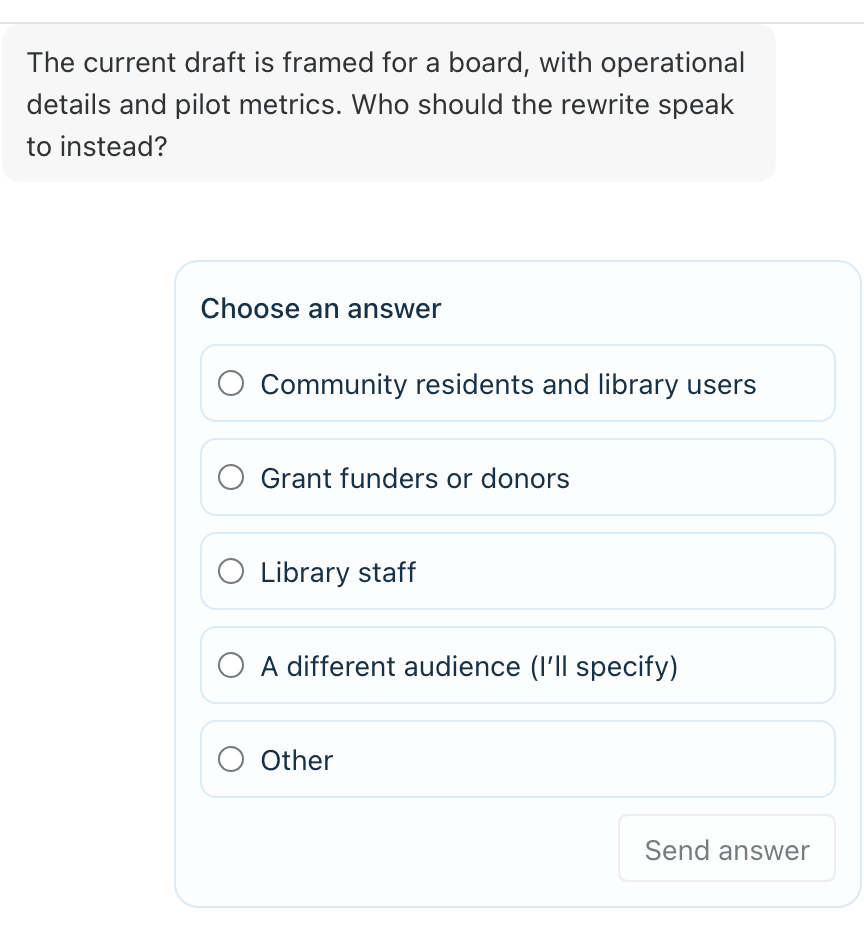
Follow and steer a request
While the agent works, a status line above the chat input shows the current step. Examples are Searching the web... or a short description of the edit in progress.
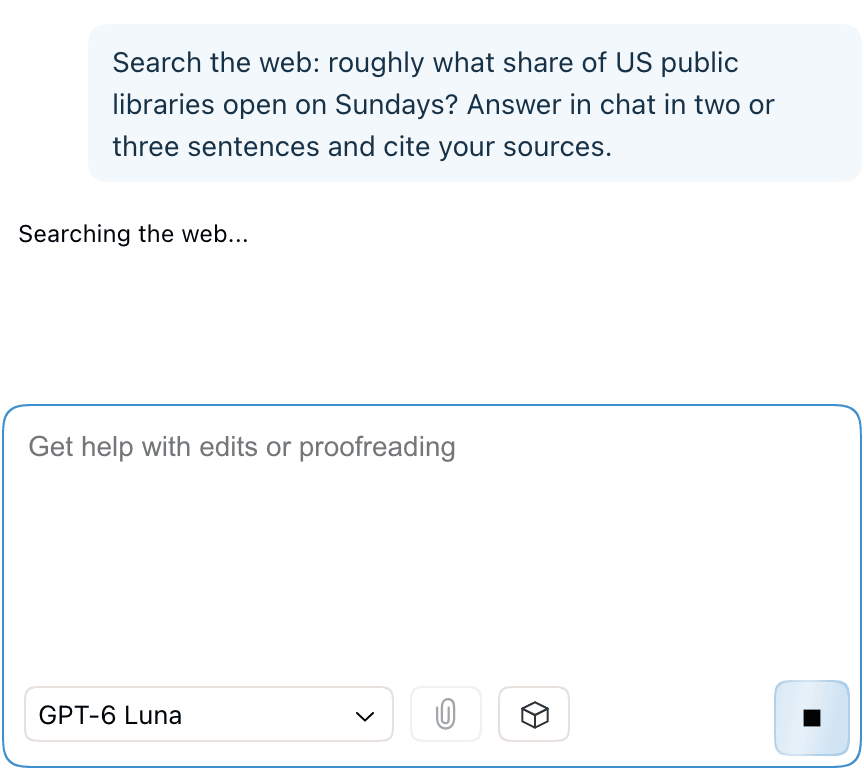
- To stop the request, click the stop button in the chat input. Edits already made stay as suggestions.
- To change direction, send another message while the agent works. The agent reads it at its next step. If it can't, the message waits with the label Queued and sends when the request ends.
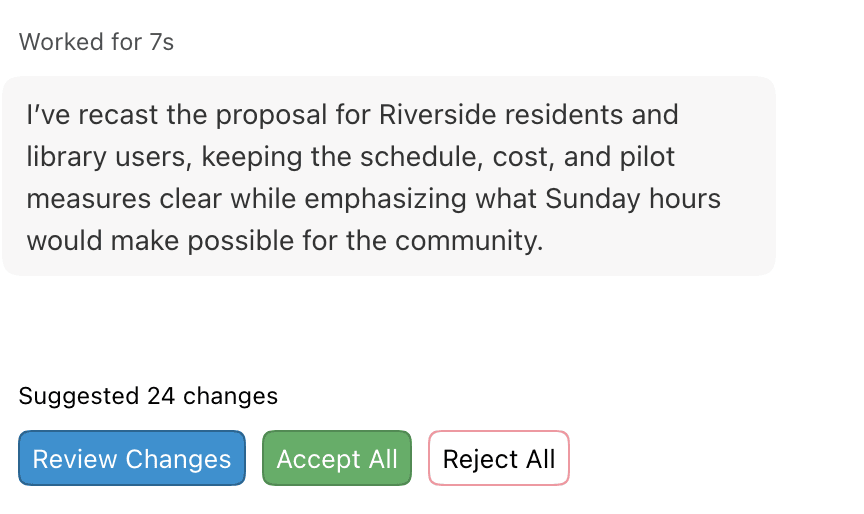
- When the request ends, Worked for above the reply shows how long it took.
Replies and next steps
The agent ends each request with a short reply. It states the outcome and may point out something it noticed. When it proposed edits, the chat shows Suggested N changes with Review Changes, Accept All, and Reject All.
A reply can include suggested follow-up prompts. Click one to send it.
Some features the agent can't run for you. When you ask about one, it adds a button under the reply that opens the feature, and you click it.
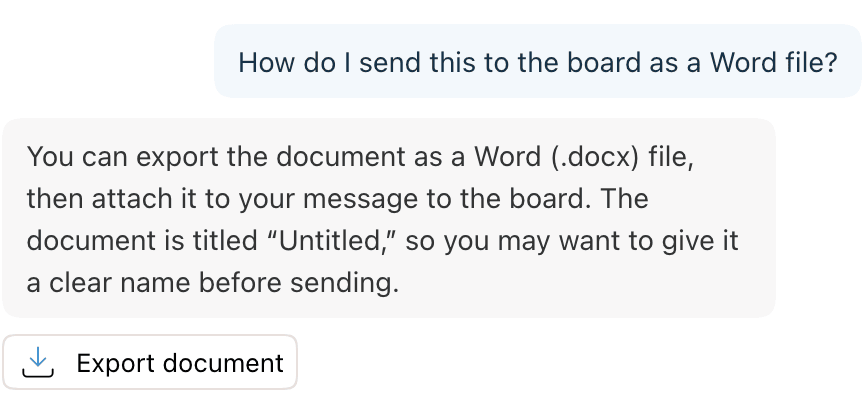
| Button | Opens |
|---|---|
| Export document | The export menu. See Importing & Exporting. |
| Share document | The share dialog. See Sharing & Collaboration. |
| View revision history | Revision history. |
| Detect AI writing | The AI detection score. Requires Pro or Max; other plans see Upgrade to Pro under the button. |
To take back edits you haven't reviewed yet, ask the agent to undo its changes. It withdraws its own pending suggestions.
Custom instructions and memory
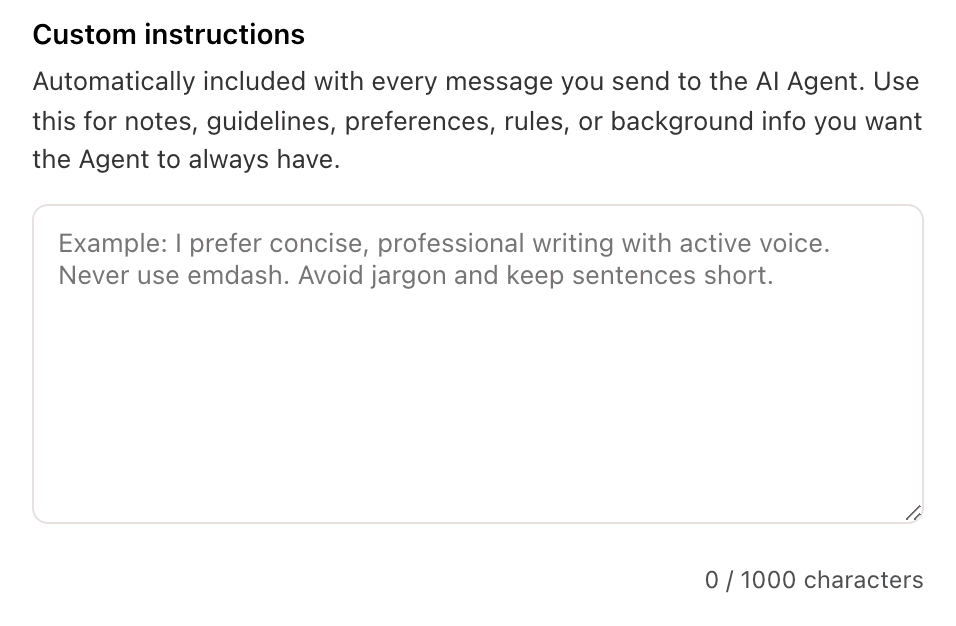
Custom instructions are standing rules for the agent, such as "use British spelling" or "never use em dashes". Set them in Settings > Personalization > Custom instructions, up to 1,000 characters. The agent follows them in every conversation. That includes standing edits, such as fixing em dashes whenever it edits. See also Giving the Agent Context.
The agent also keeps a short memory of facts from past conversations and uses it as background. Saved to memory appears in the chat when it adds to that memory. Memory shapes how the agent does what you ask. It never starts work on its own.
Requirements and limits
| Item | Limit |
|---|---|
| Web search | Requires an account (any plan). |
| Voice mode | Start voice mode in the chat input. Requires Pro or Max. See voice mode. |
| View-only documents | The agent can read and answer questions, but not edit. |
| Other documents | Read-only. Open a document to have the agent edit it. |
| Request length | Each request has a step limit. If the agent reaches it, it stops and says what remains. Send a message to continue. |
| Usage limits | A request that reaches your usage limit pauses and can resume. See AI Usage and Limits. |
| Export, sharing, AI detection | The agent can't run these. It adds a button that opens them. |
The model you pick affects speed and cost. See Supported AI Models.