AI Usage and Limits
Last updated
Every request to the Revise AI agent counts toward your AI usage limit. The Free plan has a daily limit. Plus, Pro, and Max have a monthly limit for each billing period. When you reach the limit, the chat shows a limit reached message. New requests wait until the limit resets, you upgrade, or you turn on Extra Usage.
Usage limits by plan
| Plan | AI usage limit | Resets |
|---|---|---|
| No account | One agent message in this browser. After that, the chat asks you to create a free account. | Does not reset |
| Free | A small daily limit, enough for a few requests on GPT-6 Luna. Models: GPT-6 Luna and Claude Haiku 4.5. | 24 hours after the first request of the day |
| Plus | Monthly limit (1×). No daily limit. | Each billing period |
| Pro | 5× the Plus monthly limit | Each billing period |
| Max | 20× the Plus monthly limit | Each billing period |
- The plan cards on the Pricing and Billing pages show these multiples: 5× monthly AI usage and 20× monthly AI usage.
- Yearly plans get the monthly limit once a month, not a yearly total.
- If Revise changes a plan's limit, the change applies from your next billing period. The current period keeps its limit.
How AI usage is measured
Usage is measured by what each request costs to run on the AI provider's model, not by the number of messages. A request costs more when the model reads or writes more text, or takes more steps. The same request can use a small or a large share of your limit:
- The model. Each model has a usage multiplier compared with GPT-6 Luna. GPT-6 Astra uses about 144× as much for the same request. See usage cost by model and the multipliers in available models.
- Document length. The agent reads the parts of the document it needs. Long documents and broad requests ("improve the whole document") mean more reading.
- Attachments and pasted text. Large files and long pastes add text the model has to read. See Giving the Agent Context.
- Steps. Multi-step requests read, edit, and check the document several times before they finish. Web searches add steps.
The automatic reply after you paste a large block or open a new document with text does not count. If the selected model fails partway through a request, the rest runs on GPT-6 Luna and those steps count at half their usage.
Check your usage
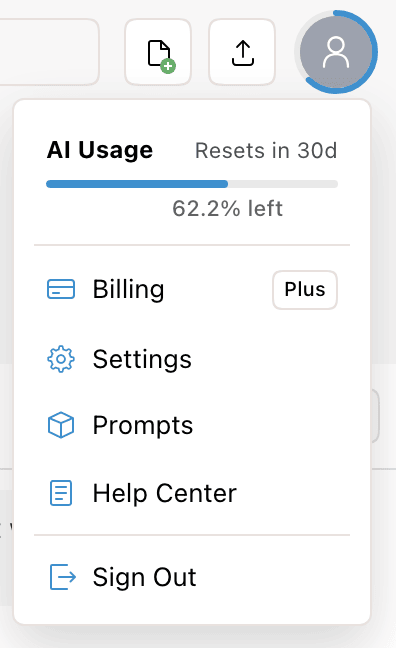
On a paid plan, click your avatar in the top right corner. The AI Usage bar shows how much of your monthly limit is left. Beside it is the time until it resets. A ring around the avatar shows the same amount when you hover over it or when your usage changes.
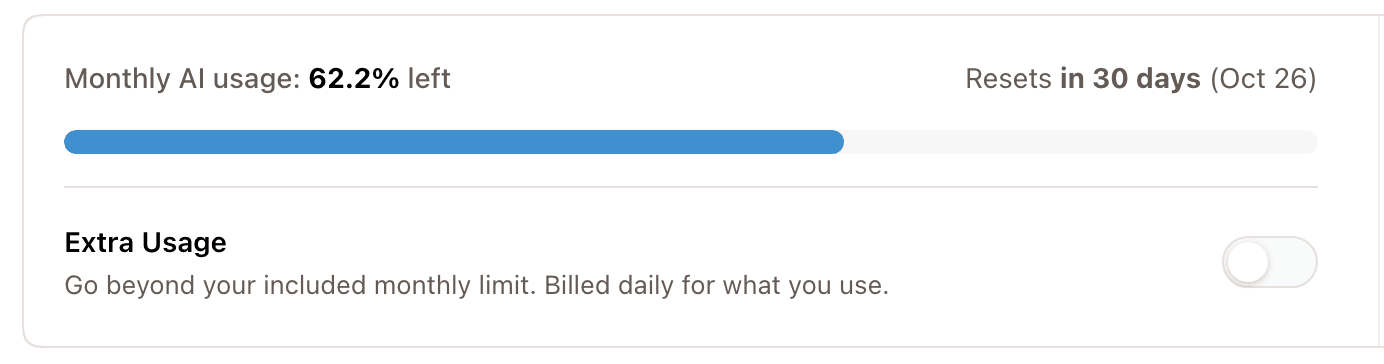
The Billing page, in the same menu, shows Monthly AI usage with the percentage left and the reset date. The Extra Usage switch is below it.
The Free plan has no usage bar. The chat shows the daily limit when you reach it, with the time until it resets.
Usage warnings
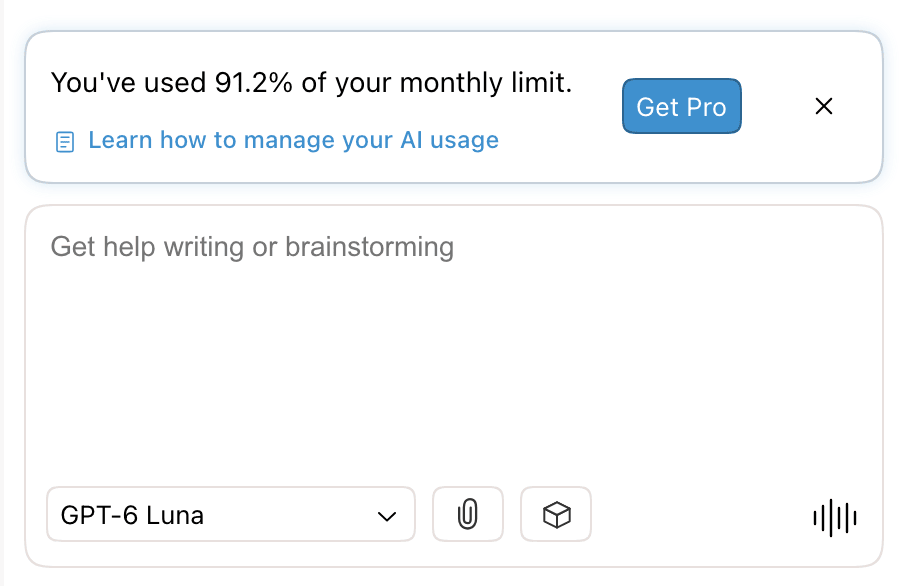
On a paid plan, a warning appears above the chat input as your monthly usage passes each threshold:
| Used | Warning |
|---|---|
| 25% | The percentage used. Only in the first three days of a billing period. |
| 50% | The percentage used. |
| 90% | The percentage used, with Get Pro on Plus, or Enable Extra Usage on Pro and Max. |
Each warning shows while your usage is within 10 points of its threshold. Close it with ×. A closed warning stays closed in this browser for the rest of the billing period. The warnings don't appear while Extra Usage is on.
Two other warnings appear on any plan:
- Choosing a high-cost model shows that it will use your monthly AI limit faster. See usage cost by model.
- Large attachments show Heavy use of attachments will use more of your AI limit. The threshold is 1 MB or about 20,000 characters in total.
When you reach the limit
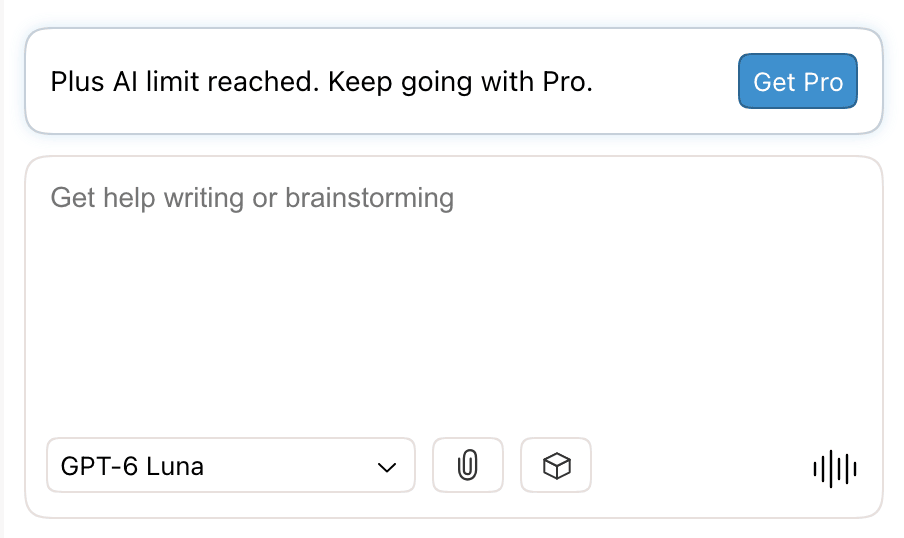
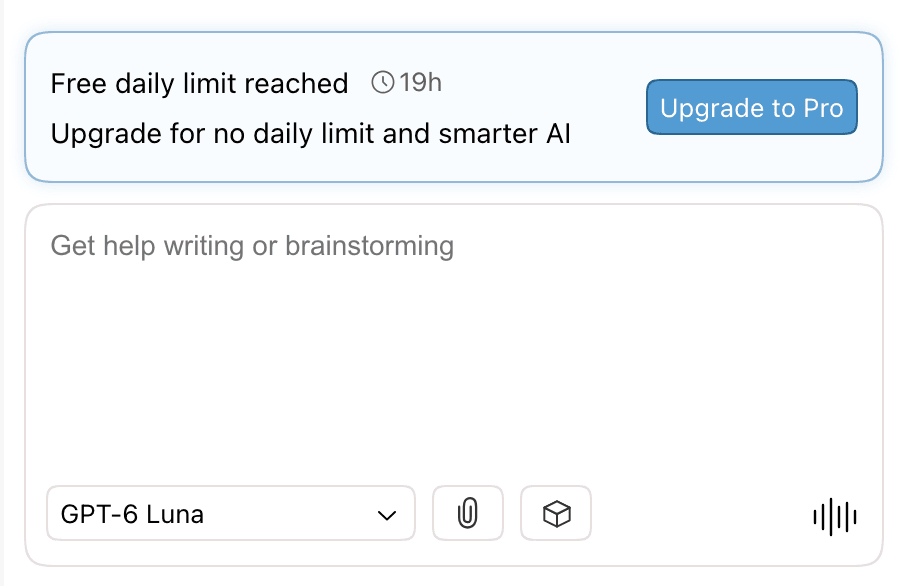
Revise checks your limit before each request starts. At the limit, a banner appears above the chat input and new requests don't send.
| Plan | Message | Button |
|---|---|---|
| Free | Free daily limit reached, with a countdown to the reset | An upgrade button |
| Plus | Plus AI limit reached. Keep going with Pro. | Get Pro |
| Pro | Pro AI limit reached. Turn on Extra Usage to keep going. | Enable Extra Usage |
| Max | You've reached your monthly limit. | Enable Extra Usage |
On the Free plan, hover over the countdown to see the exact reset time.
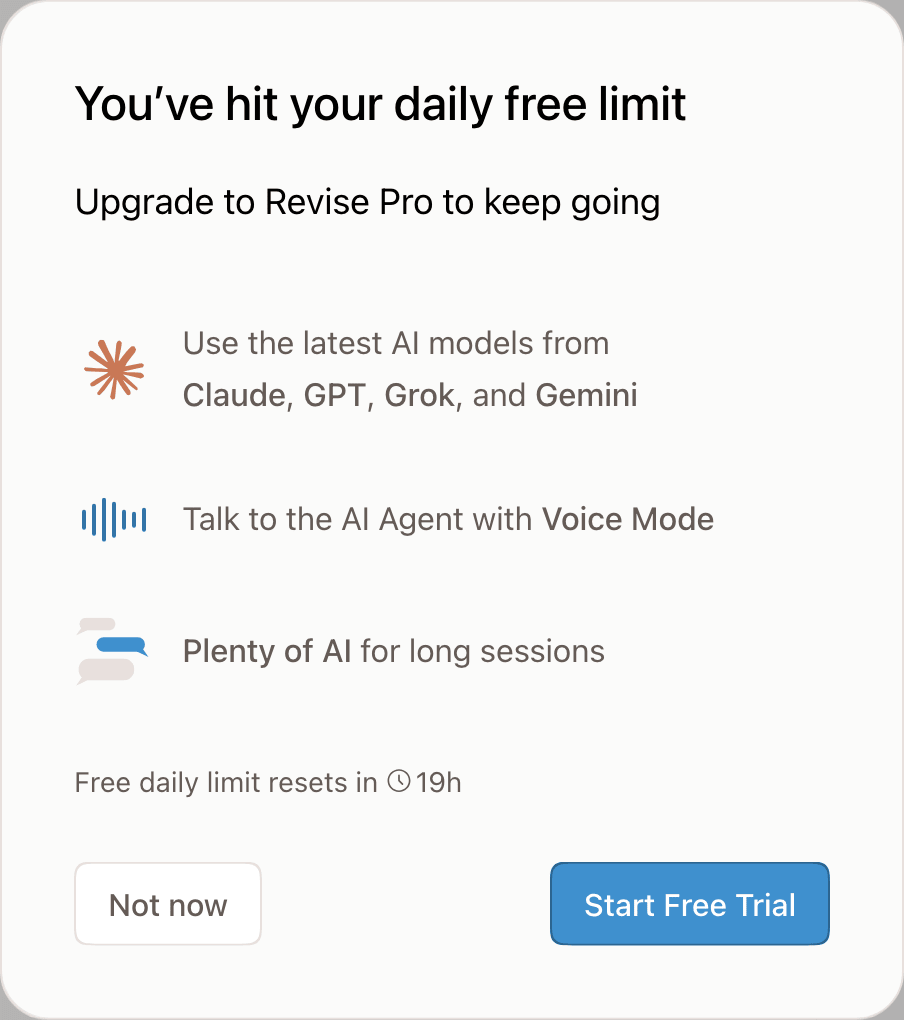
The first time you reach the free daily limit, an upgrade offer opens a few seconds later. It lists what the paid plan adds and when your free limit resets. Click Not now to close it. It opens by itself only once per account. The banner's button opens the upgrade options again.
The limit also stops the other features that count toward usage. Voice mode ends the session. The AI detection score shows You have used your monthly AI allowance. Turn on Extra Usage to keep going. The AI Rewriter stops generating.
Requests that reach the limit while running
A request can take many steps. What happens when it reaches the limit partway through depends on the plan:
- Paid plans: the request finishes. Its full usage counts, so usage can end slightly above 100%. The next request is blocked.
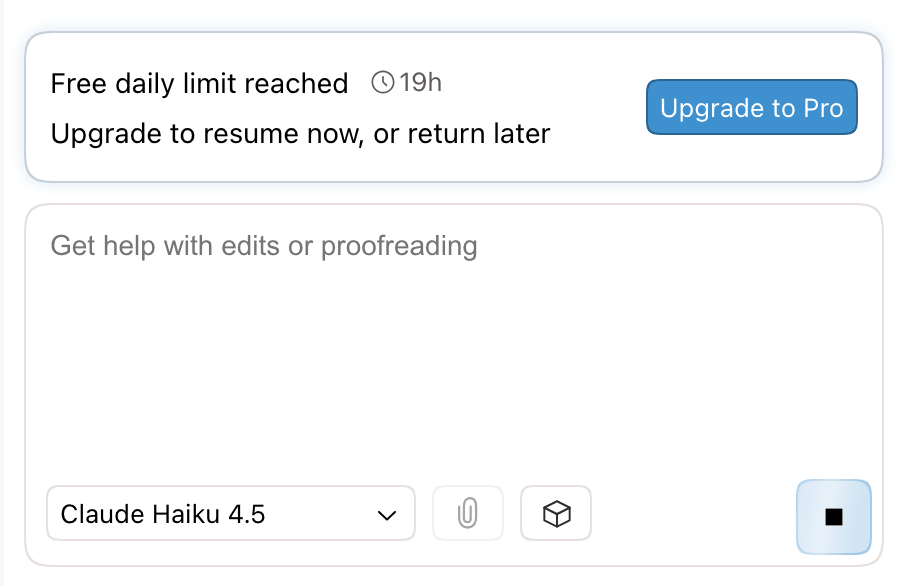
- Free plan: the request can run a little past the daily limit. If it reaches that margin, it pauses between steps. The chat shows Request paused at free daily limit. and the banner says Upgrade to resume now, or return later.
- Extra Usage: a request that reaches your monthly spending limit pauses with Paused at your Extra Usage limit. Click Increase Limit to raise it, then Resume.
A paused request keeps its progress. When the free limit resets, the banner changes to Free daily limit reset. Click Resume to continue from where it stopped, or send a new message.
Extra Usage
Extra Usage lets Plus, Pro, and Max keep using AI after the monthly limit runs out. Usage past the limit is billed to your card.
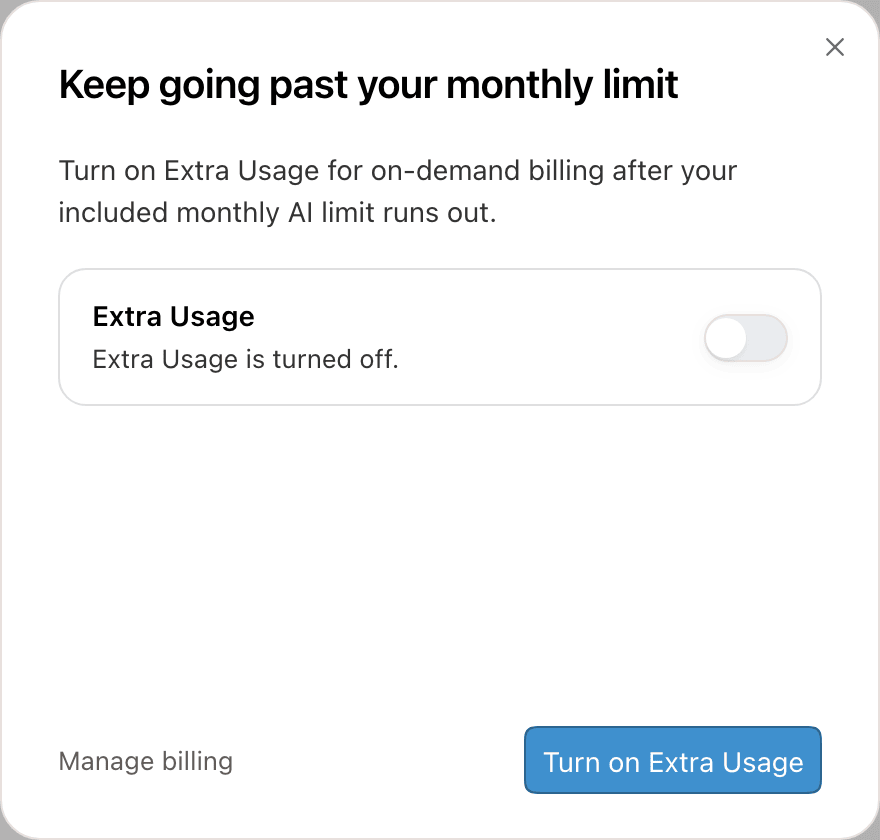
- Open Billing from the account menu, or click Enable Extra Usage in a usage banner.
- Turn on the Extra Usage switch. In the dialog from the banner, you can also click Turn on Extra Usage.
- Choose a Monthly spending limit: $10, $20, $50, $100, or Unlimited. The first time, it is set to $20.
- Extra Usage is charged after you use it, not in advance. The Billing page shows Upcoming charge, Pending payment, Paid this month, and your spending limit.
- The spending limit applies per billing period. When you reach it, requests stop until you raise it or the period ends.
- While Extra Usage covers your requests, an Extra Usage badge appears in the chat input. Hover over it for your current balance.
- If a payment fails, Extra Usage pauses. Click Update payment on the Billing page to fix the card.
What counts toward usage
| Feature | Counts toward AI usage |
|---|---|
| AI agent requests | Yes |
| Voice mode (Pro and Max) | Yes, for the length of the session and the edits it makes |
| AI detection score (Pro and Max) | Yes, per 100 words scored. A failed score is not charged. |
| AI Rewriter | Yes. Without an account, it allows 5 rewrites per browser. See AI Rewriter limits. |
| Automatic agent replies after a paste or a new document | No |
| Voice dictation | No |
| PDF and image import | No. Imports have a separate monthly page allowance; see PDF import limits. |
| Attachments in a chat message | Yes, as part of the request. Attachments also have per-message limits; see attachment limits. |
| External agents (Claude, ChatGPT) through the Revise MCP server | No. They run on your subscription with that service. The server has its own rate limits. |
When usage resets
| Plan | Reset |
|---|---|
| Free | 24 hours after the first request of a new daily window, not at midnight. The window starts with your first request after the last one ended. |
| Plus, Pro, and Max (monthly) | At the end of each billing period. The account menu and the Billing page show the date. |
| Plus, Pro, and Max (yearly) | Monthly, on the day of the month your yearly plan started. |
Unused usage does not carry over to the next period.
Upgrade or downgrade
| Change | Effect on usage |
|---|---|
| Free to a paid plan | Immediate. A new billing period starts with the full monthly limit, and the daily limit no longer applies. |
| To a higher paid plan | Immediate, in the same billing period. The usage you already have counts toward the higher limit, so the percentage used drops. |
| Monthly to yearly billing | Immediate. A new billing period starts. |
| To a lower plan, or to Free | At the end of the billing period. You keep your current limit until then. |
- Free trial: a trial includes a smaller trial allowance. The usage bar measures it and shows when the trial ends. At the trial allowance, the banner shows Trial limit reached. Click Start my plan now to end the trial and get the full monthly limit. Extra Usage doesn't apply during a trial.
- Failed payment: 48 hours after a payment fails, the account gets the Free daily limit and the Free models until the payment goes through. At the daily limit, the banner shows Update payment.
Use less of your limit
- Use GPT-6 Luna for routine edits, and switch to a stronger model for hard tasks. See switching models.
- Select the passage you want changed instead of asking about the whole document.
- Ask for one specific change per request.
- Attach only the files and pages the request needs.
- Use the AI Rewriter for short standalone rewrites.