Themes & Appearance
Last updated
A theme sets the colors of the documents list and the editor. Choose one in Settings > Appearance. The same tab sets how tracked changes are marked in the editor.
Open settings
| From | How |
|---|---|
| The editor | Click Settings at the end of the tab row, after Review. It is hidden in narrow windows. |
| The document | Right-click in the document and choose Settings. |
| The documents list | Click Settings at the bottom of the left sidebar. |
| The account menu | Click your avatar in the top right corner, then Settings. |

Settings opens on the tab you last viewed in this browser. Settings requires an account. Signed out, the Settings buttons open the sign-up dialog.
Choose a theme
- Open Settings and choose Appearance.
- Under Theme, click a theme. It applies at once.
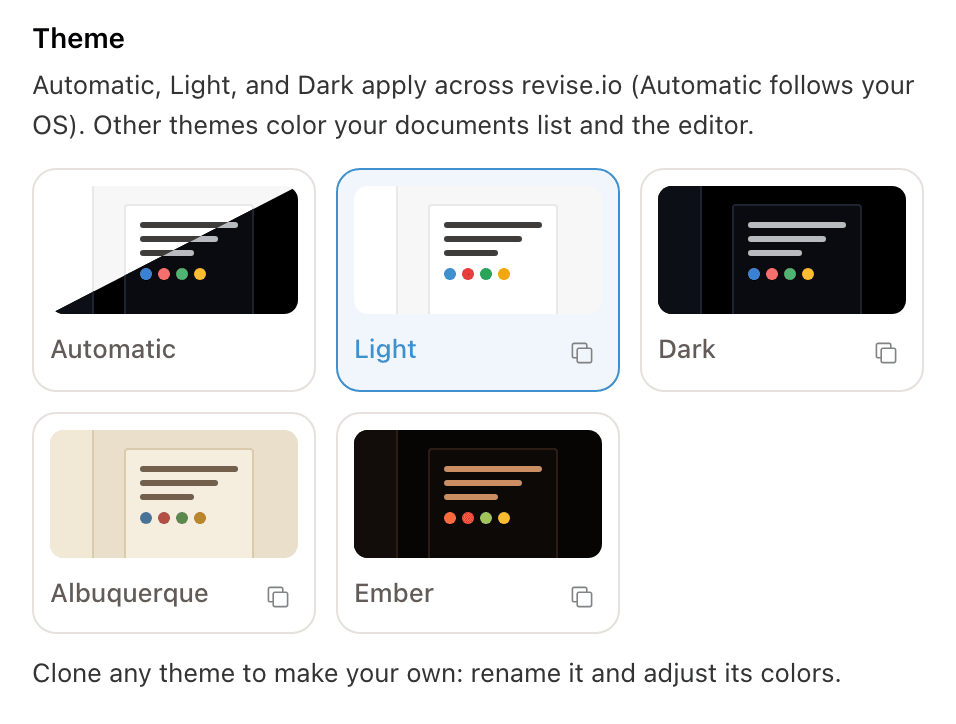
| Theme | Colors | Applies to |
|---|---|---|
| Automatic | Light or dark, following your operating system | All of revise.io |
| Light | Dark text on white pages | All of revise.io |
| Dark | Light text on dark pages | All of revise.io |
| Albuquerque | Low contrast: brown text on warm paper | The documents list and the editor |
| Ember | Orange text on near-black pages | The documents list and the editor |
Automatic, Light, and Dark set the color mode for the whole site. Albuquerque, Ember, and custom themes color only the documents list and the editor. Other pages, such as pricing and the blog, keep your color mode. Choosing Automatic, Light, or Dark again turns off a colored theme.
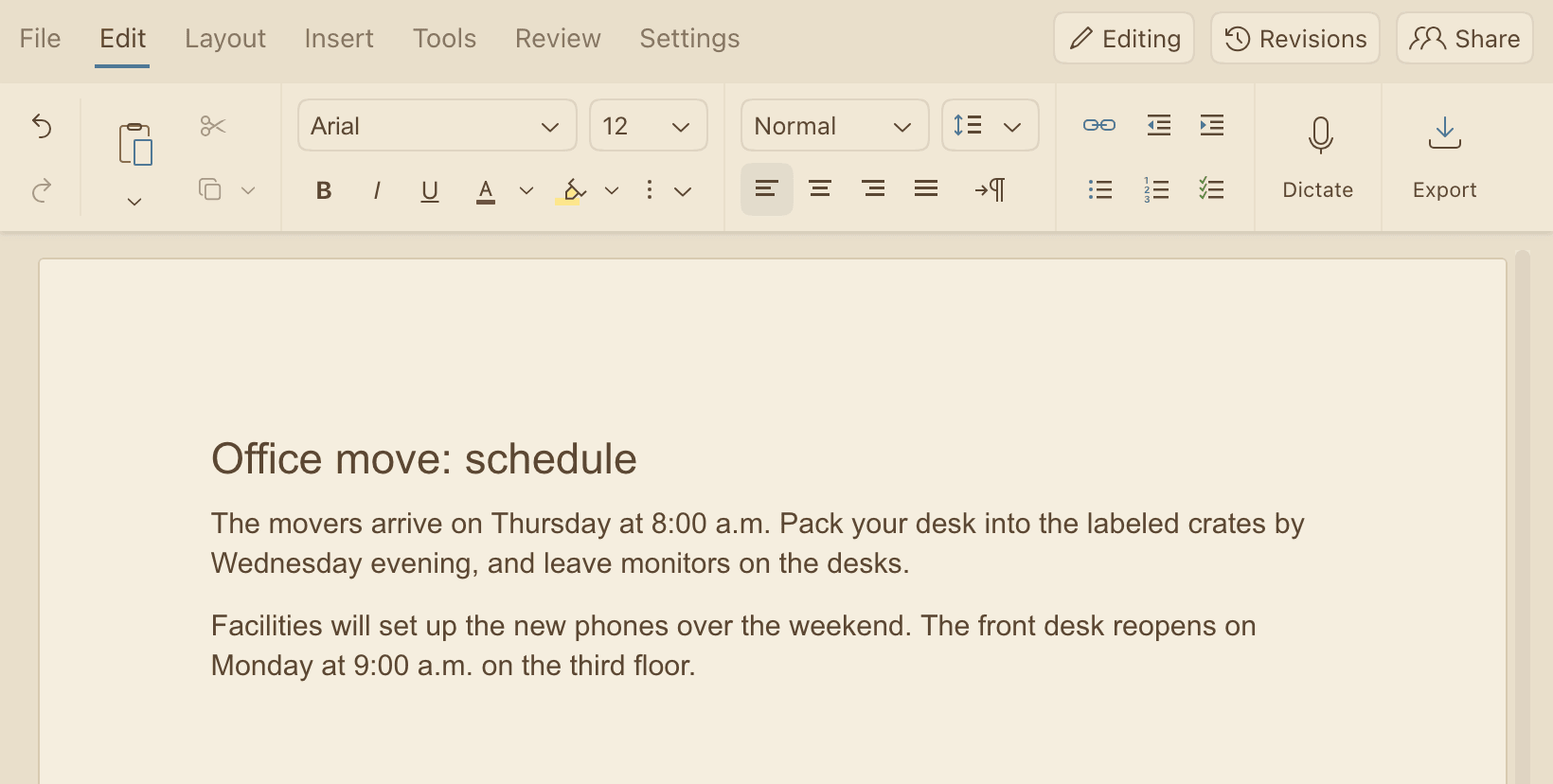
A theme changes how documents look on screen. It does not change their content. Your theme is saved to your account and applies on every device where you sign in.
Create a custom theme
- Open Settings > Appearance.
- On the theme to start from, click Clone (the copy icon in the card's corner). Any theme except Automatic can be cloned, including your own.
- The copy is named after the original, such as Albuquerque copy. It becomes the active theme and its editor opens below the cards.
- Change the name, the base, and the colors. Changes apply as you edit.
- Click Done to close the editor.
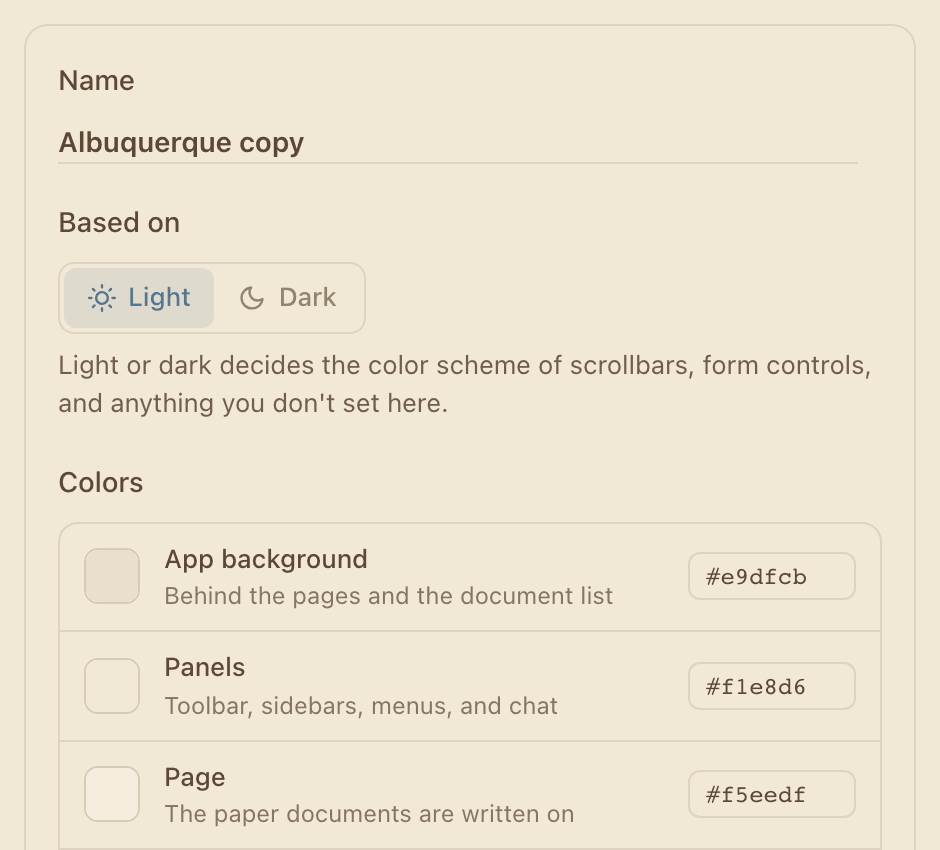
Based on is Light or Dark. It sets the color scheme for parts a theme does not color, such as scrollbars and form controls.
Each color has a swatch and a hex field. Click the swatch to open a color picker, or type a value such as #5b4733 in the field. Lighter and darker shades, borders, and secondary text are mixed from these colors.
| Color | Used for |
|---|---|
| App background | Behind the pages and the documents list |
| Panels | Toolbar, sidebars, menus, and the chat |
| Page | The pages documents are written on |
| Page border | The outline around each page |
| Text | Document and interface text |
| Accent | Selection, links, and buttons |
| Red | Deleted text and delete buttons |
| Green | Inserted text and confirmations |
| Yellow | Formatting changes and search matches |
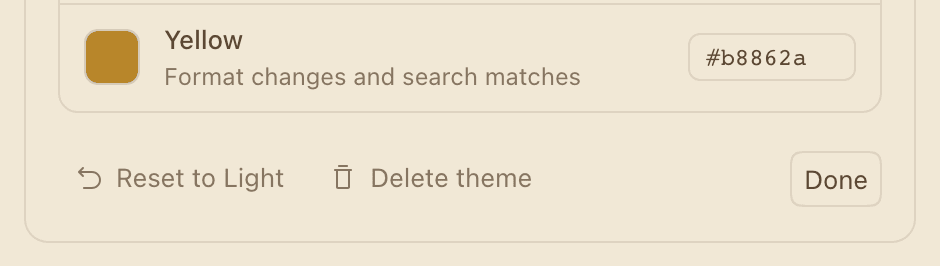
- Reset to Light or Reset to Dark sets every color back to the stock theme for the current base.
- Delete theme asks for confirmation, then removes the theme. If it was active, the color mode it was based on takes its place.
- To edit a custom theme later, click its card under Theme.
Tracked change style
Tracked changes, under the themes, sets how suggested insertions and deletions appear in the editor. It applies to every document and to suggestions from the AI agent, Suggesting Mode, and imported Word files.
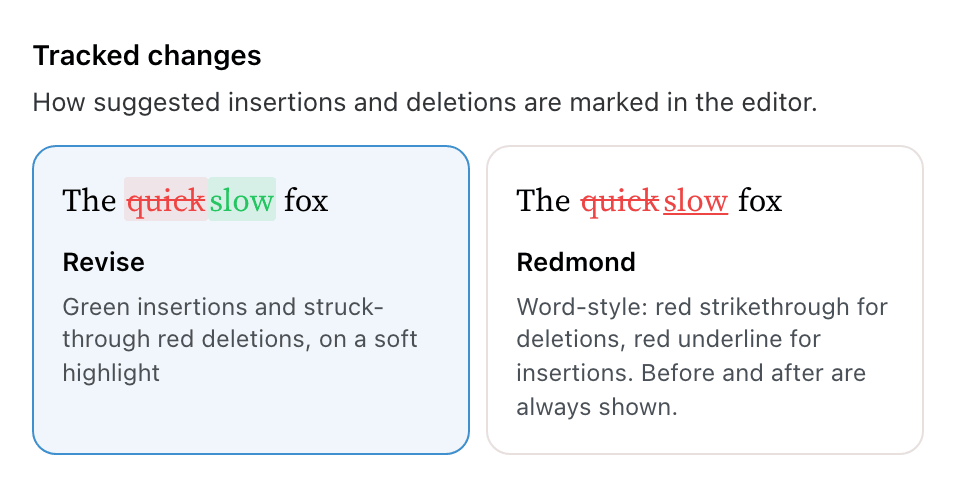
| Style | Insertions | Deletions | Show Before & After |
|---|---|---|---|
| Revise (default) | Green, on a light green highlight | Red and struck through, on a light red highlight | Your choice in the Review tab |
| Redmond | Red and underlined | Red and struck through | Always on. The Review tab hides the checkbox. |
Redmond matches the way Microsoft Word shows tracked changes. Replaced text always appears struck through, next to the new text. See Show deleted text.

Redmond adds no highlight, except on the change at the cursor. That change gets a light red highlight while the cursor is in it, or while the Review tab is on it.

The style is a display setting for your account. Collaborators see suggestions in their own style. Exported Word files keep the changes as Word tracked changes in either style.
Requirements and limits
| Item | Requirement or limit |
|---|---|
| Settings | An account |
| Built-in themes and the tracked change style | Every plan, including Free |
| Custom themes | Plus or Pro |
| Number of custom themes | 24 |
| Theme name | 40 characters |
| Colors per theme | 9 |
If a plan ends, custom themes are kept but hidden. The documents list and the editor use your color mode until you upgrade again.