Sharing & Collaboration
Last updated
Share a document to let other people read it, suggest changes, or edit it with you in real time. Invite people by email with a role, or turn on public access so anyone with the link can view or edit. Sharing requires an account.
Share a document
- Click Share in the top right of the editor, to the right of Revisions. The share dialog opens.
- Under Add People, invite people by email. See Invite people by email.
- Or open Public Access to share with anyone who has the link. See Public access and link sharing.
Changes in the dialog save as you make them. The bottom of the dialog shows Saving..., then Saved. Only the owner of a document sees the Share button.
The button's label shows how the document is shared.
| Button | Meaning |
|---|---|
| Share | Private. Only you have access. |
| Shared (green) | Shared with one or more people. Hover it to see how many. |
| Public (green, with a globe) | Public access is on. Anyone with the link can open it. |
Invite people by email
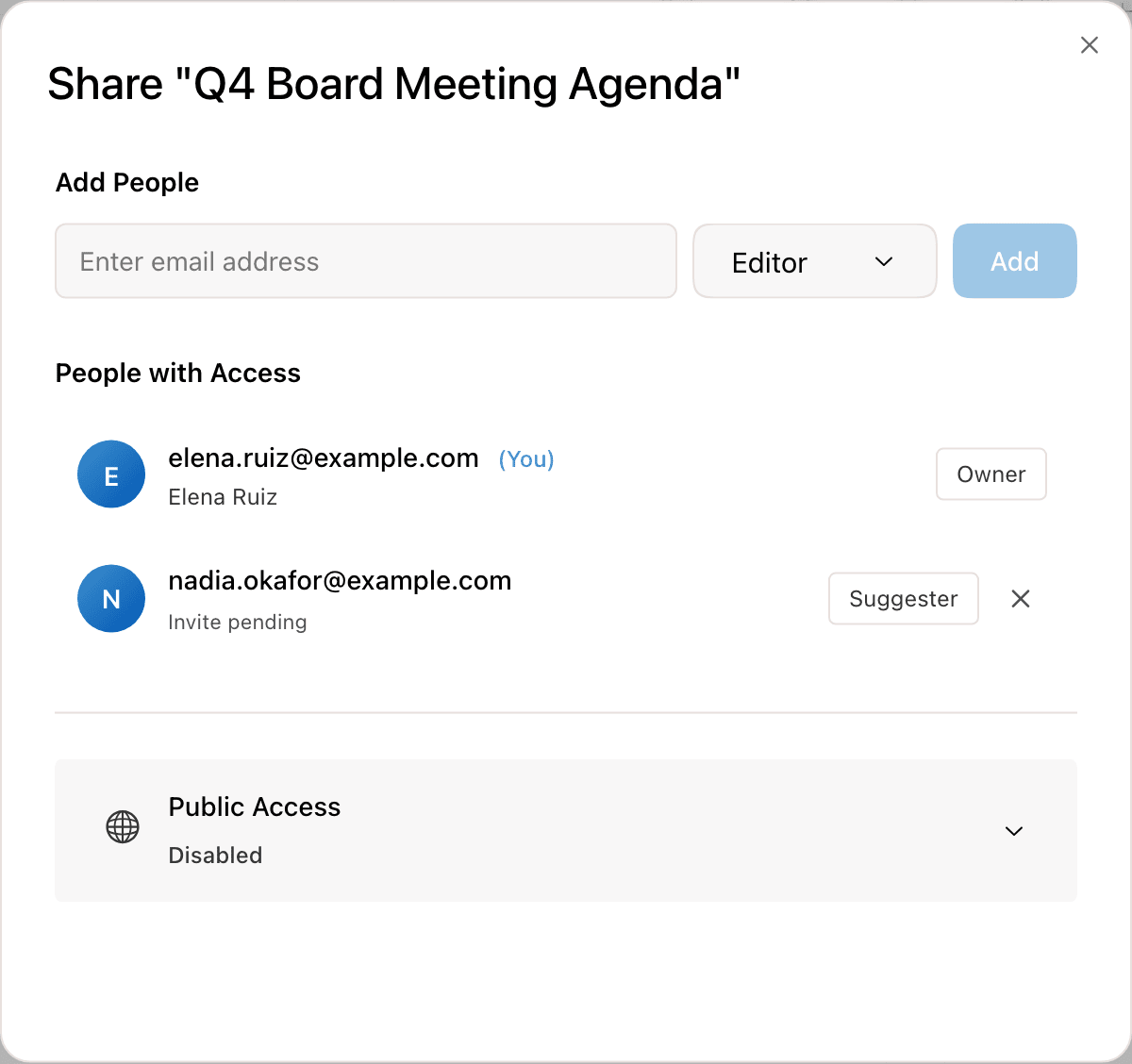
- In the share dialog, enter an email address in the Enter email address field.
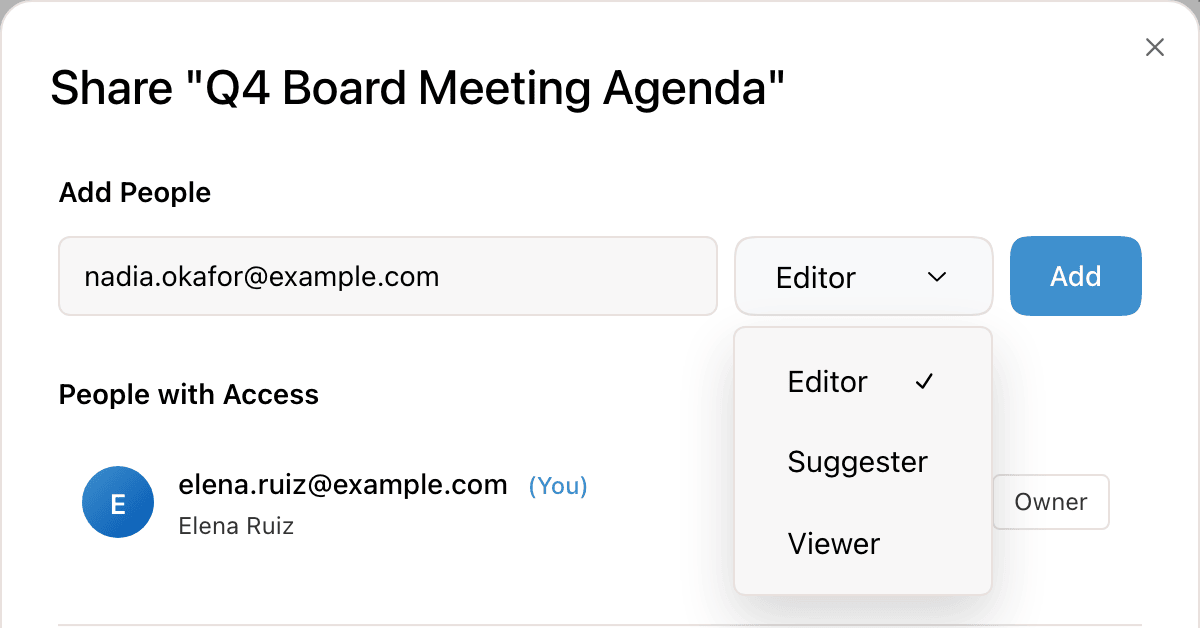
- Choose a role from the menu next to it: Editor, Suggester, or Viewer. The default is Editor. See Roles and the Suggester role.
- Click Add. The person appears under People with Access.
What happens next depends on whether the person has a Revise account.
| Invitee | What happens |
|---|---|
| Has an account | Added right away with the role you chose. Revise emails them a link to the document, and it appears in their Shared Documents. |
| No account | Revise emails an invitation. The row shows Invite pending until they accept. The link asks them to create a free account, then opens the document. |
An invitation expires after 7 days, and its row then shows Expired. To send a new one, add the same address again. The invitation link is not tied to the address it was sent to. The first person who opens it and signs in gets access.
The dialog refuses an invite and shows a message when:
- the address is your own
- the person is already a collaborator
- an unexpired invitation to that address is pending
- your email address is not verified (Revise sends you a new verification email)
Roles
Each person you invite has one role. The owner is the person who created the document.
| Role | Can do |
|---|---|
| Owner | Everything. Only the owner can open the share dialog, invite people, change roles, and turn public access on or off. |
| Editor | Edit the document directly, switch to Suggesting Mode, comment, and use the AI agent. |
| Suggester | Comment, and suggest changes. Suggesting Mode is always on, so every edit becomes a suggestion. The mode button is locked and shows You can only suggest changes in this document on hover. |
| Viewer | Read the document and its comments, print, export, and make a copy. Cannot edit or comment. |
Change or remove access
Open the share dialog. Each person under People with Access has controls on the right of their row.
| To | Do this |
|---|---|
| Change a collaborator's role | Choose a new role from the menu in their row. |
| Remove a collaborator | Click Remove collaborator (the X). They lose access right away. There is no confirmation. |
| Cancel a pending invite | Click Revoke invite (the X). The invitation link stops working. |
| Change the role of a pending invite | Revoke it, then invite the address again with the new role. A pending invite shows its role as a label, not a menu. |
| Stop link access | Turn off the switch under Public Access. |
Public access and link sharing
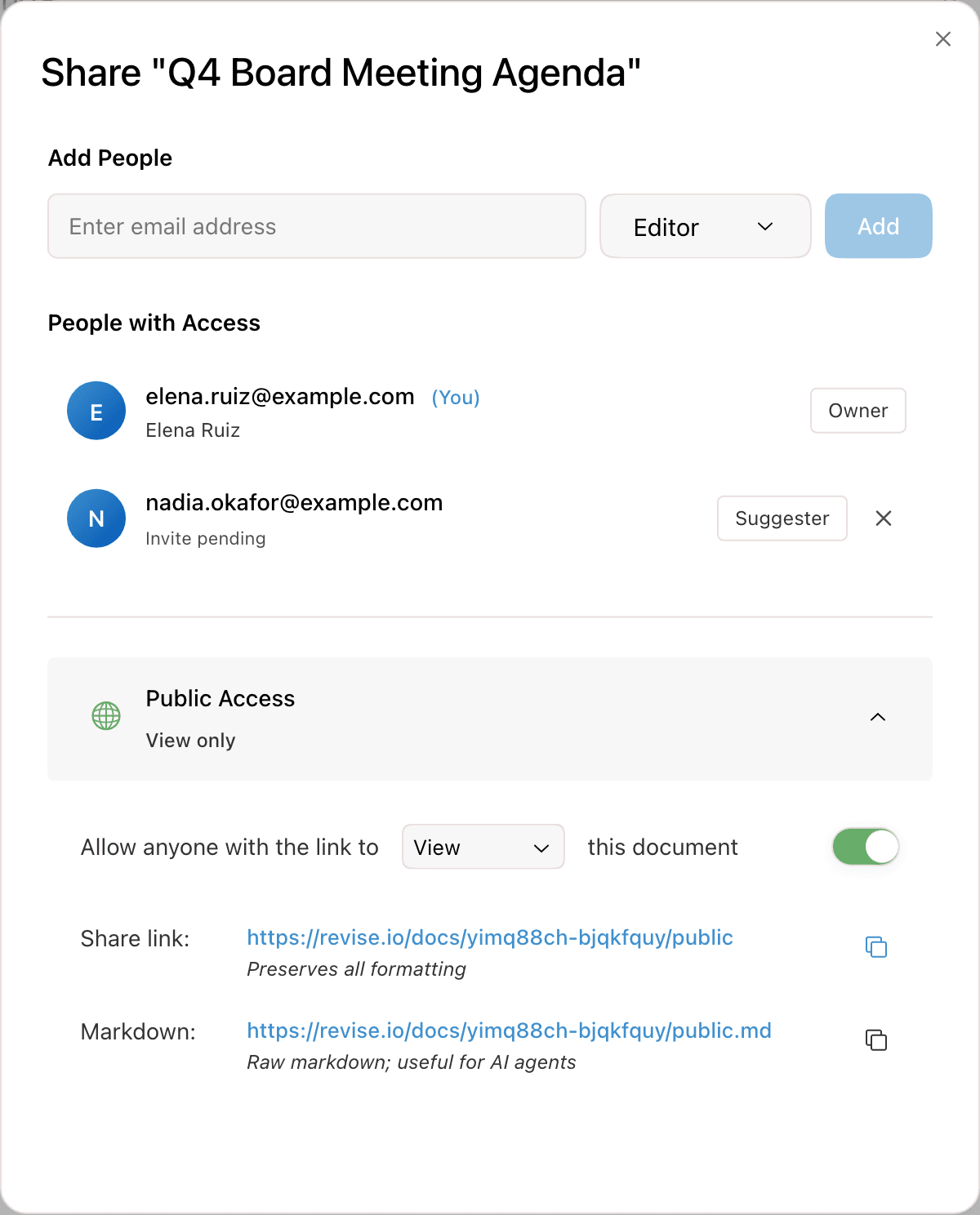
- In the share dialog, click Public Access to expand it.
- Turn on the switch next to Allow anyone with the link to View this document.
- To let visitors edit, change View to Edit.
- Click the copy button next to Share link to copy the link.
| Status under Public Access | Who can open the link |
|---|---|
| Disabled | Only you and the people you invited. |
| View only | Anyone. Visitors can read, print, export, and make a copy. |
| Anyone can edit | Anyone. Visitors can edit, including people with no account. |
With public access on, the dialog shows two links, each with a copy button:
- Share link: the public page at
revise.io/docs/<id>/public. It opens the document in the editor with all formatting. - Markdown: the same address ending in
.md. It returns the document as plain Markdown text, which AI agents and scripts can read.
When you paste the share link into a chat app or social site, the preview shows the document title and a thumbnail. Turning off the switch stops both links from working for anyone you have not invited. AI agents connected through the MCP server can invite people but cannot turn on public access.
Open a shared document
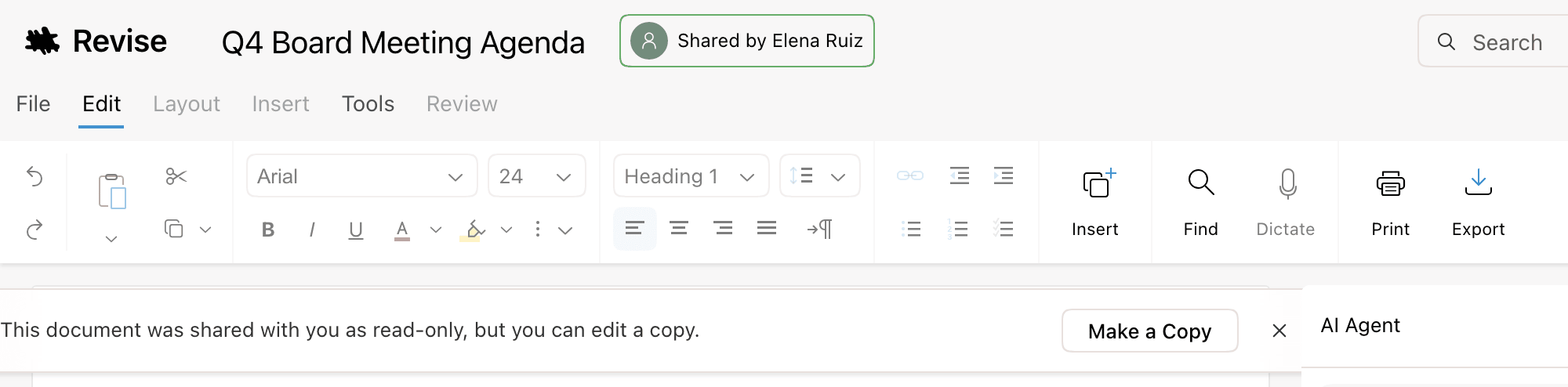
A shared document opens in the same editor. In place of the Share button, the header shows Shared by and the owner's name.
A document you can only view shows a banner: This document was shared with you as read-only, but you can edit a copy. Click Make a Copy to create an editable copy named Copy of and the original title. The copy is yours, and the original does not change. Click the X to hide the banner.
The Shared Documents list
Click Shared Documents in the sidebar of the documents list, or go to revise.io/docs/shared. It lists documents other people shared with you, and your own documents that have collaborators or public access. Documents you opened only through a public link do not appear.
Each document shows how it is shared.
| Label | Meaning |
|---|---|
| Shared by and an avatar | Someone else owns it and shared it with you. |
| Shared with and avatars | You own it and shared it with the people shown. |
| Public | You own it and public access is on. |
| Private | You own it and have not shared it. |
Edit together in real time
Everyone with the document open sees each other's changes as they type. There is nothing to refresh or merge.
The avatars of the other people in the document appear in the header, next to the title. Hover an avatar to see the person's name. The header shows up to five avatars, then a count of the rest.

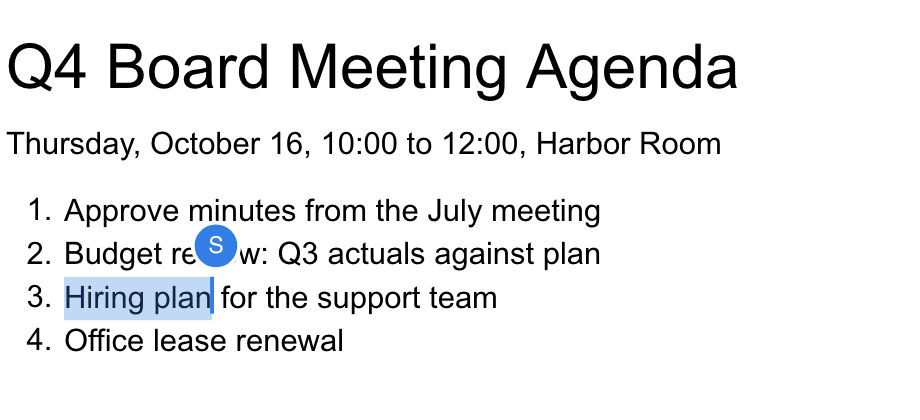
Each person's cursor and selection show in the document in their color. A small avatar with their initial appears above the cursor when it moves, then fades. Hover the cursor to show it again. People without an account appear as Anonymous.
Revision history records every collaborator's changes.
The AI agent and suggestions in shared documents
| Item | Who sees it |
|---|---|
| Agent conversations | Only the person who started them. Each collaborator has their own conversations with the AI agent. Messages count toward the sender's usage limit. |
| Suggestions from the agent | Everyone. They appear in the document as pending suggestions until someone accepts or rejects them. |
| Suggestions from collaborators | Everyone, under the author's name. See changes from collaborators and external agents. |
| Comments | Everyone with access. Editors and Suggesters can add and reply. Viewers can only read. |
In a document with collaborators, a comment goes to the agent only when it mentions @Revise. See Reviewing AI Changes.
External agents in shared documents
Agents such as Claude or ChatGPT can edit your documents through the Revise MCP server. Everyone with the document open sees their activity.
| Indicator | Meaning |
|---|---|
| The agent's logo among the header avatars | The agent is working in the document now. Hover it to see that it is working in this document. |
| The agent's name and active with a time, next to the title | The agent edited the document earlier. |
| A cursor with the agent's avatar | Where the agent last edited. |
To remove an agent's access to all your documents, open Settings, go to External Agents, and click Disconnect next to it. See manage connected apps.
Requirements and limits
| Item | Requirement or limit |
|---|---|
| Sharing a document | An account. Without one, Share asks you to create a free account. |
| Sending invites | A verified email address. |
| Accepting an invite | An account. The invitation link offers to create one. |
| Opening a public link | No account needed, for viewing or editing. |
| Invitation lifetime | 7 days. |
| Invites to people without an account | 5 a minute, and 20 per document a day. |
| Managing sharing | Owner only. Editors cannot open the share dialog. |