Revise basics
Last updated
Revise is an AI document editor that runs in the browser. This page covers the main parts of the app and links to the full article for each.
What is Revise
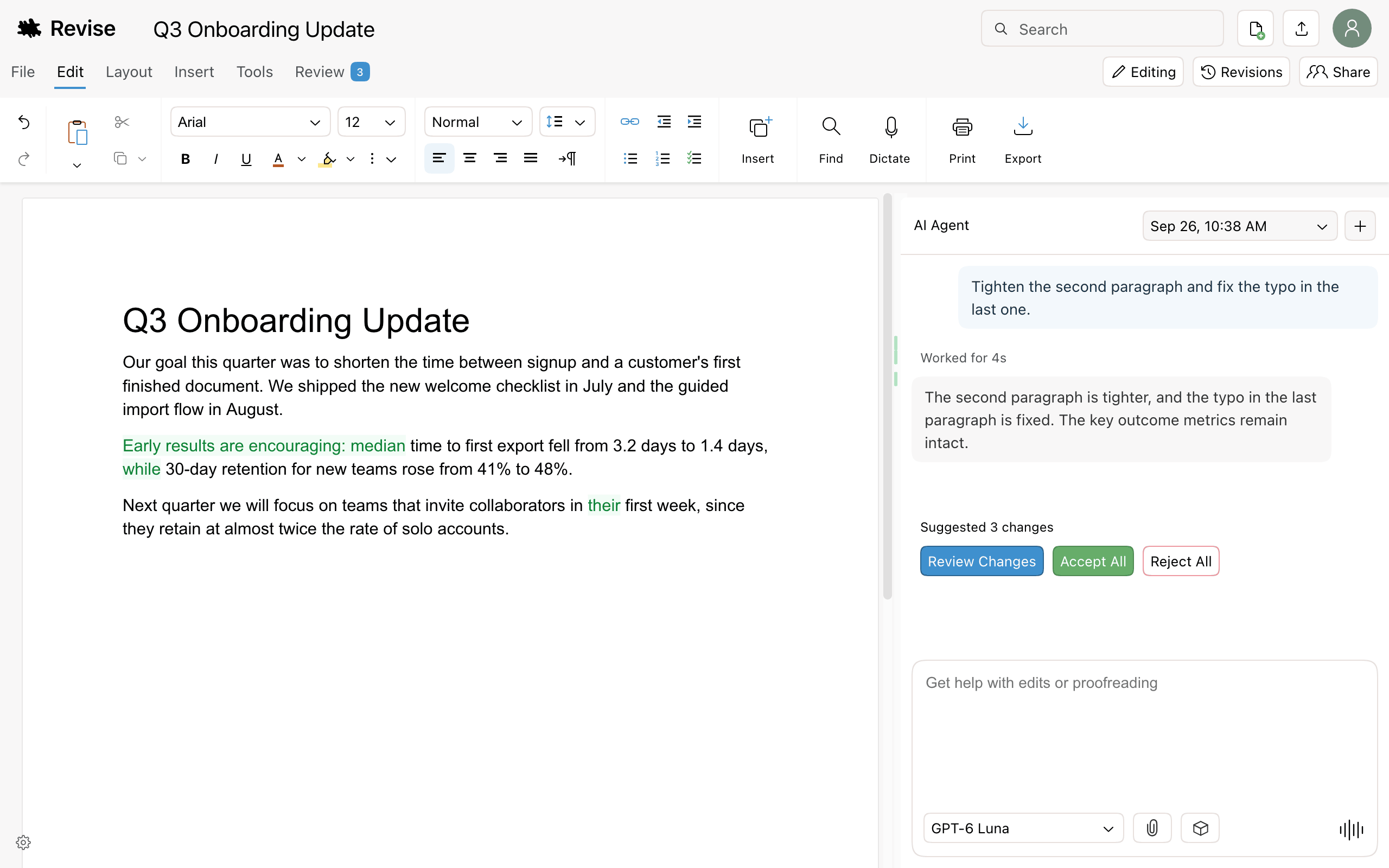
Revise is a word processor with a built-in AI agent. You write and format documents on pages, as in Word or Google Docs. The agent reads the document and proposes edits as tracked changes that you accept or reject.
Revise keeps a revision history of every document and supports real-time collaboration. It opens and saves Word (.docx), PDF, Markdown, and HTML files.
Get started
- Go to revise.io and click Get Started Free. The editor opens with a new document, or with the document you edited last.
- Type, paste, or import a file. To import, click Import Document in the chat panel, or open the File menu and choose Import.
- Ask the agent for help in the chat panel on the right. The suggested prompts above the chat input are a starting point.
No account is needed to start. See Accounts and anonymous use for what an account adds.
The documents list
The documents list at revise.io/docs shows the documents in your account. Click the Revise logo in the editor to open it. The list requires an account.
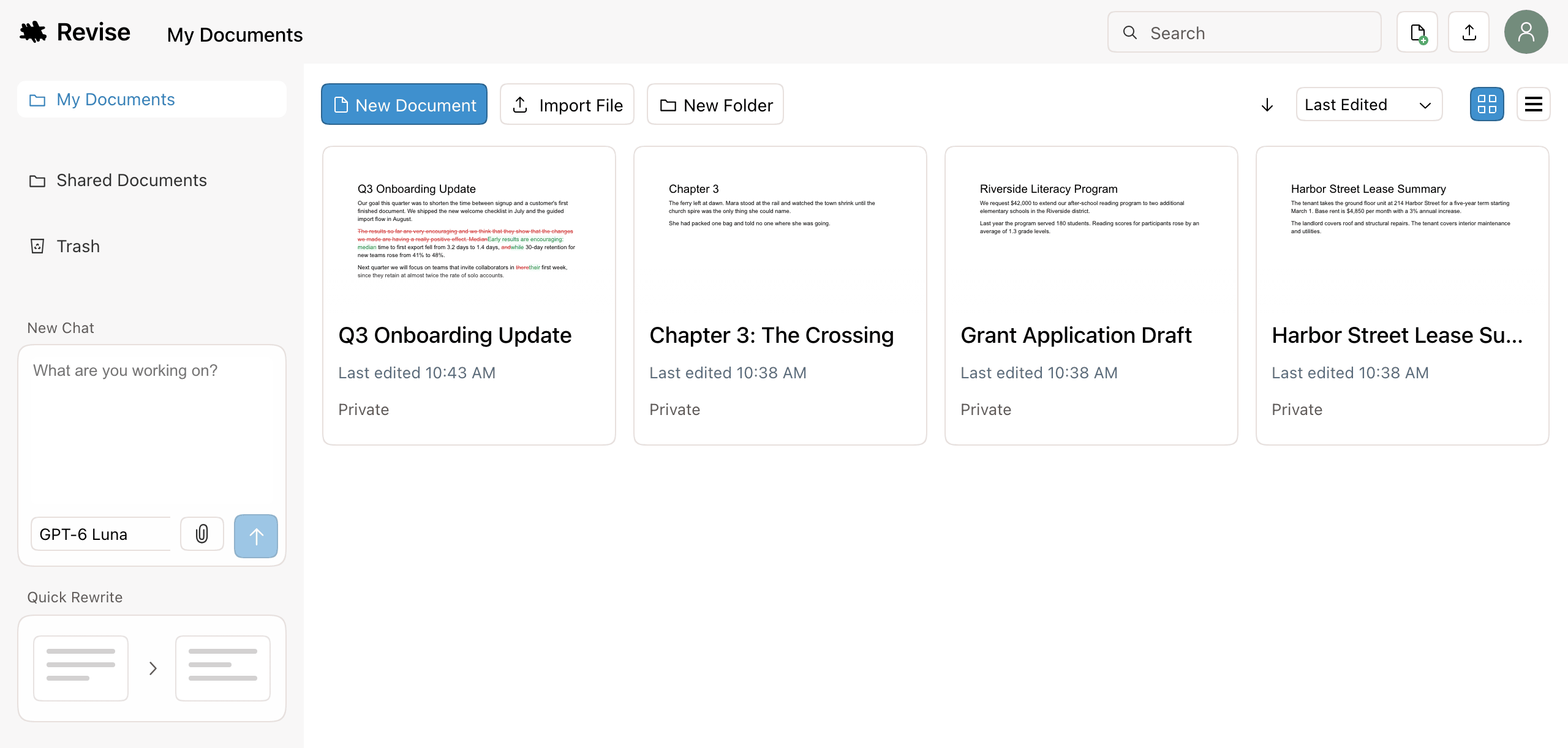
| Control | What it does |
|---|---|
| New Document | Creates a blank document and opens it. |
| Import File | Creates a document from a file on your computer. |
| New Folder | Creates a folder in the current location. Drag documents onto a folder to move them. |
| My Documents, Shared Documents, Trash | Your own documents, documents other people shared with you, and deleted documents. In Trash, Recover restores a document and Empty Trash deletes everything in it permanently. |
| Search | Searches the text of your documents, documents shared with you, and folder names. |
| Sort menu | Sorts by Last Edited, Date Created, or Title. The arrow beside it reverses the order. |
| Grid and list buttons | Switch between document cards and a compact list. |
| New Chat | Creates a new document and starts a conversation with the agent in it. The agent asks about what you want to write before drafting. |
| Quick Rewrite | Opens the AI Rewriter, which rewrites a passage of text without a document. |
The editor
The editor shows the document as pages, with the ribbon at the top. The File menu holds New, Import, Export, and Clean Document…. The ribbon tabs hold everything else.

| Tab | Contains | Details |
|---|---|---|
| Edit | Undo, clipboard, font, size, text styles, colors, alignment, lists, links, Find, Dictate, Print, Export | Editing & Formatting, Voice Dictation |
| Layout | Page size and margins, headers and footers, watermark, page and section breaks | Page Layout |
| Insert | Tables, images, dividers, code, equations, diagrams, footnotes, endnotes, page numbers, table of contents | Tables, Images & More |
| Tools | AI Rewriter, file converter, Smart Unicode, word and character count, help links | AI Rewriter |
| Review | Step through tracked changes and accept or reject them, comments, AI detection | Reviewing AI Changes, AI detection score |
Three buttons sit to the right of the tabs. Editing switches to Suggesting, where your own edits become tracked changes (see Suggesting Mode). Revisions opens the revision history. Share opens the share dialog.
Revise saves changes as you type. There is no save button. For shortcuts, see Keyboard Shortcuts.
The AI agent
The AI agent works in the AI Agent panel on the right side of the editor. Ask it to draft, edit, proofread, summarize, or answer questions about the document.
The agent does not change the document directly. Its edits appear as tracked changes: added text in green, removed text in red. The chat shows how many changes it suggested, with Review Changes, Accept All, and Reject All buttons.
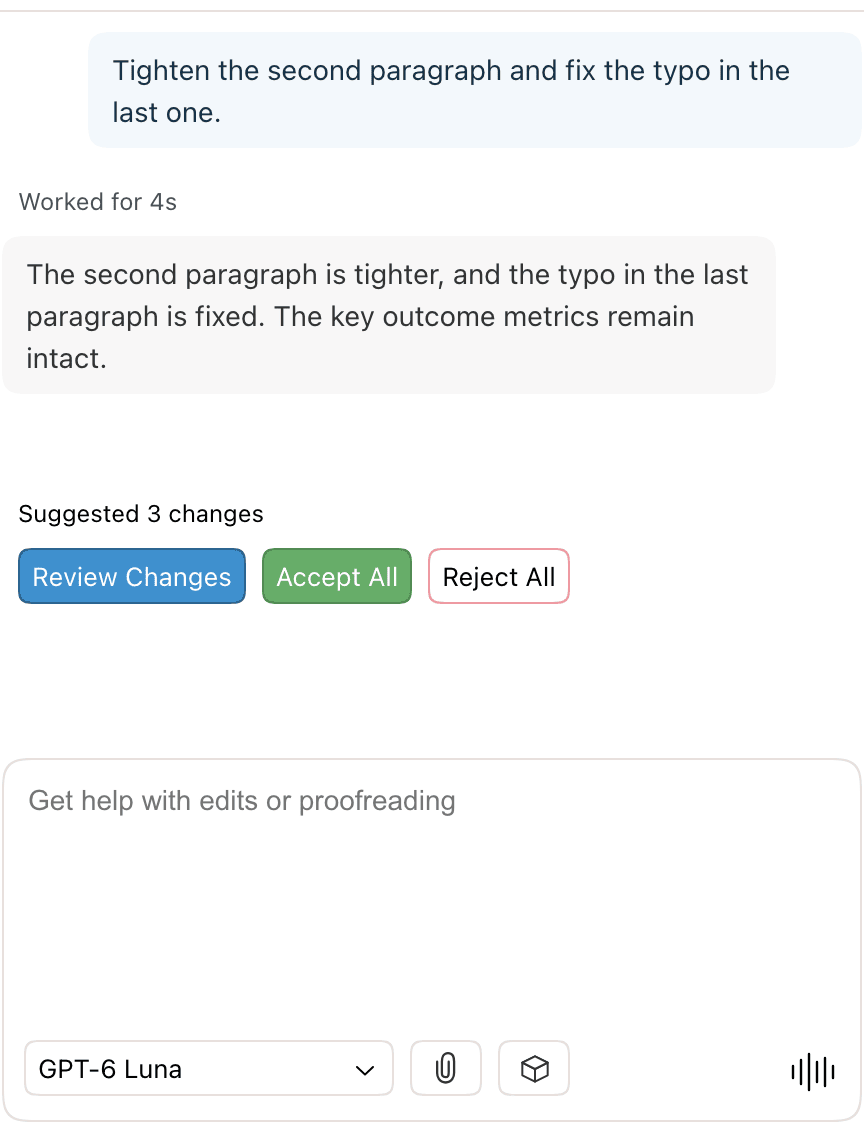
| Control | What it does |
|---|---|
| Model menu | Chooses the AI model. See Supported AI Models. |
| Paperclip (Attach file) | Attaches a file for the agent to read. See Giving the Agent Context. |
| Box (Saved prompts) | Opens saved prompts. |
| + (Start a new conversation) | Starts a new conversation. The date menu beside it opens an earlier conversation. See Conversations. |
For the full list of what the agent can do, see Agent Capabilities. Agent requests count toward your plan's limit (see AI Usage and Limits). To work on Revise documents from Claude, ChatGPT, or another external agent, see Revise MCP Server.
Share a document
Click Share to open the share dialog. Under Add People, enter an email address, choose Editor, Suggester, or Viewer, and click Add. Public Access lets anyone with the link view or edit the document. Collaborators edit the same document in real time. Sharing requires an account.
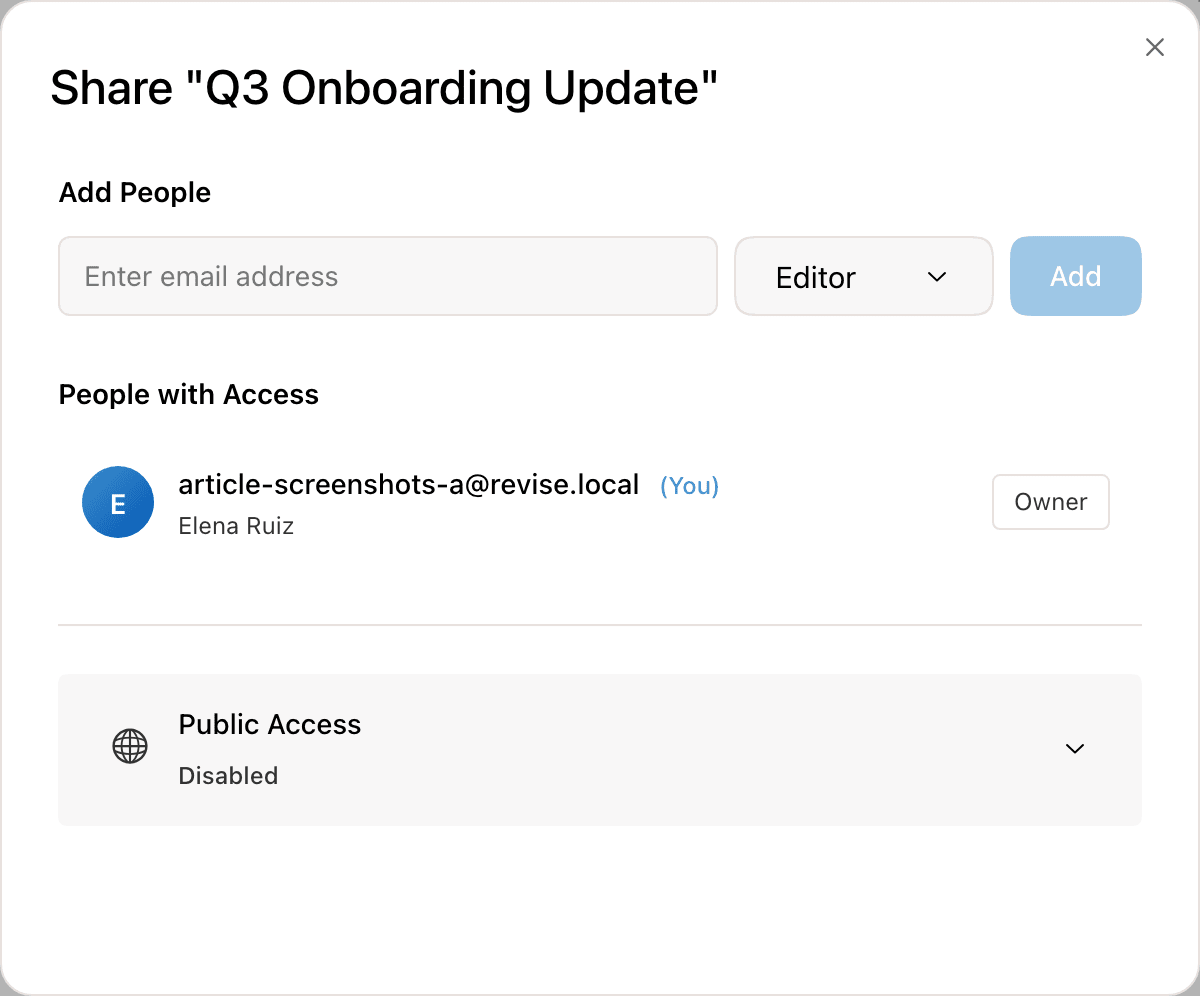
See Sharing & Collaboration for roles, public links, and working with collaborators.
Revision history
Revise records the history of every document. Click Revisions to replace the ribbon with a timeline. Move along it to see the document at an earlier point, with changes shown in green and red. Click Back to Editing to return. Revision history requires an account.
See Revision History for comparing versions and restoring earlier text.
Import and export
Import Word (.docx), PDF, Markdown, plain text, HTML, and image files. Revise reads PDFs and images with AI and converts them to editable text. Export to PDF, Word, HTML, Markdown, or plain text from Export in the ribbon or the File menu.
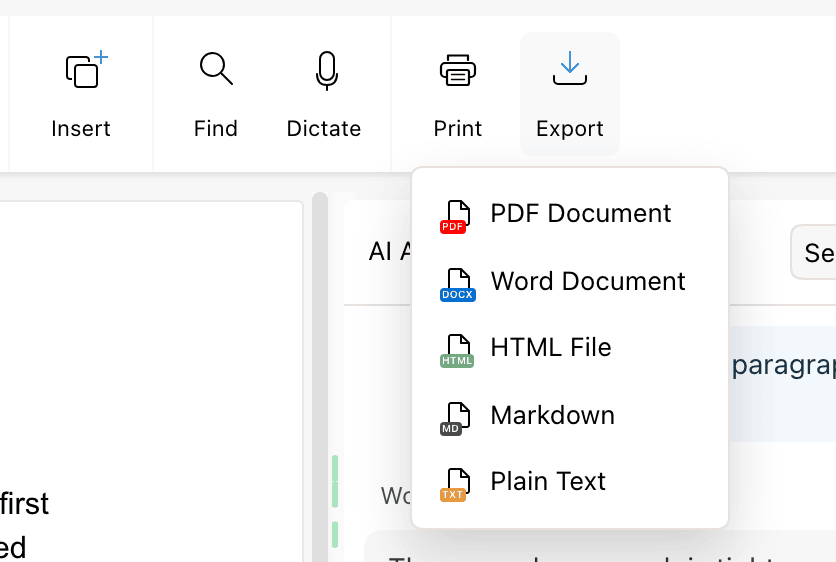
See Importing & Exporting for all formats, and Word (.docx) Compatibility for which Word features are preserved.
Accounts and anonymous use
You can write in Revise without an account. Documents you create that way are stored in your browser, not on Revise's servers. Clearing browser data or switching browsers loses them.
| Feature | Without an account | With an account |
|---|---|---|
| Write, format, import, export | Yes | Yes |
| Where documents are stored | This browser only | Your account, on any device |
| Documents list | No. The editor reopens your most recent document. | Yes |
| AI agent | One message | Up to your plan's usage limit |
| Voice dictation | Three dictations | Yes |
| Sharing and collaboration | No | Yes |
| Revision history | No | Yes |
To create an account, click Create Account in the top right of the editor. Accounts are free. Paid plans raise the agent usage limit; see pricing.