Voice Dictation
Last updated
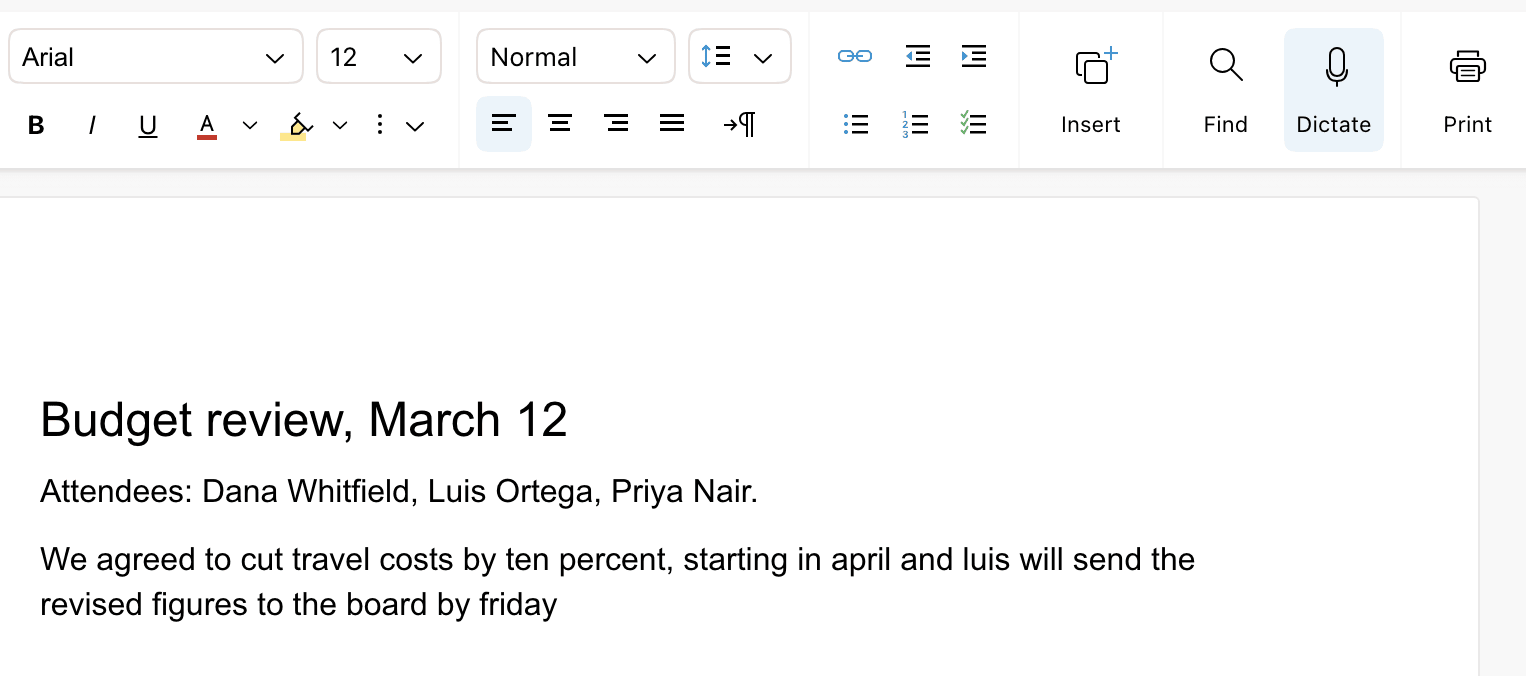
Voice dictation types what you say into the document at the caret. It uses your browser's speech recognition. When you stop, Revise fixes the punctuation and capitalization of the dictated text. The Dictate button is on the Edit tab of the ribbon.
Start and stop dictation
- Click in the document where the text should go.
- Click Dictate on the Edit tab, next to Find.
- The first time, allow microphone access when the browser asks. The button turns blue and the microphone icon shows your input level.
- Speak. Each phrase appears in the document when the browser finishes recognizing it, usually after a short pause.
- To stop, click Dictate again (tooltip: Stop Dictating) or press Esc.
Dictation keeps listening through pauses and silence until you stop it. You can type, move the caret, and format text while it runs. Each new phrase goes wherever the caret is when it arrives.
Where dictated text goes
- Text goes in at the caret, with the formatting that typing there would have.
- If text is selected when the first phrase arrives, the phrase replaces the selection.
- Phrases in the same sentence are joined with a space. A phrase that starts a new sentence gets a capital letter and no space before it. This includes the first phrase of each session, so type a space first if you start right after existing text.
- In suggesting mode, dictated text is added as a suggestion, like typed text.
- Dictated text is ordinary text. It syncs to collaborators and appears in revision history like anything you type.
Spoken punctuation
When your browser language is English, these spoken words become punctuation. There are no voice commands for formatting, selecting, or deleting text.
| Say | Inserts |
|---|---|
| “period” or “full stop” | . |
| “comma” | , |
| “question mark” | ? |
| “exclamation point” or “exclamation mark” | ! |
| “colon” | : |
| “semicolon” | ; |
| “hyphen” | Hyphen (-) |
| “dash” | Em dash |
| “ellipsis” | ... |
| “open quote” | Opening curly quote |
| “close quote”, “end quote”, or “unquote” | Closing curly quote |
| “new line” | A new paragraph |
| “new paragraph” | A new paragraph, with an empty paragraph before it |
These words are always converted, so you can't dictate the word “period” or “comma” itself. A line break said in the same phrase right after “period” or “question mark” is dropped. Pause before saying it.
Automatic punctuation and cleanup
Revise adds some punctuation while you speak:
- The word after a period, question mark, or exclamation mark is capitalized.
- After a pause of about 2 seconds, a period may be added if the sentence has no ending punctuation.
- When you stop, a period is added if the last sentence needs one.
After you stop, Revise sends the dictated paragraphs to Claude Haiku. It fixes punctuation, capitalization at sentence starts, dashes, and quotation marks, and is told not to change your words. While it runs, the Dictate button shows a spinner and its tooltip reads Cleaning up dictation.... You can't start a new session until it finishes.
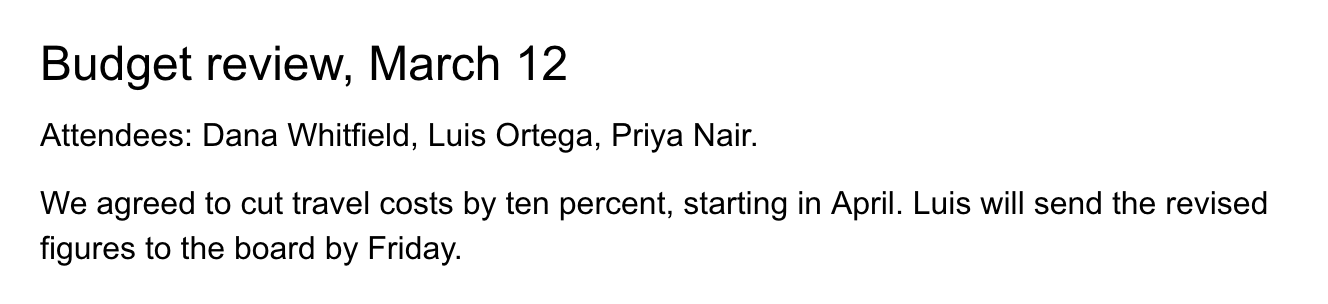
- The fixes are applied directly to the document, not proposed as suggestions.
- The model is told to keep your wording, but it can still change a word or split a sentence. Read the result.
- Dictation shorter than 3 words is not cleaned up.
- The request includes the text of up to 2 paragraphs before and after the dictated text, for context.
- If the cleanup fails, the dictated text stays as it was.
Languages
Dictation listens in your browser's language setting, not in the Revise interface language. To dictate in another language, change the preferred language in your browser settings and reload the page. The browser decides which languages it can recognize.
- Spoken punctuation works only in English.
- For Chinese, Japanese, Thai, Lao, Khmer, and Burmese, phrases are joined without spaces. Chinese and Japanese sentences end with 。
Speech recognition and privacy
Revise does not receive or store your audio. Your browser's built-in speech recognition (the Web Speech API) turns it into text, and the browser decides where the audio is processed.
| Browser | Speech recognition |
|---|---|
| Chrome | Google's speech service. Audio is sent to Google. |
| Edge | Microsoft's speech service. Audio is sent to Microsoft. |
| Safari | Apple's speech recognition, on the device or on Apple servers. |
The input level meter reads the microphone inside the page. After you stop, the recognized text (not audio) goes to Revise for the cleanup.
Dictate on a phone or tablet
The Dictate button is hidden when the window is narrower than 735 pixels, which includes phones. On a phone, use the dictation key on the on-screen keyboard. That is the operating system's dictation, so spoken punctuation, automatic periods, and cleanup don't apply. On iPhone, keyboard dictation adds the text when you stop speaking, not word by word.
Tablets wide enough for the full ribbon, such as an iPad, show the Dictate button. On iPad, the microphone icon does not show your input level.
Microphone permission and errors
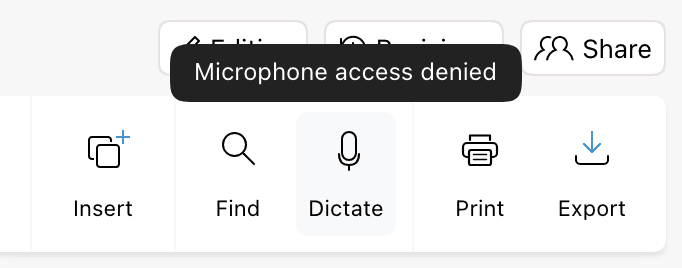
The browser asks for microphone access the first time you click Dictate. If dictation fails, the button returns to its normal state and its tooltip shows the error.
| Tooltip | Cause and fix |
|---|---|
| Microphone access denied | The browser or operating system blocked the microphone. Allow it in the site settings (the icon at the left of the address bar). On macOS, also allow the browser in System Settings > Privacy & Security > Microphone. Then click Dictate again. |
| Speech recognition error: network | The browser could not reach its speech service. Check your connection and try again. Other codes after Speech recognition error: also come from the browser. |
| Failed to start speech recognition | The browser refused to start. Reload the page and try again. |
| Dictation not supported in this browser | The browser has no speech recognition, for example Firefox. The button is disabled. Use Chrome, Edge, or Safari. |
Dictation and agent voice mode
Dictation types your own words. In voice mode, you talk to the AI agent. It answers aloud and edits the document through suggestions.
| Dictation | Voice mode | |
|---|---|---|
| Start it from | Dictate on the Edit tab | The voice button in the chat input |
| What it does | Types what you say at the caret | Carries out spoken requests |
| Plan | All accounts | Pro and Max |
| Counts toward AI usage | No | Yes |
Requirements and limits
| Item | Limit |
|---|---|
| Without an account | 3 sessions per browser. A session runs from clicking Dictate until you stop. After the third, the button opens the sign-up dialog. |
| With an account | No limit on any plan |
| AI usage | Dictation and its cleanup don't count. See what counts toward usage. |
| Browsers | Chrome, Edge, and Safari. Not Firefox. |
| Window width | 735 pixels or wider |
| Access | Edit access. The button is disabled when you can't edit the document, such as with view-only access. |
| Desktop app | Not available |