Saved Prompts
Last updated
A saved prompt is a message to the AI agent that you store and reuse. It can include attached files, such as a style guide or a rubric. Saved prompts belong to your account and require signing in.
Use a saved prompt
- Click Saved Prompts (the cube) at the bottom of the chat input, next to Attach File.
- Point at a prompt to preview its full text in the empty chat input.
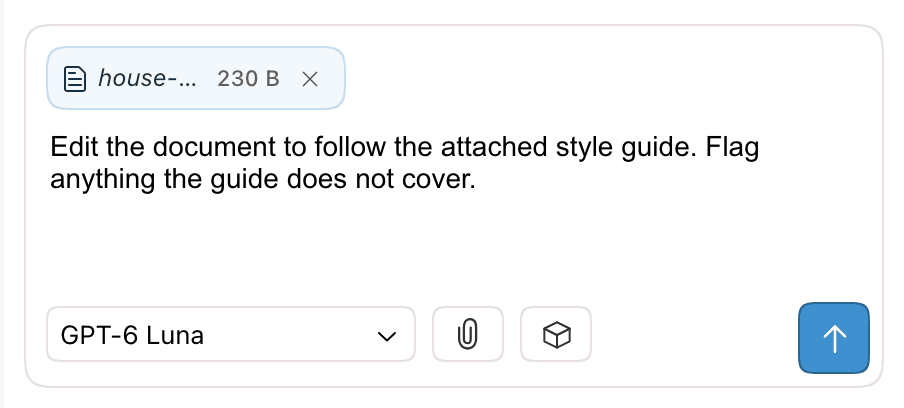
- Click the prompt. Its text goes into the chat input, and its files are attached to the message.
- Edit the text if needed, then press Enter to send it.
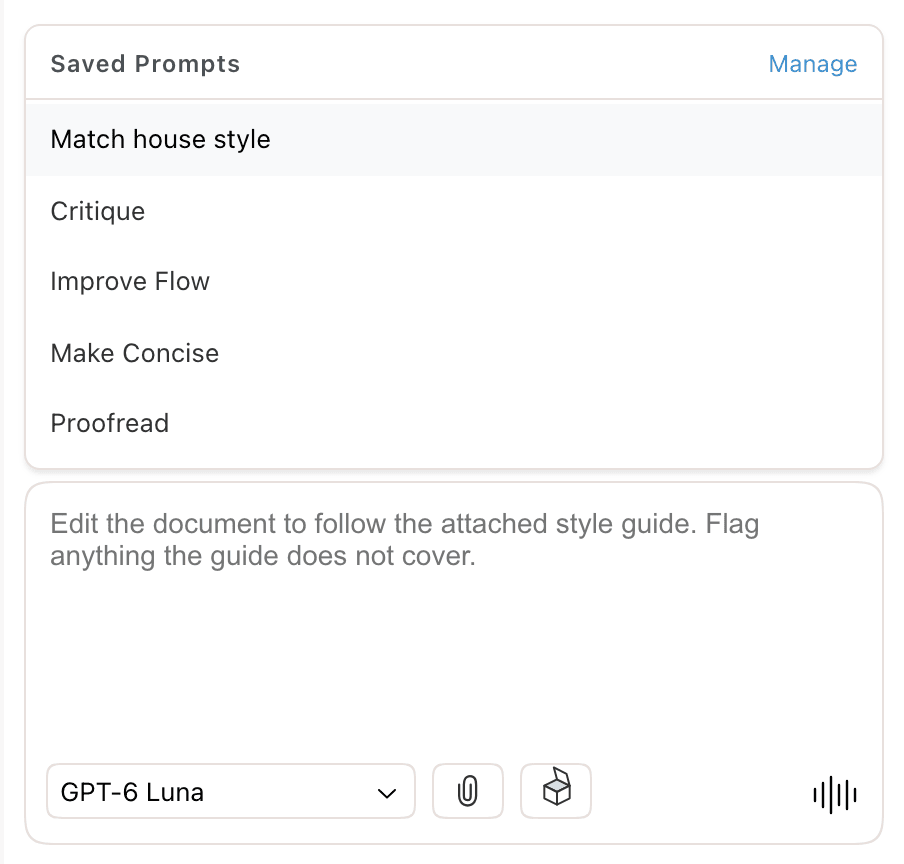
The chosen prompt replaces any text already in the input. Nothing is sent until you send it, unless one-click prompting is on.
Use a prompt from the document
Right-click in the document and point at Prompts to list your saved prompts. Click one to put it in the chat input. If text is selected, the selection is attached to the message, so the agent works on that passage.
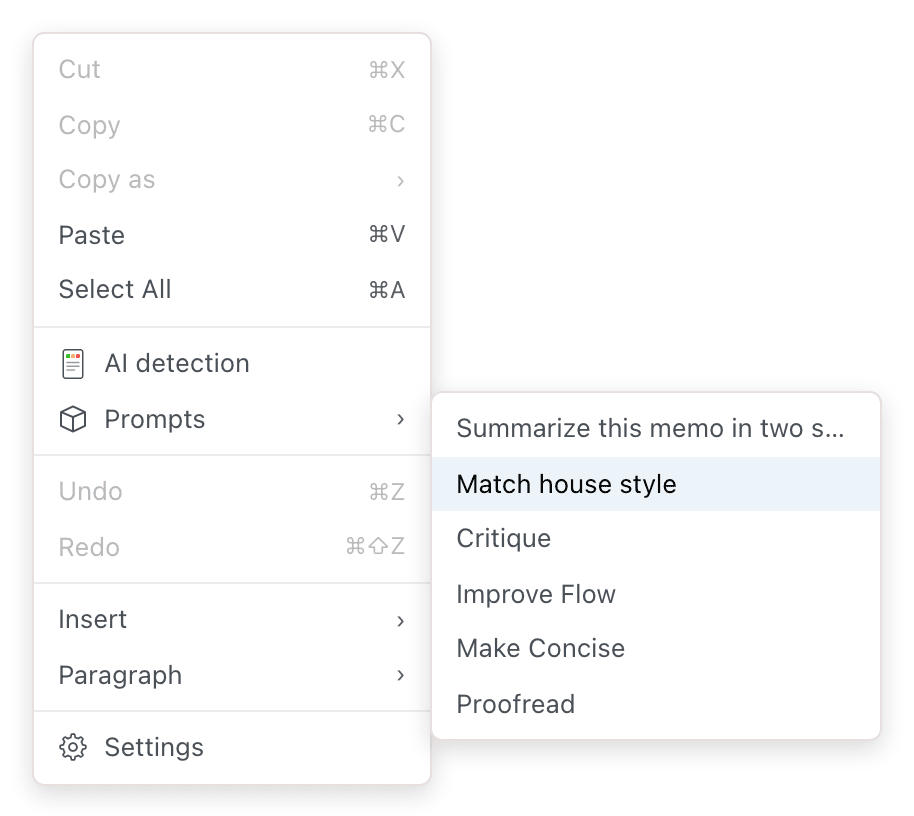
This submenu loads your prompts when the document opens. A prompt saved after that appears in it once you reload the page.
Send a prompt in one click
With one-click prompting on, choosing a saved prompt sends it right away, with its files, instead of placing it in the input. It applies to both the chat menu and the document menu.
- Open Settings and choose Saved Prompts.
- Under One-click prompting, select Automatically send prompts when selected.
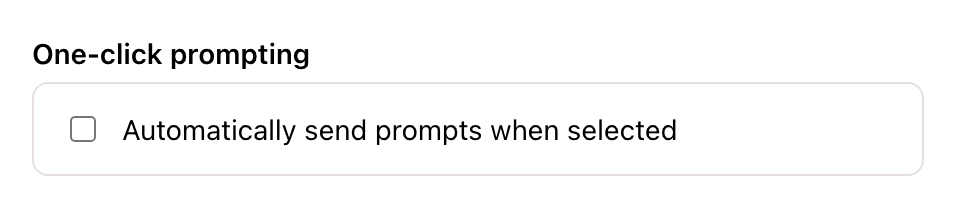
The setting is off by default and is saved to your account.
Save a prompt
| From | How | Name |
|---|---|---|
| A message you sent | Right-click a sent prompt in the chat and choose Save Prompt. Files attached to the message are saved with it. | None |
| The chat input | Type the prompt, click Saved Prompts, and choose Save at the bottom of the menu. The text stays in the input. | None |
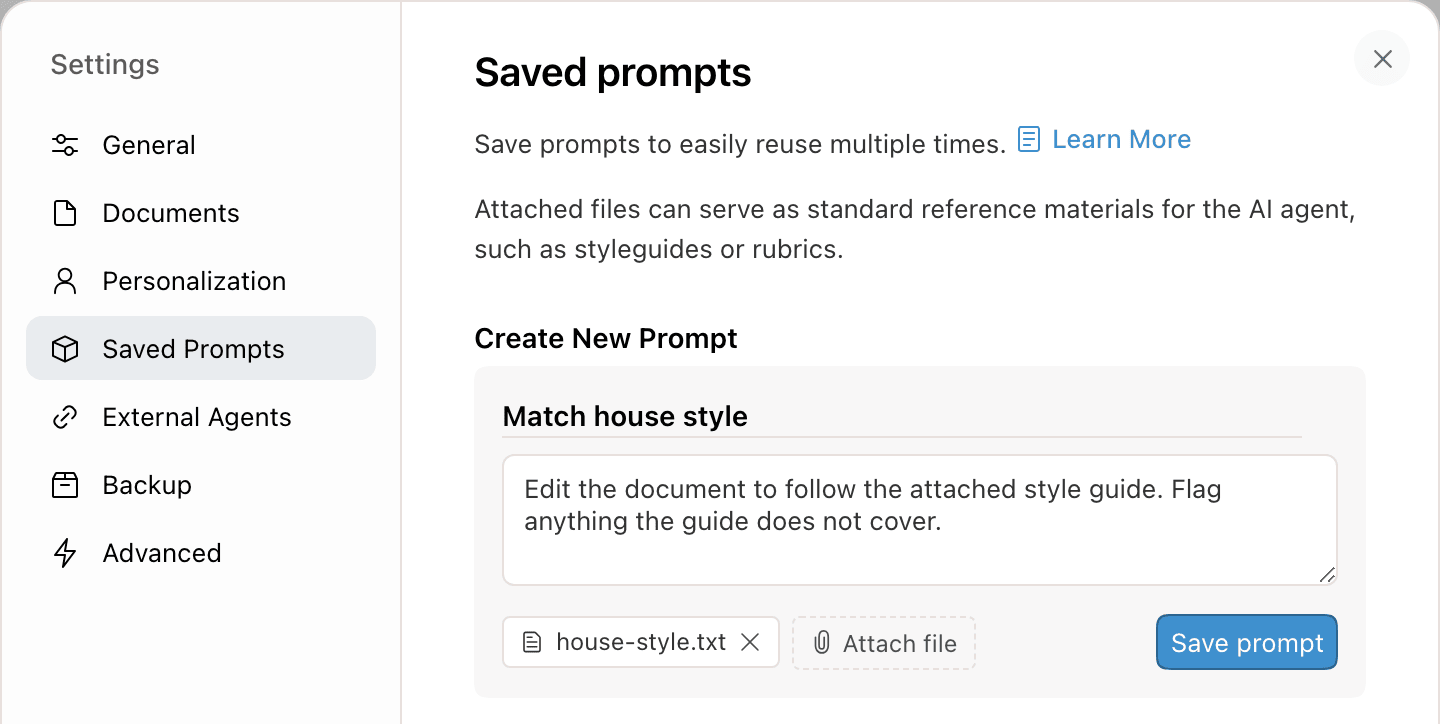
| Settings | Under Create New Prompt, enter a name and the prompt text, attach files if needed, and click Save prompt. | Optional. Left blank, it is named Untitled prompt. |
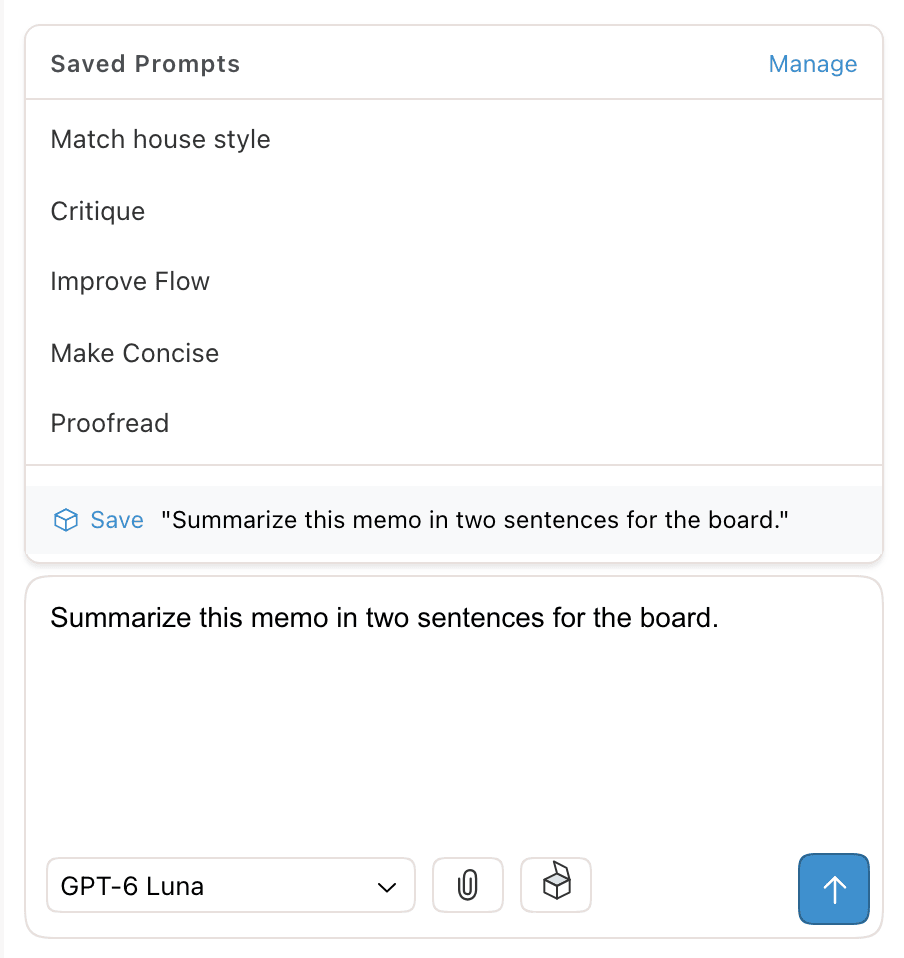
A prompt without a name appears in the menus by its text. Give it a name in Settings to shorten the menu entry.
Edit, rename, or delete a prompt
Manage prompts in Settings under Saved Prompts. To open it:
- Click Manage at the top of the Saved Prompts menu.
- Open the account menu (your avatar, top right) and choose Prompts.
- Open Settings and choose Saved Prompts.
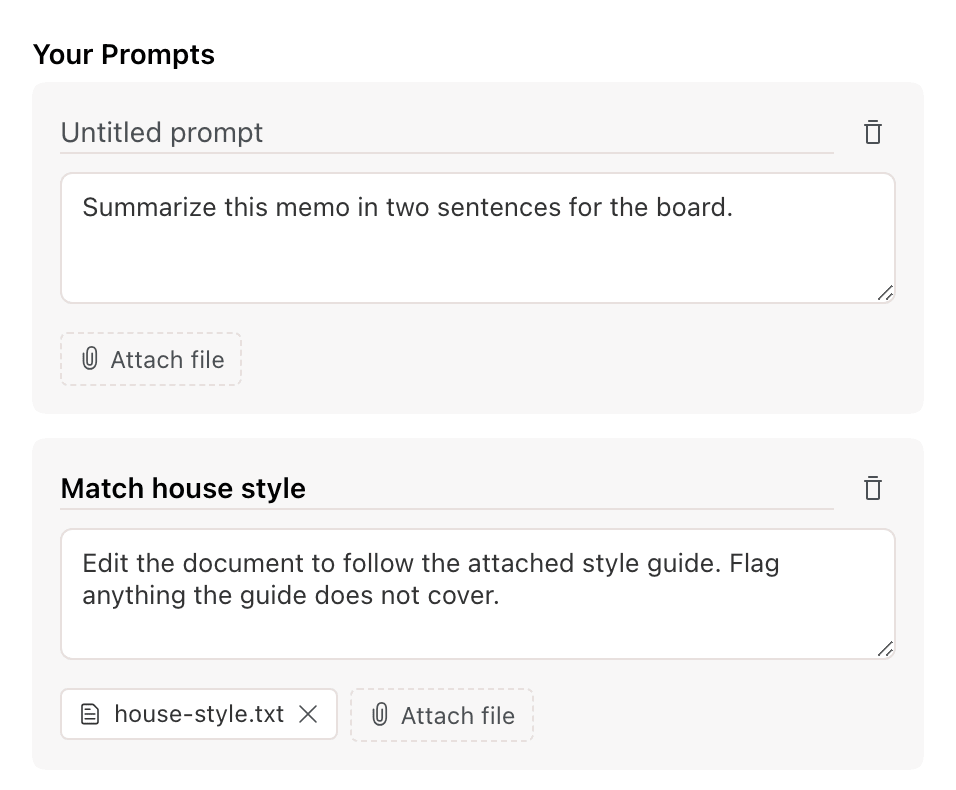
Each prompt under Your Prompts is a card with its name, text, and files.
| To | Do this |
|---|---|
| Rename | Type in the name field at the top of the card. |
| Edit the text | Type in the text box. |
| Add a file | Click Attach file. |
| Remove a file | Click Remove attachment (the x) on the file. |
| Delete | Click Delete prompt (the trash can), then Delete in the Delete Prompt? dialog. This can't be undone. |
Changes save automatically about a second after you stop typing. The prompt text can't be empty: if you clear it, the change is not saved.
Attach files to a prompt
Files on a saved prompt are attached to the message each time you use it. Use them for reference material the agent should follow, such as a style guide, a rubric, or a template.
Attach file adds one file at a time. Supported types and size limits match chat attachments: text files, Word documents, PDFs, and images.
Default prompts
New accounts start with four saved prompts.
| Name | Asks the agent to |
|---|---|
| Proofread | Fix grammar, spelling, and punctuation, and flag anything unsure. |
| Make Concise | Cut unnecessary words and redundancy without changing the meaning. |
| Improve Flow | Improve transitions between paragraphs. |
| Critique | Point out weak arguments, unclear sections, and awkward phrasing. |
You can edit or delete them like any other prompt. If you delete every saved prompt, the four defaults are added again the next time your prompts load.
Requirements and limits
| Item | Details |
|---|---|
| Account | Required. Without an account, the Saved Prompts menu is empty, and Save, Save Prompt, and Manage open the sign-up dialog. See accounts and anonymous use. |
| Storage | Saved to your account, not the browser. The same prompts appear on every device and browser where you sign in, and in every conversation. |
| AI Rewriter | Its prompts are separate and don't appear in this menu. See write your own prompt. |
| Privacy | Only you see your saved prompts. They are not shared with a document's collaborators. |
| Number of prompts | No limit. |
| Name length | Up to 255 characters. |
| Order | Newest first, in the menus and in Settings. Prompts can't be reordered. |
| Shortcuts | There is no slash command or keyboard shortcut for saved prompts. |
| Voice mode | The Saved Prompts button is hidden while voice mode is on. |