Suggesting Mode
Last updated
In Suggesting Mode, your edits become suggestions instead of changing the text. Suggestions are tracked changes: each one stays pending until someone accepts or rejects it. They work the same way as the AI agent's edits and convert to and from Word's Track Changes.
Turn on Suggesting Mode
- Click Editing in the top right of the editor, next to Revisions.
- The button changes to Suggesting. Every edit you make from now on is recorded as a suggestion.

Click Suggesting to go back to Editing. Pending suggestions stay in the document when you switch. Revise remembers the mode for each document in your browser, so it is still on after a reload.
The button is unavailable while revision history is open and in documents you can only view.
Insert, delete, and replace text
| Edit | How it shows | Card label |
|---|---|---|
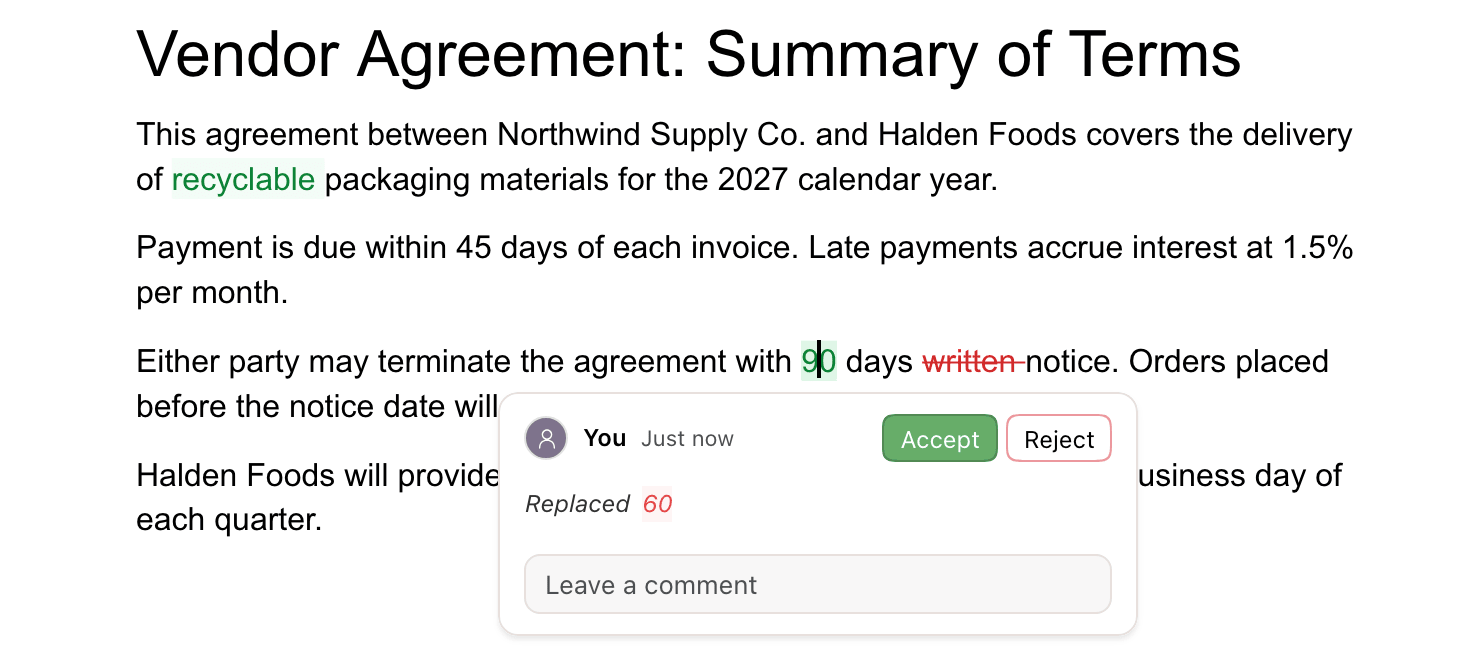
| Type new text | Green | Inserted |
| Delete text | Struck through in red. The text stays until the deletion is accepted. | Removed and the deleted text |
| Select text and type over it | The new text is green. The old text is hidden until you turn on Show Before & After. | Replaced and the old text |
| Paste | Green, like typed text | Inserted |
Inserting a table, page break, footnote, or other element is tracked as an insertion too. An inserted table is tinted green.
Click inside a suggestion to open its card. The card shows the author (You for your own) and when the change was made. Below that are Accept, Reject, what changed, and a Leave a comment box.
Formatting changes
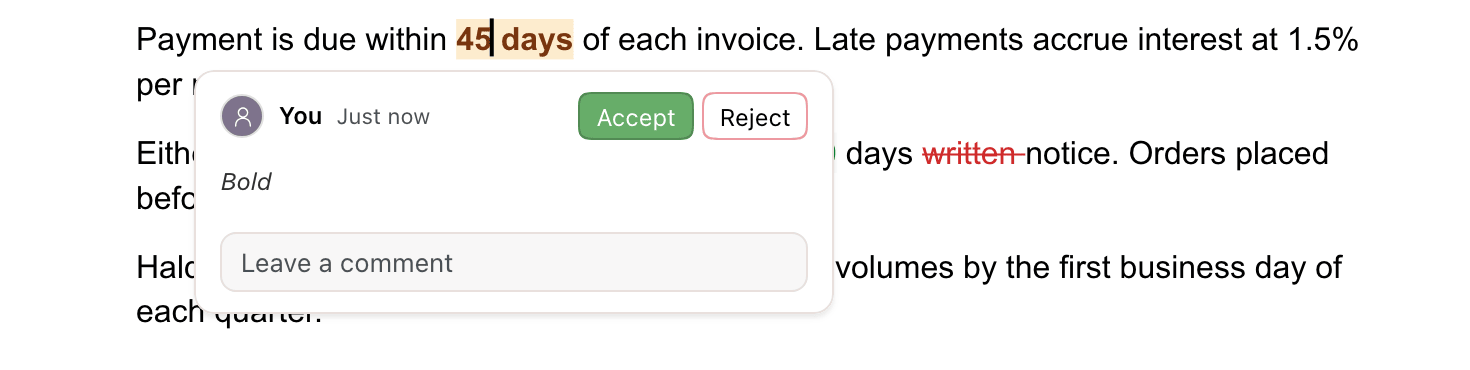
Formatting changes are tracked too. Formatted text gets an amber background. The card names the change, such as Bold, Font, Font Size, Text Color, Highlight, or Link. Rejecting restores the previous formatting.
Paragraph formatting (heading style, alignment, lists, indentation, line spacing) shows a Format label in the left margin, next to the paragraph. Its card names the change, such as Alignment.
Page setup in the Layout tab (page size, margins, columns, headers and footers) is not tracked. It applies directly in both modes.
Split and join paragraphs
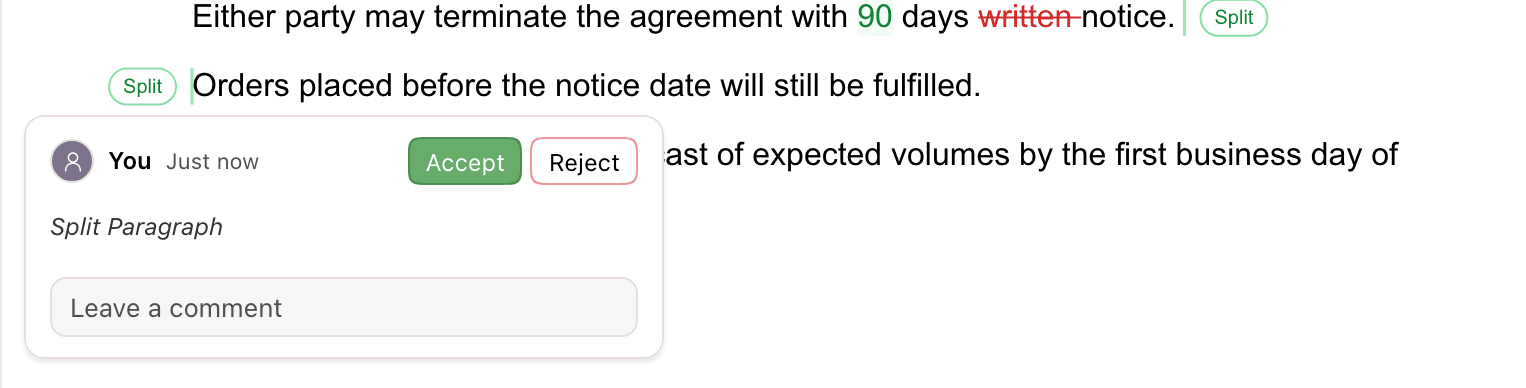
Pressing Enter in the middle of a paragraph suggests a split. The new paragraph appears. A green Split label marks the end of the first part and the start of the second. The card reads Split Paragraph.
Pressing Backspace at the start of a paragraph suggests joining it to the one above. The paragraphs stay separate, marked with red Join labels, until the suggestion is accepted. The card reads Join Paragraphs. Deleting a selection that spans several paragraphs also suggests joining them.
Move text
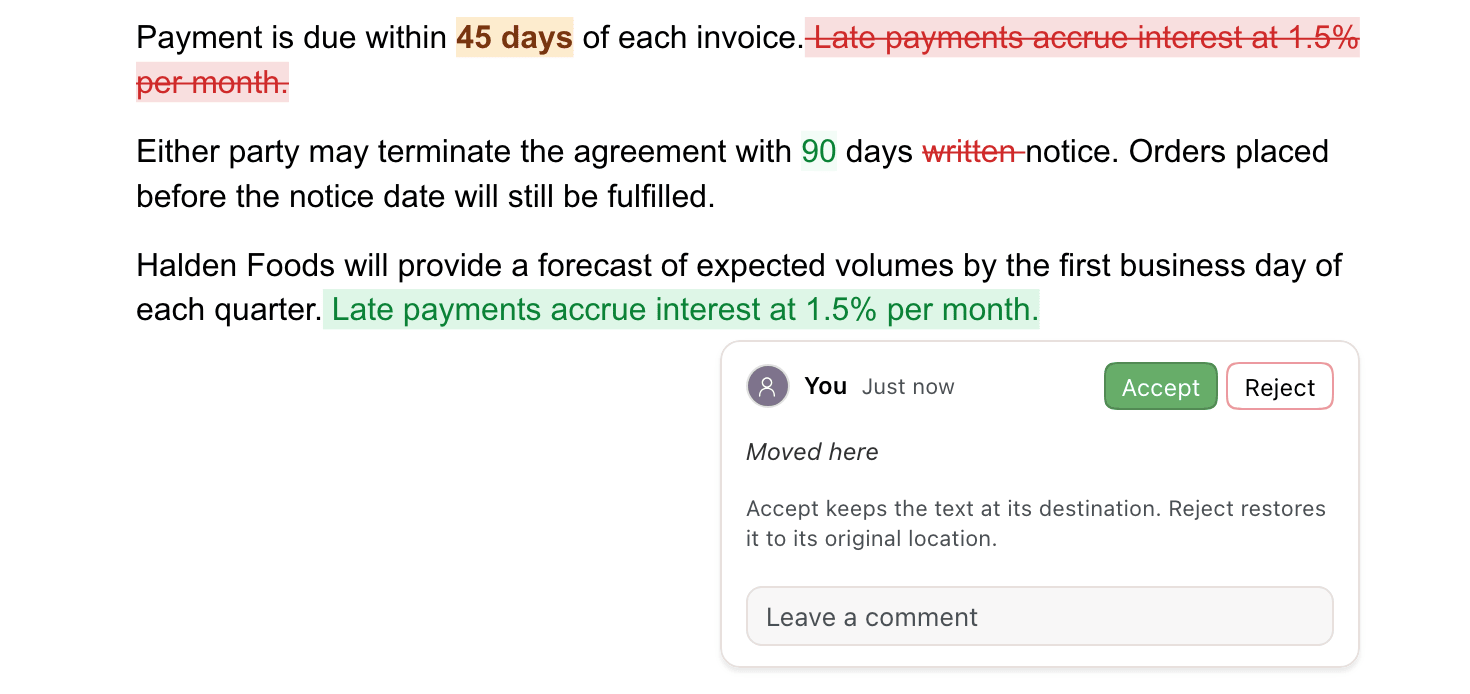
To suggest moving text, cut it and paste it somewhere else in the same document. Revise links the two halves into one suggestion:
- The original location is struck through in red. Its card reads Moved from here.
- The new location is green. Its card reads Moved here.
Accept keeps the text at its new location. Reject restores it to where it was. Either card resolves both halves.
A cut and paste becomes a move only when:
- the cut text is in paragraphs, not in a table or list, and
- you paste it in the same document without copying anything in between.
Otherwise it is recorded as a separate deletion and insertion.
Edit your own suggestions
Changing one of your own pending suggestions updates it instead of adding a new one.
| Action | Result |
|---|---|
| Type inside or at the edge of your insertion | The insertion grows. It stays one suggestion. |
| Delete text from your insertion | The text is removed outright, not struck through. |
| Delete all of your insertion | The suggestion disappears. |
| Keep deleting next to your deletion | The deletion grows. It stays one suggestion. |
| Press Backspace at the start of a paragraph you just split | The split is cancelled. |
| Press ⌘Z | Your last edit is undone, including the suggestion it made. |
Typing inside another person's insertion adds a separate insertion under your name.
Suggester role
To let a collaborator suggest but not edit, share the document with them as a Suggester. The role is in the Share dialog next to Editor and Viewer. See Sharing for how to invite people.
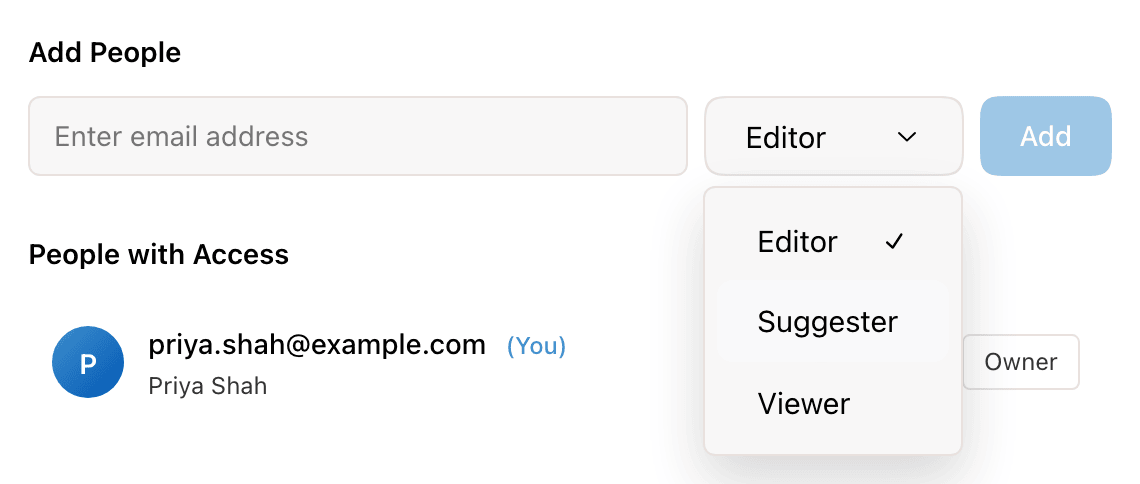
A Suggester is always in Suggesting Mode. Their mode button is unavailable, and hovering it shows You can only suggest changes in this document. If the owner later makes them an Editor, the document opens in Editing mode.
Link sharing has no Suggester option. Anyone with the link can view or edit, and people who can edit choose their own mode. See roles.
Who made each suggestion
Suggestions look the same in the document whoever made them. The card names the author:
| Author | Name on the card |
|---|---|
| You | You |
| A collaborator with an account | Their account name |
| Someone editing through a link without an account | Anonymous |
| The in-app AI agent | Revise |
| An agent connected through the MCP server | The agent's name, such as Claude |
| A Word tracked change | The author recorded in the Word file |
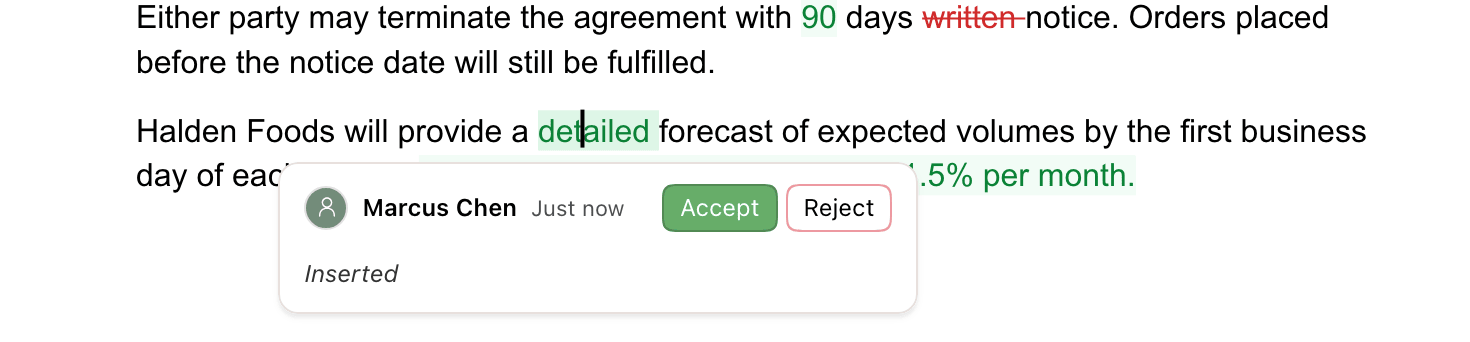
Suggestions from different people are never combined, even when they are next to each other. See changes from collaborators and external agents for how they appear in review.
Accept or reject suggestions
| Where | Applies to |
|---|---|
| Accept or Reject on a card | That suggestion. See accept or reject one change for the shortcut and right-click options. |
| The Review tab | One suggestion at a time in document order, or all of them with Accept All and Reject All. Covers every author. |
| Accept All and Reject All in the agent chat | The AI agent's suggestions only, not yours. |
Accepting requires an account. People with view-only access see suggestions but can't act on them.
Word tracked changes
Suggestions and Word tracked changes convert in both directions, with author and date. Export a document with pending suggestions to Word and they arrive as tracked changes. See suggestions and comments in exports for what other formats do with them. Import a .docx with tracked changes and each revision becomes a suggestion.
| Suggestion in Revise | In Word |
|---|---|
| Insertion, deletion, replacement | Inserted and deleted text |
| Move | Moved text, linked from and to |
| Formatting change | Formatting revision |
| Paragraph formatting change | Paragraph property revision |
| Split or join | Inserted or deleted paragraph mark |
See Word tracked changes in Reviewing AI Changes for table revisions and other details.