Keyboard Shortcuts
Last updated
This page lists every keyboard shortcut in Revise, grouped by task. The keys shown match your operating system: ⌘ on a Mac, Ctrl on Windows and Linux.
Text formatting
With text selected, a formatting shortcut applies to the selection. Without a selection, it turns the style on or off for the next text you type. Press the shortcut again to remove the style. The same styles are on the Edit tab; see text styles.
| Shortcut | Action |
|---|---|
| ⌘B | Bold |
| ⌘I | Italic |
| ⌘U | Underline |
| ⌘⇧X | Strikethrough |
| ⌘⇧. | Superscript |
| ⌘⇧, | Subscript |
| ⌘K | Turn the selected text into a link and open its address field. Does nothing without a selection. See links. |
Editing and clipboard
| Shortcut | Action |
|---|---|
| ⌘Z | Undo |
| ⌘⇧Z or ⌘Y | Redo |
| ⌘X | Cut |
| ⌘C | Copy with formatting |
| ⌘V | Paste with formatting |
| ⌘⇧V | Paste Text Only: paste without formatting |
| ⌘A | Select the whole document |
| ⌥Backspace | Delete the previous word |
| ⌥Delete | Delete the next word |
| ⌘Backspace | Delete to the start of the line |
Undo and redo also work after you click a toolbar button, without clicking back into the document. How undo groups edits is covered in undo and redo. Paste options are covered in copy and paste and paste content.
Paragraphs, lists, and page breaks
| Shortcut | Action |
|---|---|
| Enter | New paragraph. On an empty list item, ends the list. |
| ⇧Enter | Line break inside the same paragraph |
| ⌘Enter | Page break. With the cursor inside a suggestion, accepts the suggestion instead (see Review suggestions). |
| Tab at the start of a paragraph, or with paragraphs selected | Indent. The first press indents the first line. Each press after that indents the whole paragraph one step. |
| ⇧Tab in a paragraph | Remove one indent step |
| Tab anywhere else in a paragraph | Insert a tab character |
| Tab in a list | Nest the item one level deeper |
| ⇧Tab in a list | Move the item one level out. At the top level, turns the item into a normal paragraph. |
| Tab / ⇧Tab in a table | Move to the next or previous cell. Tab in the last cell adds a row. See tables. |
| Esc in a table | Clear a selection of several cells |
| Tab in a code block | Insert a tab character |
| Tab in a header or footer | Move to the next zone. See headers and footers. |
Formatting shortcuts you type
Some character sequences format text as you type. Type the list markers at the start of an empty paragraph. Details are in formatting as you type.
| You type | Result |
|---|---|
- or *, then Space | Bulleted list |
1., then Space | Numbered list, starting at the number you typed |
[], then Space | Checklist |
---, ___, ===, or *** alone in a paragraph, then Enter | A horizontal line |
-- between words | An em dash |
| Straight quotes | Curly quotes |
| A web address, then a space | A link |
Move the cursor and select text
Add Shift to any cursor movement below to select the text it passes over.
| Shortcut | Action |
|---|---|
| ← → ↑ ↓ | Move one character or one line |
| ⌥← / ⌥→ | Move one word |
| ⌘← / ⌘→ | Move to the start or end of the line |
| ⌘↑ / ⌘↓ | Move to the start or end of the document |
| Control A / Control E (Mac only) | Move to the start or end of the paragraph |
| Page Up / Page Down | Scroll one screen up or down. The cursor stays where it is. |
| Home / End | Scroll to the top or bottom of the document. The cursor stays where it is. |
| Double-click | Select a word |
| Triple-click | Select a sentence |
| Four clicks | Select a paragraph |
| Shift-click | Extend the selection to the click |
Find and replace
⌘F opens the Revise search panel, not the browser's find bar. If the panel is already open, it selects the search text. See find and replace.
| Shortcut | Action |
|---|---|
| ⌘F | Open the search panel |
| Enter in the search field | Next match |
| ⇧Enter in the search field | Previous match |
| Enter in the replace field | Replace the current match |
| ⇧Enter in the replace field | Replace all matches |
| Esc | Close the search panel |
Agent chat
| Shortcut | Action |
|---|---|
| ⌘L | Put the cursor in the chat input. With text selected, also attaches the selection to your next message (see selected text). |
| Enter | Send the message |
| ⇧Enter | New line in the message |
⌘L works from the document and the toolbar. While the chat input has focus, ⌘F and ⌘P go to the browser instead of opening the Revise search panel or print.
Review suggestions
| Shortcut | Action |
|---|---|
| ⌘Enter with the cursor inside a suggestion | Accept that suggestion |
| Esc on the Review tab | Leave the Review tab and return to the Edit tab |
There is no shortcut to reject a suggestion. Use Reject on its card or the right-click menu, as described in accept or reject one change. The accept shortcut also works on suggestions made in suggesting mode.
Revision history
| Shortcut | Action |
|---|---|
| Esc | Close revision history and return to editing, like Back to Editing |
| Shift-click the timeline | Select a range of versions to compare |
| ⌘A, ⌘C | Select and copy text from an earlier version, to restore it |
Comments
| Shortcut | Action |
|---|---|
| Enter | Post the comment or reply |
| ⇧Enter | New line in the comment |
@, then ↑ ↓ and Enter or Tab | Mention a person from the list |
| Esc in a comment box | Close the mention list, or cancel the comment |
| Esc elsewhere | Close the comments panel and return to the chat |
Printing, saving, and dialogs
| Shortcut | Action |
|---|---|
| ⌘P | Print the document. Revise builds a PDF and opens the browser's print dialog. |
| ⌘S | Nothing. Revise saves as you type. In the document, the shortcut is blocked so the browser's Save Page dialog doesn't open. |
| Enter in the document title | Save the title and return to the document |
| Enter in a link's address field | Save the address |
| Esc in a link's address field | Discard the change |
| Esc | Close the open menu or dialog. During dictation, stop dictating. |
Documents list
These work on the documents list, outside any text field.
| Shortcut | Action |
|---|---|
| ⌘ A (Mac only) | Select every document in the list |
| Shift-click | Add a document to the selection, or remove it |
| Delete | Move the selected documents to Trash, after a confirmation. In Trash, recovers them. |
| ⌘Z | Undo the last move or deletion |
| ⌘⇧Z or ⌘Y | Redo it |
| F2 on a folder in the sidebar | Rename the folder. Enter saves the name and Esc cancels. |
Shortcut hints in the app
Hover over a toolbar button to see its shortcut in the tooltip, for example Bold (⌘B). The right-click menu and the Paste and Copy menus on the Edit tab show shortcuts next to their commands.
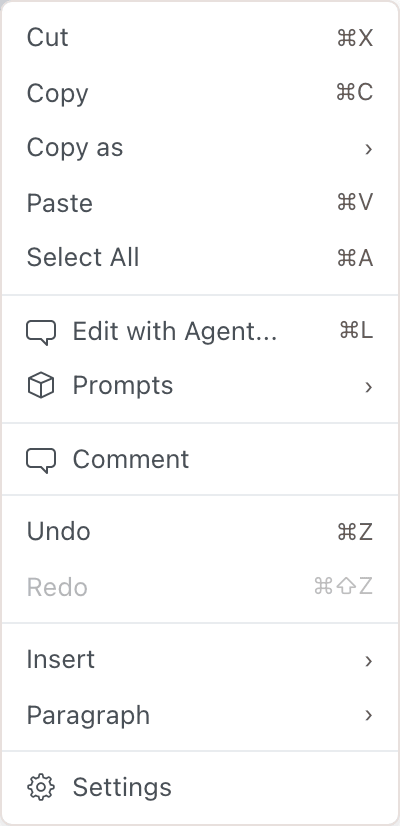
On a Mac, hints use symbols (⌘B, ⌘⇧Z). On Windows and Linux, tooltips spell out the keys (Ctrl+B, Ctrl+Shift+Z). A few hints differ from that:
- The More Formatting menu (the three dots on the Edit tab) shows ⌘⇧X, ⌘⇧., and ⌘⇧, on every system. On Windows and Linux, press Ctrl in place of ⌘.
- On Windows and Linux, the right-click menu shows Redo as Ctrl+⇧Z. It means Ctrl Shift + Z.
- Redo hints show only ⌘⇧Z. ⌘Y works too.