Revision History
Last updated
Revise saves the version history of every document as you edit. Open revision history to see the document at any earlier point, with changes in green and red. You can also compare two versions and copy text back from an old one. Revision history requires an account.
Open revision history
Click Revisions in the top right of the editor, next to Share. The ribbon is replaced by a timeline. The document shows the latest version with its most recent changes highlighted.

Other ways to open it:
- Click View revision history when the AI agent offers it below a reply.
- Click an accepted-changes line in the agent chat, such as 2 changes accepted. History opens with the range those changes cover. See See what you accepted.
- Add
#historyto the end of the document's URL. The page opens with revision history open.
To return to the current document, click Back to Editing or press Esc (see history shortcuts). The × at the right end of the timeline and a second click on Revisions also close it.
Move through the timeline
Each point on the timeline is one saved version. Revise saves a version when you pause for about two seconds, and during long bursts of typing. The oldest version is at the left and the latest at the right. Points are evenly spaced, whatever the time between them.
Hover a point to see when it was saved. Today's points show the time. Older points show the date and time.

| Control | What it does |
|---|---|
| Click or drag on the timeline | Shows the document as it was at that point. |
| Step back one revision and Step forward one revision (the arrows on either side of the play button) | Moves one point left or right. |
| Replay history (the play button) | Plays every point in order, from the first to the latest. Click it again to stop. |
| Playback speed (1×) | Sets the replay speed: 1×, 2×, 4×, 8×, 16×, or 32×. Faster speeds skip the points in between. |
The document is read-only while history is open. Typing does nothing, and Undo, Redo, and Paste are unavailable. Some points look the same as the point before them, for example while agent suggestions were waiting for review.
See what changed at a point
With Show Changes on, a point shows the edits made in that version, compared with the point before it. Added text is green. Show Changes is on each time you open revision history.
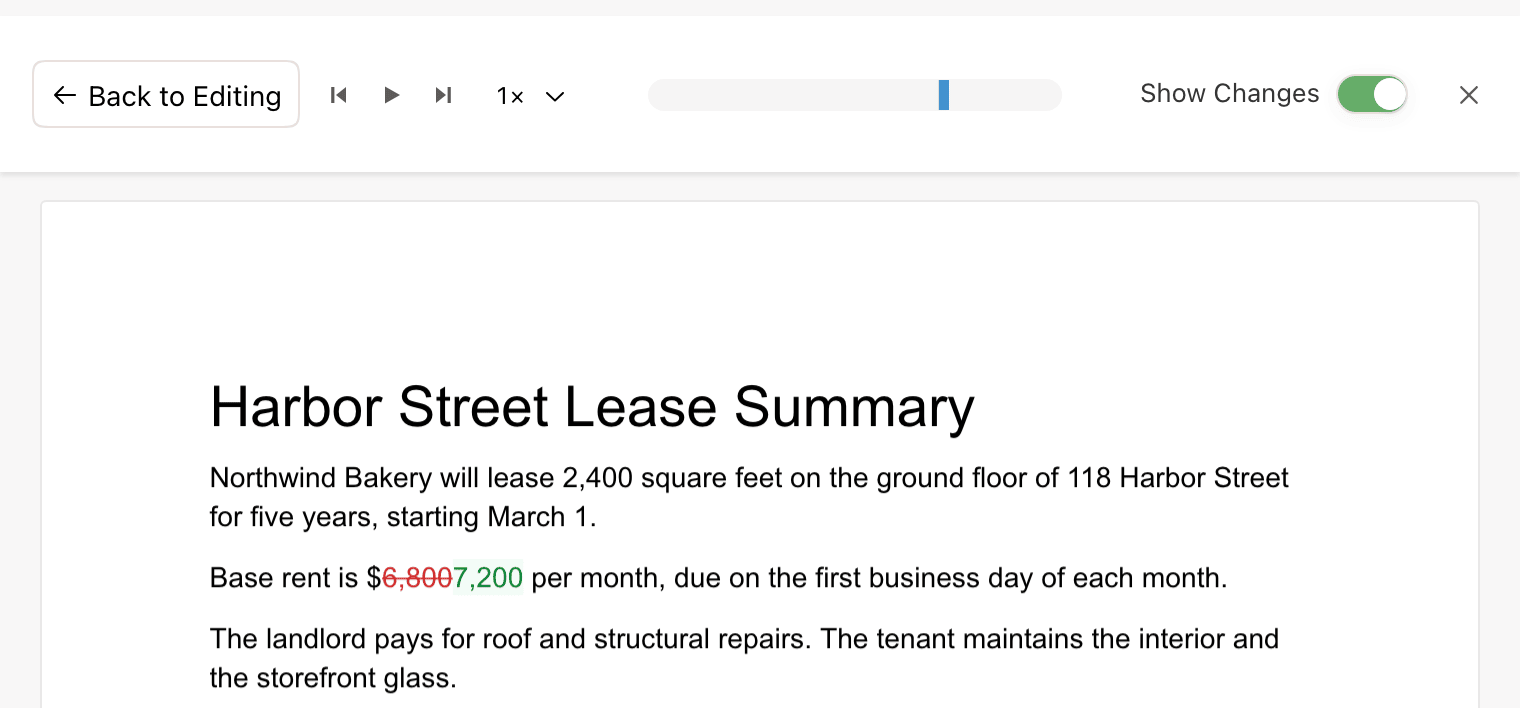
Removed text is hidden unless Show Before & After is checked. With it checked, removed text appears struck through in red next to the new text. The setting is in the Review tab, which is unavailable while history is open, so check it before you open history. See Show deleted text.
Edits that are not saved yet also show at the latest point. There, the highlights compare the last saved version with the current document.
Compare two versions
- Click the older point on the timeline.
- Hold Shift and click the newer point.
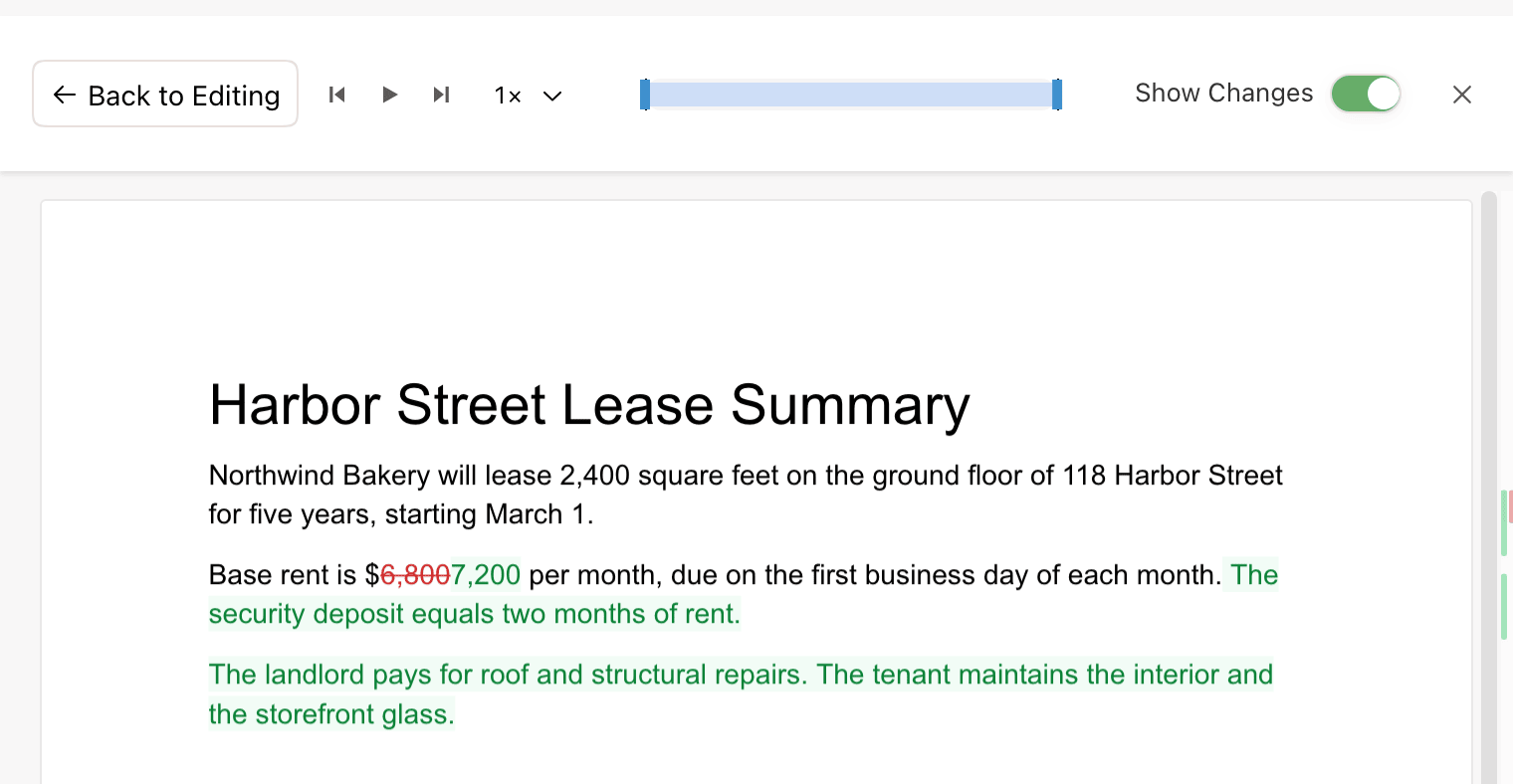
The range between the two points is shaded. The document shows everything that changed from the older version to the newer one. Drag either end of the range to move it. Click the timeline without Shift to go back to a single point.
Turn off Show Changes
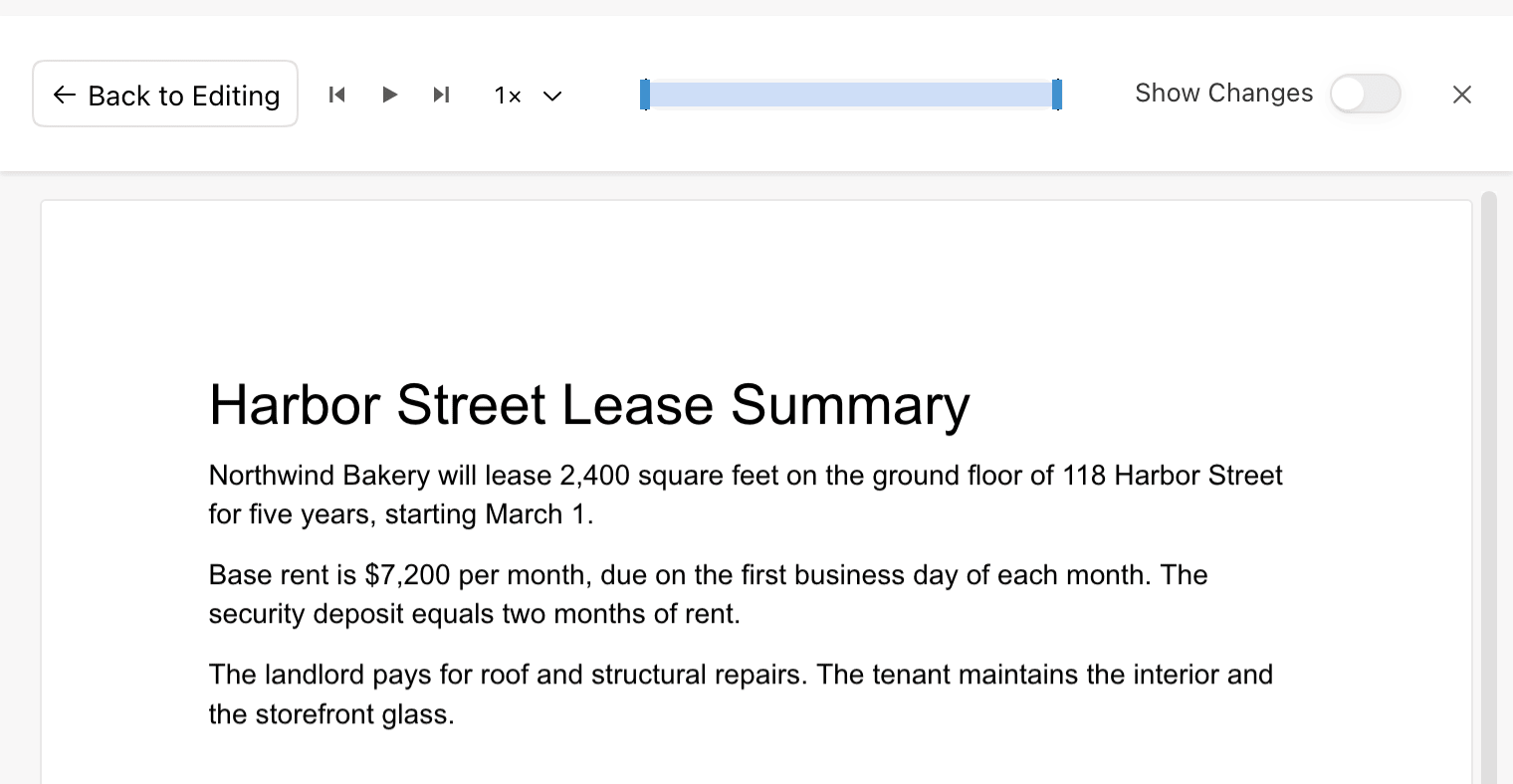
Turn off Show Changes to see a version as it was, with no highlights. With a range selected, the document shows the newer end of the range.
Restore or copy from an earlier version
There is no button that replaces the document with an earlier version. To bring back old text, copy it from revision history and paste it into the current document:
- Open revision history and select the point you want.
- Turn off Show Changes.
- Select the text to restore, or press ⌘A to select the whole version.
- Press ⌘C.
- Click Back to Editing.
- Select the text to replace and press ⌘V.
The paste is a normal edit. It becomes a new point in the history, and the versions after the one you restored stay in the timeline. To take back an edit you just made, use Undo instead.
Who made a change
The timeline shows when each version was saved. It does not show who made the change. Edits from you, collaborators, the agent, and external agents all appear the same way.
Authors appear in other places:
- A pending suggestion's card names its author: a collaborator, Revise for the in-app agent, or an external agent. See Reviewing AI Changes.
- External agents edit through the MCP server. After one edits a document, the header names the agent and when it last edited, for example Claude active 5h ago. Hover it to see Last edited with Claude.
AI changes and imports in history
| Change | In revision history |
|---|---|
| Pending suggestions from the agent, collaborators, or Word tracked changes | Not shown. History shows the document without them while they wait for review. |
| Accepted suggestions | Appear at the point where you accepted them, as ordinary added and removed text. |
| Rejected suggestions | Never appear. The text stays as it was. |
| Changes the agent applies directly, such as page layout, headers, and footers | Appear at the point where the agent made them. See Agent Capabilities. |
| A document created by importing a file | History starts with the imported content. |
| A file imported into the current document | Appears as one change. The version before the import stays in history. |
See Importing & Exporting for import options.
History in shared documents
Anyone who can open a document can open its revision history. That includes collaborators with any role and people with access through a shared folder. For a document with a public link, it includes visitors who are not signed in. Opening history does not change the document for anyone else.
Edits from everyone who works on the document appear in the same timeline. See Sharing & Collaboration.
History, exports, and copies
- Exports contain only the current version. Revision history is not included in Word, PDF, or any other export format.
- Make a Copy, offered on documents shared with you as read-only, creates a new document from the current version. The copy starts with no history.
- Deleting a document deletes its history.
Requirements and limits
| Item | Detail |
|---|---|
| Account | Required, on every plan including free. Documents created without an account are stored in your browser and have no history. Clicking Revisions in one shows a sign-in prompt. |
| Retention | Revise keeps a document's full history. Old versions are not deleted. |
| Long documents | History loads only when you open it. On a long document with a long history, older points can take a few seconds to appear. |
| Small screens | The Revisions button is hidden in windows narrower than 500 pixels. |