AI Rewriter
Last updated
The AI Rewriter rewrites a short passage of text in one step, without a document. You paste text, choose a prompt, and the rewritten version appears next to the original. It works with or without an account.
Open the AI Rewriter
| From | How |
|---|---|
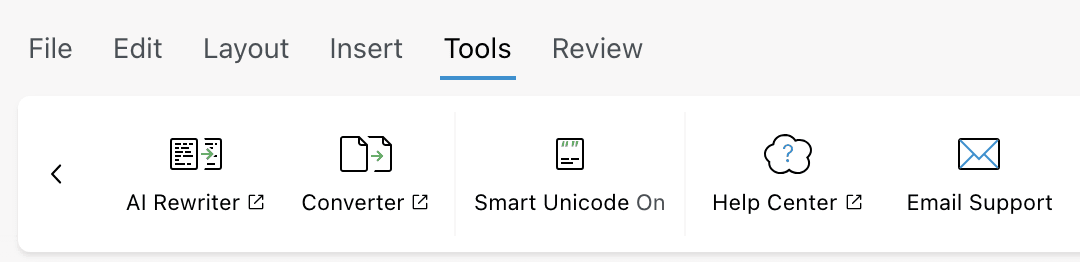
| The site header | Point at Tools and click AI Rewriter. |
| The editor | Open the Tools tab and click AI Rewriter. It opens in a new browser tab. |
| The documents list | Click the Quick Rewrite panel in the left sidebar. |
| A direct link | Go to revise.io/ai-rewriter, or to a built-in prompt's own page (see Built-in prompts). |
The AI Rewriter does not change text inside a document. To rewrite part of a document, select it and ask the AI agent (see selected text).
Rewrite text
- Paste or type your text in the Paste or type below panel.
- Keep the default prompt in Prompt, choose another one, or type your own instruction.
- The rewritten text appears in the Revised version panel on the right.
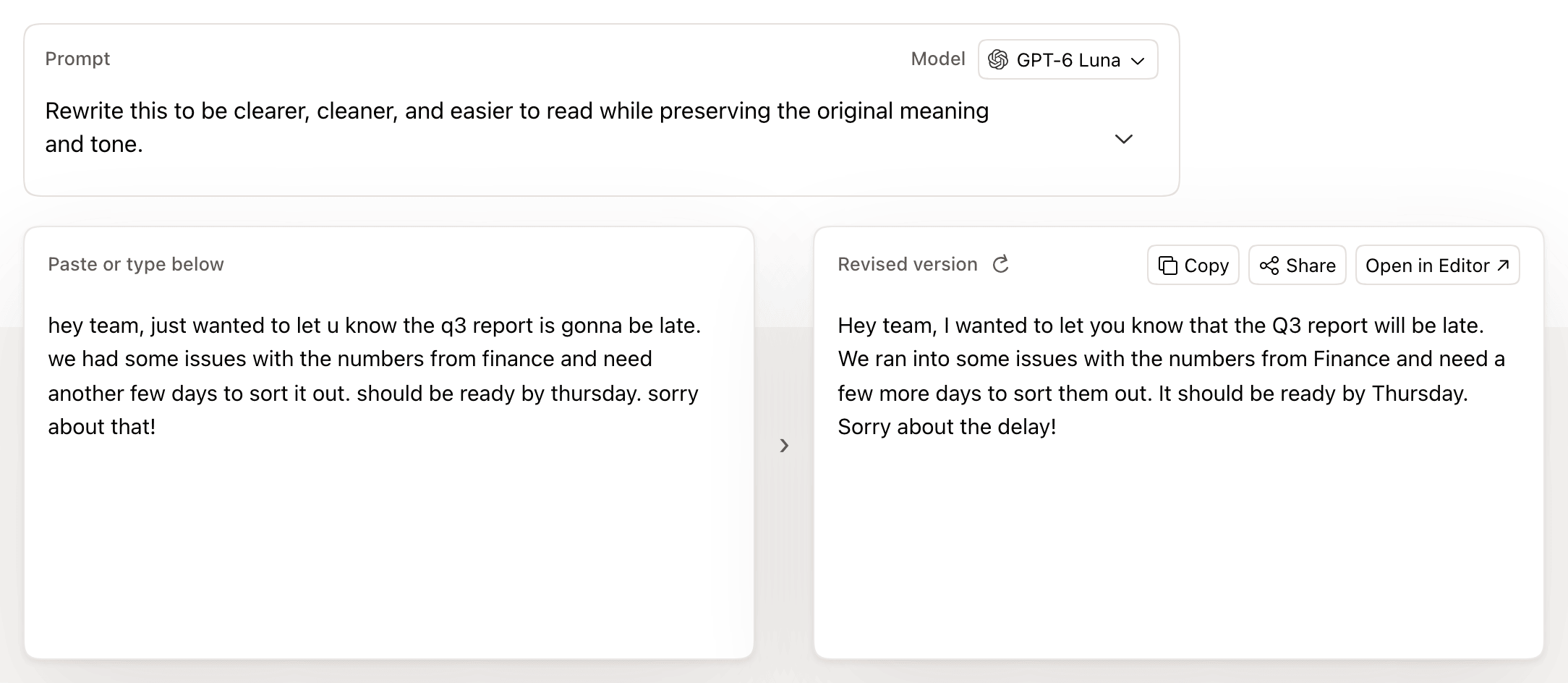
The default prompt is "Rewrite this to be clearer, cleaner, and easier to read while preserving the original meaning and tone."
A rewrite starts when any of these happens:
| Action | Result |
|---|---|
| Paste into the input panel | Starts right away. |
| Type in the input panel | Shows Submit. Click it or press ⌘Enter. |
| Press Enter in Prompt, or click away from it | Starts with the new prompt. ⇧Enter adds a line break instead. |
| Choose a prompt from the menu or a different model | Starts with the new choice. |
| Click Regenerate (the circular arrow next to Revised version) | Requests a new version of the same rewrite. |
The browser keeps a copy of each result. Running the same prompt on the same text with the same model shows the saved result without a new request. Only Regenerate asks for a fresh one.
The page remembers your last input text and model in this browser. The prompt on /ai-rewriter resets to the default each time the page loads.
Built-in prompts
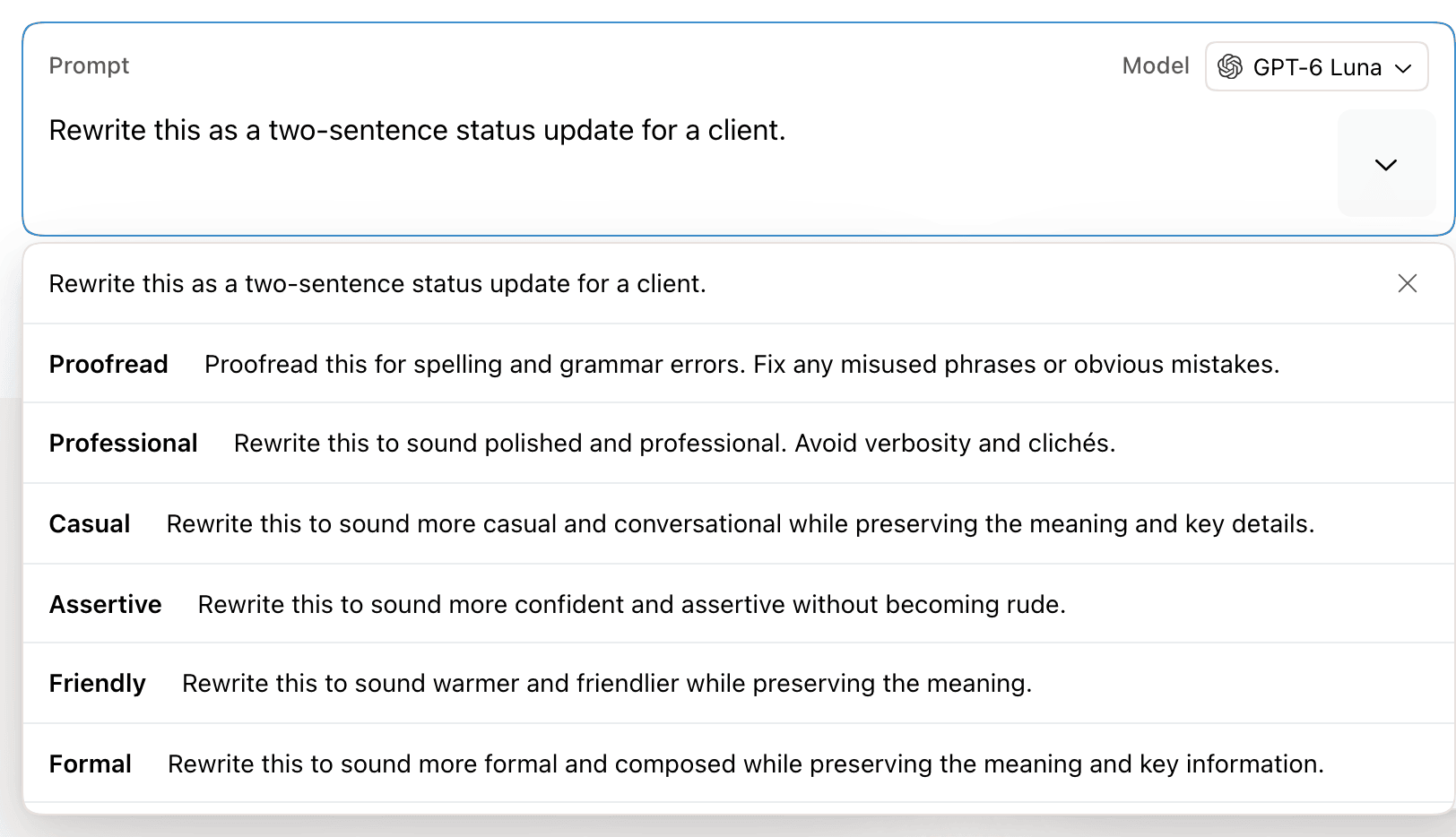
Click Browse prompts (the arrow at the right of the prompt) to list the built-in prompts. The same prompts are listed under Other prompts lower on the page. Each built-in prompt also has its own page, which opens with that prompt selected.
| Group | Prompts | Page |
|---|---|---|
| Editing | Proofread, Email, Concise, Summarize, Simplify Text, Paraphrase, Bullet Points, Explain like I'm 5, Executive Summary, tl;dr, LinkedIn | A page per prompt, such as /grammar-checker, /email-generator, /shorten-text, and /summarize-text |
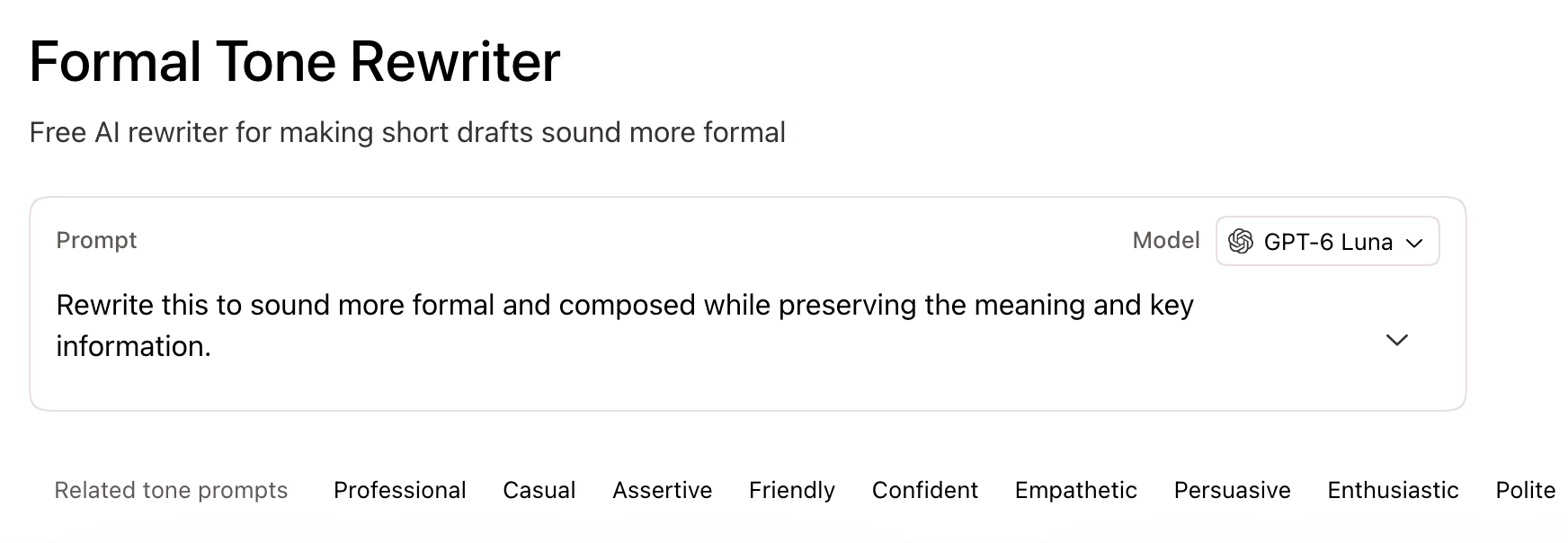
| Tone | Professional, Casual, Assertive, Friendly, Formal, Confident, Empathetic, Persuasive, Enthusiastic, Polite | /change-tone/<tone>, such as /change-tone/formal |
| Translation | Spanish, English, French, German, Italian, Portuguese, Chinese (Simplified), Japanese, Korean, Arabic, Russian, Pirate, Shakespeare | /translate/to-<language>, such as /translate/to-spanish, plus /pirate-translator and /shakespeare-translator |
A tone or translation page lists the rest of its group under the prompt. The row is labeled Related tone prompts or Related translation prompts.
Write your own prompt
Replace the text in Prompt with your own instruction, up to 200 words. Over that, the page shows the word count and does not run the prompt.
A custom prompt is saved when you use its result. Clicking in the result, copying, sharing, and opening it in the editor all count. Saved prompts appear at the top of the Browse prompts menu, most used first. Click Remove saved prompt (the X) to delete one.
Without an account, saved prompts stay in this browser. Signed in, they are stored in your account. When you sign in, prompts saved in the browser move to your account.
AI Rewriter prompts are separate from the agent's saved prompts.
Choose a model
Pick a model from Model at the top right of the prompt box. Changing it runs the rewrite again. The choice is remembered in this browser.
| Option | Model |
|---|---|
| GPT-6 Luna (default) | GPT-6 Luna |
| Claude | Claude Haiku 4.5 |
| Gemini | Gemini 3.8 Flash |
| Grok | Grok 4.6 |
All four are available on every plan and without an account. The picker is separate from the agent's model picker. See models used by other features.
Use the result
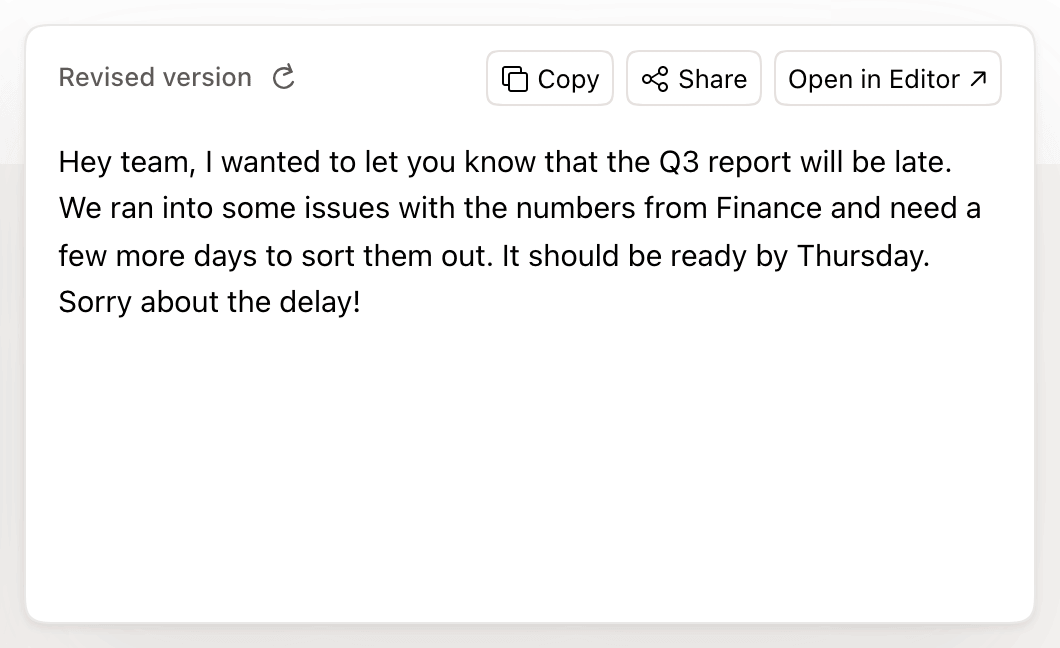
The Revised version panel has three actions. Clicking in the result selects all of it, so you can also copy it with ⌘C.
| Action | What it does |
|---|---|
| Copy | Copies the result as formatted text and plain text, so lists keep their bullets when pasted. |
| Share | Creates a public link to the prompt, your input, and the result, and copies it. Link copied appears briefly. |
| Open in Editor | Creates a new Revise document with the result and opens it in a new tab. |
The result contains paragraphs and simple lists only. The rewriter drops headings, bold and italic text, links, and tables, from both the input and the output. The result uses the same font as the pasted text.
Move the result into a document
Open in Editor names the new document after the built-in prompt, such as "Formal Draft". For a custom prompt, the name is "AI Rewriter Output". Signed in, the document is saved to your account. Without an account, it is saved in this browser (see accounts and anonymous use). To add the result to an existing document, click Copy and paste it there.
Shared links
Anyone with a shared link can open it without an account. The page shows the prompt, the original, and the result under the heading Shared AI Rewriter result. The viewer can edit the text and run it again, which uses their own rewrites. A shared link cannot be deleted, so do not share text you want to keep private.
Text over 1,000 words
The input is limited to 1,000 words. Over that, no rewrite runs. The input panel shows a red Over 1,000 words message that points you to the editor.
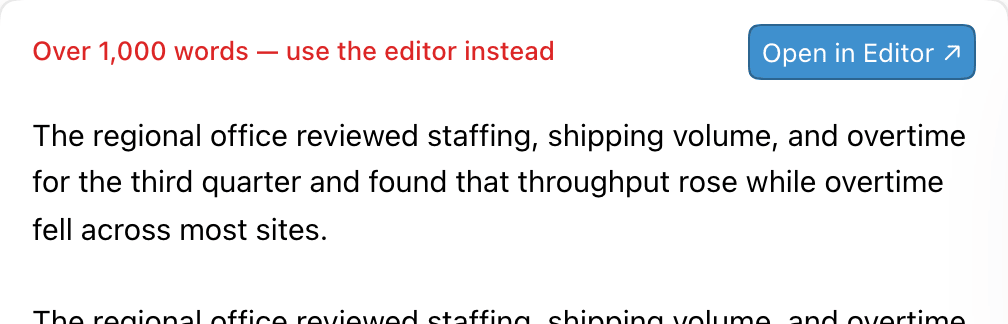
Click Open in Editor in the input panel. Revise puts your text in a new document named "AI Rewriter Input" and opens it in the same tab. It then sends your prompt to the agent. The agent proposes its edits as tracked changes that you accept or reject.
AI Rewriter and the AI agent
| AI Rewriter | AI agent | |
|---|---|---|
| Works on | Pasted text, up to 1,000 words | The open document, of any length |
| Output | A separate rewritten copy | Tracked changes in the document |
| Formatting | Paragraphs and lists only | All document formatting |
| Context | Each rewrite stands alone. No files, no conversation. | Conversation history, attached files, other documents, web search |
| Models | Four fast models | The full model list for your plan |
Requirements and limits
| Limit | Value |
|---|---|
| Without an account | 5 rewrites in a browser. After that, the page shows You've used your 5 free rewrites. Create a free account to keep going. and opens the sign-up dialog. Rewrites without an account are also capped per network each day; at that cap the page shows Sign in to continue. |
| Free plan | Rewrites count toward the free daily AI limit. At the limit, the page shows an upgrade button and opens the upgrade offer. |
| Plus, Pro, and Max | Rewrites count toward the plan's monthly AI usage. At the limit, rewrites stop unless Extra Usage is on. |
| Input | 1,000 words |
| Prompt | 200 words |
| Languages | The page is also available in Spanish (/es/ai-rewriter) and German (/de/ai-rewriter). |