Giving the Agent Context
Last updated
Each request to the AI agent includes the document you have open. It also includes what you add to the message: selected text, attached files, and pasted text. The agent can read your other documents and search the web when a request needs them.
What the agent sees
| Source | When the agent uses it |
|---|---|
| The current document | Every request. |
| Selected text | When a selection chip is on the message. |
| Attached files and pasted text | The message they are attached to, and later messages in the same conversation. |
| Earlier messages | Every request in the same conversation. |
| Your other documents and folders | When the request refers to them. Requires an account. |
| The web | When the request needs current facts or sources. Requires an account. |
| Custom instructions and memory | Every chat request. Requires an account. |
The agent also knows how Revise works and links to help articles when you ask about a feature.
The current document
The agent works on the document open in the editor. With each request it receives the title, word and page counts, page layout, and the document text. The text includes comments, footnotes, and pending suggestions.
| Document | What the agent receives |
|---|---|
| Short | The whole document, with every request. |
| Long | The part on your screen, plus an outline: the top-level headings and a sample of paragraphs. The agent reads other sections as the request needs them. |
The status line shows Reading your document... or Searching your document... while the agent reads.
For a whole-document task, such as "proofread everything", the agent works through a long document in batches. It doesn't claim to have checked parts it hasn't read.
Highlights are not part of the text the agent reads. When you refer to them ("fix the yellow parts"), it searches for them. It can also look at images and render pages to check layout. See Read and check the document.
Selected text
Select text in the document to point the agent at it. A chip with the start of the selection appears above the chat input. The placeholder changes to Get help with this selection.
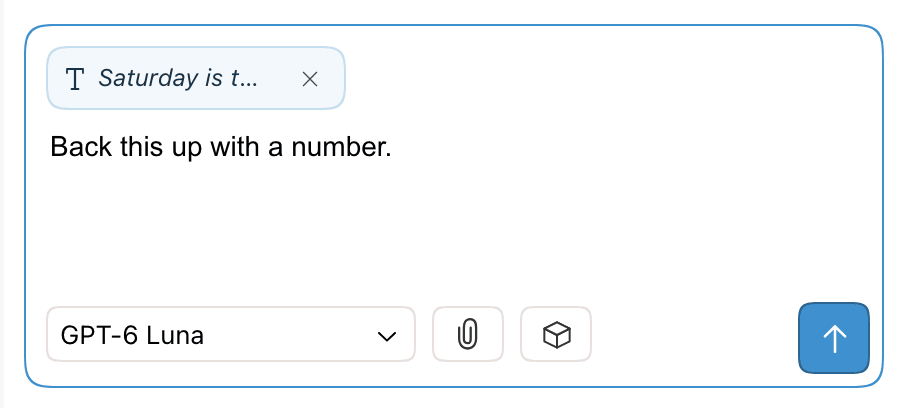
- The chip follows the selection. If you click elsewhere in the document before sending, the chip goes away.
- To keep the chip after you click away, press ⌘L or right-click the selection and choose Edit with Agent.... Both also put the cursor in the chat input.
- To send a saved prompt with the selection, right-click it and choose the prompt under Prompts.
- To remove the chip, click × on it.
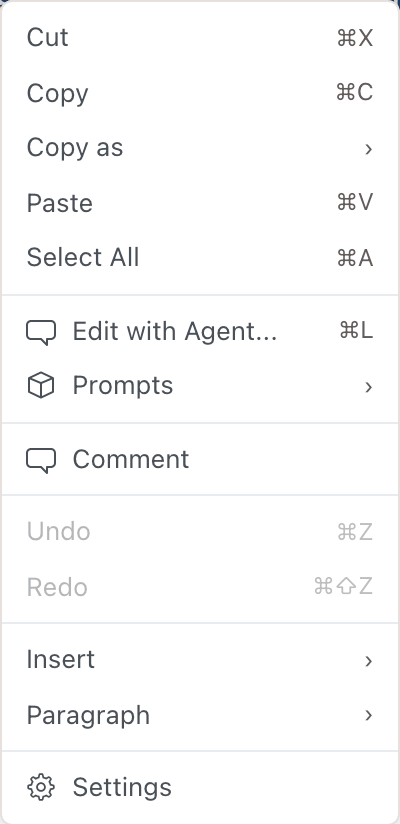
With a selection attached, the agent edits only the selected text unless you ask for more. Surrounding paragraphs are context, not targets. A question is answered about the selection. The agent keeps a copy of the selection as it was when you sent the message.
A selection longer than 20,000 characters is not attached, and Edit with Agent... is not in the menu. For a large part of the document, name it in the request instead ("the Methods section").
Attached files
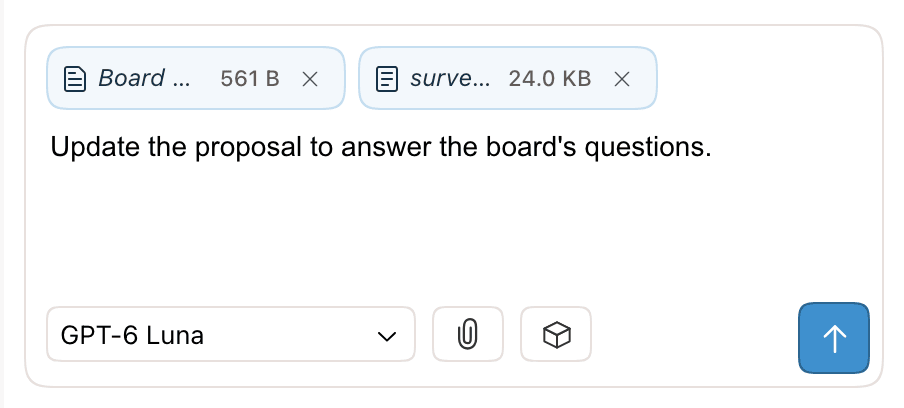
Click Attach File (the paperclip) or drag files onto the chat panel. You can attach several files to one message.
| File type | Extensions | Maximum size |
|---|---|---|
| Text, Markdown, HTML, data, and code | .txt, .md, .html, .csv, .json, .xml, .yaml, .py, .js, and other plain-text files | 250 KB |
| Word | .docx | 5 MB, after Revise shrinks large images in the file |
| 20 MB, plus a page limit per message | ||
| Images | .png, .jpg, .jpeg, .gif, .webp | 10 MB. Scaled down to 1,000 px on the longest side. |
Other binary files, such as .doc, .xlsx, and .zip, can't be attached. An attachment stays available for the rest of the conversation. You can ask about it again without attaching it again.
Paste reference material
Pasting 500 or more characters into the chat input creates a text attachment instead of a long message. The chip shows the start of the text and its size. Pasted text can be up to 250,000 characters.
Attachment limits
| Limit | No account or Free | Plus, Pro, and Max |
|---|---|---|
| PDF pages per message, all PDFs together | 20 | 100 |
| Text, Word, and PDF files per message | 1 MB total and about 20,000 characters of text | File size limits only |
Revise counts PDF pages before it attaches a file. A PDF over the limit is not attached, and a message offers an upgrade when a higher plan allows it. These limits are separate from the monthly PDF page limits for imports.
Import an attached file
An attached .docx or .pdf can also become document content. Ask the agent to import it. In an empty document, the file becomes the document. Otherwise the agent inserts it after the paragraph you name. See Import into the current document.
Your other documents and folders
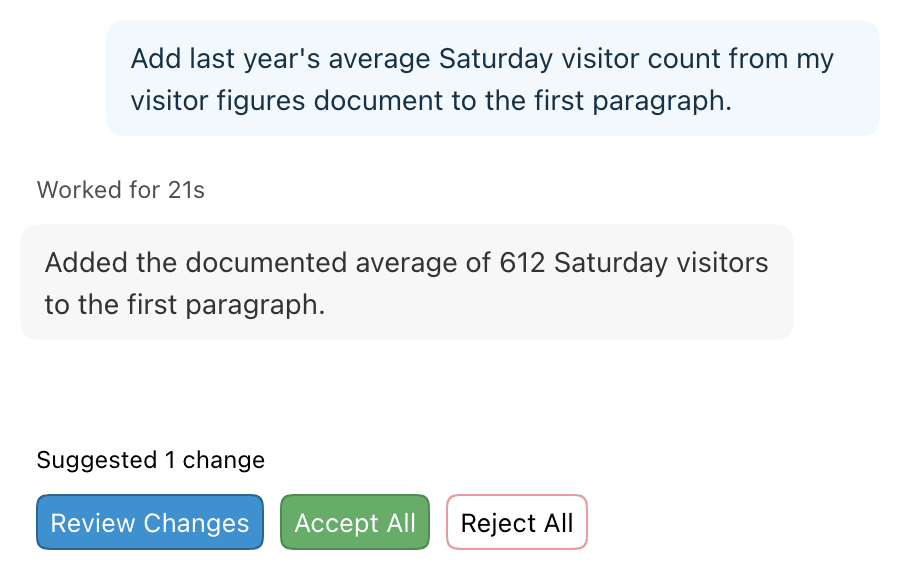
With an account, the agent can find and read your other documents. Refer to one in the request, such as "use the figures from my Q3 report". The status line shows Finding documents... while it looks.
| How you refer to it | What the agent does |
|---|---|
| A link to the document | Reads that document directly. |
| Its name or topic | Searches document text and folder names, then reads the matches. |
| A folder | Lists the folder's documents and subfolders, then reads the ones it needs. |
Searches start in the folder that holds the current document, including its subfolders. Ask the agent to search all your documents to widen the search. Search covers documents you own and documents and folders shared with you, but not deleted documents.
Other documents are read-only to the agent. To edit one, open it and ask there. When the agent cites another document in its reply, it can link to it.
Web search
With an account on any plan, the agent can search the web. It can usually open a public link you paste into the request. Pages that need a login are out of reach. Replies based on web results list their sources. See Search the web.
Custom instructions and memory
Two things carry over between conversations. Both require an account.
| Custom instructions | Memory | |
|---|---|---|
| What it is | Standing rules you write, such as "use British spelling". | Short notes the agent keeps about you and your work. |
| Where it comes from | Settings > Personalization > Custom instructions, up to 1,000 characters. | Revise writes it after a request, from preferences and facts you state, such as your field or your usual audience. |
| How the agent uses it | Follows it in every request. | As background for what you ask. Memory never starts work on its own. |
| How to change it | Edit or clear the field. Changes save automatically. | Ask the agent to forget something. There is no settings screen for memory. |
Saved to memory appears in the chat when the agent adds to its memory. Hover over it to see what was saved. Some notes are saved without the label. The settings screen is shown in Custom instructions and memory.
Comments
Comment threads are part of the document text the agent reads. You can refer to them in the chat, such as "address the open comments".
You can also send a request from a comment by mentioning @Revise. See Ask for changes in a comment. A comment request has less context than a chat request. The agent sees the current document and the thread. It doesn't use your other documents, custom instructions, or memory.
Earlier messages and other conversations
The agent sees earlier messages in the current conversation, including its own replies and the attachments sent with them. In a long conversation, older messages are replaced with a summary.
A new conversation starts without the earlier ones. Only custom instructions and memory carry over. Click Start a new conversation when you change tasks, so old context doesn't steer the new one.
What the agent can't see
- Revision history. It knows earlier versions of the text only if it read them earlier in the same conversation.
- Other conversations, in this document or any other.
- Files on your computer that you haven't attached.
- Documents that aren't yours or shared with you, and deleted documents.
- Web pages that need a login.
- Who else has the document open, or where their cursors are.
- Selections longer than 20,000 characters.
Without an account, the agent also can't read your other documents, search the web, or use custom instructions and memory.
Requirements and limits
| Item | Limit |
|---|---|
| Selection | Up to 20,000 characters. |
| Pasted text attachment | 500 to 250,000 characters. |
| File size | Text 250 KB, Word 5 MB, PDF 20 MB, images 10 MB. |
| PDF pages per message | 20 without an account or on Free. 100 on Plus, Pro, and Max. |
| Text, Word, and PDF files | 1 MB and about 20,000 characters per message without an account or on Free. |
| Other documents, web search, custom instructions, memory | Require an account (any plan). |
| Custom instructions | Up to 1,000 characters. |