AI Detection Score
Last updated
The AI detection score checks a document for AI-generated writing. It reports how much of the text reads as human, AI-assisted, or AI, and which passages were classified each way. Revise sends the text to Pangram, a third-party AI detection service, which computes the score. It is available on the Pro and Max plans.
Run an AI detection score
- Open the Review tab in the ribbon and click AI detection. You can also right-click the document with no text selected and choose AI detection.
- A dialog shows what share of your monthly AI limit the run will use. Click Run AI detection.
- The button shows Scoring… during the run. The result opens when it finishes, usually within a few seconds.
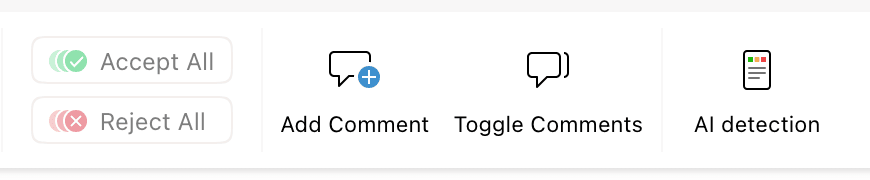
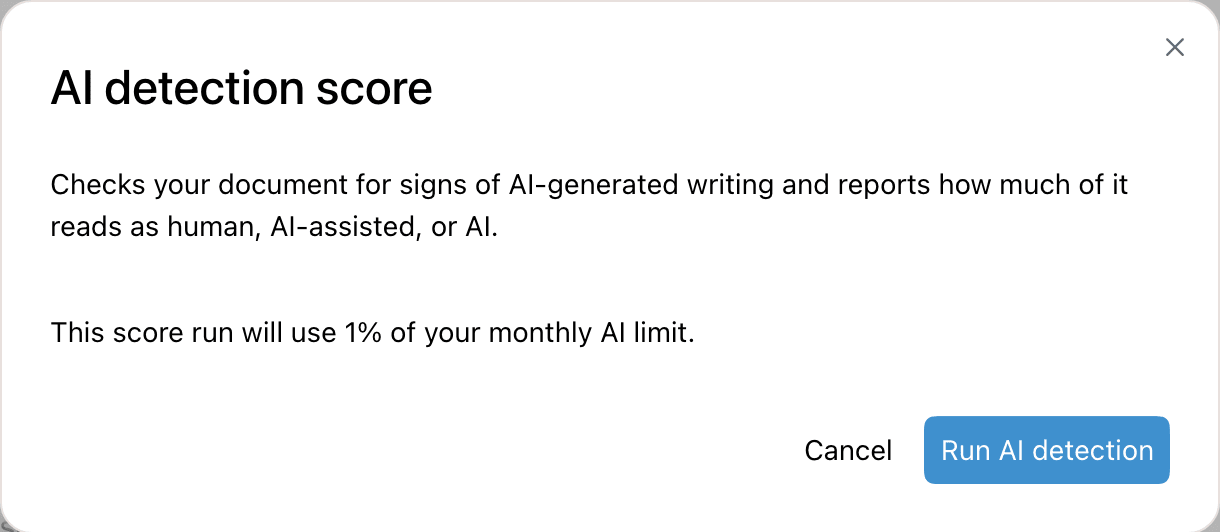
The score always covers the whole document. Scoring only a selection is not supported, so the context menu item appears only when nothing is selected.
Read the result
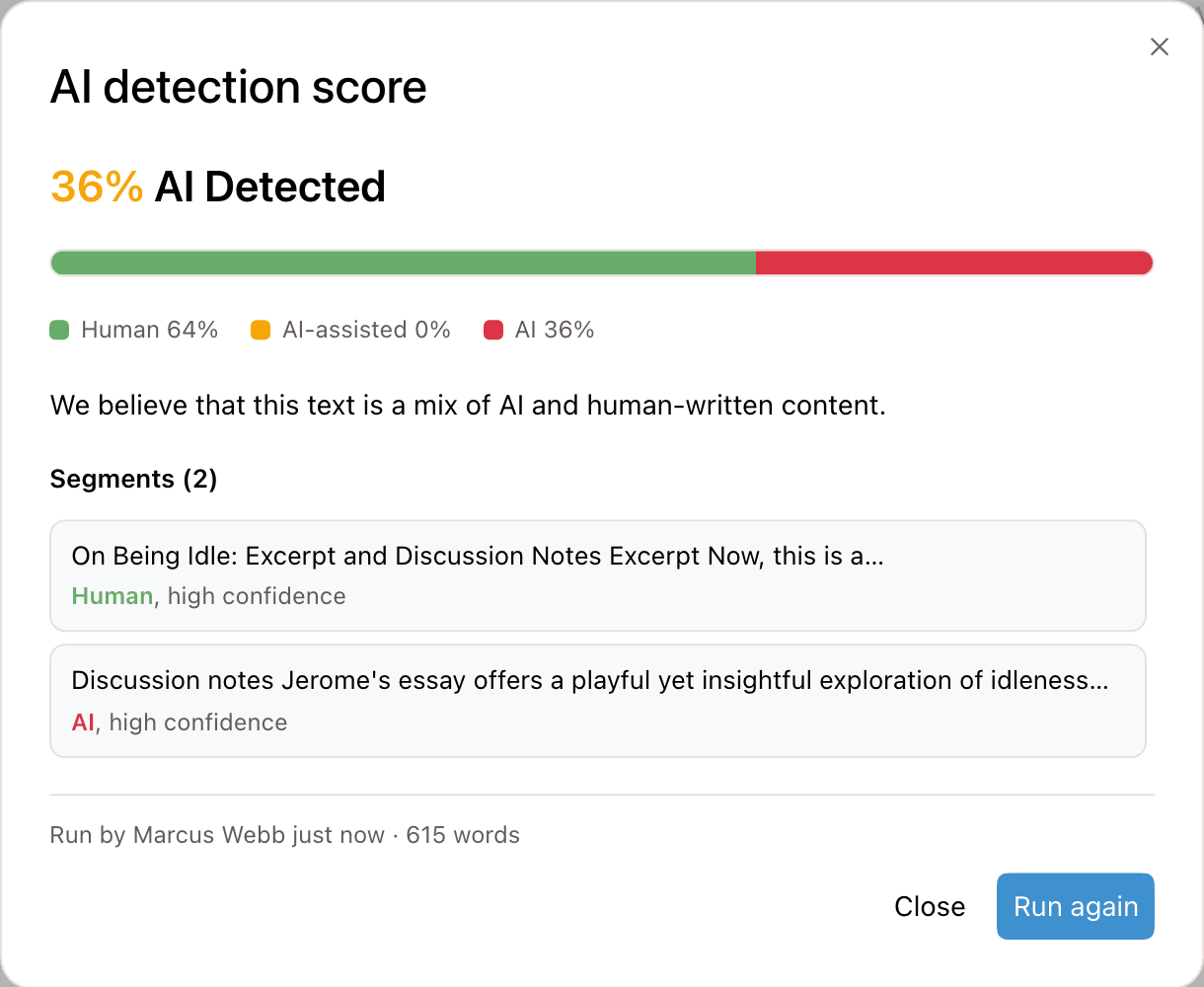
| Part | What it shows |
|---|---|
| Headline | Pangram's verdict with a percentage. For a Human verdict the percentage is the human share of the text. For a Mixed or AI verdict it is the AI and AI-assisted shares combined. It is green for Human, orange for Mixed, and red for AI. |
| Breakdown bar | The share of the text classified as Human (green), AI-assisted (orange), and AI (red). The legend below it lists the percentages. |
| Summary | One sentence from Pangram describing the result. |
| Segments | Each passage Pangram scored separately, with its label (Human, AI-assisted, or AI) and a high, medium, or low confidence. A short document can have a single segment. |
| Footer | Who ran the score, when, and how many words were scored. It adds charged to Extra Usage for a run billed past the monthly limit. |
Find a segment in the document
Click a segment in the result. The dialog closes, and the segment's text is selected and scrolled into view. From there you can rewrite it, comment on it, or send it to the AI agent.
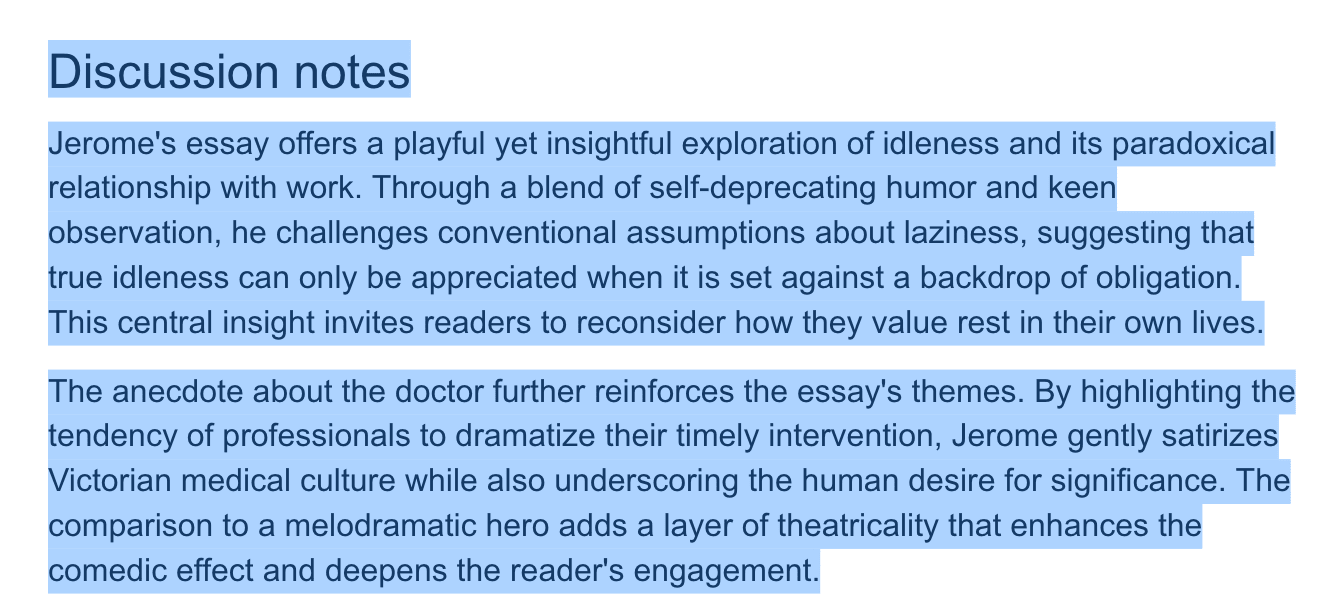
Segments follow their text through later edits. If the passage has been deleted, the segment shows No longer in the document.
Score again after editing
After a run, the ribbon button shows the AI share next to its icon, colored by the verdict. Clicking the button then opens the last result instead of starting a run.
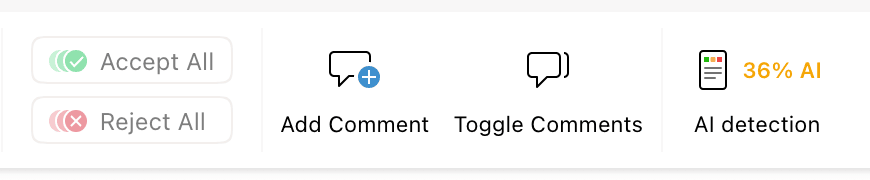
When the text changes after a score, an orange dot appears next to the percentage. The result shows The document has changed since this score. To score the current text, open the result and click Run again.
Each run costs usage. The new result replaces the old one: Revise keeps only the last score for each document.
Scores in shared documents
The last score is saved with the document. In a shared document, everyone sees the same result and who ran it. A collaborator's new score appears without a reload.
| Person | Can open the last score | Can run a score |
|---|---|---|
| Editor on Pro or Max | Yes | Yes, billed to their own usage |
| Viewer on Pro or Max | Yes | No |
| Anyone on Free or Plus | No. The button shows the percentage, but clicking it opens the upgrade offer. | No |
Viewers do not see the button until the document has a score.
Open it from the agent chat
Ask the agent about AI detection, or whether text reads as AI-written. It can add a Detect AI writing button under its reply. The button opens the last result, or the confirmation dialog if there is none. See replies and next steps.
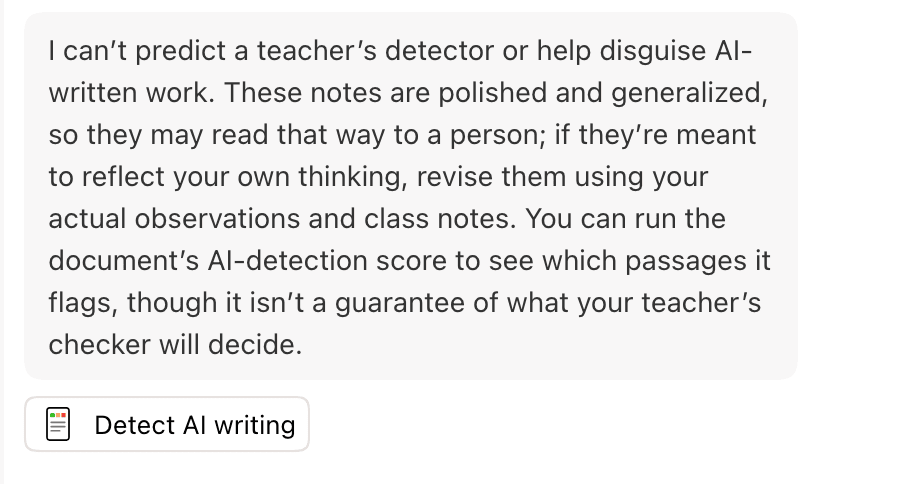
The agent cannot start a run, because a run spends your usage. It also does not rewrite text to pass a detector. On Free and Plus, the button shows Upgrade to Pro to run AI detection below it.
What text is scored
| Content | Scored |
|---|---|
| Paragraphs, headings, and list items in the body | Yes |
| Pending suggestions | Yes, as if accepted. Text they delete is not scored. |
| Tables, code blocks, and tables of contents | No |
| Headers, footers, footnotes, and endnotes | No |
| Comments | No |
The word count in the result counts only the scored text. It can differ from the word count in the Tools tab.
Usage and cost
Each run counts toward the same monthly AI limit as agent requests. It costs $0.05 of usage per 100 words, with partial hundreds rounded up. Revise logs each run separately and adds it to your other AI usage when it checks your limit. See what counts toward usage.
| Words scored | Usage |
|---|---|
| 50 to 100 | $0.05 |
| 615 | $0.35 |
| 2,000 | $1.00 |
- The confirmation dialog shows the cost as a share of your monthly limit.
- Past the limit, a run needs Extra Usage. The dialog then shows the dollar amount to be charged, which includes the Extra Usage premium.
- Without Extra Usage, a run past the limit is blocked. The dialog links to Manage billing.
- A run that fails is not charged.
Accuracy
The score is an estimate from a statistical model, not proof of how a text was written. It can classify human writing as AI, and AI writing as human. Other detectors, such as one used by a school or publisher, can give a different result for the same text.
Short texts give less reliable scores, which is why a run needs at least 50 words. Revise does not check the language of the text, and accuracy can differ by language. Revise has not measured Pangram's accuracy and publishes no accuracy figures for it.
Requirements and limits
| Requirement or limit | Value |
|---|---|
| Plan | Pro or Max. On Free and Plus, the button opens an offer to upgrade to Pro. Signed-out users are asked to create an account. |
| Document length | 50 to 2,000 words. Outside that range, the dialog states the limit and the document's word count. Nothing is charged. |
| Part of a document | Not supported. The whole document is scored. |
| Runs per minute | 10 per account. Past that, the dialog shows Too many runs in a row. |
| Scores kept | The last score for each document |
| Languages | Not restricted. Accuracy can differ by language. |
| Where the text goes | Sent to Pangram for scoring. The result is saved with the document. |
If Pangram cannot score the document, the dialog shows The detector could not score this document. You were not charged. Close it and run the score again.