Importing & Exporting
Last updated
Revise imports Word, Markdown, HTML, plain text, RTF, and OpenDocument files, plus PDFs and images of documents. It exports to PDF, Word, HTML, Markdown, and plain text. Importing and exporting work without an account.
Import a file
Each import creates a new document named after the file, without its extension. The original file is not changed.
| Where | Control | Notes |
|---|---|---|
| Documents list | Import File | Accepts several files at once, and .zip archives. Each file becomes a document in the current folder. |
| Editor | File > Import | Does not accept .html, .rtf, or .odt files. |
| Top right of any page | Upload icon (Import Document) | Shown when you are signed in. |
| AI agent panel, empty document | Import Document | Fills the current document instead of creating a new one. See Import into the current document. |
- Click Import File in your documents list, or File > Import in the editor.
- Choose a file. From the editor, the new document opens when the import finishes. From the documents list, it appears in the list; click it to open it. PDFs and images open in the conversion dialog either way.
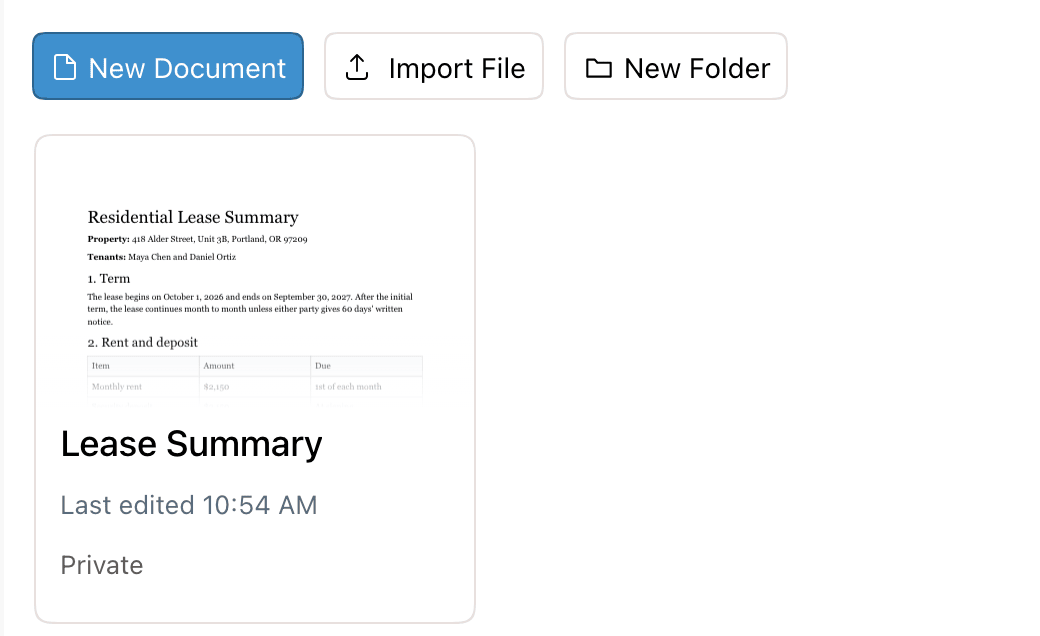
In a .zip archive, each supported file is imported and the archive's folders are recreated. Recreating folders requires an account.
Drag and drop
Drag a file from your computer onto any Revise page. Drop to import appears while the file is over the page. Dropping it creates a new document and opens it, even when you drop it on an open document.
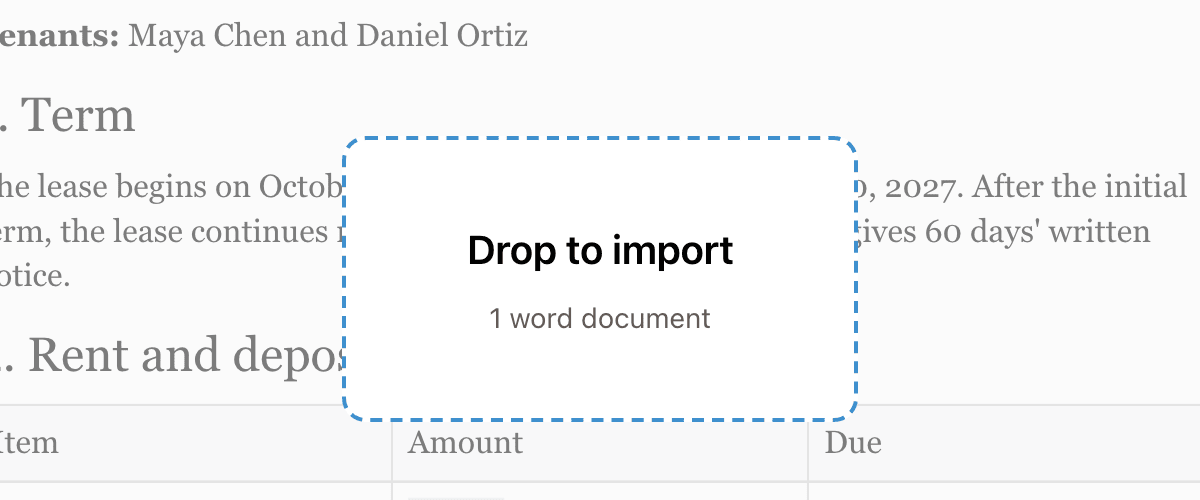
- Several text-based files (Word, Markdown, HTML, and so on) each open in a new tab.
- If you drop several PDFs or images, only the first one is imported.
- An image dropped onto the page of an open document is inserted into that document as a picture. It is not converted to text. To convert an image to text, drop it on the documents list or use Import File.
- An unsupported file shows Unsupported file type and the list of supported formats.
Supported formats
| Format | Extensions | Import | Export |
|---|---|---|---|
| Word | .docx | Yes | Yes |
| Yes, converted by AI | Yes | ||
| Markdown | .md, .markdown | Yes | Yes |
| HTML | .html, .htm | Yes | Yes |
| Plain text | .txt | Yes | Yes |
| Rich Text Format | .rtf | Yes | Only through Backup |
| OpenDocument Text | .odt | Yes | No |
| Images | .png, .jpg, .jpeg, .webp, .gif | Yes, converted by AI | No |
Older Word files (.doc), Apple Pages files, and EPUB are not supported. Save them as .docx first. The app has no import from a URL or from Google Drive. To bring in a Google Doc, copy and paste it, or download it as .docx.
Word files keep tracked changes, comments, footnotes, headers, and most formatting. See Word compatibility for what survives a round trip.
Paste content
Paste into the editor with ⌘V. Content copied from Word, Google Docs, or a web page keeps its formatting: headings, lists, bold and italic, links, and tables.
- Markdown: plain text that looks like Markdown is converted to formatted text. A notice, Pasted as Markdown, appears in the bottom left. Click Use plain text instead to undo the conversion. Fenced code becomes code blocks, a
```mermaidfence becomes a diagram, and$$blocks become equations.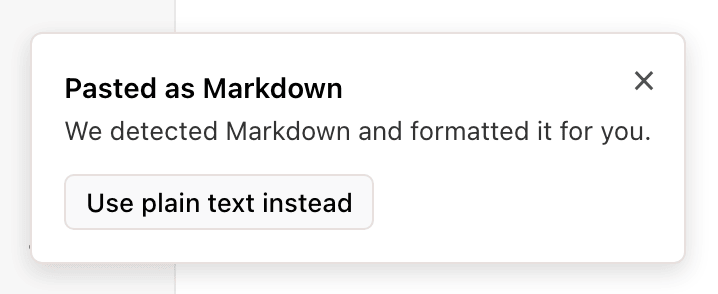
The notice shown after Markdown is converted on paste. - Plain text: ⌘⇧V pastes without formatting. The Paste menu in the Edit tab also has Paste Text Only and Paste Formatting Only.
- Spreadsheet cells: tab-separated text, such as cells copied from Excel or Google Sheets, becomes a table.
- Images: a copied image is inserted as a picture.
Import a PDF or image
Revise renders each page of a PDF as an image, and an AI model reads it back as editable text. Headings, lists, tables, and bold or italic text carry over. Every page is read as an image, so scanned PDFs and photos of printed pages import the same way as digital PDFs.
- Import the PDF or image with any method in Import a file, or drag it onto the page.
- A new document opens and fills in as pages are processed. A card in the bottom left shows Extracting Content and the page being processed, then Import Complete.
- Without an account, keep the tab open until the import finishes. Closing it stops the import.
- Password-protected PDFs cannot be imported. Remove the password first.
- Check the result against the original. AI conversion can misread handwriting, low-quality scans, and complex layouts.
PDF import limits
PDF and image imports count against a monthly page allowance. Each PDF page counts as one page, and each image counts as one page. Other formats have no page limit. Imports don't count toward AI usage. PDFs attached to an agent message have a separate per-message limit; see Attachment limits.
| Account | Pages per month | Resets |
|---|---|---|
| No account | 10 | On the 1st of each month (UTC) |
| Free | 100 | Each billing period |
| Plus, Pro, and Max | 3,000 | Each billing period |
Revise counts the pages before it starts. If a PDF has more pages than you have left, nothing is imported. A dialog shows the page count and your remaining pages. Without an account, the dialog offers Create Account. With a free account, it offers Upgrade Plan. The import resumes after you sign up or upgrade.
A PDF longer than 3,000 pages cannot be imported on any plan. Split it into smaller files. See pricing for plans.
Import into the current document
Most imports create a new document. Two ways add a file to the document you have open:
- Import Document in the agent panel. This button shows in the AI agent panel while the document is empty. A .docx, .md, or .txt file fills the current document and renames it after the file. A PDF or image still opens as a new document.
- Attach the file in the agent chat. Attach a .docx or .pdf with the paperclip and ask the agent to import it. In an empty document, the file becomes the document. Otherwise the agent inserts it after the paragraph you name, and existing content stays. See Giving the Agent Context for attachments.
Export a document
An export contains the current version only; revision history is not included.
- Click Export at the right end of the Edit tab, or open File > Export.
- Choose PDF Document, Word Document, HTML File, Markdown, or Plain Text. The file downloads.
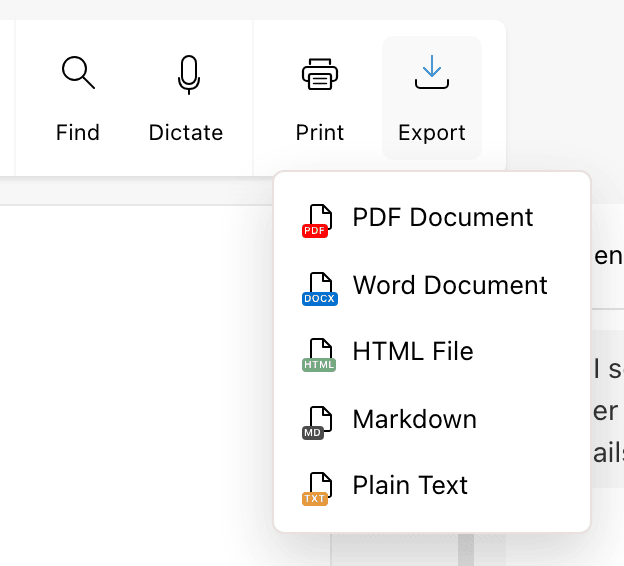
In a narrow window the Export button is hidden. Use the File menu instead.
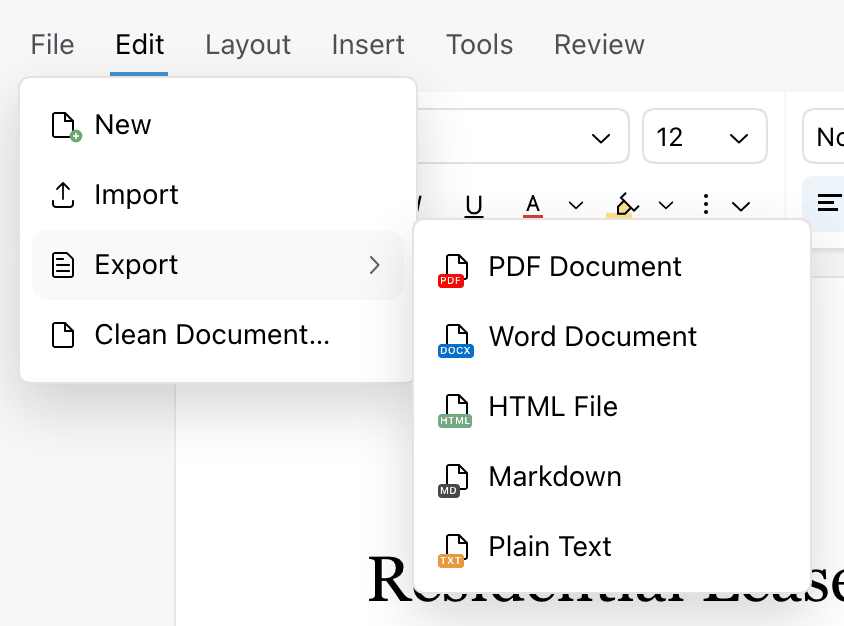
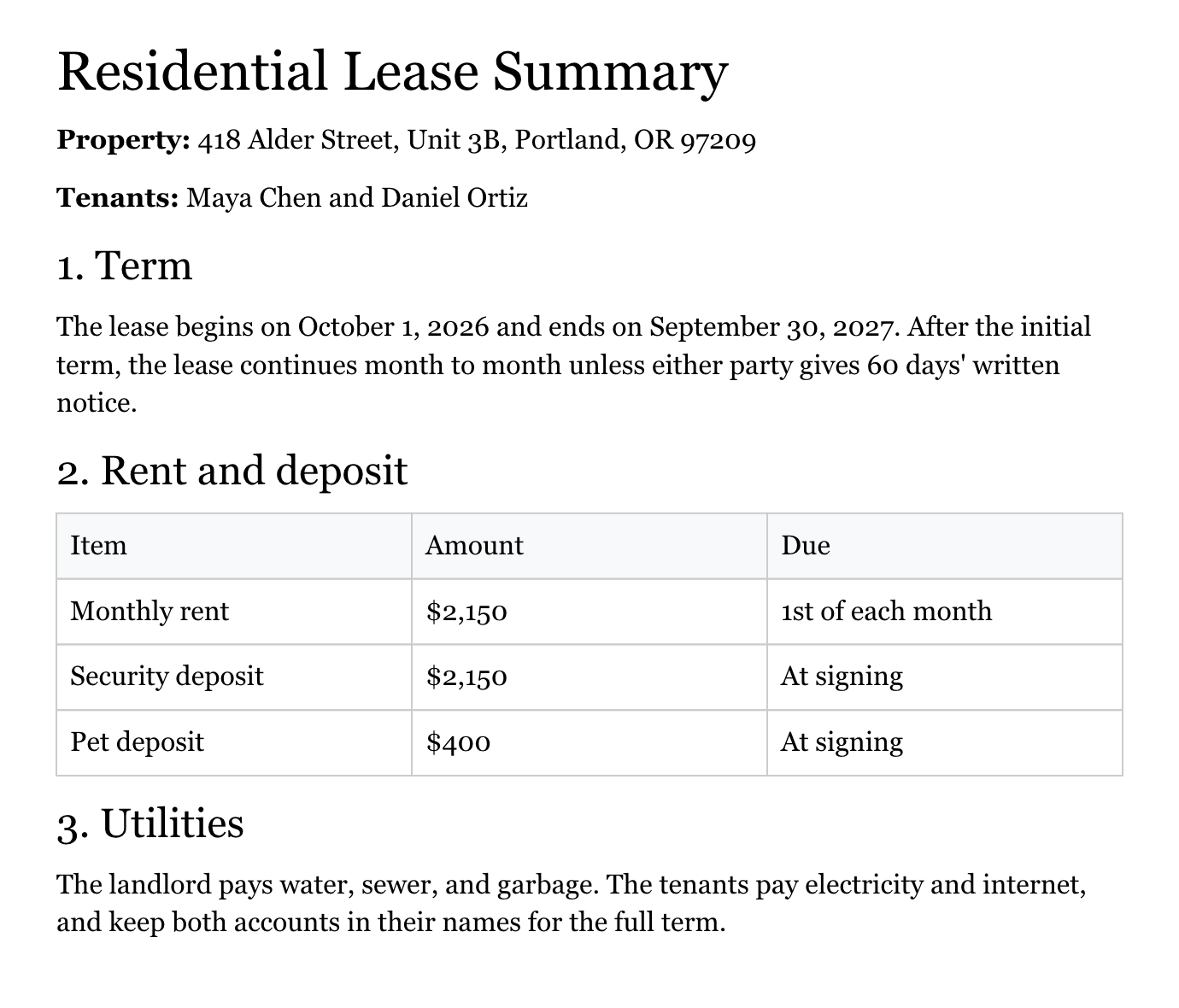
The file is named after the document title, such as Lease Summary.pdf. An untitled document downloads as document with the format's extension. Files are generated in your browser. Anyone who can open a document can export it, including people with view-only access.
| Format | What it contains |
|---|---|
| The pages as laid out in the editor, with headers, footers, page numbers, footnotes, images, and clickable links. | |
| Word | The full document, including comments, and suggestions as tracked changes. A document imported from .docx reuses the original file, so unedited parts come back unchanged. See Word compatibility. |
| HTML | A styled web page with images and tables. Footnotes become endnotes. Headers and footers are left out. |
| Markdown | Headings, lists, links, images as , and footnotes. Equations are written as LaTeX. Headers and footers are left out. |
| Plain text | Text only. Table cells are separated by tabs, images become [Image], and footnotes become endnotes. |
Suggestions and comments in exports
Pending suggestions are changes nobody has accepted or rejected yet, from Suggesting Mode or the AI agent. Export does not ask what to do with them.
| Export | Pending suggestions | Comments |
|---|---|---|
| Word | Kept as Word tracked changes | Kept as Word comments, with replies and resolved state |
| PDF, HTML, Markdown, plain text, and print | Left out. The file shows the text before the suggestions. | Left out |
| Backup (.zip), formats other than Word | Applied. The file shows the text with the suggestions. | Left out |
To include suggested changes in a PDF or other format, accept them before exporting. See Reviewing AI Changes. File > Clean Document... accepts all suggestions and removes all comments in one step. It cannot be undone.
Click Print in the Edit tab, or press ⌘P. Revise builds the same PDF as PDF Document export, opens it in a new tab, and shows your browser's print dialog. Pending suggestions and comments are not printed.
Copy as Markdown, HTML, or plain text
To copy a selection in another format, open the Copy menu. It is the arrow next to the copy button in the Edit tab. It has Copy, Copy as Plain Text, Copy as Markdown, and Copy as HTML. The right-click menu has the same options under Copy as.
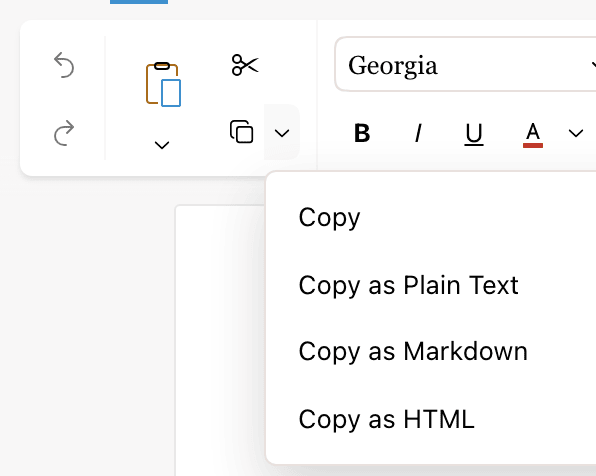
A normal ⌘C copies formatted text. Word and Google Docs paste it with formatting.
Back up all documents
Settings > Backup downloads your documents as a .zip archive, with your folder structure. Backup requires an account.
- Open Settings from the bottom left of the documents list, then click Backup.
- Under Format, choose Word (.docx), plain text (.txt), Rich Text Format (.rtf), Markdown (.md), or HTML (.html). PDF is not offered.
- Under Documents to include, choose All my documents or one folder.
- Click Download .zip.
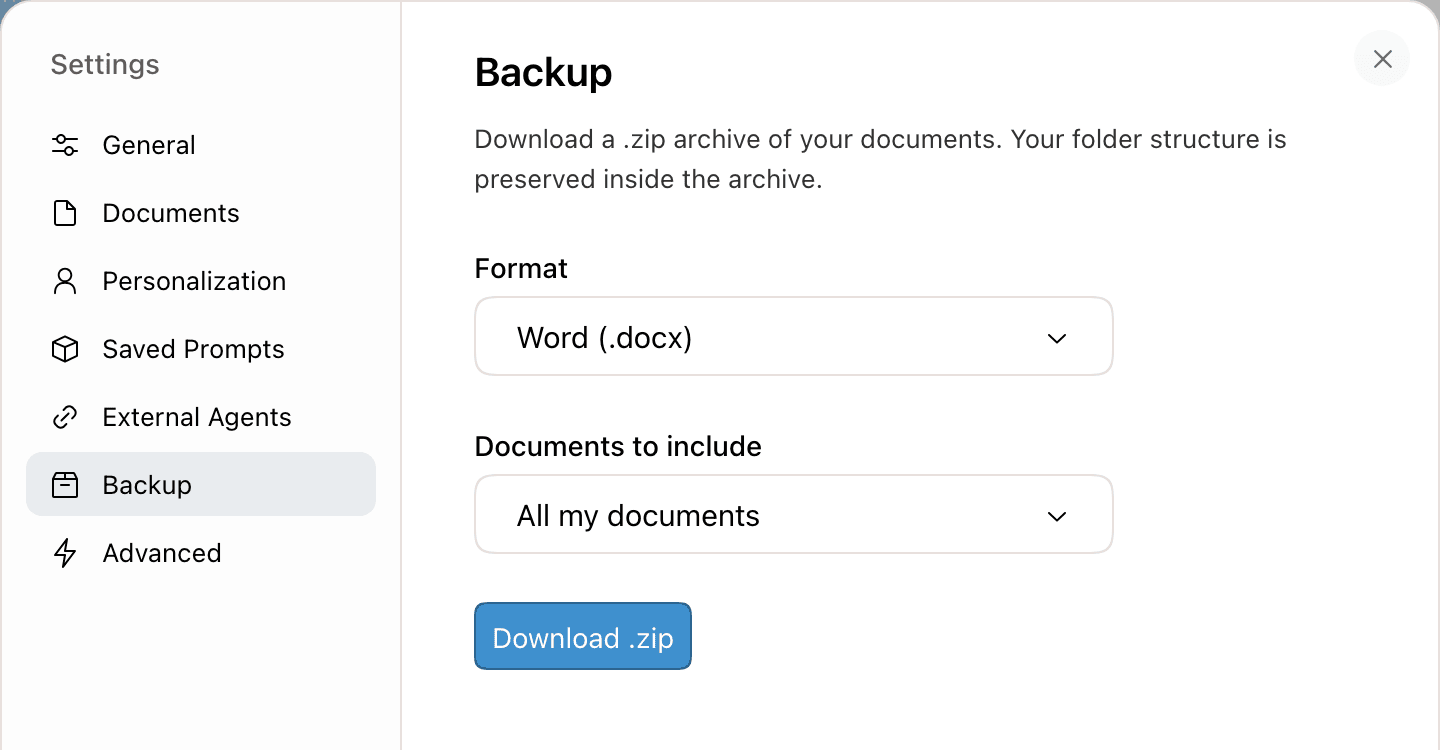
The backup includes only documents you own, not documents shared with you.
Import and export with external agents
Agents such as Claude or ChatGPT connect to Revise through the Revise MCP server. They can import a file from a public URL, up to 25 MiB. They can export a document in any of the five formats. MCP import does not accept PDFs or images.
When an agent cannot reach your file, it sends you to revise.io/docs/upload. That page opens a blank document with an Upload button for .docx, .md, and .txt files.
Requirements and limits
| Action | Account required | Limit |
|---|---|---|
| Import Word, Markdown, HTML, text, RTF, ODT | No | None |
| Import PDF or image | No | Monthly page allowance |
| Import a .zip with folders | Yes, to recreate folders | None |
| Export and print | No | None |
| Backup | Yes | Documents you own |