Reviewing AI Changes
Last updated
The AI agent doesn't edit your text directly. It proposes each edit as a suggestion, the same kind of tracked change that Suggesting Mode and Word produce. Nothing changes in your document until you accept a suggestion.
How AI changes appear
When the agent finishes a request, its edits are in the document as suggestions:
- Added text is green.
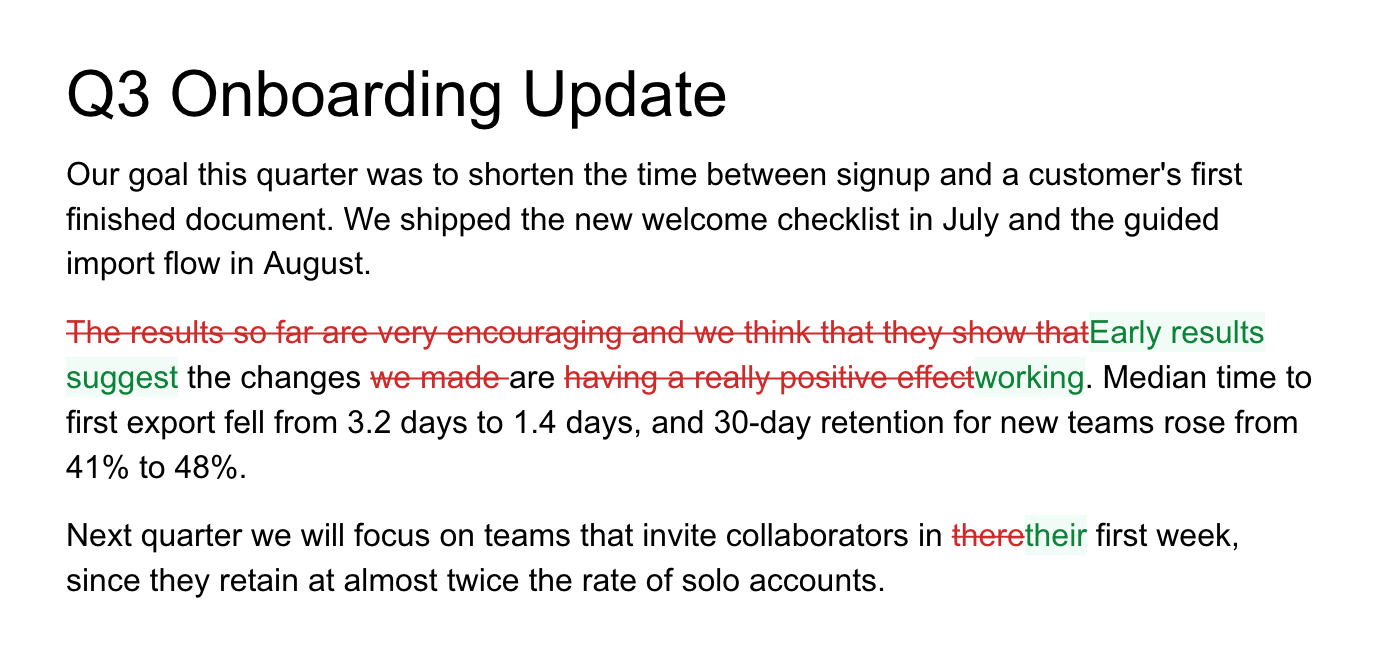
- Text that the agent replaced is hidden. The new wording shows in its place.
- Text that the agent removed without replacing is struck through in red.
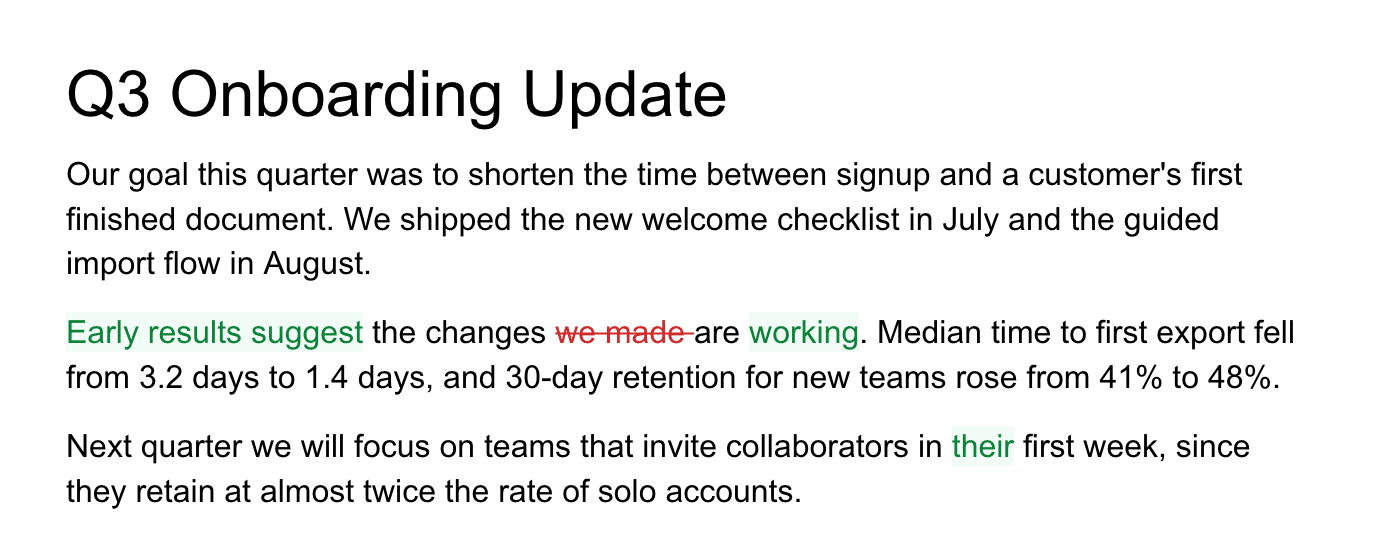
To see the replaced text as well, turn on Show Before & After.
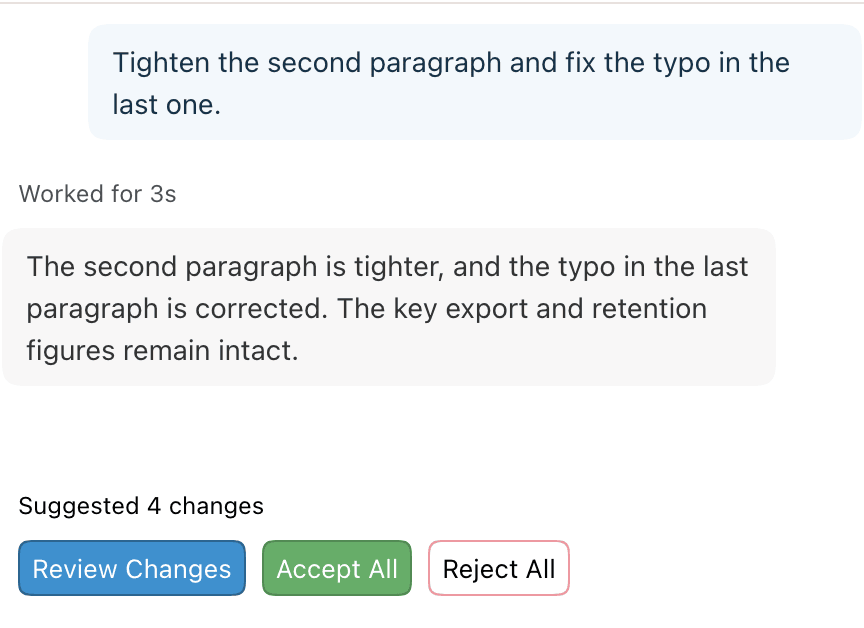
Below the agent's reply, the chat shows Suggested N changes with three buttons: Review Changes, Accept All, and Reject All. The Review tab above the toolbar shows a count of the changes and comments waiting for review.
Accept or reject one change
- Click inside a green or red change. A card opens below the line.
- Click Accept to keep the change or Reject to discard it.

The card shows:
- The author. Changes from the in-app agent are labeled Revise. Hover the name to see the model that made the change.
- When the change was made.
- What changed: Replaced or Removed followed by the original text, or Inserted.
Other ways to act on a single change:
| Method | How |
|---|---|
| Keyboard | With the caret inside a change, press ⌘Enter to accept it. See review shortcuts. |
| Right-click menu | Right-click a change and choose Accept Change or Reject Change. |
| Selection | Select text that spans several changes. The card shows N suggestions selected with Accept All and Reject All for the selection. The right-click menu offers Accept N Changes and Reject N Changes. |
Accept or reject all changes
There are two sets of Accept All and Reject All buttons. They cover different changes.
| Location | Applies to |
|---|---|
| Agent chat, below the reply | Pending changes from the in-app agent only, including changes it made from comment threads. |
| Review tab | Every pending suggestion in the document, from any author: collaborators, imported Word revisions, and external agents. |
Hover either button to preview the result in the document before you click. Accepting or rejecting from the chat also closes the Review tab.
Show deleted text
By default, text that a change replaces is hidden so the document reads as it would after accepting. To see the old and new text side by side:
- Click the Review tab.
- Check Show Before & After.
Replaced text then appears struck through in red, next to the new text in green. The setting stays on after you leave the Review tab or reload the page, until you uncheck it. It also applies to revision history.
Step through changes in the Review tab
The Review tab replaces the formatting toolbar with review controls. Use it to go through changes one at a time. To open it, click the Review tab above the toolbar. You can also click Review Changes in the chat, which jumps to the first change.
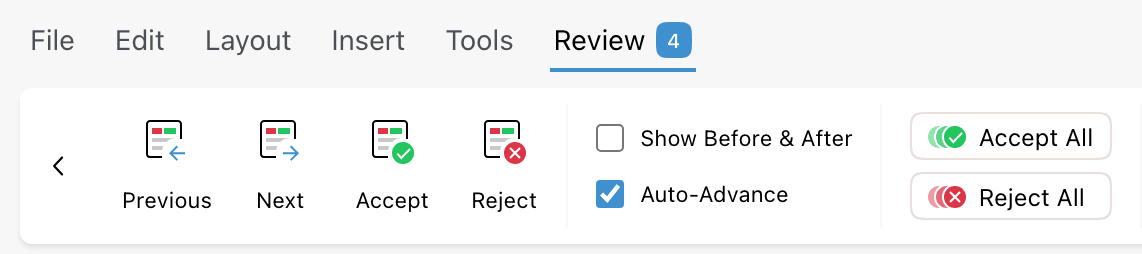
| Control | What it does |
|---|---|
| Previous / Next | Move to the previous or next change or open comment, in document order. Available when there is more than one. |
| Accept / Reject | Accept or reject the change at the caret. If the caret isn't in a change, the first click jumps to the next one. Hover to preview. |
| Show Before & After | Show replaced text in red. Off by default. |
| Auto-Advance | After you accept or reject a change, move to the next one. On by default. The setting is remembered. |
| Accept All / Reject All | Accept or reject every pending suggestion in the document. Hover to preview. |
| Add Comment | Start a comment on the selected text. |
| Toggle Comments | Show or hide comment threads in the margin. |
| AI detection | Check the document's AI detection score. |
To leave the Review tab, press Esc or click another tab. The × at the right end of the toolbar and the back arrow at the left also close it. Opening revision history also closes it. The Review tab is unavailable while history is open and in documents you can only view.
See what you accepted
Each decision on the agent's changes adds a line to the chat, such as 2 changes accepted or Rejected changes. This happens whether you decide in the chat, in the document, or in the Review tab. Click an accepted line to open revision history at those changes.
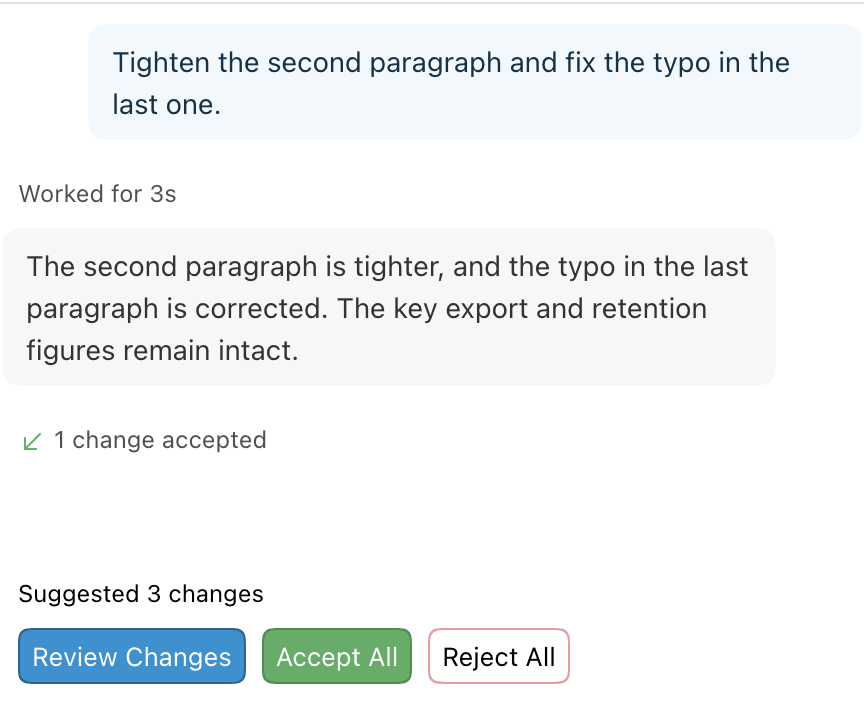
Accepted changes become part of the document and appear in revision history. Rejected changes are discarded and the text stays as it was.
Ask for changes in a comment
You can also request an edit from a comment instead of the chat. Select the text and choose Comment from the right-click menu, or click Add Comment in the Review tab.
Mention @Revise in a comment or reply to send it to the agent. In a private document with no collaborators, every new comment goes to the agent without a mention. The agent replies in the thread and attaches its edits to it as suggestions.
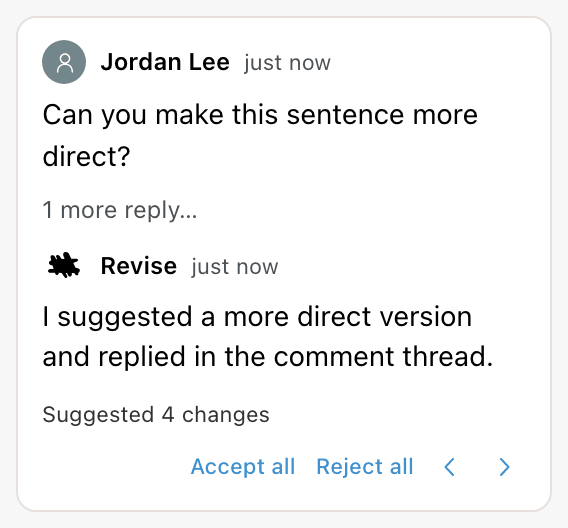
The thread card shows Suggested N changes with Accept all and Reject all for that thread. Its arrows move between the thread's changes in the document. These changes also count toward the chat's total and appear in the Review tab.
Changes from collaborators and external agents
Suggestions from other sources use the same cards and the same Review tab. Each card names its author.
- Collaborators in Suggesting Mode appear under their own names.
- Agents connected through the MCP server, such as Claude or ChatGPT, appear under the agent's name. The chat's Accept All and Reject All skip them. Review them in the document or the Review tab, or ask that agent to resolve its own suggestions.
Word tracked changes
Suggestions and Word tracked changes convert in both directions. Export a document with pending suggestions to .docx and they arrive in Word as tracked changes, with author and date. Import a .docx with tracked changes and each revision becomes a suggestion you can review here.
| Revision type | Behavior |
|---|---|
| Insertions and deletions | Author, date, and revision ID are kept. |
| Moves | A linked move is one suggestion. Accept keeps the text at its destination. Reject restores it to its original location. An unpaired half imports as a plain insertion or deletion. |
| Formatting changes | Rejecting restores the previous run formatting. |
| Paragraph splits and merges | Tracked paragraph marks import as split or merge suggestions. |
| Paragraph property changes | Alignment, indentation, spacing, and style. Rejecting restores the previous properties. |
| Table revisions | Inserted and deleted rows and cells, cell merges and splits, and table, row, and cell property changes. |
| Layered revisions | Text inserted by one author and deleted by another keeps both revisions. |
Comments convert the same way, including replies, resolved state, and comments anchored to tracked text. See Word (.docx) compatibility for everything else that survives a round trip, and Suggesting Mode for how each revision type maps to Word.
Requirements and limits
- Accepting a change requires an account. Without one, Revise asks you to sign up when you click Accept. Rejecting works without an account.
- People with view-only access see suggestions but can't accept or reject them.
- File > Clean Document… can accept every pending suggestion at once before you share a document. It can't be undone.