Revise Blog - Building a post-AI word processor
How to use ChatGPT in Google Docs
ChatGPT’s Google Drive app, GPT add-ons inside Docs, and the free options, with what each one costs and how edits reach your document
 Artur Sapek, Founder of Revise9 min read
ChatGPT doesn’t appear in Google Docs on its own. The ways to use it on a Google Doc differ in whether you stay inside Docs, in what they cost, and in how the changes get into your document.
I build Revise, a browser word processor that runs GPT and other models and is one of the options below. Plans and requirements come from OpenAI’s, Google’s, and each add-on maker’s own pages, checked on October 4, 2026.
The options at a glance
| Method | Inside Google Docs | Cost | How edits reach your Doc |
|---|---|---|---|
| ChatGPT Google Drive app | No, you work in ChatGPT | Depends on your ChatGPT plan | ChatGPT updates the Doc, where supported and authorized |
| GPT for Sheets and Docs | Yes, sidebar | Free trial. Docs billing unconfirmed | Inserted at the cursor or below the selection |
| GPT Workspace | Yes, sidebar | Free tier. Paid from $14/mo, or $9/mo billed yearly | Rewrites and summaries of your text |
| Paste or upload to ChatGPT | No | Free, up to three uploads a day, subject to usage limits | You paste the result back |
| Revise | No, browser editor | Free with a daily AI limit. Paid from $8/mo | Suggestions, then .docx export or copy |
To try a GPT model on a Google Doc, paste it below or import it as a .docx. It opens as a separate document in Revise, and one request with GPT-6 Luna needs no account.
Method 1: Connect Google Drive to ChatGPT
ChatGPT’s Google Drive app connects your Drive to ChatGPT. Google Docs actions are part of it, so there is no separate Docs app.
- In ChatGPT, open Plugins or Apps, depending on which your version shows.
- Find Google Drive and connect it.
- Sign in with Google and approve the permissions it asks for.
- In a conversation, name the document you want, for example “Find my Google Doc called Q3 planning notes.” Check that ChatGPT found the right file.
- Ask for a specific change, such as “Add a section at the end of that document listing the action items from this meeting,” and confirm the action if ChatGPT asks.
- Open the Doc and check the change. File, Version history shows what changed.
Where supported and authorized, ChatGPT updates the file directly. You work in ChatGPT, not in Docs, and OpenAI says some Google Drive editing and collaboration features aren’t available in ChatGPT yet. It does not document whether edits appear as Docs suggestions.
OpenAI says the Drive app’s availability depends on your ChatGPT plan, location, workspace settings, and Google Workspace policies. The documentation we checked does not give a complete plan-by-plan list of its actions. In a managed workspace, the ChatGPT admin may need to enable the app or its actions, and the Google Workspace admin separately approves the Google permissions. OpenAI says it does not train its models on data it gets directly from connected Google apps. Its data controls page lists exceptions, including Google content you copy, paste, or upload yourself.
Method 2: A GPT add-on inside Google Docs
If you want the AI in a sidebar inside Docs, third-party add-ons from the Google Workspace Marketplace do that. They are separate products from ChatGPT, with their own pricing and usage limits, so a ChatGPT subscription doesn’t pay for them. You give an add-on access to your documents when you install it. Two examples:
GPT for Sheets and Docs
GPT for Sheets and Docs (Talarian) prompts with the selected text or the whole document as context and inserts the result into the document. It starts with a free trial and needs no API key. Its pricing page describes plans for Sheets and Excel and does not say how Docs use is billed.
- Install it from the Google Workspace Marketplace.
- Authorize it for your Google account.
- In a document, open Extensions, GPT for Sheets and Docs, Launch.
- Select the text to use as context, enter a prompt, and insert the result with the insert at cursor or below selection option.
The result appears below your selected text, or at the cursor if nothing is selected. It does not replace the original passage, so you delete or edit that yourself.
GPT Workspace
GPT Workspace (Qualtir) rephrases, expands, summarizes, translates, and changes the style of text in Docs, and also works in Sheets, Slides, Forms, and Drive. Its listing says it needs no sign-up and no API key and has a free tier. Paid plans start at $14 a month, or $9 a month billed yearly.
Method 3: Paste or upload on the free plan
The simplest way is to copy text from your Google Doc into ChatGPT, or download the document with File, Download, Microsoft Word (.docx) and upload it. ChatGPT does not accept Google’s own .gdoc files, so OpenAI recommends exporting to .docx or PDF. Free users can upload three files a day, and OpenAI may lower upload limits during busy hours. You copy the result back into Docs yourself, so the original document changes only when you paste.
Method 4: Edit the document in Revise
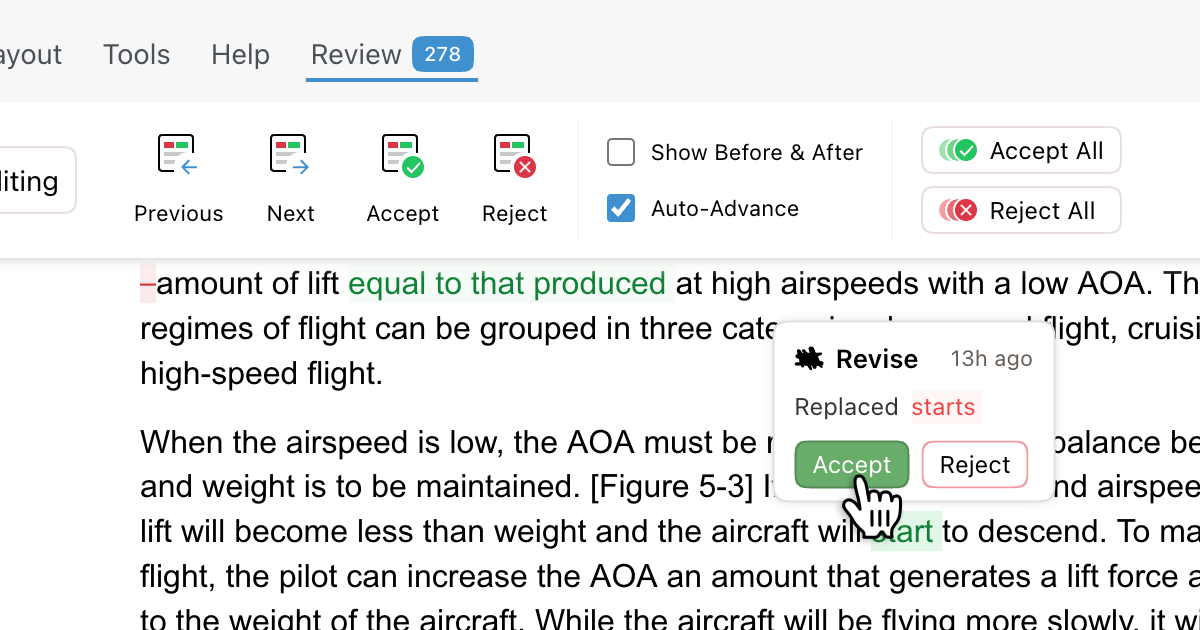
Revise is a browser document editor with a built-in AI agent. You paste a Google Doc or import it as a .docx, and the agent proposes text and formatting edits as suggestions you accept or reject. The built-in agent uses your Revise plan. The Free plan runs GPT-6 Luna with a daily AI limit, and paid plans add other GPT, Claude, Gemini, and Grok models. Pending suggestions export as Word tracked changes in a .docx, or you copy the text back to Google Docs.
You can also connect ChatGPT to Revise through Revise’s MCP server. This needs a Revise account, and Revise does not charge for it, but Revise’s hourly rate limits and your ChatGPT plan’s limits apply, and availability depends on your ChatGPT account. ChatGPT’s edits arrive as suggestions by default. Revise is a separate editor, so you bring the document back to Google Docs when you are done.
Google's built-in option
Gemini is Google’s own AI in Docs. Access depends on the feature and on having an eligible Google AI or Workspace plan. Our guide to Gemini in Google Docs covers the plans and limits.
The bottom line
The Google Drive app lets you ask ChatGPT for supported changes to a Google Doc without leaving ChatGPT. A third-party add-on lets you generate text and insert it from a sidebar inside Docs, as a separate product with its own pricing. On the Free plan, pasting or uploading a .docx works within ChatGPT’s upload limits, and you bring the text back yourself.
Sources
Prices and plan details were checked against each vendor’s own pages on October 4, 2026. Prices are in US dollars as each vendor lists them, and some include local tax. Vendors change plans often, so confirm on the linked page before you buy.
- ChatGPT: Pricing, Free tier FAQ, File uploads FAQ, Writing blocks, ChatGPT for Word, Capabilities overview, ChatGPT for Word, Creating documents with ChatGPT Work, Google Drive app, Google app data controls, Supported file types, ChatGPT for Google Sheets
- GPT for Sheets and Docs: GPT for Docs, Install, Pricing, Insert behavior, Marketplace listing
- GPT Workspace: Marketplace listing, Pricing
- Google Docs: Edit Office files, Version history, Suggest edits, Workspace pricing, Google AI plans, Gemini in Docs, Gemini features by plan, Gemini usage limits in Google apps, Edit Office files in Google Drive
- Revise: Pricing, Supported models, Agent capabilities, Word compatibility, Import and export, MCP server, Suggesting mode, AI usage limits