Team Folder & Mentions
Last updated
Every team has one shared folder, and every member can mention teammates in comments. Documents outside the folder stay private to the person who created them until that person shares them.
The team folder
The team folder is in the sidebar of the documents list, under My Documents. It has the team's name. Every member can open and edit everything in it, including documents inside its subfolders. Seat and role make no difference.
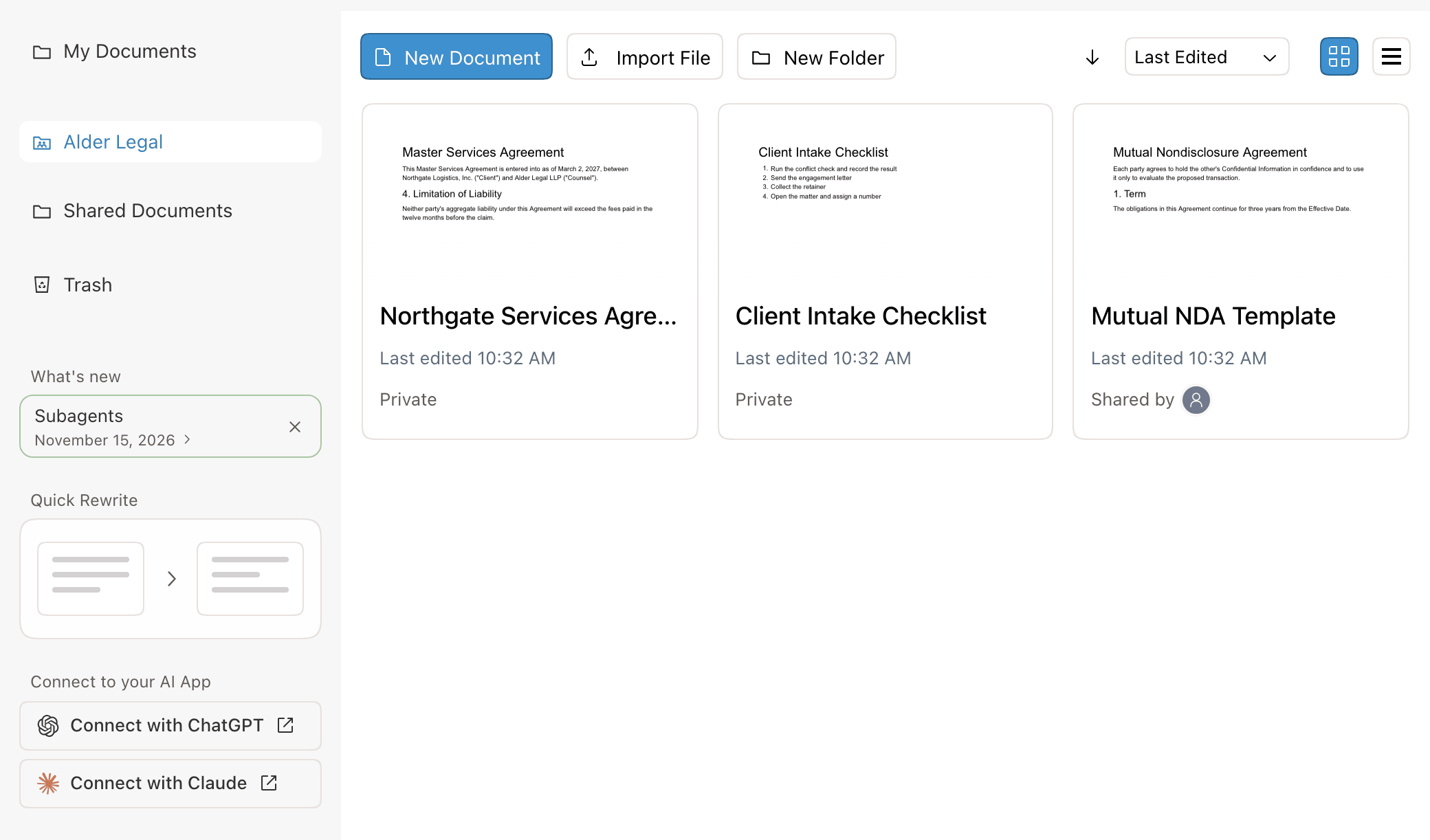
A document in the folder keeps its owner, the person who created it. A teammate's document shows Shared by with their picture on its card.
Add documents to the team folder
| To | Do this |
|---|---|
| Create a document in the folder | Open the folder and click New Document. |
| Import a file into it | Open the folder and click Import File. See Importing & Exporting. |
| Share a document you already have | Drag it from your documents onto the team folder in the sidebar. |
| Organize the folder | Open it and click New Folder. Everything in a subfolder is shared with the team too. |
| Stop sharing a document | Drag your document out of the folder, back to My Documents. |
Teammates open the document from the folder and edit it with you in real time. See Edit together in real time.
Mention a teammate in a comment
- Select text in a document. In the Review tab, click Add Comment.
- Type @. A list opens with the agent, the people on the document, and then everyone on your team.
- Keep typing to narrow the list. Click a name or press Enter to insert the mention.
- Finish the comment and post it.
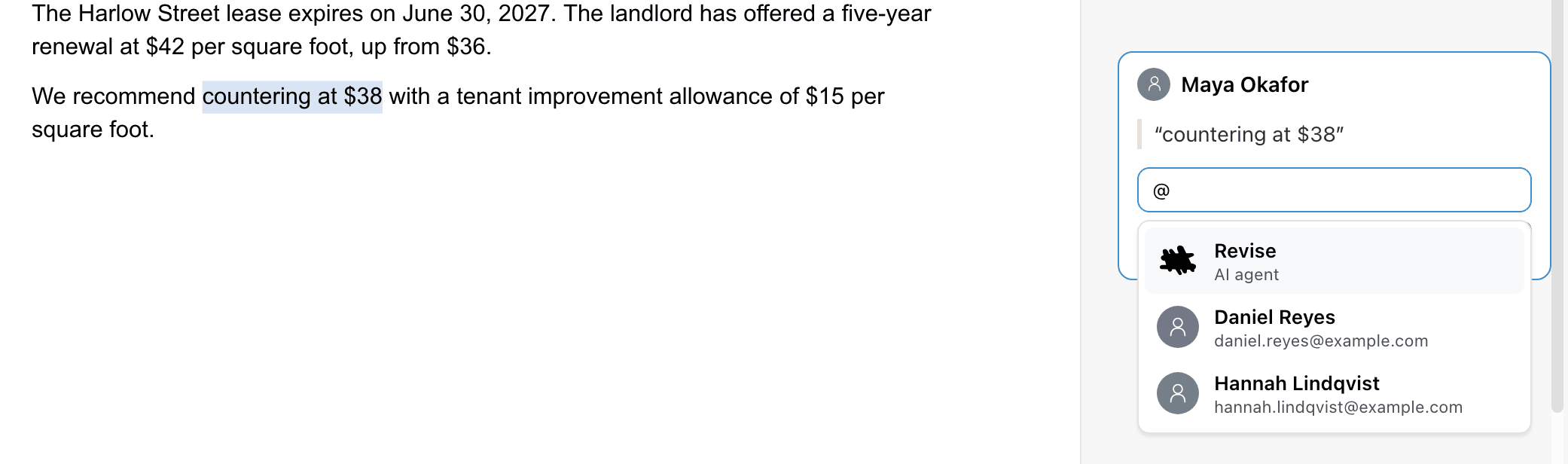
Mentions work the same way in replies. The person you mention gets an email with the comment, the text it is on, and a link that opens the document at that comment. A mention of you is highlighted in yellow. Other mentions are blue.
The list also includes people outside the team who you have shared documents with. Mentions need a document that is saved to your account.
Mentions and document access
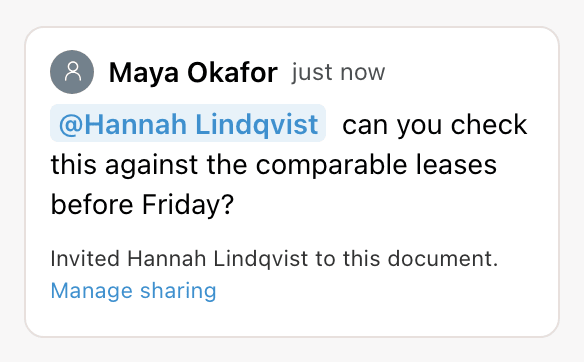
A mention gives access when it is needed. If the teammate cannot open the document yet, Revise adds them to it as an Editor. The comment then shows Invited with their name. The document's owner also sees Manage sharing, which opens the share dialog.
| The person you mention | What happens |
|---|---|
| Can already open the document | They get the email. Their access does not change. |
| Cannot open it, and you own it or can edit it | They are added as an Editor and get the email. |
| Cannot open it, and you can only suggest or view | They are not added. The comment shows that the invite failed. Ask the owner to share the document. |
To take access back, the owner opens Share and removes the person. See Change or remove access.
The agent in team documents
In a document other people can open, a comment goes to the agent only when it mentions @Revise. In a document only you can open, the agent answers every comment. See Ask for changes in a comment.
Each member's AI usage counts against their own seat: the team's shared allowance for a Pro seat, the daily allowance for a Free seat. See The shared AI allowance.
Limits
- A comment can mention up to 20 people.
- Each person gets one email per comment, however many times it mentions them.
- An account with an unverified email address can only add teammates by mention, not people outside the team.