Revise Teams
Last updated
Revise Teams lets you use Revise with a group of people. Teams can have a mix of Pro users who have full access to powerful AI editing, and Free users who can collaborate manually and use a small daily AI allowance.
Seats and roles
Each member has a seat and a role.
| Seat | What the member gets |
|---|---|
| Pro | Everything in the Pro plan, including every AI model. AI usage comes from the team's shared allowance. Billed to the team. |
| Free | Writing, editing, comments, and review, with the Free plan's daily AI allowance. No charge. |
| Role | What the member can do |
|---|---|
| Owner | Invite and remove members, change seats and roles, and manage billing. An owner always has a Pro seat. |
| Member | Work in the team. No access to team settings. |
A team can have several owners and always has at least one. The last owner cannot leave, be removed, or become a member until someone else is an owner.
Create a team
- Open Settings and choose Team.
- Click Create a Team.
- Pay for the first Pro seat, which is yours. If you already have a personal Pro plan, there is nothing to pay. See how a team plan starts.
- Under Name your team, enter a name and click Continue.
- Invite people by email, or copy the invite link.
You can also start from the plan list. On the Pro plan, set Who it's for to Team and click Start a Team.
You are the team's first owner. Your documents become part of the team and stay private until you share them. The team's name appears in the header. As an owner, click it to open team settings.
Invite members
Owners add people in Settings under Members.
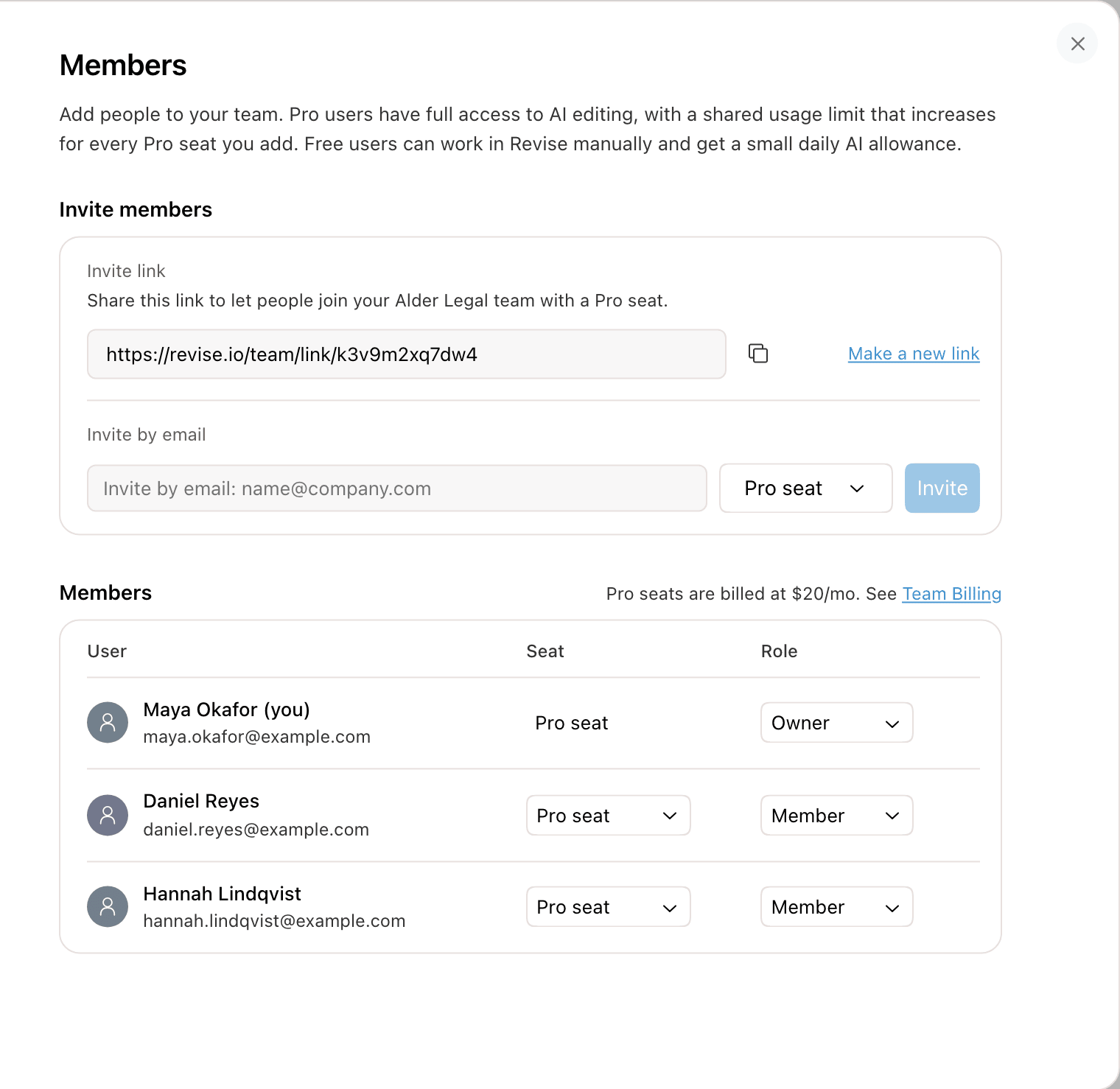
| Way in | How it works |
|---|---|
| Invite link | Anyone who opens the link and signs in joins with a Pro seat. Make a new link replaces the link, and the old one stops working. |
| Invite by email | Enter an address, choose Pro seat or Free seat, and click Invite. The invite expires after 14 days. It only works for the address it was sent to. Revoke withdraws it. |
| Company domain | If an owner signs in with Google Workspace, the team is open to that domain. Coworkers who sign in with Google on the same domain can join from Settings, Team, without an invite. Owners choose the seat they get. The default is a Pro seat. |
Each owner gets an email when someone joins. The email says which seat the person took.
Join a team
Open the invite or the link and sign in or create an account. Revise shows the team's name and the seat you are offered. Click Join.
- An account is on one team at a time. To join another team, leave the current one first.
- A member of a team has no personal plan. If you have one, joining ends it and refunds the unused time. Revise asks you to confirm first.
- Your documents become part of the team. They stay private until you share them.
Change a seat or role
In Members, each row has a Seat menu and a Role menu. A change takes effect at once. Changing a seat changes the team's bill. See how seats are billed.
A member on a Free seat who reaches the daily AI limit can click Request a Pro seat. Owners get an email, and the request appears in Members under Pro seat requests. Click Give a Pro seat or Decline.
Remove a member or leave a team
To remove someone, open their Role menu, choose Remove from team, and click Remove. To leave a team yourself, open Settings, General, and click Leave team. An owner changes their own role to Member first.
Someone an owner removed cannot come back through the invite link or the company domain. A new email invite lets them back in.